Introduction:
Managing outbound email activity is crucial for maintaining server performance, preventing spam, and protecting your mail server’s reputation. WHM allows administrators to set a global hourly email sending limit, ensuring that no domain can exceed a predefined threshold. This helps avoid email abuse, accidental mail loops, and IP blacklisting.
This guide explains how to configure this global limit using only the WHM GUI.
Prerequisites:
- Root access to WHM (WebHost Manager).
- Valid IP address(es) provided or routed by your hosting/cloud provider.
- Basic understanding of network configuration.
Step 1: Log in to WHM
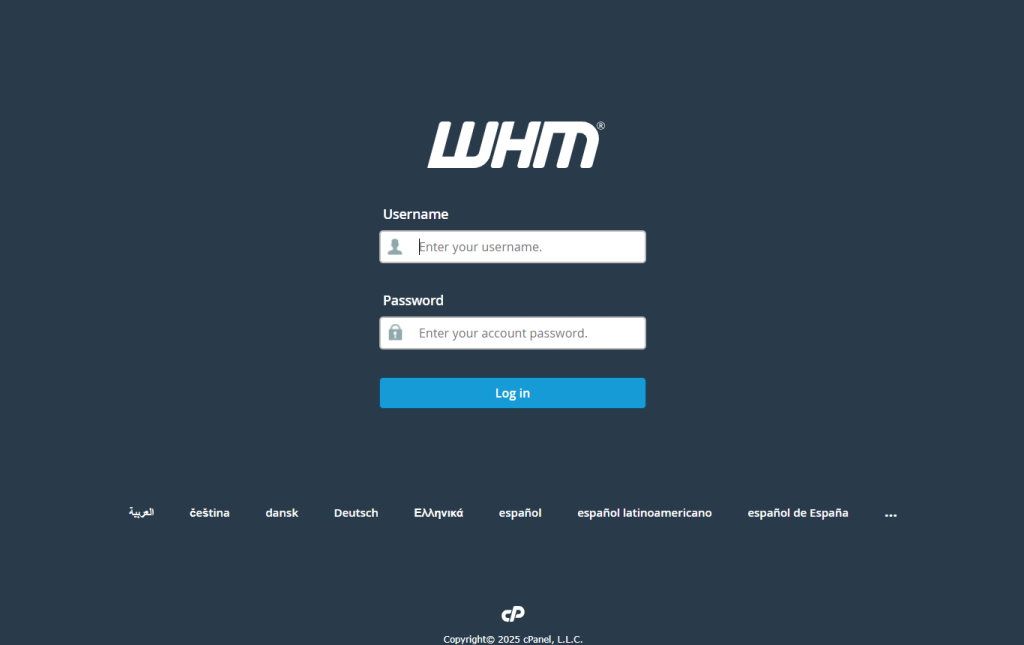
- Log in to WHM
- Login as
root→ URL:https://yourserverip:2087
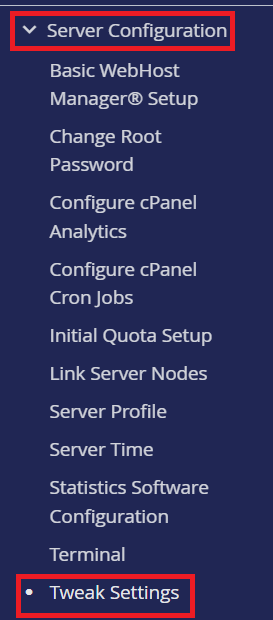
Step 2: Open Tweak Settings
Home → Server Configuration → Tweak Settings
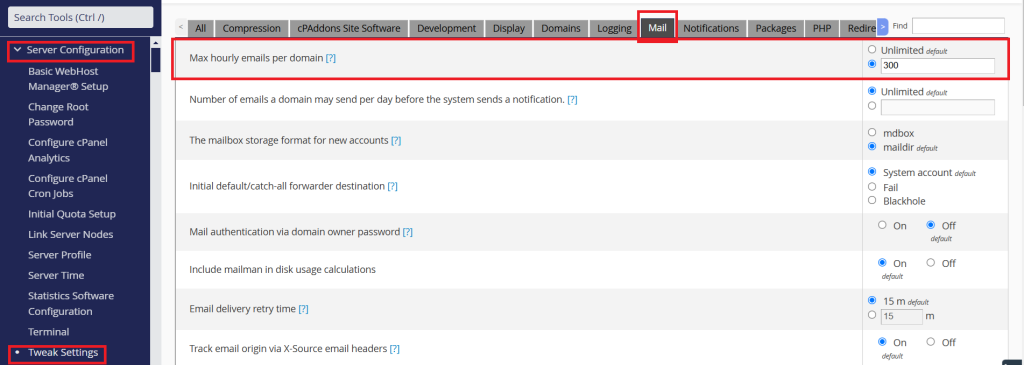
Step 3: Go to the Mail Tab
- Inside Tweak Settings, click on the Mail tab from the top navigation.
- Scroll until you find the setting: ” Max hourly emails per domain“
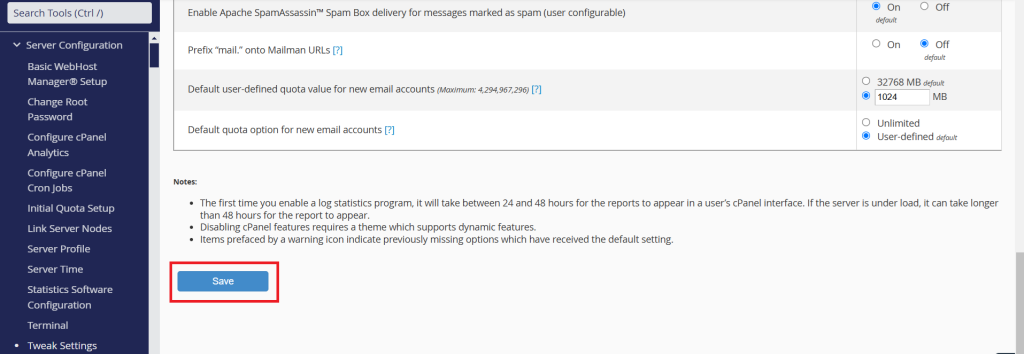
Step 4: Save the Settings
- Scroll down.
- Click Save to apply the new global limit.
Conclusion:
By setting a global outbound email limit in WHM, you protect your server from abuse, reduce the risk of spam-related issues, and maintain overall mail stability. These limits ensure consistent email flow and help safeguard your server’s IP reputation. You can still override this global limit for specific accounts when necessary, giving you both flexibility and control.