Introduction
WHM allows server administrators to manage multiple cPanel accounts from a single control panel. Each cPanel account has a contact email address used for important notifications such as disk usage alerts, password changes, account updates, and other system-related messages.
This guide explains how to change the contact email address of a cPanel account through WHM.
Prerequisites
Before proceeding, make sure you have the following details:
- WHM login details
- New contact email address
- cPanel account username
- Required WHM access permissions
Steps to Change Contact Email via WHM
Step 1: Log in to WHM
Log in to your WHM panel using your WHM username and password.

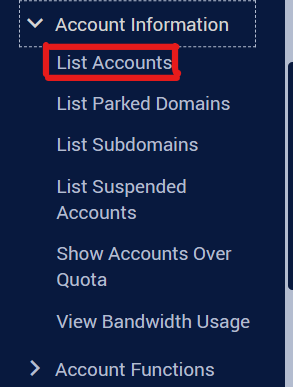
Step 2: Go to List Accounts
From the WHM dashboard, navigate to:
Account Information → List Accounts
Step 3: Find the cPanel Account
Search for the cPanel account for which you want to update the contact email address.
You can search using the domain name, username, or existing email address.
Step 4: Expand the Account Details
Click the “+” icon on the left side of the account entry to expand the account options.

Step 5: Update the Contact Email
In the Change Contact Email field, enter the new email address.
Make sure the email address is valid and accessible.
Step 6: Save the Changes
Click the Change button to update the contact email address.
Once updated, WHM will save the new email address for that cPanel account.
Conclusion
The contact email address for the selected cPanel account has now been successfully updated via WHM. Future account-related notifications and alerts will be sent to the newly updated email address.