Introduction
WordPress is a content management system (CMS) that allows us to host and build websites. WordPress contains plugin architecture and a template system, so we can customize any website to fit our business, blog, portfolio, or online store
Prerequisite
1. WordPress admin credentials
2. cPanel Logins
Implementation
Step 1: Log in to WordPress with the username and password
Note: click on ” I’m not a robot “
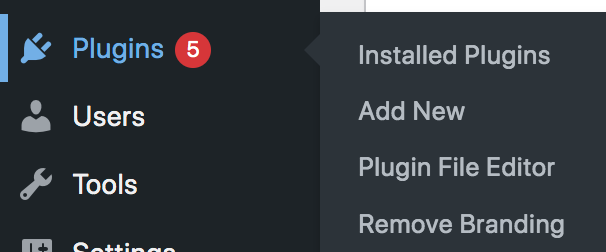
Step 2: Update the existing plugin or / Install a new plugin
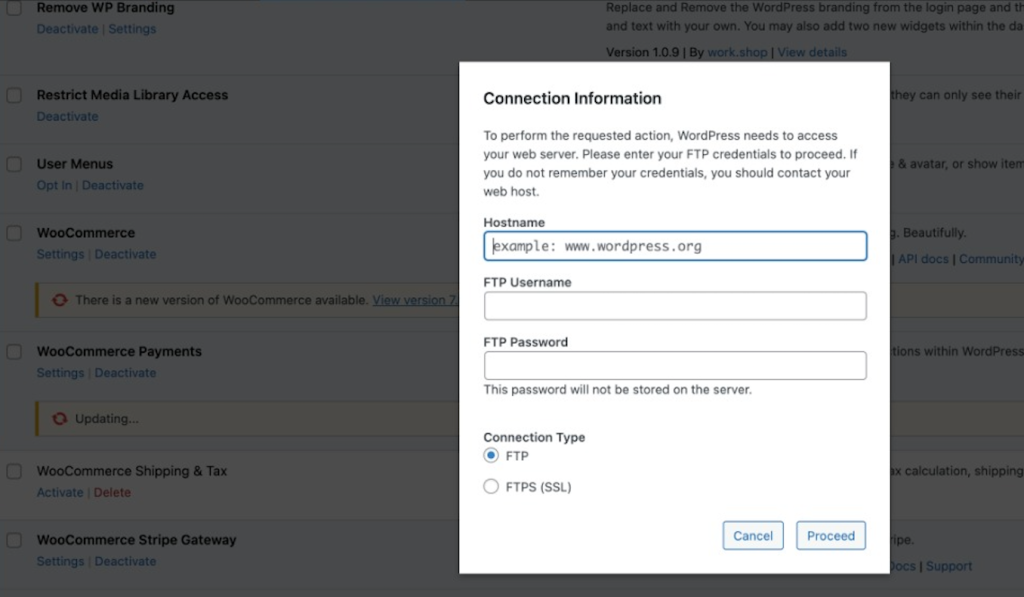
Step 3: It will prompt you to update the FTP credentials to proceed. To fix this issue, follow the steps below
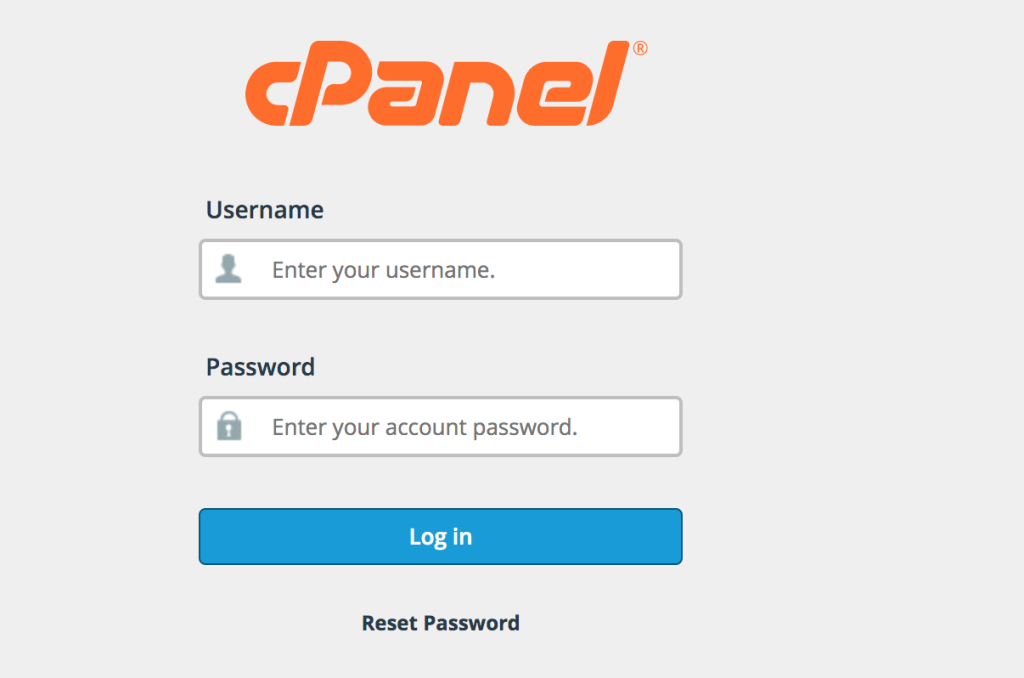
Step 4: Log in to the cPanel account
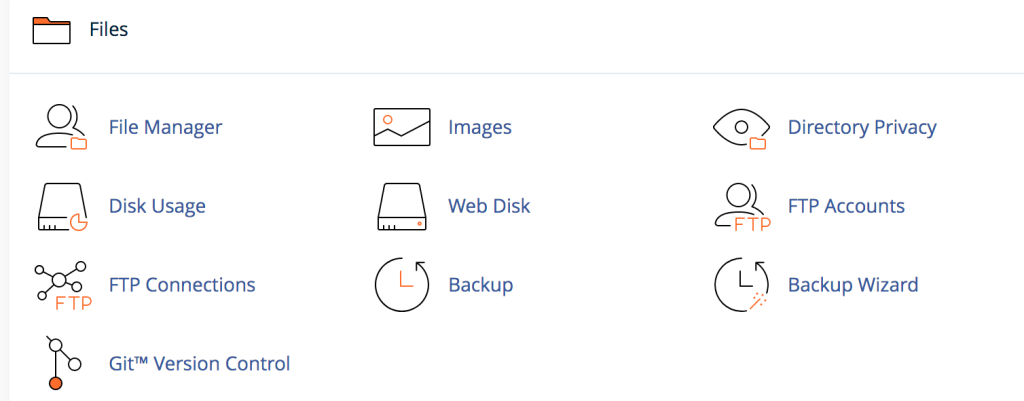
Step 5: Click on “file manager” under the “Files” section.
Step 6: Navigate to the document root and find the wp-config.php file
Step 7: Right-click on the wp-config.php file and click on “edit.”
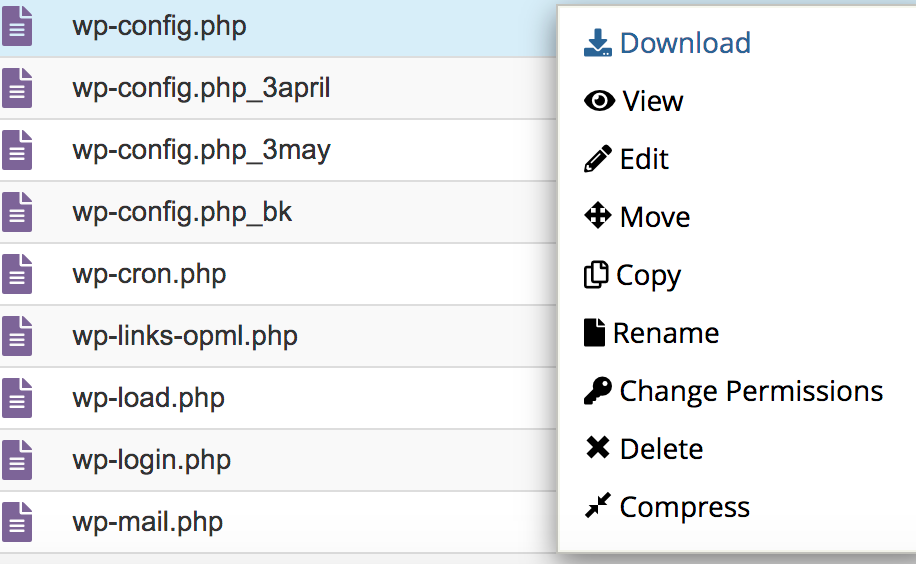
Note: Take a backup of the file before modifying it for the safer side
Step 8: Add the lines below at the bottom of the file and click on Save Changes
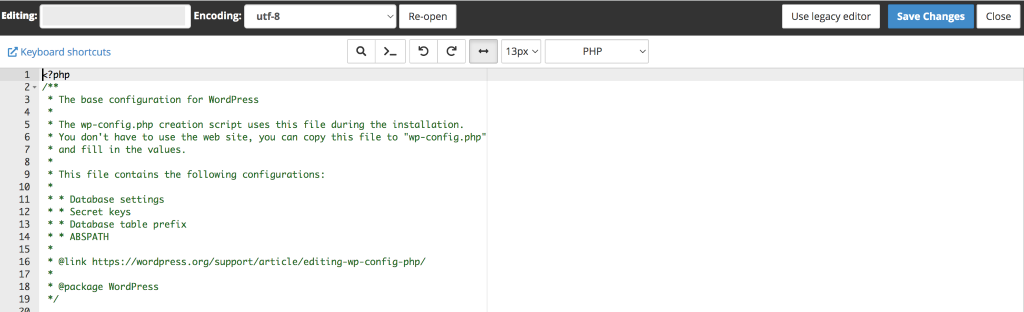
| define(‘FS_METHOD’, ‘direct’); define(‘FS_CHMOD_DIR’,0755); define(‘FS_CHMOD_FILE’,0644); |
Step 9: Reload the WordPress dashboard page. Now we can update or install plugins and themes without being asked for FTP credentials

Conclusion
By updating the WordPress configuration file with the appropriate filesystem settings, WordPress can directly manage plugin and theme installations without requiring FTP credentials. This simplifies website administration and ensures that updates, plugin installations, and theme changes can be performed seamlessly through the WordPress dashboard. Always take a backup of the wp-config.php file before making any modifications to avoid configuration-related issues.