Post Date: October 28, 2026
Introduction
When performing website updates, troubleshooting issues, or making configuration changes, you may need to temporarily prevent visitors from accessing your website. Plesk provides a maintenance mode feature that allows you to display a maintenance page instead of the website’s normal content.
This article explains how to enable and disable maintenance mode in Plesk. It covers both standard websites and WordPress websites managed through WP Toolkit.
Prerequisites
Before proceeding, ensure that you have:
- Access to the Plesk control panel.
- The necessary permissions to manage the website or domain.
- Identified the website you want to place into maintenance mode.
- A backup of your website if you are planning to perform major updates or configuration changes.
Implementation
Method 1: Enable Maintenance Mode for a Website in Plesk
Use this method for websites where the Plesk Website Maintenance Mode option is available.
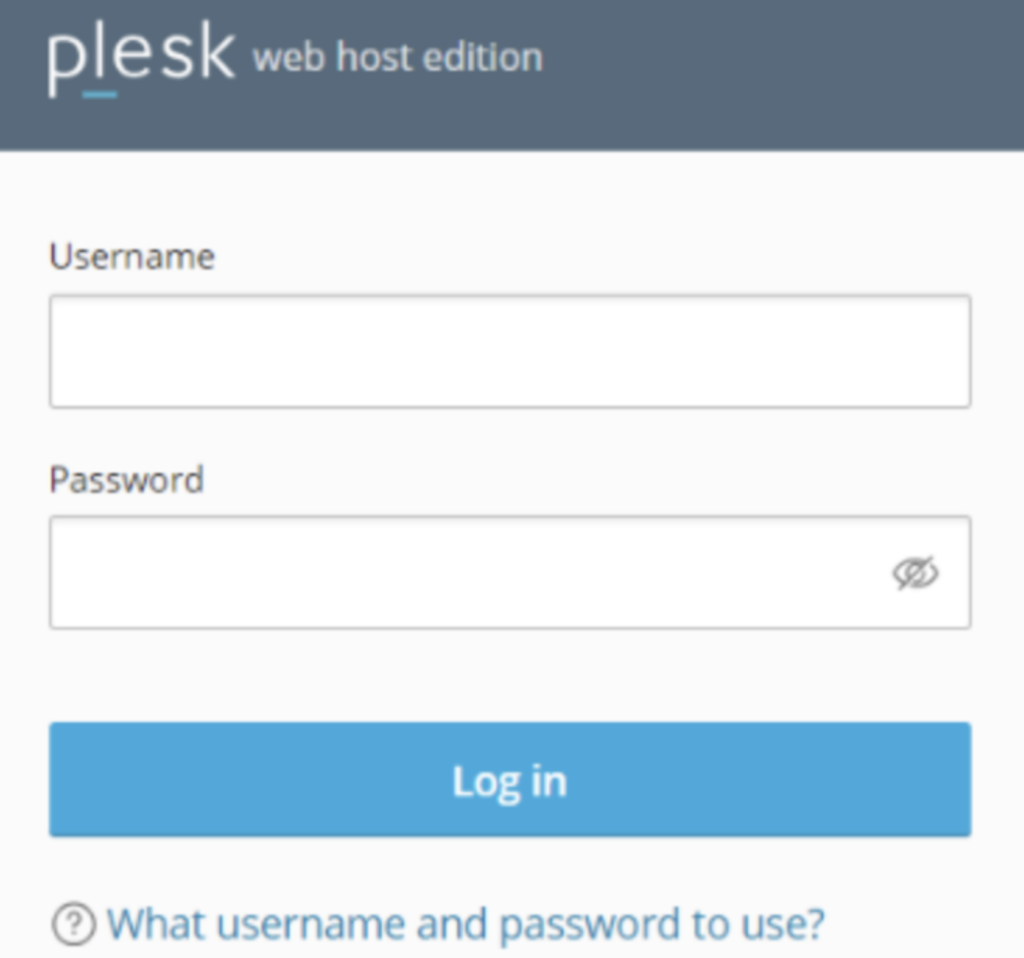
Step 1: Log in to Plesk
- Open your Plesk control panel in a web browser.
- Enter your Plesk username and password.
- Click Log in.
Step 2: Open Websites & Domains
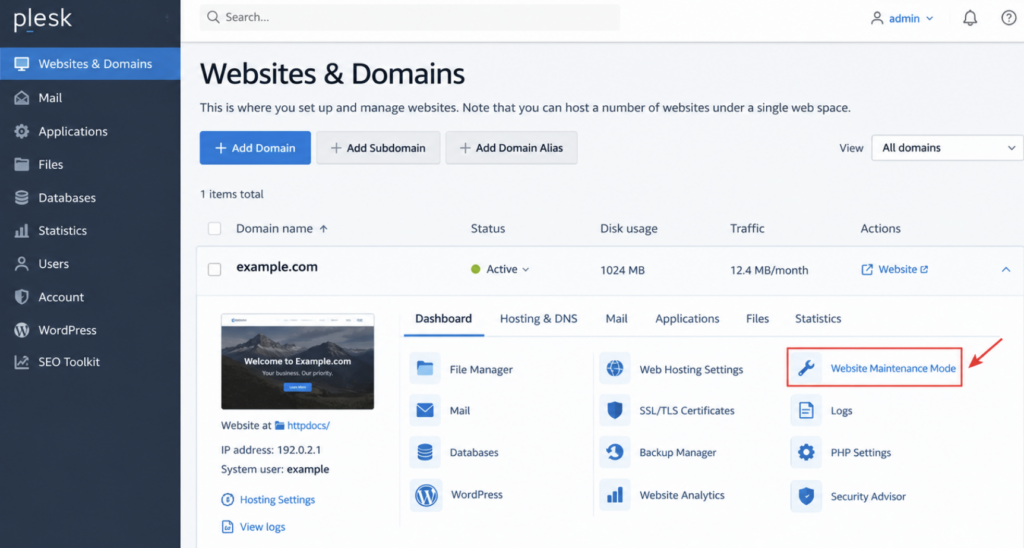
- From the Plesk dashboard, navigate to Websites & Domains.
- Locate the domain for which you want to enable maintenance mode.
- Look for the Website Maintenance Mode option. Depending on your Plesk version and interface, it may be available under additional or advanced options.
Step 3: Open Website Maintenance Mode
- Click Website Maintenance Mode for the selected domain.
- If multiple websites are listed, locate the correct website and open its maintenance settings.
Step 4: Enable Maintenance Mode
- Select the checkbox labeled Switch on the maintenance mode for website, if this option is available.
- Review the selected domain to ensure you are changing the correct website.
- Click OK to apply the changes.
Plesk will activate maintenance mode for the selected website. Visitors will see a maintenance or service-unavailable page instead of the normal website content.
Method 2: Enable Maintenance Mode for a WordPress Website
If your website is built with WordPress and managed through Plesk WP Toolkit, you can enable maintenance mode directly from the WordPress management interface.
Step 1: Open WordPress in Plesk
- Log in to Plesk.
- Navigate to WordPress from the left-hand menu, or open the WordPress management section for the selected domain.
- Locate the WordPress installation you want to place into maintenance mode.

Step 2: Enable Maintenance Mode
- Locate the relevant WordPress installation card.
- Find the Maintenance mode setting.
- Switch on the maintenance mode control.
The website will display its maintenance screen to visitors while the maintenance mode setting remains enabled.

Step 3: Customize the Maintenance Page (Optional)
If you want to customize the maintenance message:
- Open the settings icon next to Maintenance mode.
- Select the available customization option.
- Update the maintenance text or other supported settings.
- Preview the page if the option is available.
- Click OK to save your changes.
The available customisation options depend on the WP Toolkit version and configuration.
For more information, refer to the official Plesk WP Toolkit documentation.
Method 3: Disable Maintenance Mode and Restore Website Access
After completing the maintenance work, disable maintenance mode to make the website available to visitors again.
For a Standard Website
- Log in to Plesk.
- Navigate to Websites & Domains.
- Open Website Maintenance Mode for the relevant domain.
- Clear the Switch on the maintenance mode for website checkbox.
- Click OK to save the changes.
For a WordPress Website
- Open WordPress in Plesk.
- Locate the relevant WordPress installation.
- Switch off Maintenance mode.
- Open the website in a browser to verify that normal content is available.
Step 4: Verify the Website
After disabling maintenance mode:
- Open the website in a new browser tab.
- Refresh the page or open it in a private browsing window.
- Confirm that the website’s normal content loads correctly.
- If the maintenance page still appears, check the website’s configuration, caching, and any additional maintenance settings configured by the application or its plugins.
Conclusion
Plesk makes it possible to temporarily restrict public access to a website during maintenance. For standard websites, use the Website Maintenance Mode option when available. For WordPress websites managed through WP Toolkit, use the dedicated Maintenance mode control.
After completing the required work, disable maintenance mode and verify that the website is accessible again.
Frequently Asked Questions
1. Will enabling maintenance mode delete my website files?
No. Enabling maintenance mode does not normally delete or modify your website files. It changes what visitors see while maintenance mode is active.
2. Can I enable maintenance mode for only one domain?
Yes. You can enable maintenance mode for a specific domain when the corresponding feature is available and you have the required permissions.
3. How do I enable maintenance mode for a WordPress website in Plesk?
Open WordPress in Plesk, locate the relevant installation, and switch on Maintenance mode in WP Toolkit.
4. How do I disable maintenance mode?
Open the same maintenance settings used to enable it and switch the setting off. For standard websites, clear the maintenance mode checkbox and save the changes. For WordPress, turn off the Maintenance mode control in WP Toolkit.
5. Why is my website still showing the maintenance page after I disabled maintenance mode?
The page may be cached, or another maintenance setting may still be active. Clear the relevant application or proxy cache, check WordPress plugins if applicable, and verify the website in a private browser window.
6. Can I customize the maintenance page in Plesk?
For WordPress websites managed through WP Toolkit, supported customization options include changing the message and other display settings. For standard websites, customization depends on the available error-document and hosting configuration options.
Related Articles
- How to Check WordPress Core File Integrity in Plesk
- How to Check and Update WordPress Plugins and Themes in Plesk Panel
Need Assistance?
Need help managing your website or configuring maintenance settings in Plesk? Contact the Pheonix Solutions team for assistance.
Contact Pheonix Solutions Support