Post Date: November 13, 2026
Introduction
Securing your website with HTTPS is essential for protecting user information, maintaining visitor trust, and improving website security. However, installing an SSL/TLS certificate alone does not automatically ensure that visitors accessing your website through HTTP are redirected to the secure HTTPS version.
If your website is hosted on a Plesk server, you can enable automatic HTTP-to-HTTPS redirection through the hosting settings. Plesk provides a built-in option to configure a permanent 301 redirect without manually modifying website configuration files.
In this article, we will explain how to enable HTTP-to-HTTPS redirection in Plesk, verify that the redirect works correctly, and troubleshoot common issues.
Why Redirect HTTP to HTTPS?
HTTP transfers information between a browser and a web server without encryption. HTTPS uses SSL/TLS encryption to protect data exchanged between visitors and your website.
Redirecting HTTP traffic to HTTPS provides several benefits:
- Improved security: Encrypts communication between visitors and your website.
- Data protection: Helps protect sensitive information, including login credentials and form submissions.
- Visitor trust: Browsers display a secure connection indicator when a valid certificate is installed.
- Consistent website access: Ensures visitors are directed to the secure version regardless of whether they enter HTTP or HTTPS.
Prerequisites
Before enabling HTTP-to-HTTPS redirection in Plesk, make sure you have:
- Access to your Plesk control panel.
- A domain hosted on the Plesk server.
- A valid SSL/TLS certificate installed for the domain.
- SSL/TLS support enabled in the domain’s hosting settings.
- HTTPS access working correctly before enabling the redirect.
You can use a free Let’s Encrypt certificate or another certificate issued by a trusted Certificate Authority.
How to Enable HTTP to HTTPS Redirect in Plesk
Follow the steps below to configure automatic HTTPS redirection.
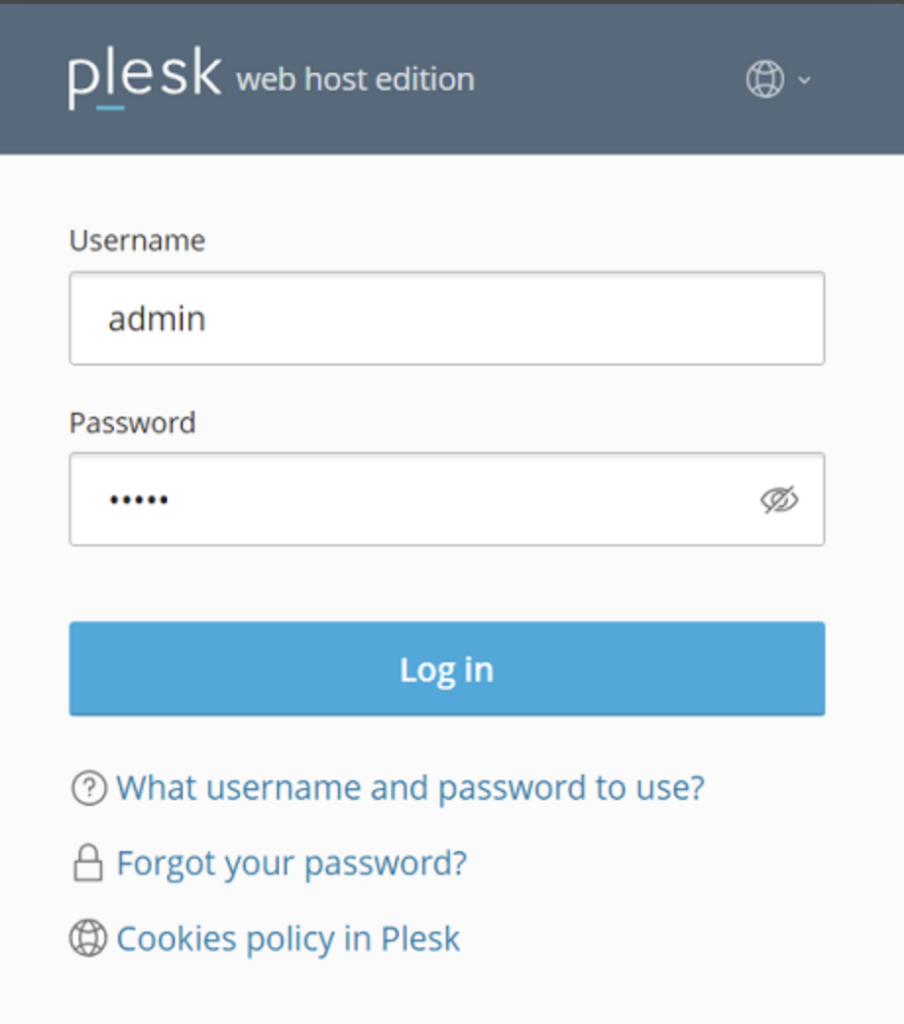
Step 1: Log in to Plesk
Open your Plesk control panel using your server’s Plesk URL and log in with your administrator or domain subscription credentials.
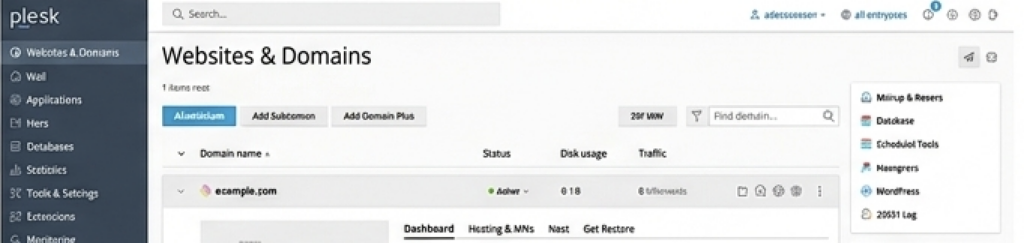
Step 2: Open the Domain Hosting Settings
- Navigate to Websites & Domains.
- Select the domain for which you want to enable HTTPS redirection.
- Open Hosting & DNS or Hosting Settings, depending on your Plesk version.
- Locate the Security or SSL/TLS support section.
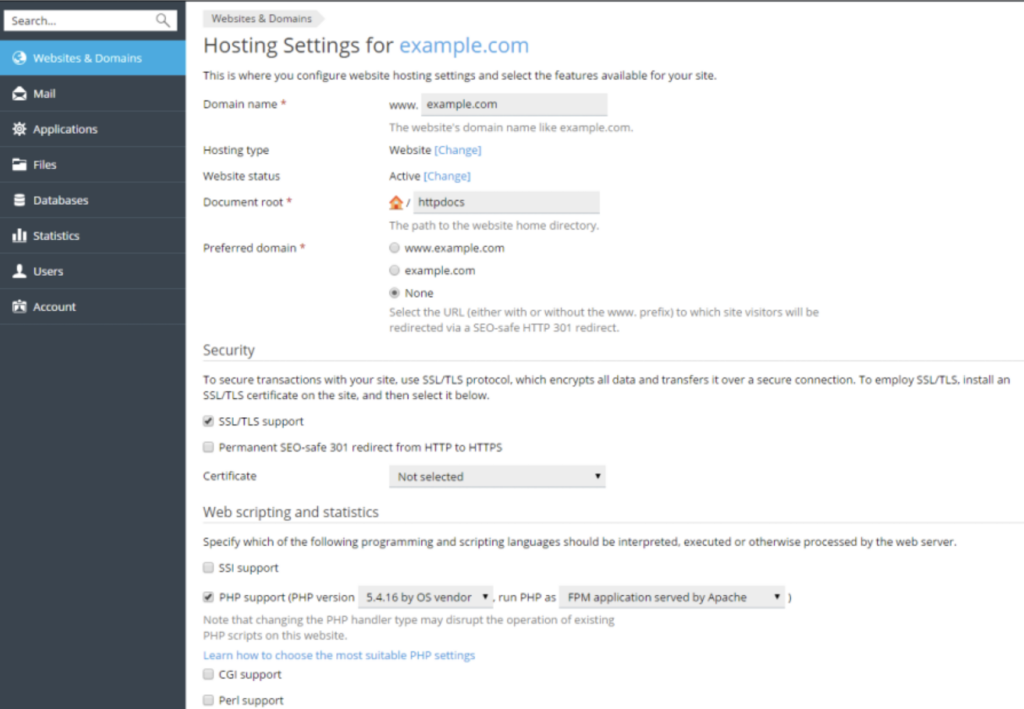
Step 3: Enable SSL/TLS Support
Make sure the SSL/TLS support option is enabled.
Select the SSL/TLS certificate assigned to your domain from the available certificate list.
If you have not installed an SSL certificate, install a valid certificate before proceeding.
Step 4: Enable HTTP to HTTPS Redirection
Under the SSL/TLS settings, locate the following option:
Redirect visitors from HTTP to HTTPS via a 301 redirect
Enable this option and confirm that the correct SSL/TLS certificate is selected.
Click Save or Apply to update the domain’s hosting configuration.
Plesk will now automatically redirect visitors from the HTTP version of your website to its HTTPS version using a permanent 301 redirect.
Alternative Methods to Enable HTTPS Redirection
If the built-in Plesk option is unavailable or cannot be modified, you can configure HTTPS redirection using alternative methods. The appropriate method depends on your server operating system and web server configuration.
Method 1: Enable HTTPS Redirection Using .htaccess (Linux)
For websites processed by Apache, you can configure HTTP-to-HTTPS redirection using the .htaccess file.
- Log in to Plesk.
- Navigate to Websites & Domains.
- Open File Manager for your domain.
- Locate the
.htaccessfile in your website’s document root. - Add the following rules:
<IfModule mod_rewrite.c>
RewriteEngine On
RewriteCond %{HTTPS} !=on
RewriteRule ^(.*)$ https://%{HTTP_HOST}%{REQUEST_URI} [L,R=301]
</IfModule>- Save the file and test your website.
Note: This method applies to websites processed by Apache with the required rewrite module enabled. If Nginx handles the request directly, .htaccess rules will not be processed.
Method 2: Enable HTTPS Redirection Using Apache and Nginx Directives
On Plesk for Linux, you can configure redirection through additional web server directives.
- Log in to Plesk.
- Navigate to Websites & Domains.
- Select your domain and open Apache & nginx Settings.
- Add the following rules under Additional directives for HTTP:
<IfModule mod_rewrite.c>
RewriteEngine On
RewriteCond %{HTTPS} !=on
RewriteRule ^(.*)$ https://%{HTTP_HOST}$1 [R=301,L]
</IfModule>- If Nginx is enabled and handles HTTP requests directly, configure the appropriate Nginx redirect directive under Additional nginx directives:
if ($ssl_protocol = "") {
    rewrite ^/(.*)$ https://$server_name/$1 permanent;
}- Save the configuration and verify the website.
Important: Use only one effective redirection mechanism for the same HTTP request. Avoid configuring conflicting rules in Plesk, Apache, Nginx, and .htaccess, as this can cause redirect loops.
Method 3: Enable HTTPS Redirection Using Plesk CLI (Linux)
If you have SSH access to a Plesk Linux server, you can enable HTTPS redirection using the Plesk command-line interface.
To enable SSL/TLS support for a domain, run:
plesk bin site -u example.com -ssl trueTo enable HTTP-to-HTTPS redirection, run:
plesk bin site -u example.com -ssl-redirect trueTo assign a specific SSL certificate, run:
plesk bin site -u example.com -certificate-name "Certificate Name"Replace example.com with your actual domain name and Certificate Name with the certificate name available in Plesk.
Note: Run these commands with the required administrative privileges. Verify the domain’s SSL configuration before enabling the redirect.
Method 4: Enable HTTPS Redirection Using web.config (Windows)
For websites hosted on Plesk for Windows, you can configure HTTP-to-HTTPS redirection through the web.config file.
- Log in to Plesk.
- Navigate to Websites & Domains.
- Open File Manager for your domain.
- Locate and edit the
web.configfile in the website’s document root. - Add the following configuration inside the
<system.webServer>section:
<rewrite>
    <rules>
        <rule name="HTTP to HTTPS Redirect" stopProcessing="true">
            <match url="(.*)" />
            <conditions>
                <add input="{HTTPS}" pattern="off" ignoreCase="true" />
            </conditions>
            <action type="Redirect"
                    url="https://{HTTP_HOST}/{R:1}"
                    redirectType="Permanent" />
        </rule>
    </rules>
</rewrite>- Save the file and test your website.
Note: If your web.config already contains a <rewrite> or <rules> section, add the new rule inside the existing rules section rather than creating duplicate sections. The IIS URL Rewrite module must be installed and enabled.
How to Verify HTTP to HTTPS Redirection
After enabling the redirect, verify that your website automatically redirects HTTP requests to HTTPS.
Method 1: Test Using a Web Browser
- Open a web browser.
- Enter your website address using HTTP:
http://example.com - Press Enter.
- Check whether the browser automatically redirects to:
https://example.com - Confirm that the website loads without SSL certificate warnings.
Method 2: Verify Using the curl Command
You can also check the redirect response using the curl command from a terminal.
Run:
curl -I http://example.comA successful permanent redirect should return a response similar to:
HTTP/1.1 301 Moved Permanently
Location: https://example.com/
The 301 Moved Permanently status confirms that HTTP requests are being redirected to HTTPS.
To follow the redirect and check the final response, run:
curl -IL http://example.comCommon Issues and Troubleshooting
Sometimes, HTTP-to-HTTPS redirection may not work as expected. Here are some common issues and their possible solutions.
1. SSL Certificate Is Not Installed
Issue: The website displays an SSL certificate warning or cannot be accessed over HTTPS.
Solution: Install a valid SSL/TLS certificate for the domain and ensure that it is assigned to the website in Plesk.
2. HTTPS Redirection Option Is Grayed Out
Issue: The HTTP-to-HTTPS redirect option is unavailable in Plesk.
Solution: Check whether SSL/TLS support is enabled and whether your hosting provider’s service plan or subscription permissions restrict changes to hosting settings. Contact your hosting provider if the setting remains unavailable.
3. Too Many Redirects Error
Issue: The browser displays a redirect loop or “too many redirects” error.
Solution: Check for conflicting redirect rules in Plesk, .htaccess, Apache, Nginx, or your application configuration. Keep one consistent HTTP-to-HTTPS redirect rule and verify any reverse proxy or CDN SSL settings.
4. Website Is Not Loading Over HTTPS
Issue: The website works over HTTP but fails when accessed through HTTPS.
Solution: Verify that SSL/TLS support is enabled, the correct certificate is assigned, and the web server is listening on port 443. Check the certificate’s validity and domain coverage.
5. Redirect Is Not Working After Configuration
Issue: The website continues to load over HTTP even after enabling the redirect.
Solution: Confirm that the hosting settings were saved successfully. Check for conflicting application-level rules and test using curl -I. Also test in a private browser window to rule out cached redirects.
Conclusion
Enabling HTTP-to-HTTPS redirection in Plesk is an important step toward securing your website and ensuring visitors always use an encrypted connection.
The recommended approach is to install a valid SSL/TLS certificate, enable SSL/TLS support, and activate the built-in 301 redirect option in the domain’s hosting settings.
If the built-in option is unavailable, you can configure redirection using .htaccess, Apache/Nginx directives, the Plesk CLI, or the Windows web.config file, depending on your hosting environment.
Always verify the redirect after configuration to ensure that HTTP requests reach the correct HTTPS URL without errors or redirect loops.
Frequently Asked Questions (FAQs)
1. How do I enable HTTP to HTTPS redirection in Plesk?
Log in to Plesk, navigate to your domain’s hosting settings, enable SSL/TLS support, and activate the Redirect visitors from HTTP to HTTPS via a 301 redirect option.
2. Do I need an SSL certificate before enabling HTTPS redirection?
Yes. A valid SSL/TLS certificate must be installed and assigned to your domain before enabling HTTPS redirection. Otherwise, visitors may encounter certificate warnings or connection errors.
3. What is the difference between a 301 and a 302 redirect?
A 301 redirect indicates that a page has permanently moved to another URL, while a 302 redirect indicates a temporary move. For permanent HTTP-to-HTTPS redirection, a 301 redirect is generally recommended.
4. Can I enable HTTPS redirection using an .htaccess file?
Yes. On Linux servers where Apache processes the website and mod_rewrite is enabled, you can configure HTTP-to-HTTPS redirection using .htaccess rules.
5. How can I check whether HTTP-to-HTTPS redirection is working?
Run curl -I http://example.com from a terminal. A successful permanent redirect should return an HTTP 301 status and a Location header pointing to the HTTPS URL.
References
- Plesk: How to enable redirection from HTTP to HTTPS for a domain
- Plesk Documentation: General Hosting Settings
- Plesk Documentation: Securing Connections with SSL/TLS Certificates
Related Articles
- How to Change the PHP Version of a Website in Plesk
- How to Enable Maintenance Mode for a Website in Plesk
Need Assistance?
Need help configuring HTTPS redirection, installing SSL certificates, or troubleshooting website security issues in Plesk?
The Pheonix Solutions technical team can assist you with Plesk configuration, SSL/TLS management, server administration, and website troubleshooting.
For assistance, contact us.