Post Date: November 06, 2026
Introduction
FTP (File Transfer Protocol) allows users to upload, download, and manage website files on a hosting server. Fortunately, Plesk provides a simple way to create and manage FTP accounts for individual domains.
By creating separate FTP accounts, website owners can give developers access to specific website folders without sharing the main hosting login details. As a result, each user can manage only the files assigned to them.
This guide explains how to create a new FTP account in Plesk. Additionally, you will learn how to configure its username, password, and home directory.
Prerequisites
Before you begin, make sure you have the following requirements ready:
- Access to the Plesk Control Panel.
- Administrator or subscription-level permissions to manage FTP accounts.
- An active domain or website configured in Plesk.
- A strong password for the new FTP account.
- The website directory that you want to assign to the FTP user.
Implementation
Steps to Create an FTP Account in Plesk
1. Log in to Plesk
- First, open your Plesk Control Panel.
- Next, log in using your Plesk administrator or subscription credentials.
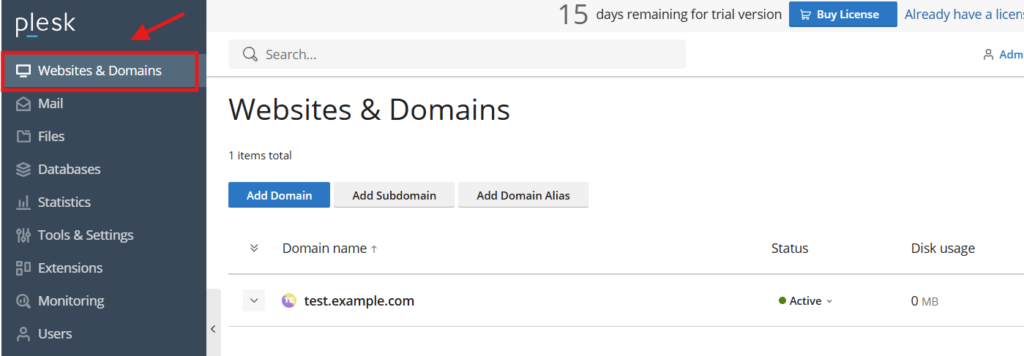
- After logging in, navigate to Websites & Domains.
- Finally, select the domain for which you want to create an FTP account.
2. Open FTP Access
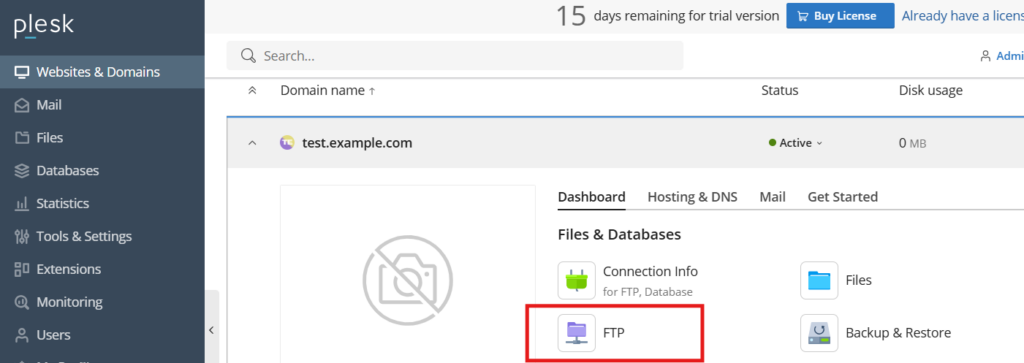
- Under the selected domain, locate FTP Access.
- Then, click FTP Access to open the account management page.
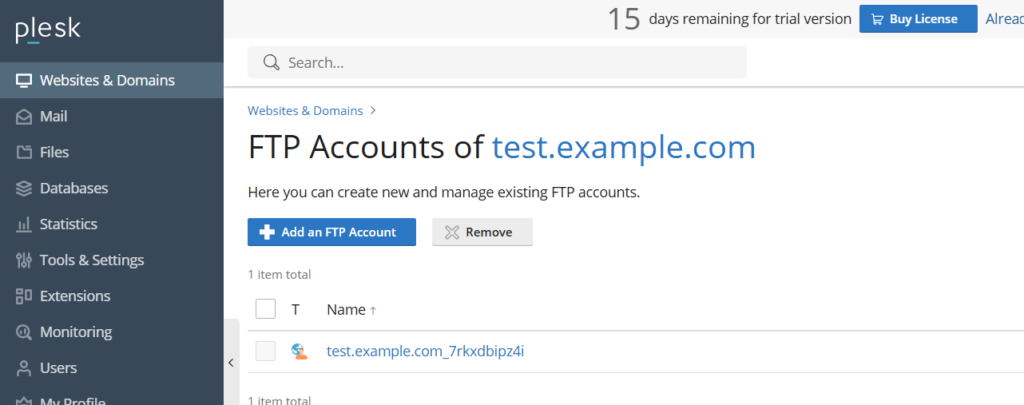
- The page will display a list of existing FTP accounts. If no additional accounts exist, you can proceed with creating a new one.
3. Create a New FTP Account
- To begin, click Add an FTP Account.
- Next, enter the required information:
| Field | Description |
|---|---|
| FTP account name | Enter a username for the FTP account. |
| Home directory | Select the directory the FTP user is allowed to access. |
| New password | Enter a strong password. |
| Confirm password | Re-enter the password for confirmation. |
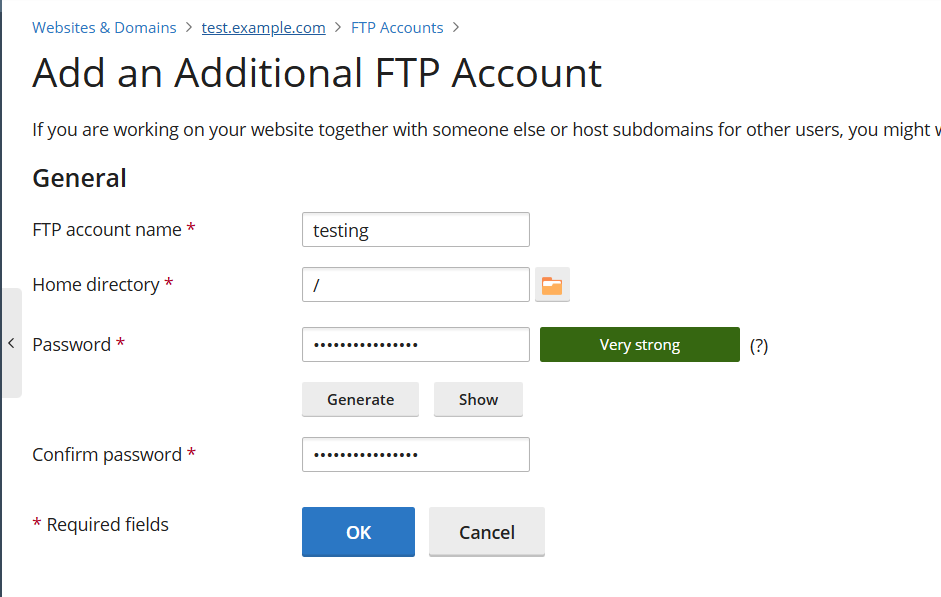
3. Finally, review the details and click OK. Plesk will then create the new FTP account.
Step 4: Verify the FTP Account
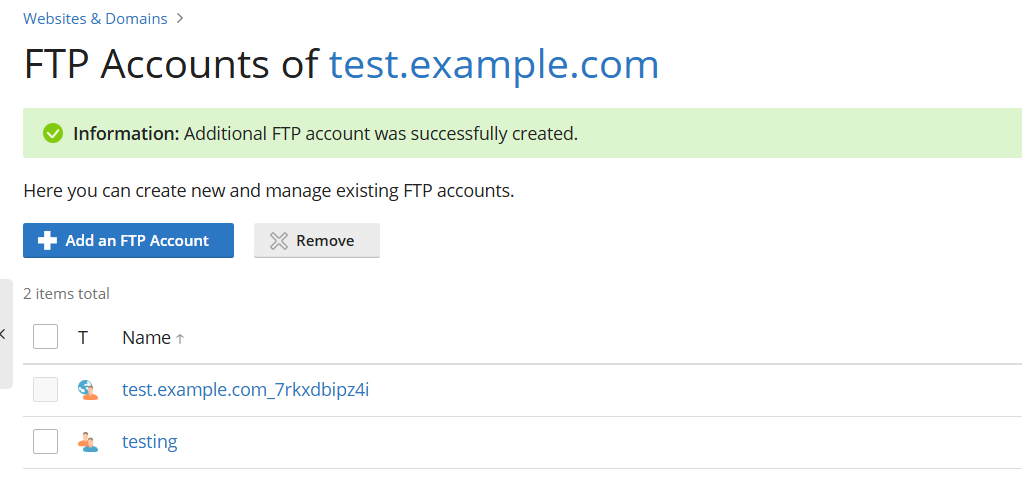
- After creating the account, return to the FTP Access section.
- Then, check whether the new FTP account appears in the account list.
- If the username is displayed, the account has been created successfully.
Additional: Modify or Delete an FTP Account
You can also update or remove an FTP account whenever required.
- Modify: Navigate to Websites & Domains → FTP Access → Select the FTP username. After that, update the required details and click OK.
- Delete: Navigate to FTP Access → Select the FTP account → Click Remove → Confirm the deletion.
Note: Before deleting an FTP account, make sure you have selected the correct username. Please note that removing an additional FTP account revokes that user’s access but does not delete the website files.
Conclusion
Creating an FTP account in Plesk is a straightforward process. It allows website owners to provide separate access to developers without sharing their main hosting credentials.
Furthermore, assigning the correct home directory helps control which website files each user can access. For better security, always use strong passwords and provide access only to the directories users need.
FAQs
1. Can I create multiple FTP accounts for a single domain in Plesk?
Certainly! Plesk supports multiple FTP accounts for a single domain. Additionally, each account can have a separate username, password, and home directory.
2. Can I restrict an FTP account to a specific directory?
Yes, this is possible. To do so, select the required home directory while creating the FTP account. Consequently, the user can access the assigned directory and its permitted subdirectories.
3. Can I change the password of an existing FTP account?
Yes. First, navigate to Websites & Domains → FTP Access. After that, select the required FTP account and enter a new password. Finally, save the changes.
4. Can I delete an FTP account without affecting the website?
Yes, removing an additional FTP account only revokes that user’s access to the server. However, the website files remain unchanged, and the website continues to work normally.
5. What is the default FTP port in Plesk?
By default, FTP uses port 21 in Plesk. In addition, explicit FTP over TLS (FTPS) can use the same port to encrypt the connection.
Related Articles
How to Enable Maintenance Mode for a Website in Plesk
How to Check WordPress Core File Integrity in Plesk
Need Assistance?
Need help managing your website or configuring maintenance settings in Plesk? Contact the Pheonix Solutions team for assistance.