Introduction
Taking regular backups is essential for protecting your website files, databases, email accounts, and other important hosting data. Unexpected server failures, accidental file deletion, malware attacks, or application errors can cause data loss. Having a reliable backup allows you to restore your website and hosting environment when needed.
Plesk Panel provides built-in backup and restore functionality that allows administrators and website owners to create backups of their hosting accounts. You can back up individual websites or entire subscriptions, configure scheduled backups, and store backup files locally or on remote storage.
In this guide, we will explain how to perform a backup in the Plesk Panel using the graphical user interface (GUI), configure scheduled backups, and download backup files for additional protection.
Prerequisites
Before starting the backup process, make sure you have:
- Access to the Plesk Panel.
- Administrator or appropriate subscription-level permissions.
- Sufficient disk space for storing backup files.
- A remote storage account, if you plan to store backups externally.
- A clear understanding of which website files and databases need to be backed up.
Types of Backups Available in Plesk
Plesk provides different backup options depending on your requirements.
1. Full Backup
A full backup contains all selected website and hosting data, including website files, databases, email-related data, and configuration settings.
It is useful when you need to protect an entire website or hosting subscription.
2. Incremental Backup
An incremental backup stores changes made since the previous backup instead of copying all data again.
It helps reduce storage requirements and backup time. However, restoring an incremental backup may require the corresponding full backup and subsequent backup files.
3. Manual Backup
A manual backup allows administrators to create a backup whenever required.
This is useful before:
- Updating website applications.
- Upgrading PHP versions.
- Modifying server configurations.
- Installing plugins or themes.
- Performing database changes.
4. Scheduled Backup
Scheduled backups automatically run at configured intervals, such as daily, weekly, or monthly, depending on the available settings.
This helps maintain regular backups without requiring manual intervention.
How to Perform a Backup in the Plesk Panel
Follow these steps to create a manual backup using the Plesk GUI.
Step 1: Log in to the Plesk Panel
- Open your web browser.
- Enter your Plesk Panel URL.
- Provide your administrator or subscription login credentials.
- Click Log In.
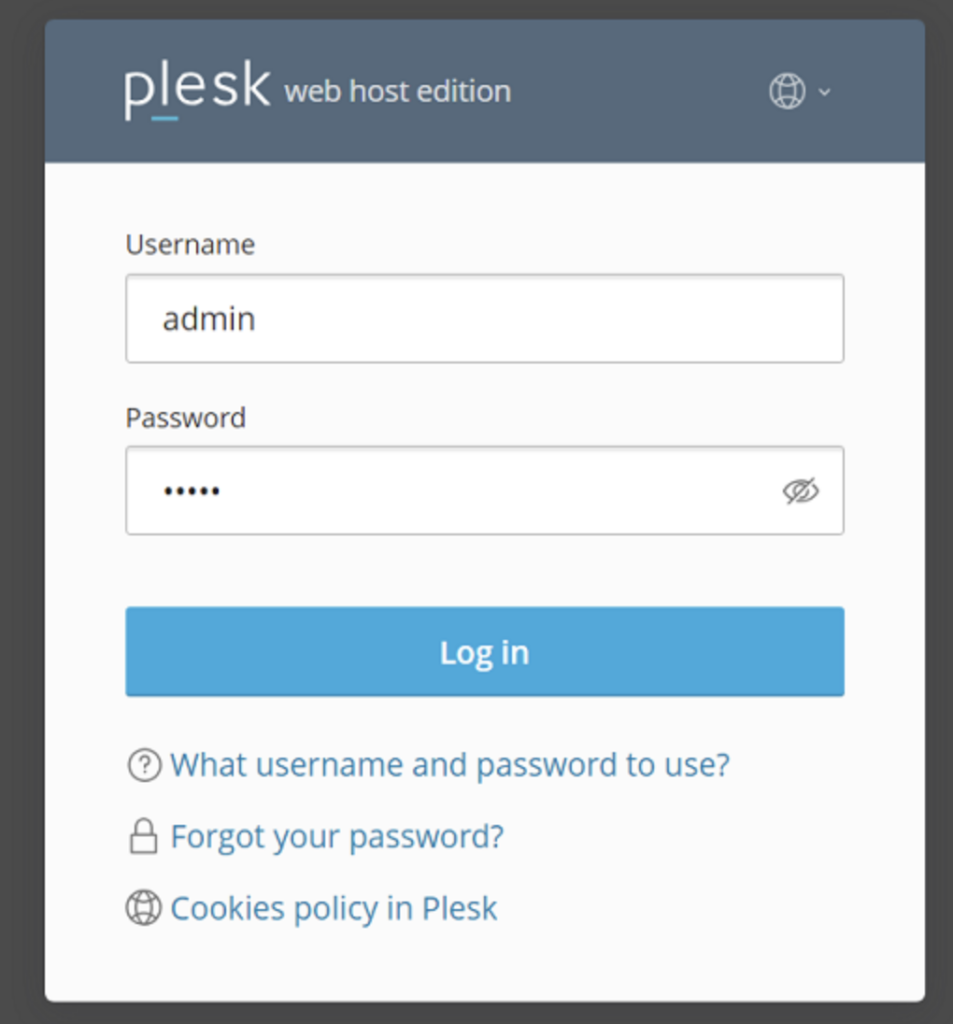
After successful authentication, you will be redirected to the Plesk dashboard.
Step 2: Open the Backup Manager
- Navigate to Websites & Domains.
- Select the domain or website you want to back up.
- Click Backup & Restore.
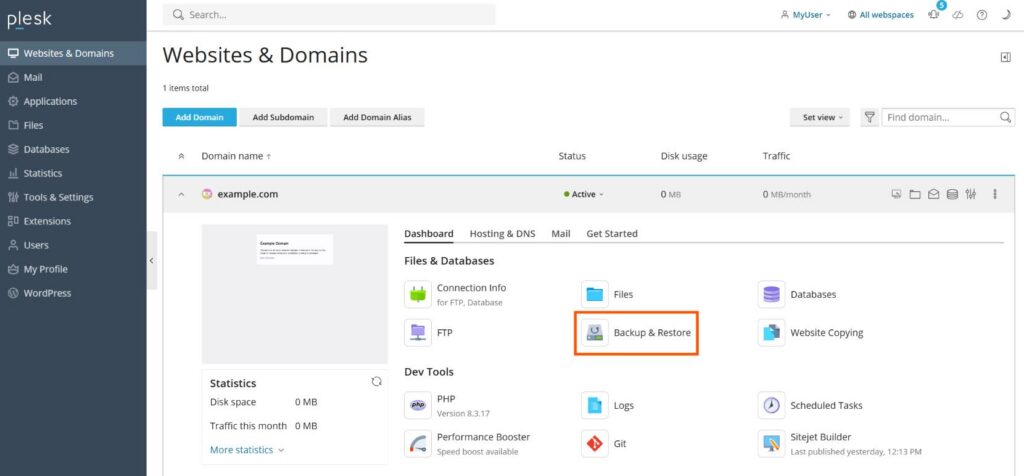
The Backup Manager page displays the available backup files and backup-related options.
Step 3: Start a New Backup
- Click Back Up or Back Up Now, depending on your Plesk version.
- The backup configuration window will appear.
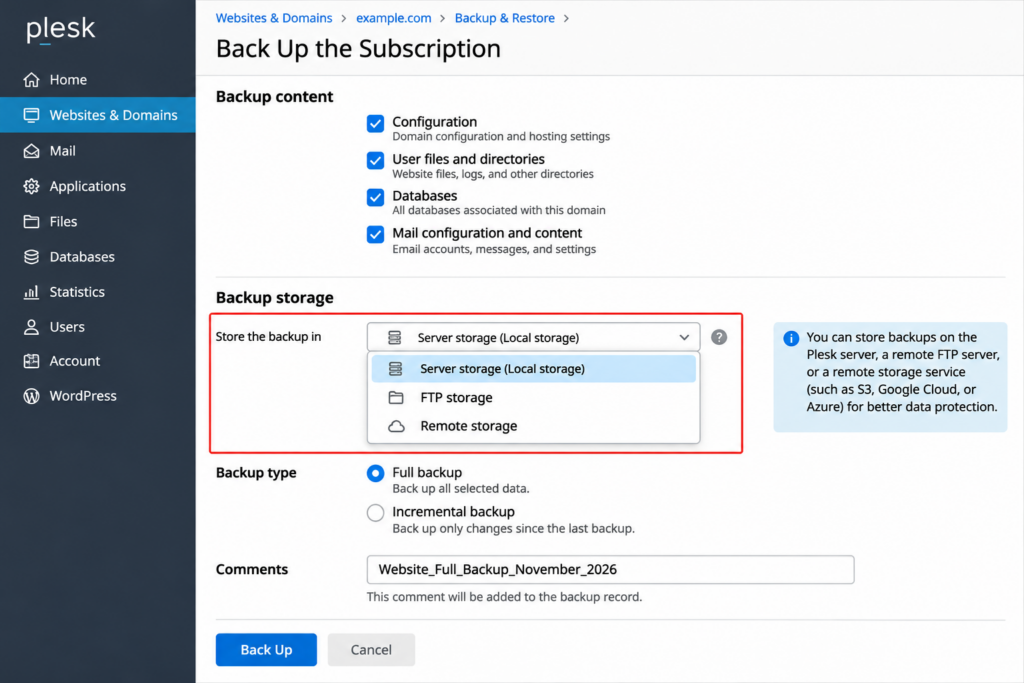
- Select the required backup options.
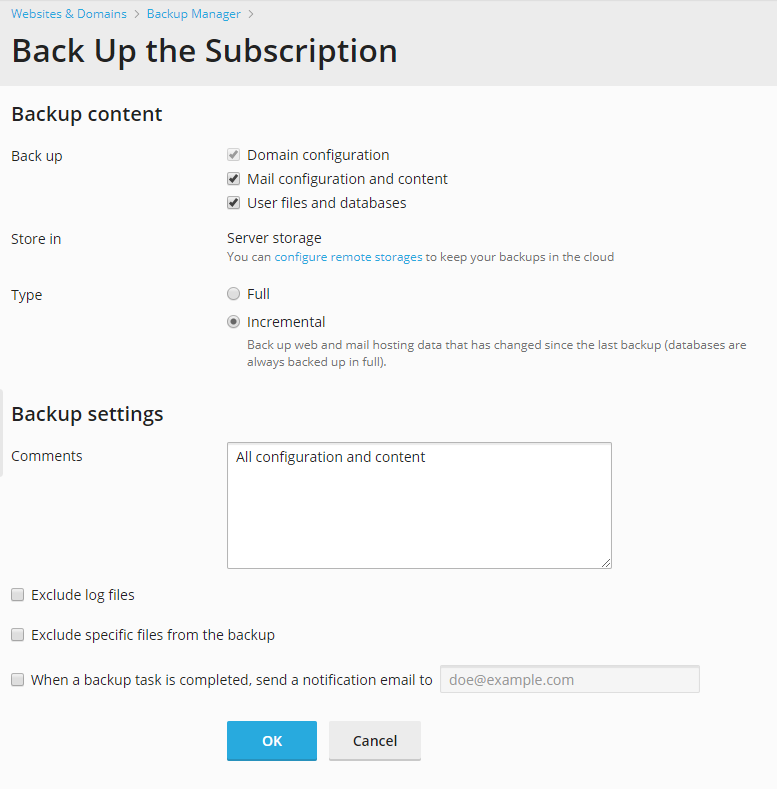
Step 4: Configure Backup Settings
Configure the following options according to your requirements:
Backup content
Choose what you want to include in the backup:
- Configuration: Website and hosting configuration settings.
- User files and directories: Website files and other selected hosting files.
- Databases: MySQL, MariaDB, PostgreSQL, or other supported databases.
- Mail configuration and content: Email-related data, depending on the available options.
Backup type
Select the required backup type:
- Full backup: Back up all selected data.
- Incremental backup: Back up changes since the previous backup, if supported by your configuration.
Backup description
Enter a meaningful backup description.
Example:
Website_Full_Backup_November_2026
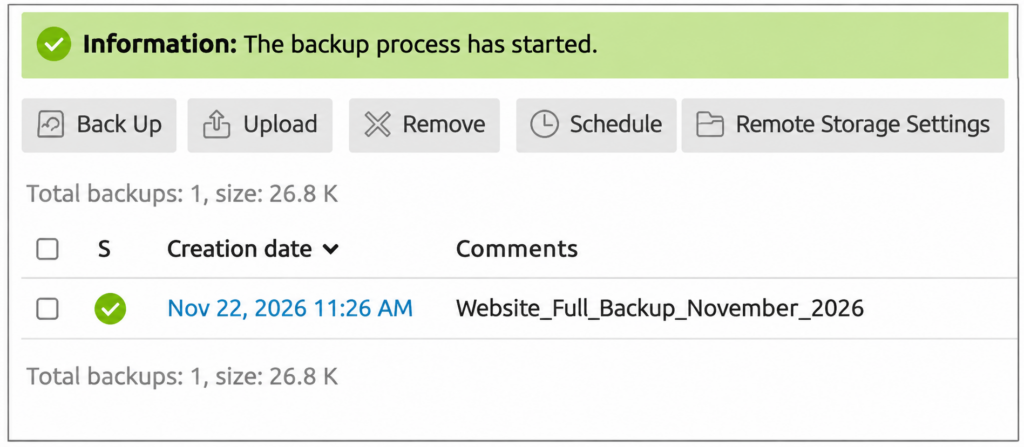
Comments
You can optionally add notes about the backup.
Example:
Manual backup before website maintenance.
Step 5: Configure Backup Storage
Plesk allows you to store backup files in different locations, depending on your configuration.
Common storage options include:
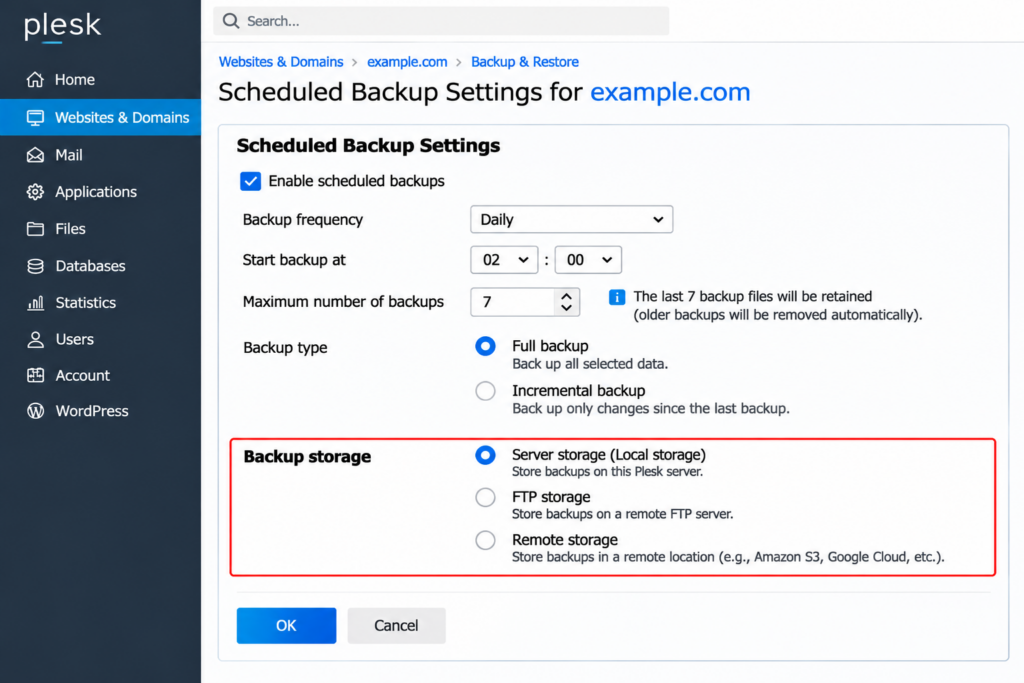
- Server storage: Save backup files on the same Plesk server.
- FTP storage: Transfer backup files to a remote FTP server.
- Cloud or remote storage: Use a configured remote storage extension or supported integration.
For better data protection, storing backups on a separate remote server is recommended.
Important: A backup stored only on the same server may be lost if that server experiences hardware failure or serious storage problems.
Step 6: Start the Backup Process
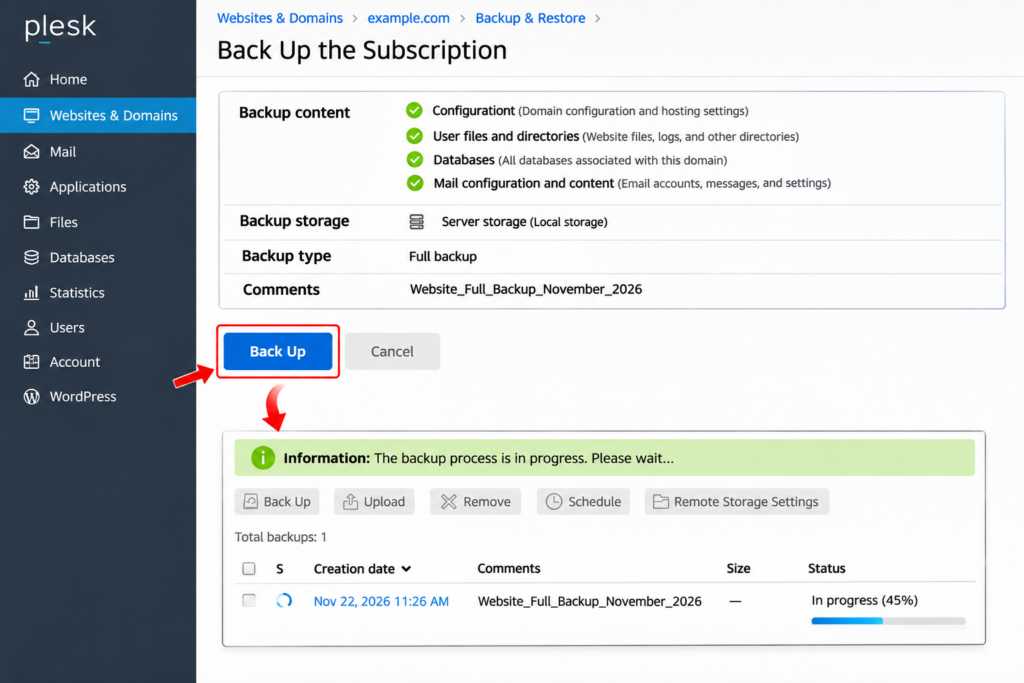
- Review the selected backup options.
- Confirm that the required website files and databases are included.
- Click OK, Back Up, or the corresponding confirmation button.
- Wait for the backup process to complete.
The backup process may take several minutes or longer depending on the website size, database size, and server performance.
Step 7: Verify the Backup
After the backup process finishes:
- Return to Backup & Restore.
- Check the backup list.
- Verify that the newly created backup is displayed.
- Check the backup date, size, and status.
- Confirm that the backup completed successfully.
Your manual backup is now available in the Plesk Backup Manager.
How to Configure Scheduled Backups in Plesk
Creating manual backups is useful, but scheduled backups help ensure that your website data is protected regularly.
Follow these steps to configure automatic backups.
Step 1: Open Backup Settings
- Log in to the Plesk Panel.
- Navigate to Tools & Settings if you are configuring server-wide backups.
- Open Backup Manager or the relevant backup settings.
- For subscription-level backups, open Websites & Domains → Backup & Restore and access the scheduled backup settings.
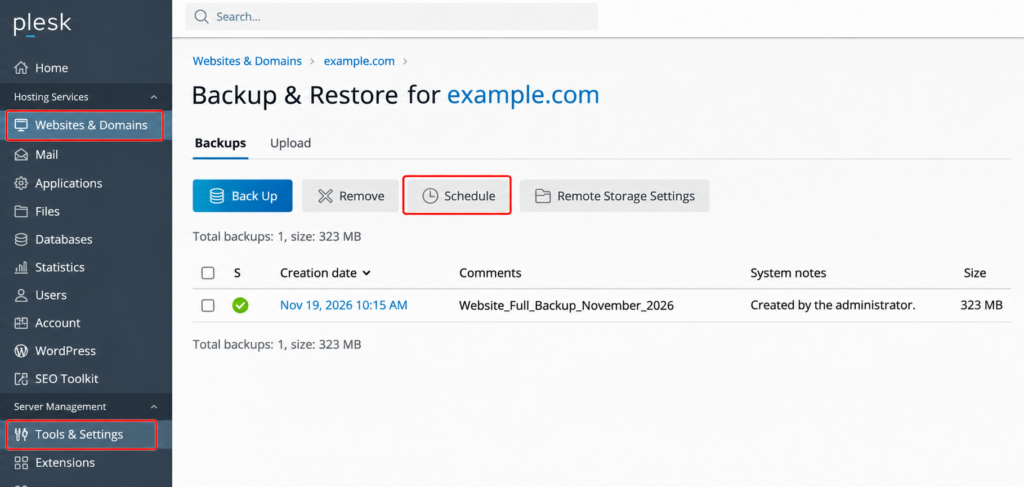
The exact menu location may vary depending on the Plesk version and user permissions.
Step 2: Enable Scheduled Backups
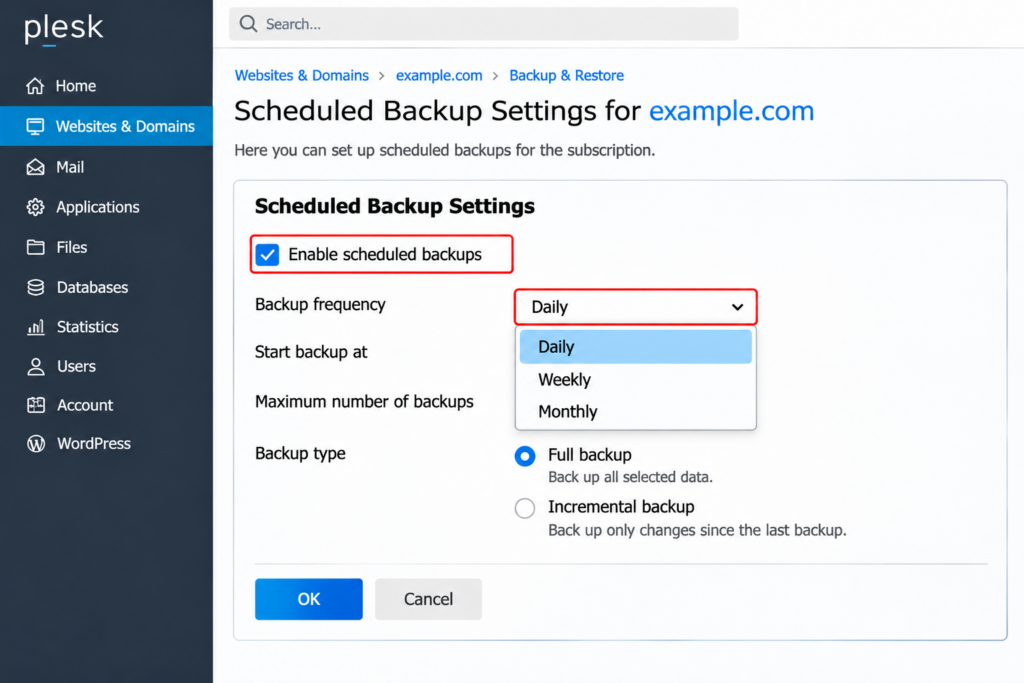
- Open the scheduled backup configuration.
- Enable scheduled backups.
- Select the required backup frequency.
Typical scheduling options include:
- Daily
- Weekly
- Monthly
Step 3: Configure Backup Retention
Set how many backup files should be retained.
For example:
- Daily backups: Retain the last 7 backups.
- Weekly backups: Retain the last 4 backups.
- Monthly backups: Retain the last 3 backups.
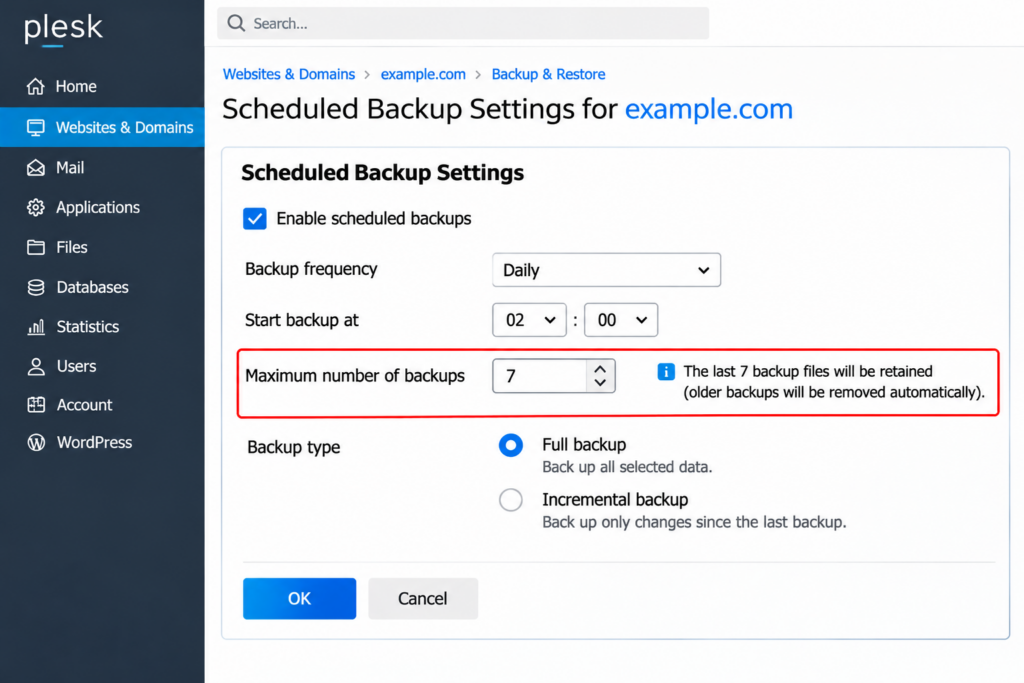
Choose retention settings based on available storage capacity and recovery requirements.
Step 4: Select Backup Storage
Choose where scheduled backups should be stored.
For better protection, configure remote storage instead of relying only on local server storage.
Step 5: Save Backup Settings
- Review the configured backup schedule.
- Verify the retention policy.
- Confirm the selected storage location.
- Save the settings.
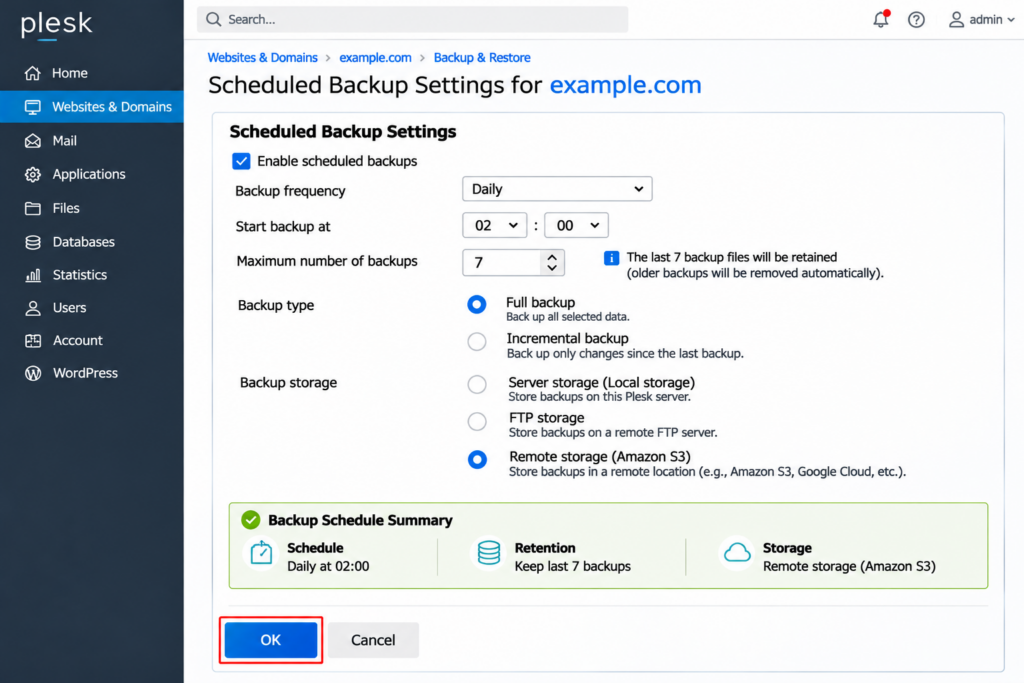
Plesk will now create backups automatically according to the configured schedule.
How to Download a Backup from Plesk
Downloading a backup provides an additional copy that you can store outside the hosting server.
Follow these steps:
- Log in to the Plesk Panel.
- Navigate to Websites & Domains.
- Select the required domain.
- Open Backup & Restore.
- Locate the backup file you want to download.
- Select the backup.
- Click the download option, if available.
- Save the backup file to your local computer.
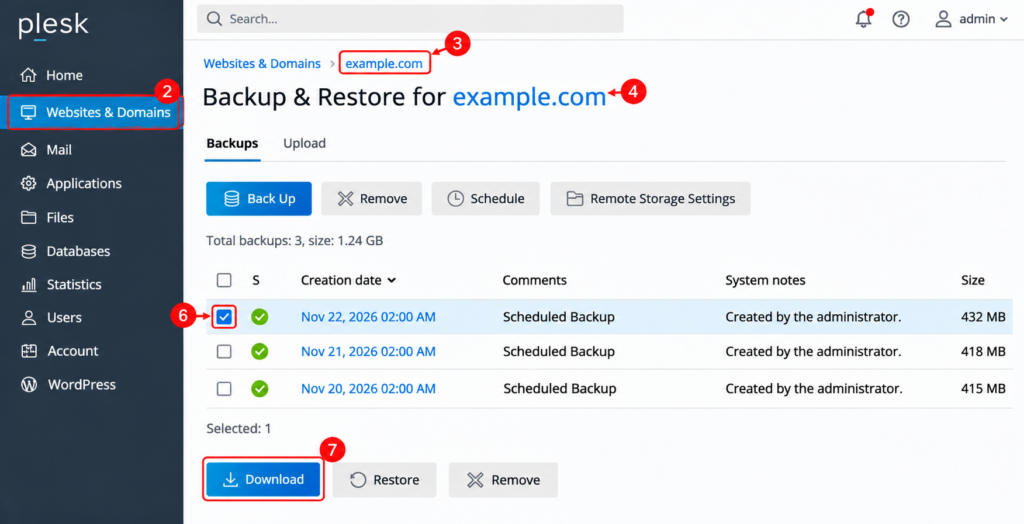
Keep downloaded backup files in a secure location with restricted access.
How to Restore a Backup in Plesk
If your website experiences data loss or configuration problems, you can restore it using an existing backup.
Follow these steps:
- Log in to the Plesk Panel.
- Navigate to Websites & Domains.
- Select the required domain.
- Open Backup & Restore.
- Select the backup file you want to restore.
- Click Restore.
- Choose the data you want to restore, if selective restoration is available.
- Review the restoration options.
- Confirm the restoration process.
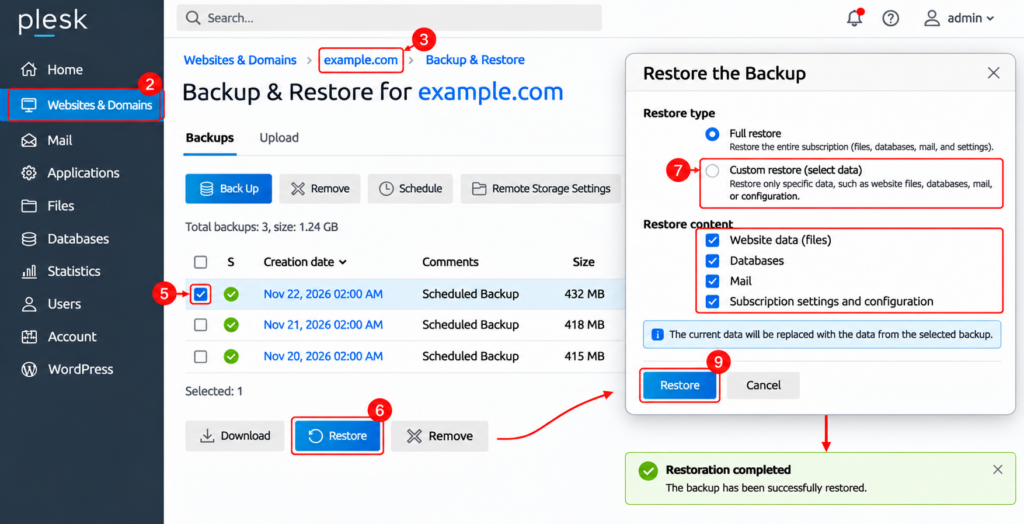
Wait until the restoration process finishes.
Important: Restoring a backup can overwrite existing website files, databases, or configuration data. Always take a fresh backup before performing a restore.
Best Practices for Plesk Backup Management
Follow these backup practices to improve website data protection:
- Schedule regular backups: Configure automatic backups according to your website update frequency.
- Use remote storage: Maintain a separate copy of your backups outside the hosting server.
- Verify backup completion: Regularly check backup status and investigate failed backup jobs.
- Maintain retention policies: Keep multiple recovery points to restore data from different dates.
- Back up before major changes: Create a manual backup before application updates, PHP upgrades, and configuration modifications.
- Test restoration: Periodically test backup restoration in a safe environment.
- Secure backup files: Restrict access to backup storage because backups may contain sensitive information.
- Monitor disk space: Ensure sufficient storage is available for scheduled and manual backups.
Common Plesk Backup Issues and Solutions
1. Insufficient Disk Space
Issue: The backup process fails because the server does not have enough available disk space.
Solution:
- Check available disk space.
- Remove unnecessary old backups after verifying retention requirements.
- Configure remote backup storage.
- Increase storage capacity if necessary.
2. Backup Process Takes Too Long
Issue: Large websites and databases may require additional time to complete backups.
Solution:
- Check server CPU, memory, and disk usage.
- Review backup logs.
- Schedule backups during low-traffic periods.
- Consider remote storage performance and available bandwidth.
3. Remote FTP Backup Failed
Issue: Plesk cannot connect to the configured remote FTP storage.
Solution:
- Verify the FTP hostname and port.
- Check the username and password.
- Confirm firewall connectivity.
- Verify the remote directory permissions.
- Test the FTP connection independently.
4. Scheduled Backup Did Not Run
Issue: Automatic backups are not being generated according to the configured schedule.
Solution:
- Check scheduled backup settings.
- Verify the Plesk scheduled task and system services.
- Check server resource availability.
- Review Plesk backup logs for errors.
Conclusion
Performing regular backups in the Plesk Panel is an important part of website and server maintenance. Plesk makes it easier to create manual backups, configure automatic backup schedules, download backup archives, and restore website data through its graphical interface.
By following the steps in this guide and maintaining secure remote backup copies, you can reduce the risk of data loss and improve your website recovery process.
Frequently Asked Questions (FAQs)
1. Can I back up an individual website in Plesk?
Yes. You can navigate to Websites & Domains, select the required domain, and use Backup & Restore to create a backup for that website or subscription, depending on the available permissions.
2. Does a Plesk backup include databases?
Yes. You can select databases as part of the backup configuration. Verify that the database backup option is enabled before starting the backup.
3. Can I schedule automatic backups in Plesk?
Yes. Plesk supports scheduled backups. You can configure backup frequency, retention settings, and storage locations depending on your Plesk version and permissions.
4. Where are Plesk backup files stored?
Backup files can be stored on the local Plesk server or configured remote storage. The exact location depends on the backup configuration.
5. Can I restore a backup to another Plesk server?
Yes. Plesk backup archives can be transferred to another compatible Plesk server and restored using its Backup Manager, subject to version compatibility, available permissions, and supported migration options.
6. How often should I back up my website?
For frequently updated websites, daily backups are generally recommended. For websites with less frequent changes, weekly backups may be sufficient. Always consider your recovery requirements and data change frequency.
Related Articles
How to Create a Database in Plesk
How to Create a Password-Protected Directory in Plesk
Need Help with Plesk Theme Customization?
Need assistance with installing custom themes, Plesk branding, Customer Control Panel customization, or Plesk server configuration?
Our technical team can help with Plesk administration, custom theme installation, reseller branding, Linux server management, hosting troubleshooting, and server maintenance.
Explore our DevOps and Cloud Services to learn more about our infrastructure, cloud, and DevOps solutions.
For more information or technical assistance, Contact Pheonix Solutions.