Introduction
The Track DNS tool in cPanel allows you to quickly check your domain’s DNS records and routing path. This is useful for troubleshooting issues such as incorrect domain pointing, email delivery problems, DNS propagation delays, and checking if your domain is resolving to the correct IP address.
Prerequisites
- You have WHM login access.
- You know which cPanel account you want to access.
- Your domain is added and active under your hosting account.
- DNS records are managed through your hosting provider or the domain’s nameservers are correctly set.
Steps to Use Track DNS in cPanel :
Step 1: Log in to WHM
Login to WHM as root → URL: https://yourserverip:2087
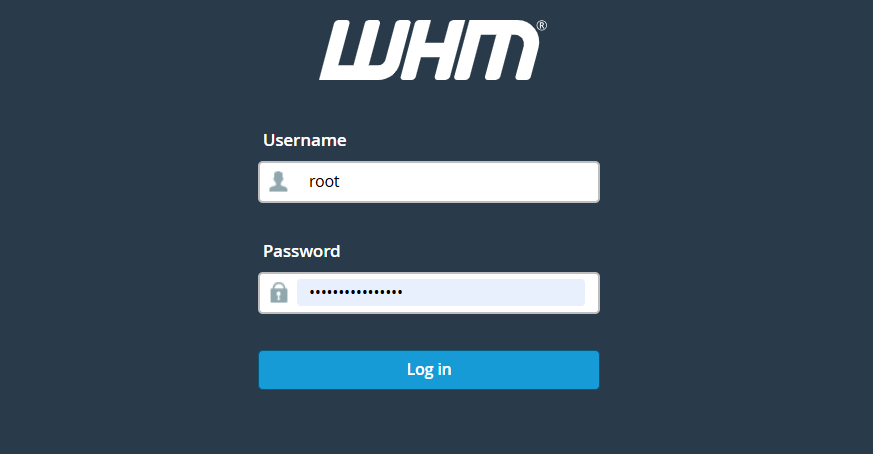
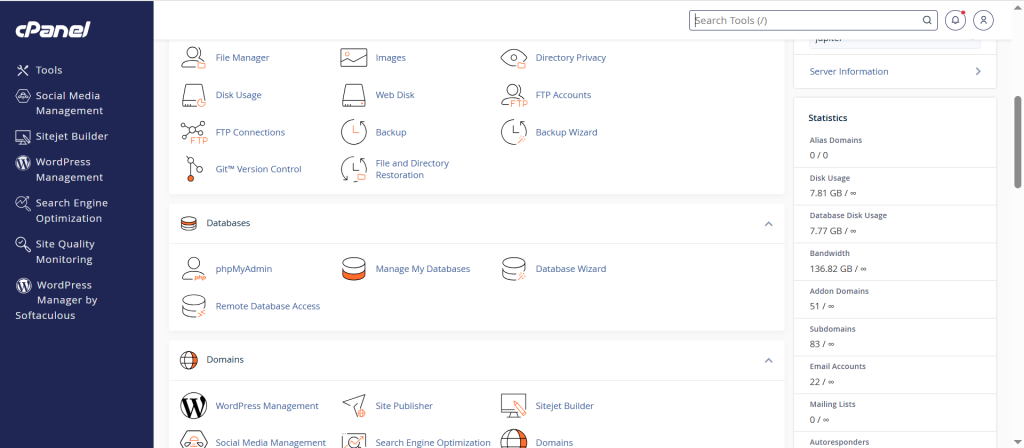
Step 2: Open the cPanel Account
Go to List Accounts
→ Search the domain
→ Click the cPanel icon to access the account
This will take you inside the cPanel.
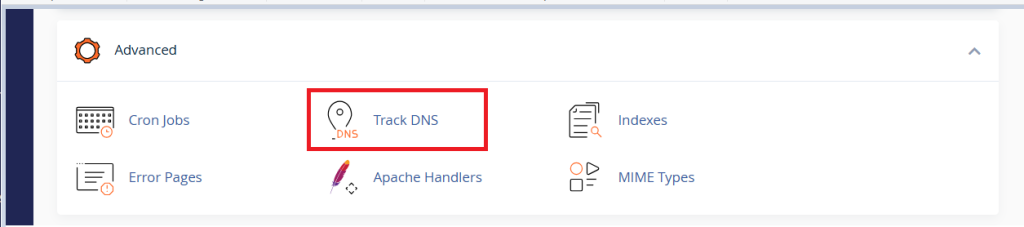
Step 3: Open the Track DNS Tool
Inside cPanel, scroll to the Domains section and click Track DNS.
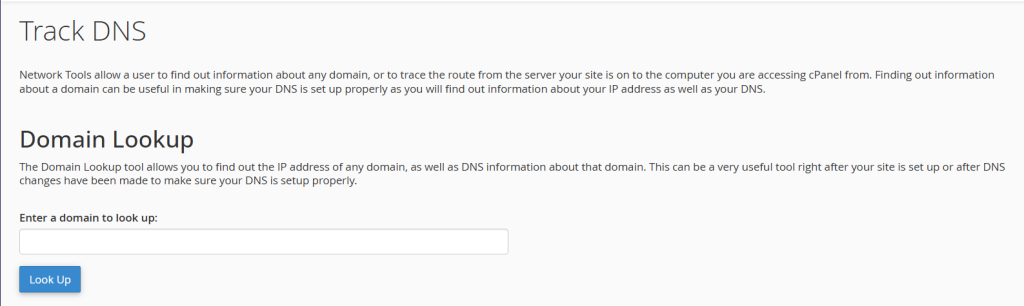
Step 4: Perform DNS Lookup
In the DNS Lookup section:
- Enter the domain name manually in the text box
- Click Look Up
You will see:
- A Record
- IP Address
- Hostname
- DNS resolver information
This confirms whether your domain is pointing correctly.
Conclusion :
The Track DNS tool in cPanel provides a simple way to check DNS records and network routing for your domain. By accessing cPanel through WHM and using the Track DNS feature, you can quickly identify configuration issues and ensure your domain is resolving correctly.