Introduction
Website speed is one of the most important factors for user experience, SEO ranking, and conversion rates. A slow website can frustrate visitors, increase bounce rates, and reduce search engine visibility. Even a delay of a few seconds can significantly impact how users interact with your website.
If your website is hosted on cPanel hosting, the good news is that there are several built-in tools and optimization techniques you can use to improve performance without needing advanced server knowledge. From enabling compression to optimizing PHP settings and caching, cPanel provides many features that help websites load faster.
In this guide, we will walk through practical methods to improve your website speed using cPanel. These steps are commonly used by hosting professionals and can dramatically improve your website’s performance.
1. Enable GZIP Compression in cPanel
GZIP compression reduces the size of files sent from your server to the visitor’s browser. This means pages load faster because less data needs to be transferred.
Steps
- Log in to cPanel.
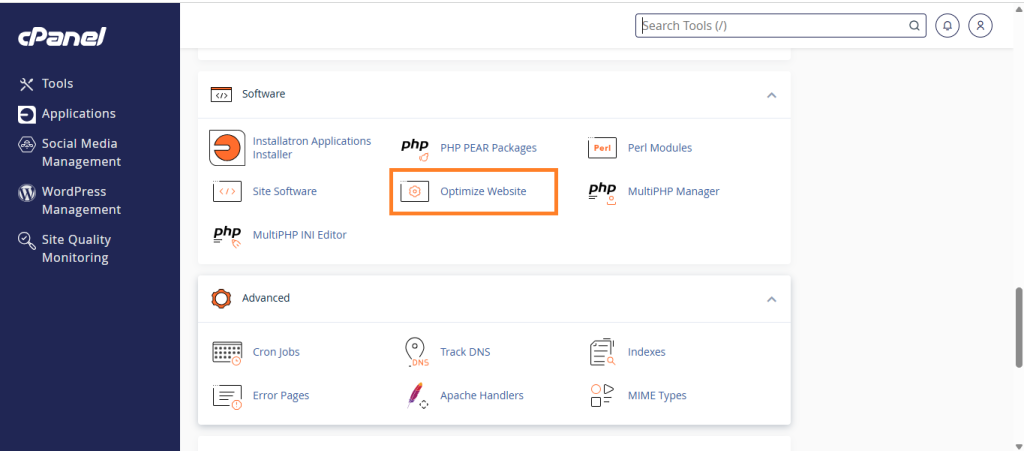
- Scroll down to the Software section.
- Click Optimize Website.
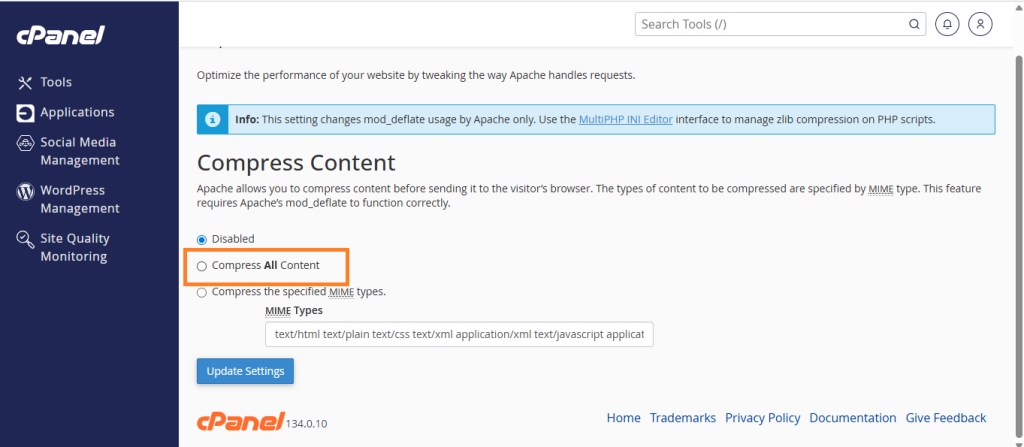
- Select Compress All Content.
- Click Update Settings.
Benefits
- Reduces HTML, CSS, and JavaScript file size
- Improves page loading speed
- Saves bandwidth
2. Use a Content Delivery Network (CDN)
A CDN (Content Delivery Network) distributes your website content across multiple global servers. When a visitor accesses your site, the CDN delivers content from the nearest location.
Popular CDN Options
- Cloudflare
- BunnyCDN
- StackPath
Benefits
- Faster global loading speed
- Reduced server load
- Improved security and caching
3. Optimize PHP Version
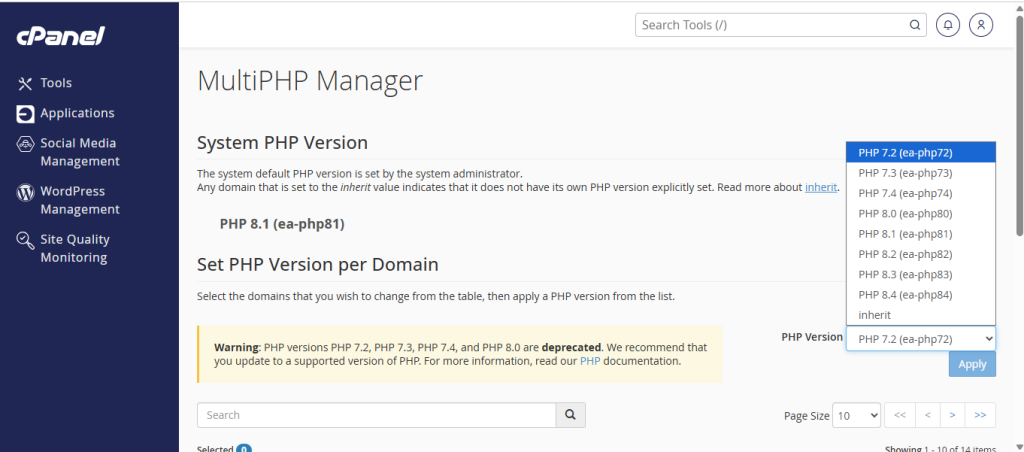
Using the latest PHP version improves performance significantly because newer versions process requests faster and use less memory.
Steps
- Login to cPanel.
- Open Select PHP Version.
- Choose the latest stable version (for example PHP 8.x).
- Click Set as Current.
Benefits
- Faster execution speed
- Better security
- Improved application compatibility
4. Enable Website Caching
Caching stores temporary versions of your website pages so they can be delivered faster to visitors.
Methods
- LiteSpeed Cache (if server uses LiteSpeed)
- WordPress cache plugins
- Server-level caching
Benefits
- Reduces server processing time
- Faster page loading
- Lower CPU usage
5. Optimize Images
Large images are one of the most common reasons websites load slowly.
Best Practices
- Compress images before uploading
- Use modern formats like WebP
- Resize images to appropriate dimensions
Tools
- TinyPNG
- ImageOptim
- ShortPixel
6. Minify CSS, JavaScript, and HTML
Minification removes unnecessary spaces and characters from code files.
Benefits
- Smaller file sizes
- Faster loading
- Reduced HTTP requests
Many CMS platforms like WordPress offer plugins that automatically perform minification.
7. Monitor Resource Usage in cPanel
cPanel allows you to check if your website is consuming excessive server resources.
Steps
- Log in to cPanel
- Open Resource Usage
- Review CPU, memory, and entry processes
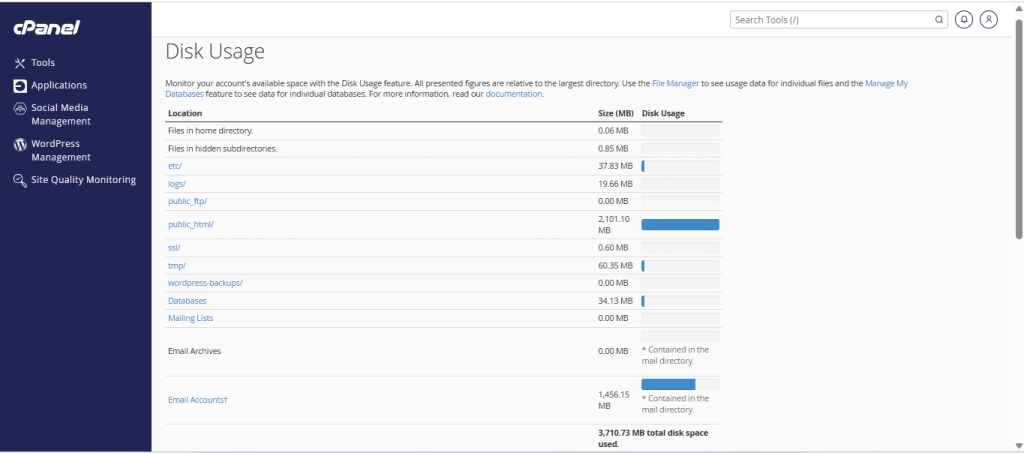
If usage is consistently high, you may need optimization or a hosting upgrade.
Conclusion
Improving website speed on cPanel hosting does not always require complex server configurations. By enabling compression, using a CDN, upgrading PHP, enabling caching, and optimizing images, you can significantly enhance your website performance.
A faster website not only improves user experience but also boosts search engine rankings and increases conversions. Regularly monitoring performance and applying these optimizations will ensure your website continues to run smoothly and efficiently.