Post Date: October 21, 2026
Introduction
Plesk provides an SEO Toolkit extension that helps website owners monitor and improve their website’s search engine optimization (SEO). It includes features such as website audits, SEO recommendations, keyword ranking tracking, and search engine crawler log analysis. <Cite refs={[“turn679393search1″,”turn679393search3”]}/>
This knowledge base article explains how to access and check the SEO Toolkit from the Plesk Customer Panel, verify whether it is available for your website, and identify what to do if the option is missing.
Prerequisites
Before proceeding, ensure that you have:
- Valid login credentials for the Plesk Customer Panel.
- An active hosting subscription with a website or domain configured in Plesk.
- Access to the website you want to check.
- SEO Toolkit enabled and available under your hosting plan.
Steps to Check the SEO Toolkit in Plesk
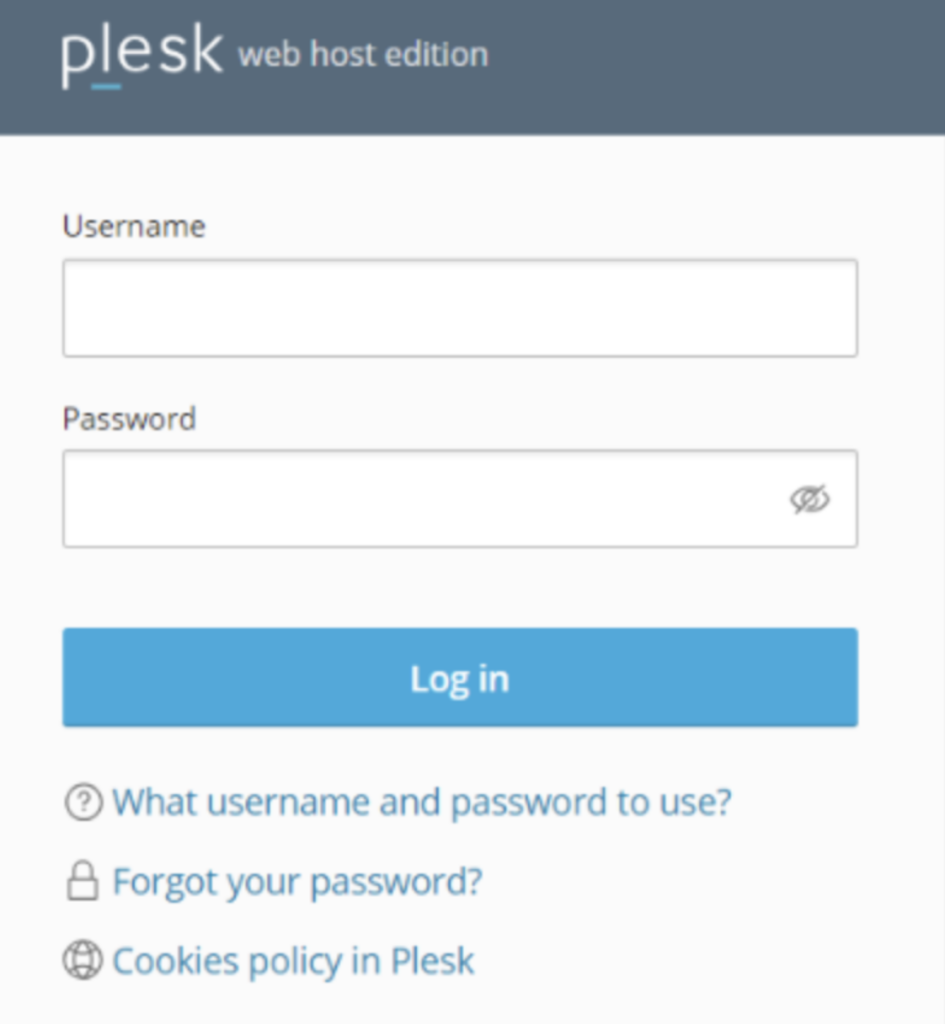
Step 1: Log in to the Plesk Customer Panel
- Open your Plesk Customer Panel URL in a web browser.
- Enter your username and password.
- Click Log In to access your hosting account.
Step 2: Open Websites & Domains
After logging in:
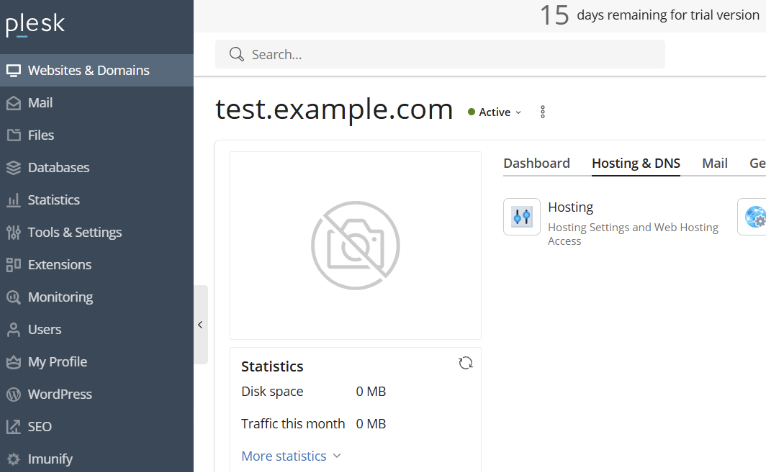
- Navigate to Websites & Domains in the left-hand menu.
- Locate the domain for which you want to check the SEO Toolkit.
- Open the domain’s management page.
Step 3: Locate the SEO Toolkit
- Open the management page for your domain.
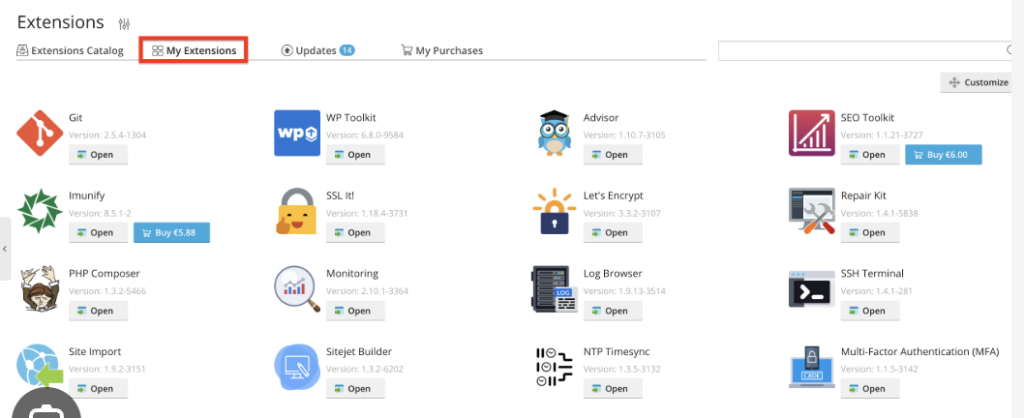
- Look for SEO Toolkit among the available website management tools or extensions.
- If the option is displayed, click it to open the SEO Toolkit.
The exact location may vary depending on the Plesk version, interface layout, installed extensions, and hosting provider configuration.
Step 4: Check the SEO Toolkit Dashboard
If the SEO Toolkit opens successfully, review the available features and website information.
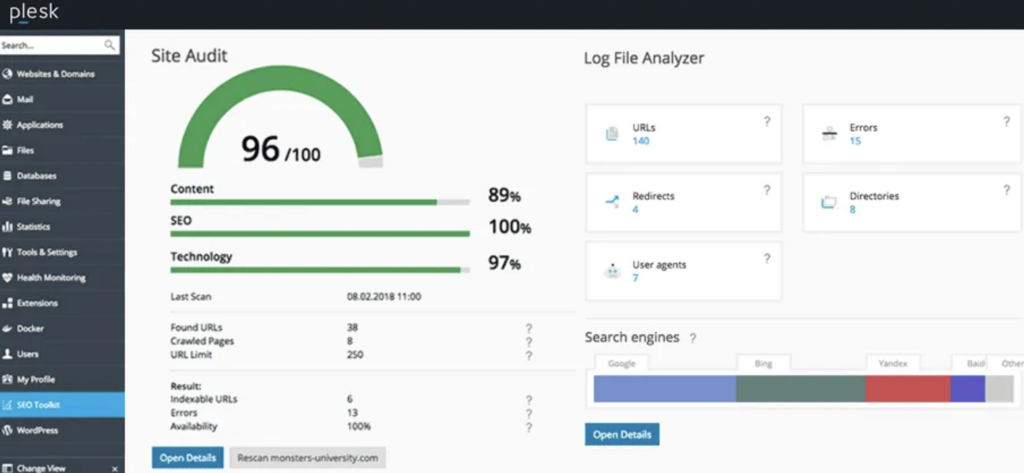
Depending on your installed version and subscription, the toolkit may provide:
- Site Audit: Scans website pages for common SEO issues.
- SEO Advisor: Provides recommendations for improving website optimization.
- Rank Tracker: Tracks keyword positions and compares ranking performance.
- Log File Analyzer: Helps review search engine crawler activity.
The availability of individual features depends on the installed extension and applicable license or plan. <Cite refs={[“turn679393search1″,”turn679393search3”]}/>
Step 5: What to Do If the SEO Toolkit Is Not Available
If you cannot find the SEO Toolkit in the Customer Panel:
- Confirm that you are viewing the correct domain and hosting subscription.
- Check whether the SEO Toolkit is included in your hosting plan.
- Contact your hosting provider to verify whether the extension is installed, licensed, and enabled for your account.
- If the extension is available but still inaccessible, ask the hosting provider to check the subscription permissions and extension configuration.
The Plesk administrator or hosting provider may need to review the extension installation and licensing from the server administration interface. Customers generally cannot install or enable server-level extensions themselves.
Conclusion
The Plesk Customer Panel provides access to website management features based on the hosting subscription and installed extensions. If the SEO Toolkit is available for your domain, you can open it from the website management interface and review the tools provided.
If the option is missing, contact your hosting provider to verify the extension’s availability, licensing, and subscription permissions.
Need Assistance?
If you cannot find or access the SEO Toolkit in your Plesk Customer Panel, please get in touch with the Pheonix Solutions support team for assistance.
For further assistance, please contact our support team.