Post date: November 12, 2026
Introduction
Plesk provides various extensions and plugins that help users manage and enhance their hosting environment. These extensions offer additional functionalities, such as security management, website optimization, backups, monitoring, and more.
This guide explains how to find, install, and activate plugins (extensions) in the Plesk control panel.
Prerequisites
Before activating a plugin, ensure that:
- You have access to the Plesk control panel.
- You have administrator or sufficient permissions to manage extensions.
- Your server has an active internet connection to download extensions.
Steps to Activate Plugins in Plesk
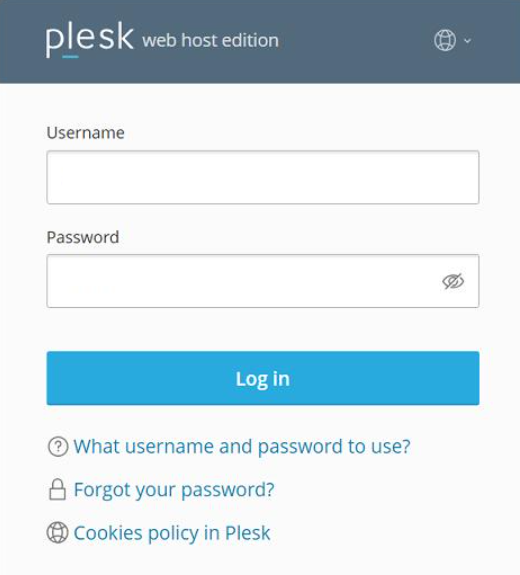
Step 1: Log in to Plesk
- Open your web browser.
- Navigate to your Plesk control panel URL.
- Enter your username and password.
- Click Log In.
Step 2: Navigate to Extensions
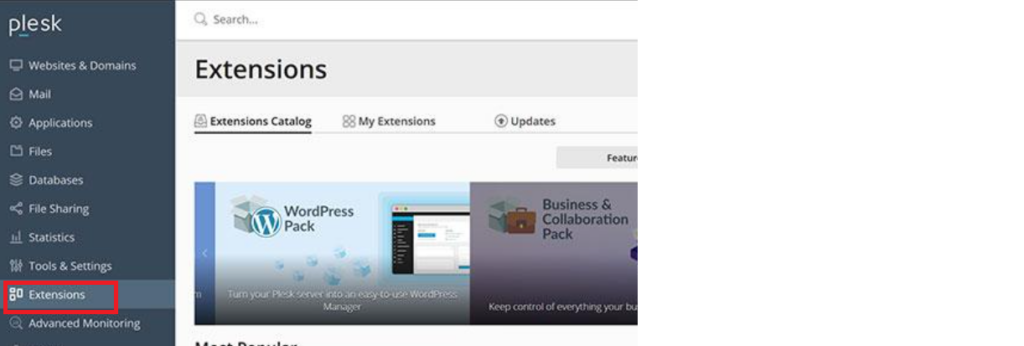
- From the left-hand navigation menu, click Extensions.
- You will be redirected to the Extensions page.
- Here, you can view the installed extensions and explore additional available extensions.
Step 3: Find the Required Plugin
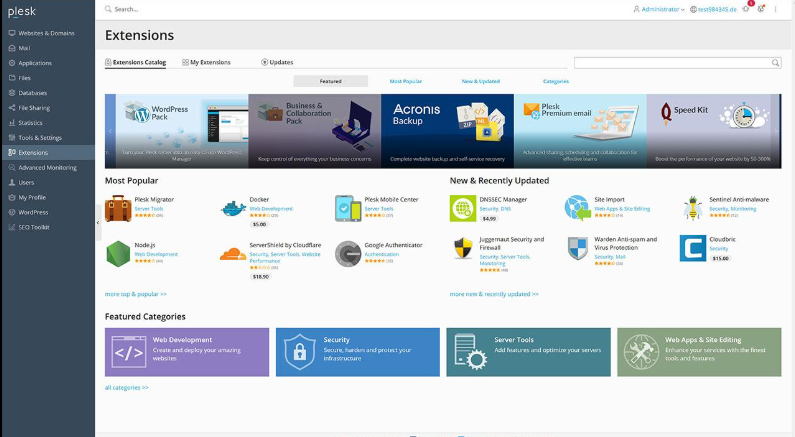
- Click Extensions Catalog or Catalog, depending on your Plesk version.
- Browse the available extensions or use the search option.
- Search for the plugin you want to install.
- Select the required extension from the search results.
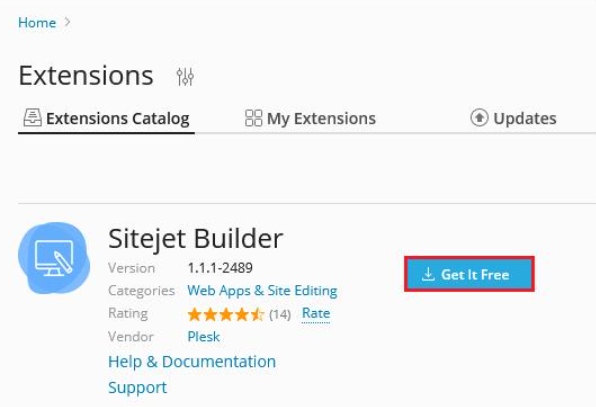
Step 4: Install the Plugin
- Open the selected extension.
- Review its details and compatibility requirements.
- Click Get It Free or Install, depending on the extension.
- Wait for the installation process to complete.
Step 5: Activate and Configure the Plugin
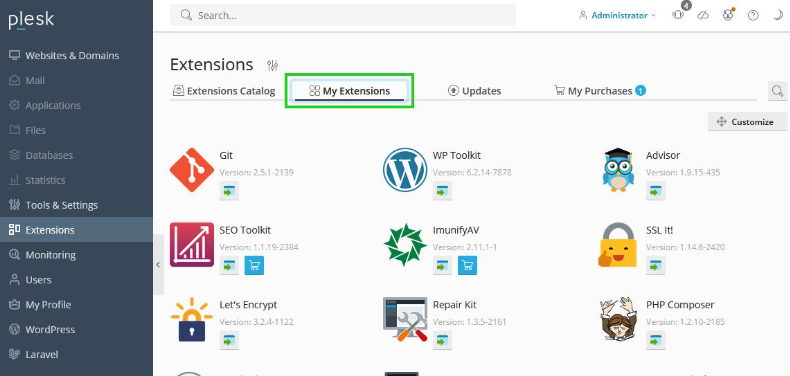
- Once installed, navigate back to Extensions.
- Locate the newly installed extension.
- Open the extension and complete the required configuration.
- If the extension has an activation option or license requirement, follow the instructions provided by the extension.
- Save the changes.
Step 6: Verify the Plugin
- Open the installed extension from the Plesk panel.
- Check whether its features and settings are accessible.
- Perform a basic functionality check to ensure the extension is working correctly.
Conclusion
Activating extensions in Plesk allows you to extend your hosting environment with additional features and tools. By following the steps above, you can install, configure, and verify the required extensions through the Plesk control panel.
Frequently Asked Questions (FAQs)
1. How can I access plugins in Plesk?
Log in to your Plesk control panel and navigate to Extensions from the left-hand menu to view installed plugins and available extensions.
2. How do I install a new plugin in Plesk?
Go to Extensions → Extensions Catalog, search for the required plugin, and click Get It Free or Install.
3. Can I activate a plugin without administrator access?
Some extensions may be accessible to users with limited permissions. However, installing or managing extensions generally requires administrator privileges.
Related Articles
How to Enable Domain Website Password Protection in Plesk Panel
How to Create a Password-Protected Directory in Plesk
Official Documentation
1. Managing Plesk Extensions – Install, Enable, Disable, Remove, and Update
Plesk Official Support Documentation
2. Plesk Extensions Catalog
Plesk Official Documentation – Extensions Catalog
3. Plesk Extensions Overview
Plesk Official Documentation – Plesk Extensions
Get Expert Support for Your Plesk Server
Need help managing Plesk extensions, server configurations, or hosting environments? Our experts can help you with server management, security, maintenance, and hosting solutions.
Explore our Security & Server Maintenance Services or contact our experts for professional assistance.