
Step 1: Create the Project Directory and Files
- Inside the src folder of your project, create a directory named Components.
- In the Components directory, add a file named PheonixSnackbar.tsx.
- Create an index.ts file in the src directory with the following content:
- export { default as PheonixSnackbar } from ‘./Components/PheonixSnackbar’;
It should look something like this 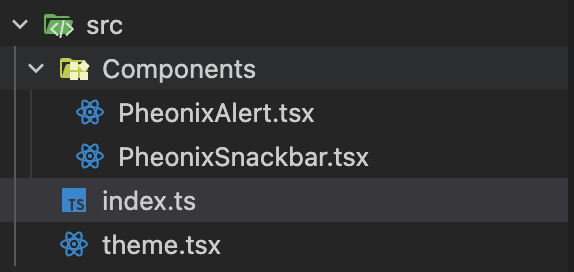 |
Step 2: Install Required Dependencies
Install the essential dependencies, including React, TypeScript, and tslib, by running:
| npm install react typescript @types/react tslib –save-dev |
Step 3: Configure TypeScript
Generate a tsconfig.json file with default configurations:
| npx tsc –init |
Next, update tsconfig.json with the following configuration:
| { “compilerOptions”: { “target”: “es5”, “lib”: [“dom”, “dom.iterable”, “esnext”], “allowJs”: true, “skipLibCheck”: true, “esModuleInterop”: true, “allowSyntheticDefaultImports”: true, “strict”: true, “forceConsistentCasingInFileNames”: true, “noFallthroughCasesInSwitch”: true, “module”: “esnext”, “moduleResolution”: “node”, “resolveJsonModule”: true, “isolatedModules”: true, “noEmit”: true, “jsx”: “react-jsx” }, “include”: [“src”] } |
Step 4: Set Up Rollup for Bundling
| npm install rollup –save-dev |
- Install additional Rollup plugins for TypeScript and common tasks:
| npm install @rollup/plugin-node-resolve @rollup/plugin-commonjs @rollup/plugin-typescript rollup-plugin-peer-deps-external @rollup/plugin-terser rollup-plugin-dts –save-dev |
Step 5: Configure Package Output in package.json
Add the following fields to your package.json to specify the entry points for your package:
{
“main”: “dist/index.js”,
“module”: “dist/index.mjs”,
“types”: “dist/index.d.ts”
}
Step 6: Create rollup.config.js File
In your project root, create a rollup.config.js file with the following content:
| import resolve from “@rollup/plugin-node-resolve”; import commonjs from “@rollup/plugin-commonjs”; import typescript from “@rollup/plugin-typescript”; import dts from “rollup-plugin-dts”; import terser from “@rollup/plugin-terser”; import peerDepsExternal from “rollup-plugin-peer-deps-external”; const packageJson = require(“./package.json”); export default [ { input: “src/index.ts”, output: [ { file: packageJson.main, format: “cjs”, sourcemap: true, }, { file: packageJson.module, format: “esm”, sourcemap: true, }, ], plugins: [ peerDepsExternal(), resolve(), commonjs(), typescript({ tsconfig: “./tsconfig.json” }), terser(), ], external: [“react”, “react-dom”], }, { input: “src/index.ts”, output: [{ file: packageJson.types }], plugins: [dts.default()], }, ]; |
Step 7: Add a Build Script to package.json
Add the following script to your package.json to simplify building the package:
| { “scripts”: { “rollup”: “rollup -c –bundleConfigAsCjs” } } |
Step 8: Build the Package
Run the build script:
npm run rollup
Step 9: Link the Package for Local Testing
- In the working directory, link the package locally:
| yarn link |
- In the target project, use the linked package by running:
yarn link <package-name>
Step 10: Resolve React Duplicates (if needed only)
If you encounter errors related to duplicate React instances, remove duplicates with this command:
In MAC
rm -rf node_modules/react node_modules/react-dom
In Windows [Try both]
rd /s /q node_modules\react
rd /s /q node_modules\react-dom
Remove-Item -Recurse -Force .\node_modules\react
Remove-Item -Recurse -Force .\node_modules\react-dom
Step 11 : Publish the NPM
Sign Up for NPM
- Go to npmjs.com/signup and create a new account.
- Verify your email if required.
Login to NPM in Terminal
- Open your terminal (or Visual Studio Code terminal).
Run the following command to log in to your NPM account:
npm login
- This will prompt you to:
Enter your NPM username.
- Enter your password.
- Provide your email address associated with the account.
Publish the Package
- Use the comment to publish the package
npm publish
Success Confirmation
- After publishing, you will see a success message.
- Your package is now live on the NPM registry and can be installed using:
npm install <package-name>