
Introduction
This guide explains how to fix “Fatal error: Call to undefined function request_filesystem_credentials()” in WordPress — an error that typically appears during a plugin update, theme installation, or any operation touching WordPress’s filesystem credential-handling code.
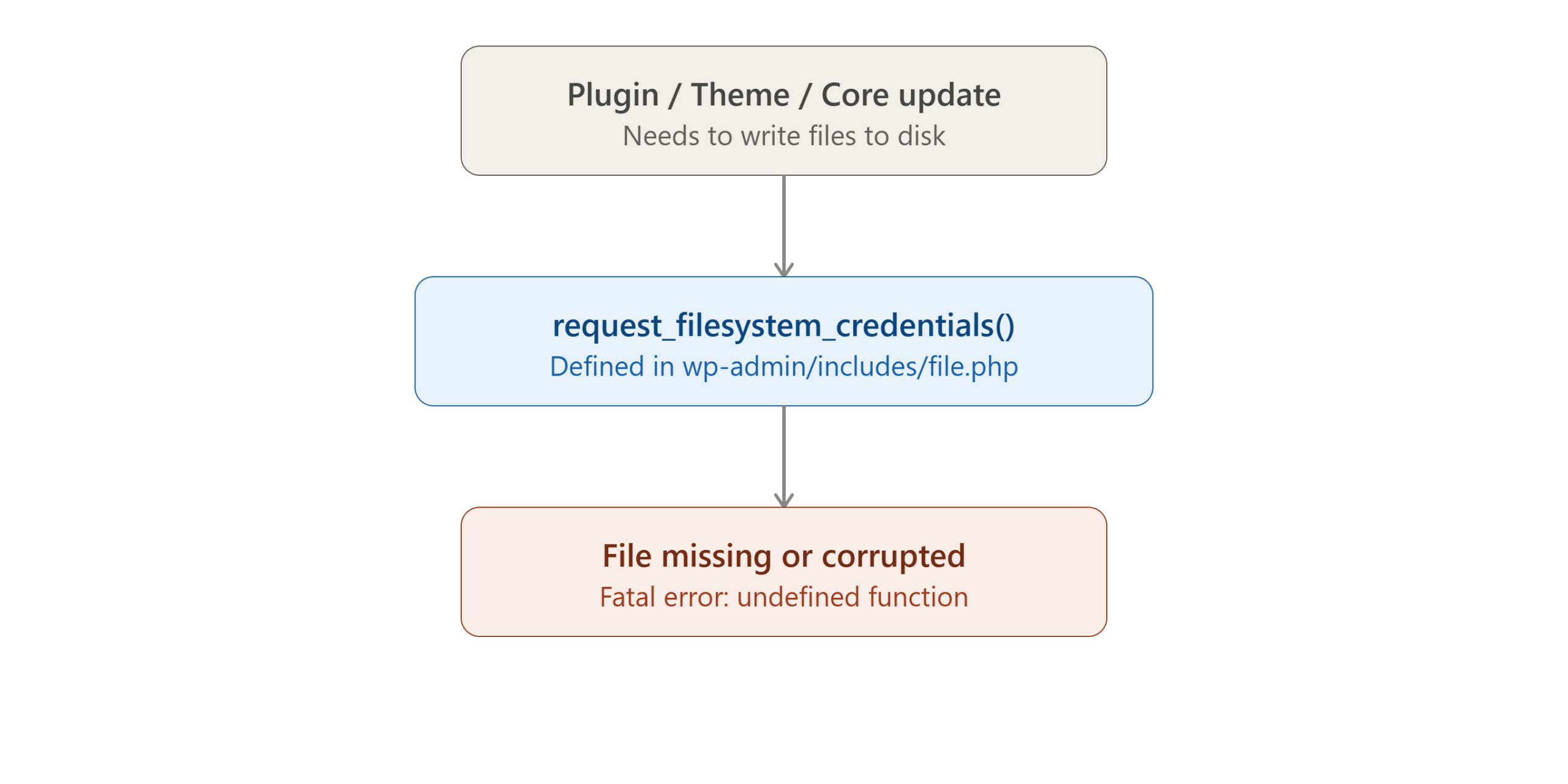
The short version of what’s happening: request_filesystem_credentials() is a function defined inside a specific WordPress core file, wp-admin/includes/file.php. If that file is missing, incomplete, or corrupted, PHP has no definition for the function, and any code path calling it — core updates, plugin installers, theme installers — fails immediately with this fatal error.
Implementation
I. Prerequisites
Before you fix this error, make sure you have:
- FTP, SFTP, or file manager access to your WordPress site’s files
- A backup of your current WordPress files and database before making changes
II. How This Fits Into WordPress’s Architecture
- WordPress core includes a filesystem abstraction layer, letting the same code work whether files are written via direct access, FTP, or SSH
wp-admin/includes/file.phpdefines this layer’s key functions, includingrequest_filesystem_credentials()- Plugin installers, theme installers, and the core updater all call into this file when writing files to disk
- If the file is missing or broken, every dependent operation fails with the same fatal error, even though the actual problem is isolated to one file
III. Important: Match Your Exact WordPress Version First
This is the detail the original quick-fix advice gets wrong: downloading the latest WordPress version and pulling file.php from it is not correct if your site isn’t already on the latest version. Core files are versioned as a matched set — mixing a newer file into an older installation can introduce new incompatibilities rather than fixing the problem cleanly.
Confirm your site’s exact current version first:
Via WP-CLI:
wp core version
Via direct file inspection (if the dashboard won’t load):
grep "wp_version =" wp-includes/version.php
Download the exact version this returns from the official WordPress release archive — not simply “the latest” release.
IV. Verify Core File Integrity (Recommended)
Rather than assuming only file.php is affected, check whether other core files were also impacted:
wp core verify-checksums
This lists any files that don’t match the official release for your version, giving you a complete picture instead of guessing from a single error message.
V. Replace file.php
From the matching WordPress version, locate:
wp-admin/includes/file.php
Upload it via FTP/SFTP to the same path on your live site, overwriting the existing file completely.
VI. Fix File Permissions
chmod 644 wp-admin/includes/file.php
chown www-data:www-data wp-admin/includes/file.php
Adjust the ownership user/group to match whatever user your web server process actually runs as (varies by host — common alternatives include
apacheor a cPanel-assigned username).
VII. Clear OPcache
If PHP’s OPcache cached the broken file’s absence, replacing it on disk alone may not be enough:
sudo systemctl restart php-fpm
Also clear any WordPress caching plugin’s cache through its dashboard settings.
VIII. Verify the Fix
Reload your site and specifically retest an operation that previously triggered the error — installing or updating a plugin is a common trigger.
IX. Troubleshooting
Still failing after replacing file.php: Re-run wp core verify-checksums — other core files may also need replacing, following the same version-matching principle.
Other unexpected files or changes present: Treat this as a potential security incident rather than routine corruption. Run a malware scan and review recent admin activity before assuming it’s a simple interrupted update.
Full core replacement: WordPress’s own Dashboard → Updates → Re-install Now re-downloads all core files matching your current version — often faster than replacing files one at a time if several are affected.
X. Conclusion
This error comes down to one core file — wp-admin/includes/file.php — being missing or corrupted, usually from an interrupted upload or update. The detail that actually matters is replacing it with the file from your site’s exact current WordPress version, not simply the latest release, and verifying with a checksum check rather than assuming only one file is affected.
Frequently Asked Questions
Can I just download the latest WordPress version instead of matching my exact version? Not recommended — core files are versioned as a matched set, and a newer file in an older installation can create new compatibility issues rather than resolving the original problem.
What if I don’t know my exact WordPress version because the dashboard won’t load? Check wp-includes/version.php directly via FTP — it contains the exact version string even when the dashboard itself is inaccessible.
Is this error a sign my site has been hacked? Not necessarily — an interrupted update is the more common cause. But if you can’t explain the missing file through any update or transfer you performed, run a security check to rule out compromise.
Will reinstalling WordPress core delete my content or settings? No — core file replacement only touches WordPress’s own core files, not your themes, plugins, media, or database content.
Talk to Our Technology Experts
Dealing with a stubborn WordPress error or looking for more reliable site management overall? Our team can help with WordPress troubleshooting, site security, performance optimization, and ongoing maintenance support.
Connect with our technology experts.