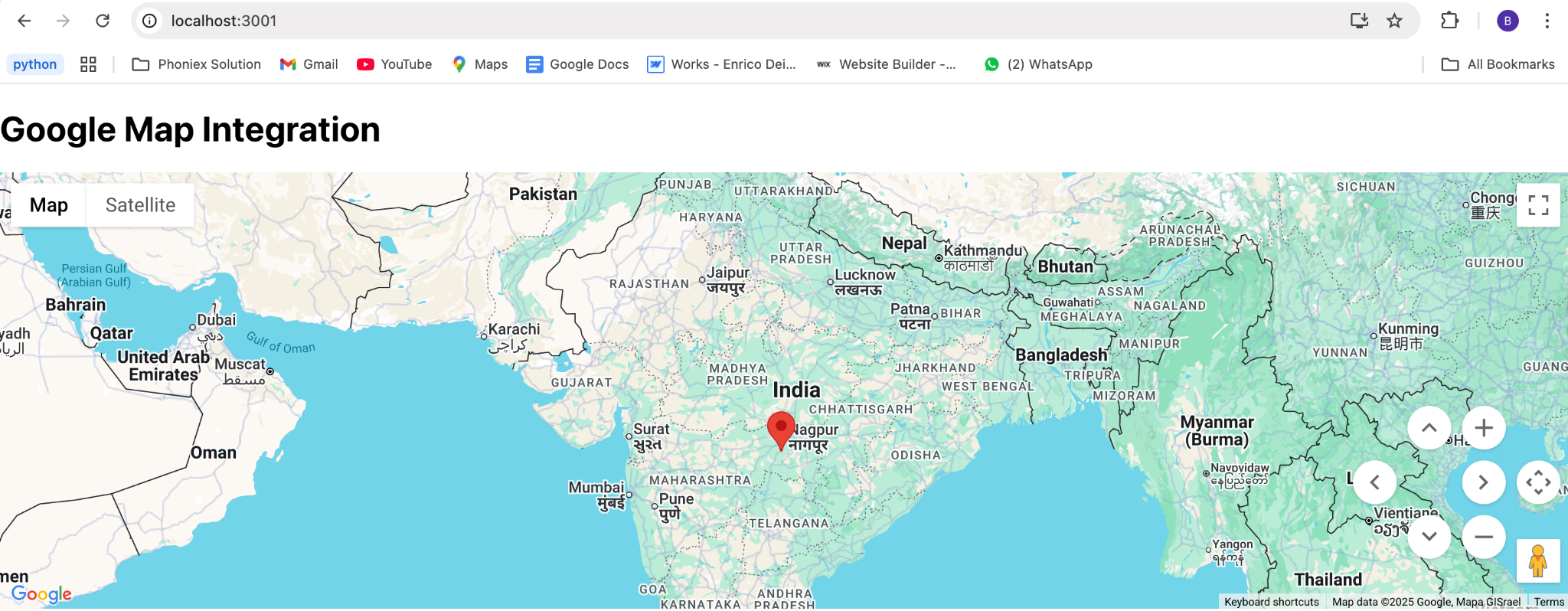
Google Maps integration into a React application is simple once your Google Cloud project is set up and the required APIs are enabled.Below is a step-by-step guide.
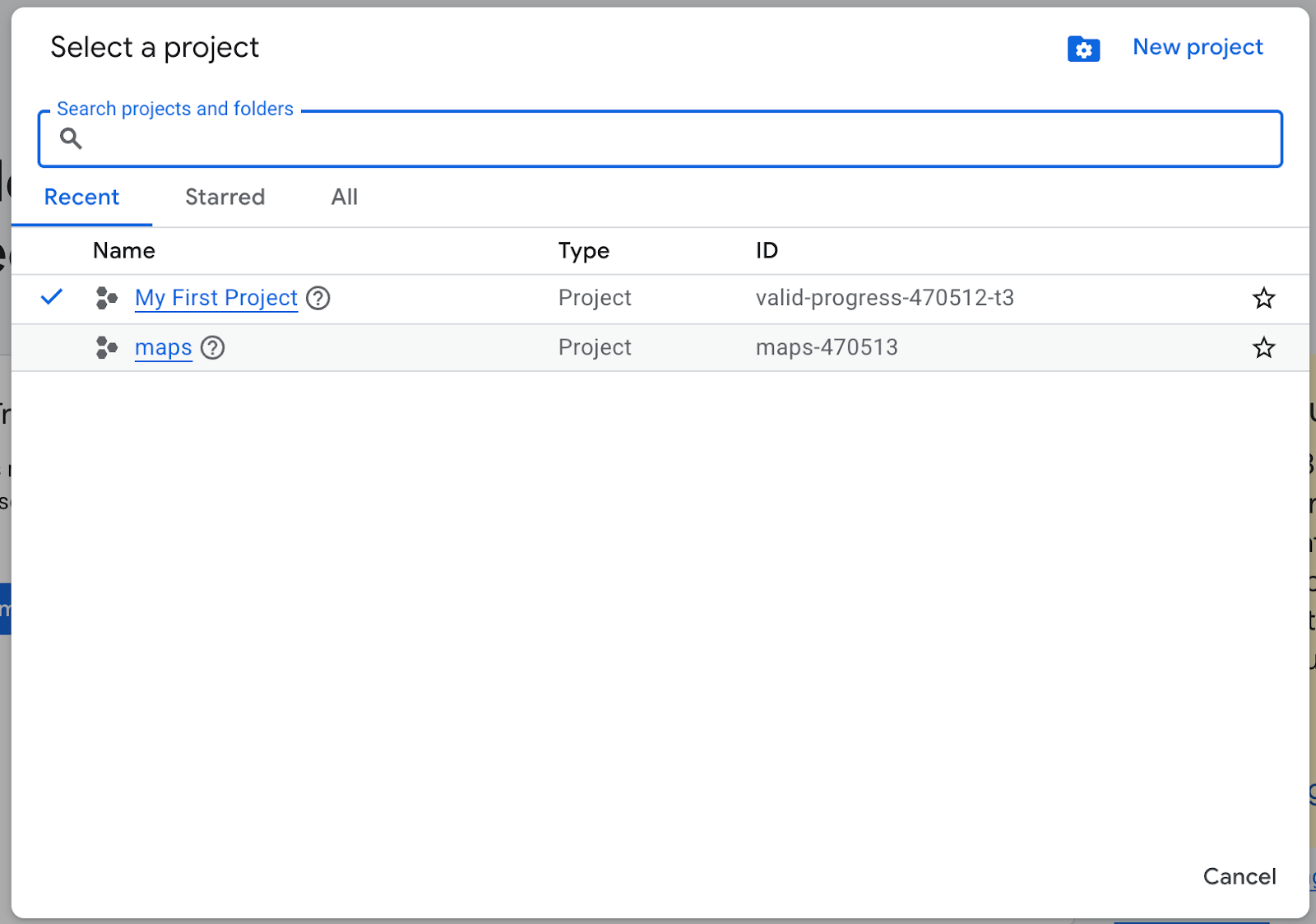
Step 1: Create a Google Cloud Project
- Open the Google Cloud Console.
- Select “New Project.”
- Create your project by entering its name.
Step 2: Enable Google Maps APIs
After the project is created:
- From the project dropdown menu, choose your project.
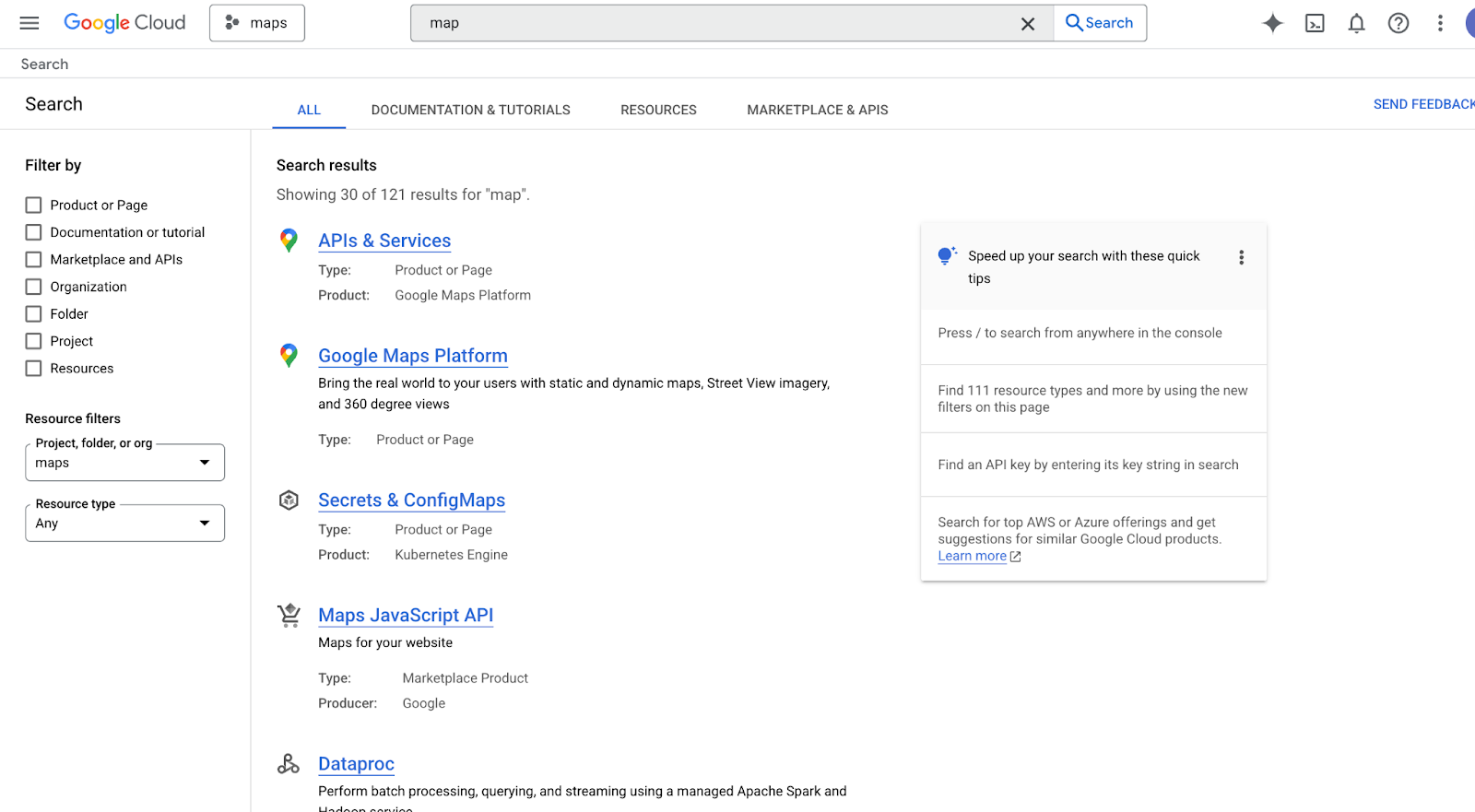
- Go to API Library and search for Maps.
- You’ll notice various APIs:
- Maps JavaScript API → for web app
- Maps SDK for Android → for Android apps
- Maps SDK for iOS → for iOS apps
- Maps JavaScript API → for web app
Enable the Maps JavaScript API since we are creating a React web application.
Step 3: Get an API Key
- Navigate to APIs & Services → Credentials in the Google Cloud Console.
- Select Create Credentials → API Key.
- Copy the generated API key.
- For security, limit the key to the domain of your application
Step 4: Install the necessary packages.
Install the wrapper library for Google Ma
Using npm:
npm install @react-google-maps/api
Using Yarn:
yarn add @react-google-maps/api
Step 5: Store the API Key in .env
Create a .env file in your project root and add your API key:
REACT_APP_GOOGLE_MAPS_API_KEY=AIzaSyCXXXXXXXXXXXXJJJJJV0
Step 6: Add Google Maps to React
Create a new component GoogleMapExample.tsx:
import React from “react”;
import { GoogleMap, LoadScript, Marker } from “@react-google-maps/api”;
const containerStyle = { width: “100%”, height: “400px” };
const center = {
lat: 20.5937,
lng: 78.9629
};
export default function GoogleMapExample() {
return (
<LoadScript googleMapsApiKey={process.env.REACT_APP_GOOGLE_MAPS_API_KEY ?? “”}>
<GoogleMap mapContainerStyle={containerStyle} center={center} zoom={10}>
<Marker position={center} />
</GoogleMap>
</LoadScript>
);
}
Step 7: Use the Component in App
import React from “react”;
import GoogleMapExample from “./GoogleMapExample”;
function App() {
return (
<div>
<h1>Google Map Integration</h1>
<GoogleMapExample />
</div>
);
}
export default App;
Step 8: Run the Application
Start your React app:
npm start
or
yarn start
We can now see Google Maps with a marker centered on India.