
Post Date: March 6, 2019
Last Updated: October 10, 2026
Introduction
This guide explains how to set up Monit to monitor a server. Monit is an open source tool that watches processes, files, directories, and system resources (CPU load, memory, swap, disk space). It can automatically restart a service that has stopped, or send you an alert when something goes wrong.
Typical uses include:
- Keeping services like Apache and sshd running
- Watching the system logging service
- Tracking system load, RAM, and swap usage
- Detecting when a service or port stops responding
Note: Monit doesn’t read hardware sensors such as motherboard temperature or physical disk health. Use a dedicated tool like smartmontools alongside it for that.
The steps below use CentOS/RHEL-style paths. CentOS 7 is past end-of-life, but the same steps work on AlmaLinux and Rocky Linux (use dnf in place of yum). On Ubuntu or Debian, install with apt install monit; the config lives in /etc/monit/monitrc.
Prerequisites
Before you set up Monit, make sure you have:
- A CentOS or RHEL-compatible server
- Root or sudo access
- Apache installed, if you want to follow the Apache example in Step 6
Architecture
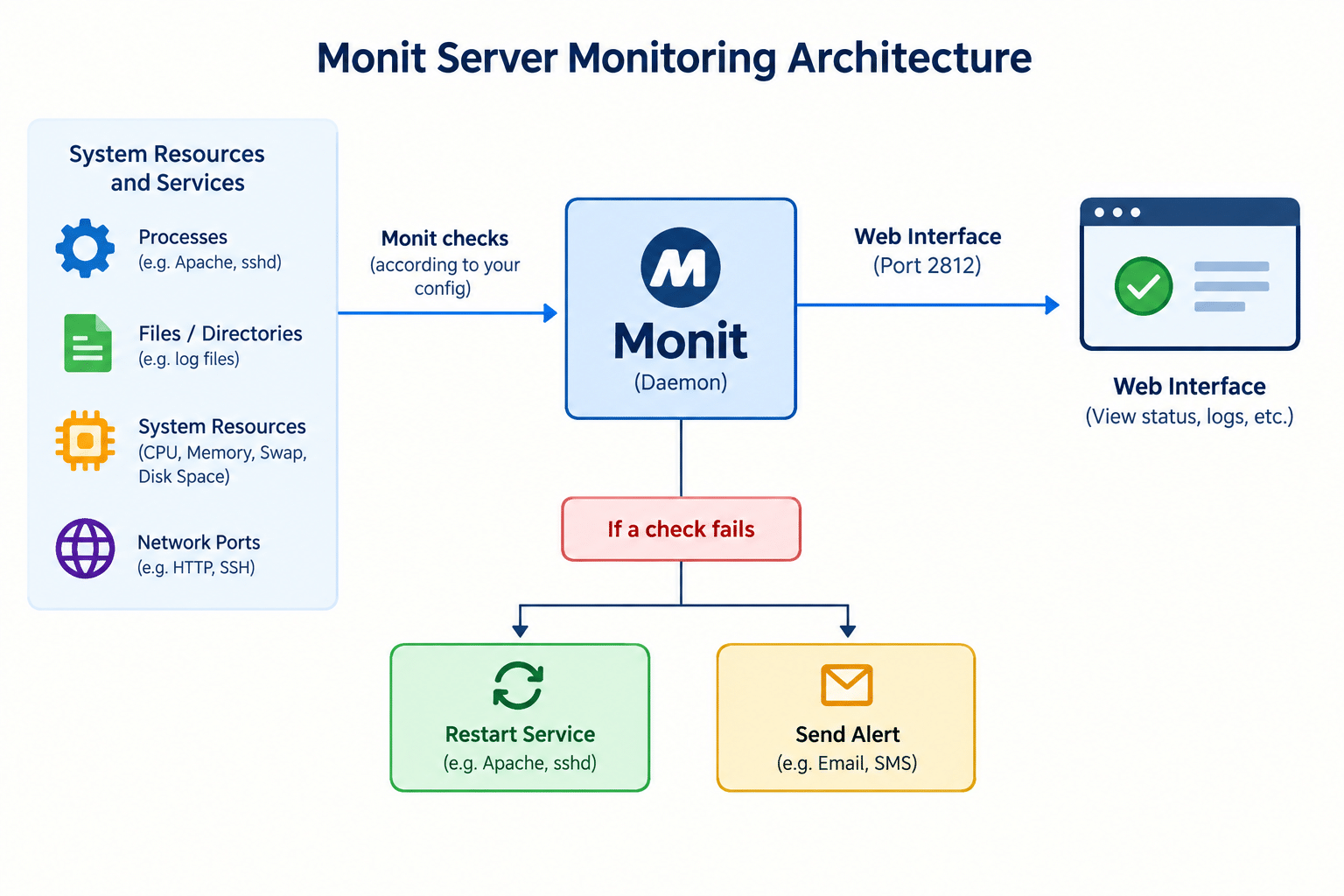
- The Monit daemon runs in the background and runs every check you define at a fixed interval
- If a check passes, nothing happens. If it fails, Monit runs the action you chose, such as restarting the service or sending an alert
- A small web interface (port 2812) shows the status of everything Monit watches
The diagram below shows what happens once you set up Monit:
For every available check type and option, see the official Monit documentation.
Steps to Set Up Monit to Monitor a Server
1. Install Monit
To set up Monit on CentOS, enable the EPEL repository first, then install Monit:
sudo yum install -y epel-release
sudo yum install -y monit
Note: The original guide installed EPEL from a hardcoded
rpmURL, but the URL had stray spaces in it (https: //dl.fedoraproject .org/...), so it would fail as written. Installingepel-releasethrough your package manager avoids hardcoding a link that can go stale.
2. Start and Enable Monit
sudo systemctl enable --now monit
The original had a typo here:
sytemctlinstead ofsystemctl.
3. Verify Monit Is Running
sudo monit status
If it reports that it can’t connect to the daemon, the local web interface from Step 5 isn’t enabled yet.
4. Set the Check Interval
Open Monit’s main config file:
sudo vi /etc/monit.conf
Set how often Monit runs its checks (here, every 60 seconds):
set daemon 60
Note: The original mixed two different file names (
/etc/monitrcand/etc/monit.conf). On CentOS/RHEL the config file is/etc/monit.conf./etc/monitrcis the Debian/Ubuntu-style name.
Because this file can contain passwords, keep it readable only by root. Monit refuses to start if the file permissions are too open:
sudo chmod 600 /etc/monit.conf
5. Set Up Monit’s Web Interface Securely
When you set up Monit’s web interface, keep it on localhost unless you truly need remote access. Edit the existing set httpd block in /etc/monit.conf:
set httpd port 2812 and
    use address localhost
    allow localhost
    allow admin:YourStrongPasswordHere
To view it from your own machine, use an SSH tunnel and then open http://localhost:2812 in your browser:
ssh -L 2812:localhost:2812 user@your-server
If you genuinely need direct remote access, allow only your own IP address:
set httpd port 2812 and
    allow localhost
    allow 203.0.113.10
    allow admin:YourStrongPasswordHere
Security note: The original guide used
allow 0.0.0.0/0.0.0.0with the default loginadmin:monit. That exposes the interface to the entire internet with a publicly known password. Because the web interface can start and stop services, that’s a serious risk. Always set a strong password, restrict access by IP, and open port 2812 in your firewall only for those same IPs. The interface is plain HTTP unless you enable SSL, which is another reason to prefer the SSH tunnel.
6. Monitor Apache
Rather than editing the main config, create a separate file in /etc/monit.d/, which Monit loads automatically:
sudo vi /etc/monit.d/apache
check process apache with pidfile /var/run/httpd/httpd.pid
    start program = "/usr/bin/systemctl start httpd" with timeout 60 seconds
    stop program  = "/usr/bin/systemctl stop httpd"
    if failed host 127.0.0.1 port 80 protocol http then restart
Notes:
- The original used
/etc/init.d/httpdscripts, which don’t exist on systemd-based CentOS 7+. Usesystemctlas shown.- The original also used curly “smart quotes” around the commands. Monit can’t parse those, so use straight quotes.
- On CentOS 7 the Apache PID file is
/var/run/httpd/httpd.pid. The older/var/run/httpd.pidpath was used on CentOS 6. Confirm yours withls /var/run/httpd/. On Ubuntu it’s/var/run/apache2/apache2.pid.
7. Monitor rsyslog
sudo vi /etc/monit.d/rsyslog
check process rsyslogd with pidfile /var/run/syslogd.pid
    start program = "/usr/bin/systemctl start rsyslog"
    stop program  = "/usr/bin/systemctl stop rsyslog"
8. Set Up Email Alerts (Optional)
Once you set up Monit’s checks, alerts are what make it genuinely useful, because it tells you when something fails. If the server has a local mail service such as Postfix, add this to /etc/monit.conf:
set mailserver localhost
set alert admin@yourdomain.com
9. Test the Configuration and Reload
sudo monit -t
sudo monit reload
sudo monit summary
monit -t checks the syntax first, so a typo doesn’t leave you without monitoring. After the reload, monit summary should list apache and rsyslogd as running.
Conclusion
To set up Monit properly, install it from EPEL, keep the web interface locked down, put each check in its own file under /etc/monit.d/, and run monit -t before every reload. The commands that tend to trip people up are the typo’d systemctl, the broken EPEL URL, init.d scripts that don’t exist on newer systems, and a web interface left open with the default password.
Frequently Asked Questions
Can I set up Monit on Ubuntu? Yes. Install it with apt install monit. The main config is /etc/monit/monitrc, extra checks go in /etc/monit/conf.d/, and Apache’s PID file is /var/run/apache2/apache2.pid.
Do I need the web interface to set up Monit? Not for remote access, but keep the localhost interface enabled. Commands like monit status and monit summary use it to talk to the running daemon.
Why does my Apache check show “Does not exist”? Almost always a wrong PID file path. Check where your system actually writes it, as covered in Step 6.
How often should I set up Monit to run its checks? Every 30 to 60 seconds is common. Shorter intervals catch failures faster but add a little more load, so match the interval to how quickly you need to react.
Is it safe to keep the default admin:monit login? No. It’s a publicly known default. Replace it with a strong password before anything else.
Related Articles
Implementing Auditd for System Activity Monitoring in Linux Servers
Using PHP and Cron to Automate Kannel Status Monitoring
Talk to Our Technology Experts
Need reliable monitoring and alerting for your servers? Our team can help with server monitoring, uptime alerting, and ongoing infrastructure support.