
Introduction
IPMI (Intelligent Platform Management Interface) provides remote management capabilities for Supermicro servers, including hardware monitoring, remote console access, and power management.
Keeping the IPMI firmware updated can help maintain compatibility, stability, and access to available firmware improvements. This guide explains how to upgrade the IPMI firmware on a Supermicro motherboard through the IPMI web interface.
It is highly recommended to perform this maintenance when the operating system is installed on the server and ipmicfg is available. If the IPMI interface becomes unavailable during or after the upgrade, ipmicfg can be used to help bring the interface back up.
Prerequisites
Before starting the IPMI firmware upgrade, make sure:
- You have access to the Supermicro IPMI interface.
- You know the motherboard/model version.
- You have downloaded the correct IPMI firmware for the motherboard.
ipmicfgis installed on the server if recovery or IPMI configuration is required.- You have stable network connectivity to the IPMI interface.
- A maintenance window is available for the upgrade.
Important: Make sure the firmware package exactly matches your Supermicro motherboard and IPMI controller. Installing incompatible firmware can cause the IPMI interface to become unavailable.
Implementation
Step 1: Log in to the IPMI Interface
Open a web browser and log in to the IPMI interface.
You can also use the IPMIVIEW tool to access the IPMI interface.
Step 2: Open Firmware Update
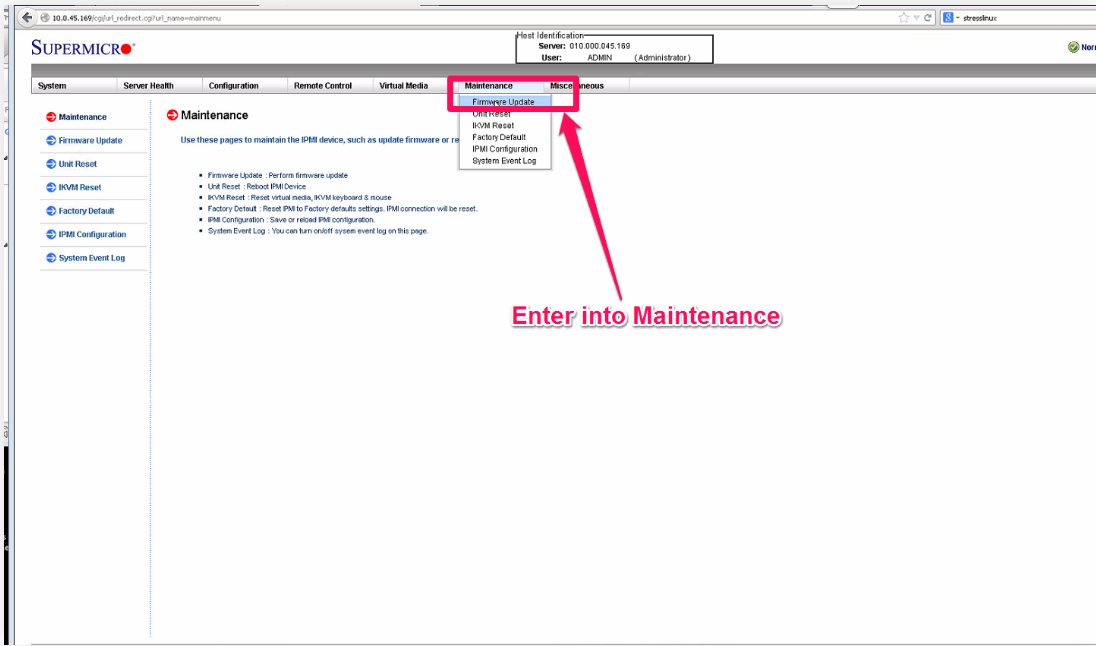
After logging in to IPMI, navigate to:
Maintenance → Firmware Update
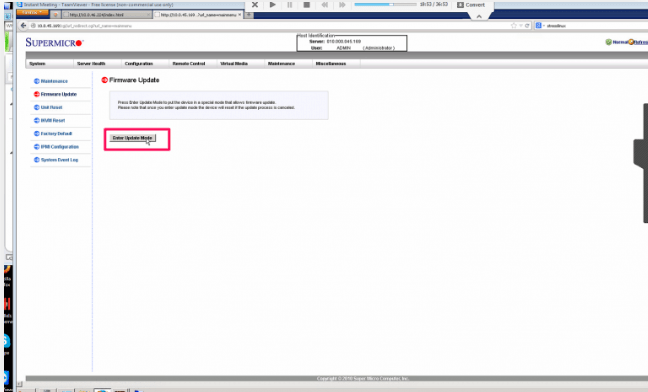
Select:
Enter Update Mode
This will put the IPMI controller into firmware update mode.
Step 3: Download the Correct Firmware
Download the required firmware version from the Supermicro support page.
Make sure you identify the correct motherboard model/version before downloading the firmware. The firmware should correspond to the specific motherboard and IPMI controller.
Step 4: Upload the Firmware
Select the downloaded firmware file in the firmware update interface.
Click:
Upload Firmware
The firmware will be uploaded to the IPMI interface for validation and installation.
Step 5: Verify the Firmware Versions
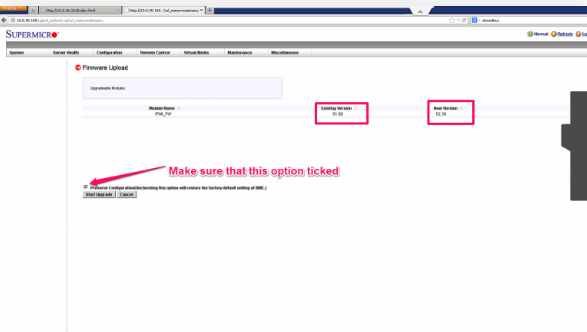
Before starting the upgrade, verify:
- Existing firmware version
- New firmware version
- Selected firmware file
- Preserve Configuration option
Make sure Preserve Configuration is selected if you want to retain the existing IPMI configuration.
Once everything has been verified, click:
Start Upgrade
Step 6: Wait for the Upgrade to Complete
Allow the firmware upgrade process to finish.
Wait until the progress reaches 100%.
The IPMI controller will automatically reboot after the upgrade. The IPMI interface should become available again once the reboot process is complete.
Step 7: Verify IPMI Access
After the IPMI controller has restarted:
- Open the IPMI interface again.
- Log in using your existing credentials.
- Verify that the expected IPMI network configuration is still present.
- Check the firmware version to confirm that the upgrade was successful.
If the IPMI interface is unavailable, ipmicfg can be useful for checking and configuring the IPMI interface from the operating system.
Conclusion
Upgrading the IPMI firmware on a Supermicro server can be performed through the IPMI web interface using the Maintenance → Firmware Update option.
Before starting the upgrade, always verify the motherboard model and select the appropriate firmware. Keeping Preserve Configuration enabled can help retain the existing IPMI configuration. After the upgrade reaches 100%, the IPMI controller will reboot and should become available again.
FAQs
1. What is IPMI firmware?
IPMI firmware controls the functionality of the server’s hardware management controller and enables features such as remote management, monitoring, and power control.
2. Where can I upgrade Supermicro IPMI firmware?
The firmware can be upgraded through the IPMI web interface under:
Maintenance → Firmware Update
3. Why should I verify the motherboard model before upgrading?
Supermicro provides firmware packages for specific motherboard and IPMI controller combinations. Using the wrong firmware can cause compatibility issues or make the IPMI interface unavailable.
4. What does Preserve Configuration do?
The Preserve Configuration option is used to retain the existing IPMI configuration during the firmware upgrade.
5. What happens after the firmware reaches 100%?
The IPMI controller automatically reboots after the upgrade. You should wait for the reboot to complete before attempting to access the IPMI interface again.
Talk to our experts
Looking for the right technology solution for your business? Our team of experts can help you with development, cloud, DevOps, design, and a wide range of other technology needs. Get in touch with our team here.