
Post Date: October 21, 2026
Introduction
Amazon Elastic Compute Cloud (Amazon EC2) is a core service of Amazon Web Services (AWS) that allows users to launch and manage virtual servers in the cloud. EC2 instances support a wide range of workloads, including web applications, databases, development environments, and enterprise applications.
However, EC2 instances can occasionally encounter issues such as SSH connection failures, instance status check failures, application downtime, high CPU utilization, insufficient disk space, and networking problems.
This guide explains common AWS EC2 issues, their possible causes, and practical troubleshooting steps to help administrators diagnose and resolve problems efficiently.
Prerequisites
Before troubleshooting an EC2 instance, ensure you have the following:
- Access to the AWS Management Console or AWS CLI.
- Appropriate IAM permissions to view and manage EC2 resources.
- The affected EC2 instance ID and AWS Region.
- SSH access for Linux instances or RDP access for Windows instances, where applicable.
- Access to relevant system logs, application logs, and Amazon CloudWatch metrics.
- Basic knowledge of Linux or Windows server administration and networking.
Note: Before making significant changes, review the potential impact on running applications. Create a backup or snapshot when appropriate, particularly before modifying storage, partitions, or critical system configuration.
Implementation
1. Troubleshooting EC2 Instance Connection Issues
One of the most common EC2 problems is the inability to connect to an instance using SSH or RDP.
Common causes
- Incorrect public IP address or DNS name.
- Security group rules blocking the connection.
- Network ACL rules blocking traffic.
- Incorrect SSH key pair or file permissions.
- Incorrect operating system username.
- Instance not running or failing system checks.
- Missing internet gateway, route, VPN, or bastion host configuration.
Steps to troubleshoot
Step 1: Check the instance state
- Sign in to the AWS Management Console.
- Navigate to EC2 → Instances.
- Select the affected instance.
- Confirm that the instance is in the
Runningstate. - Review the instance status checks.
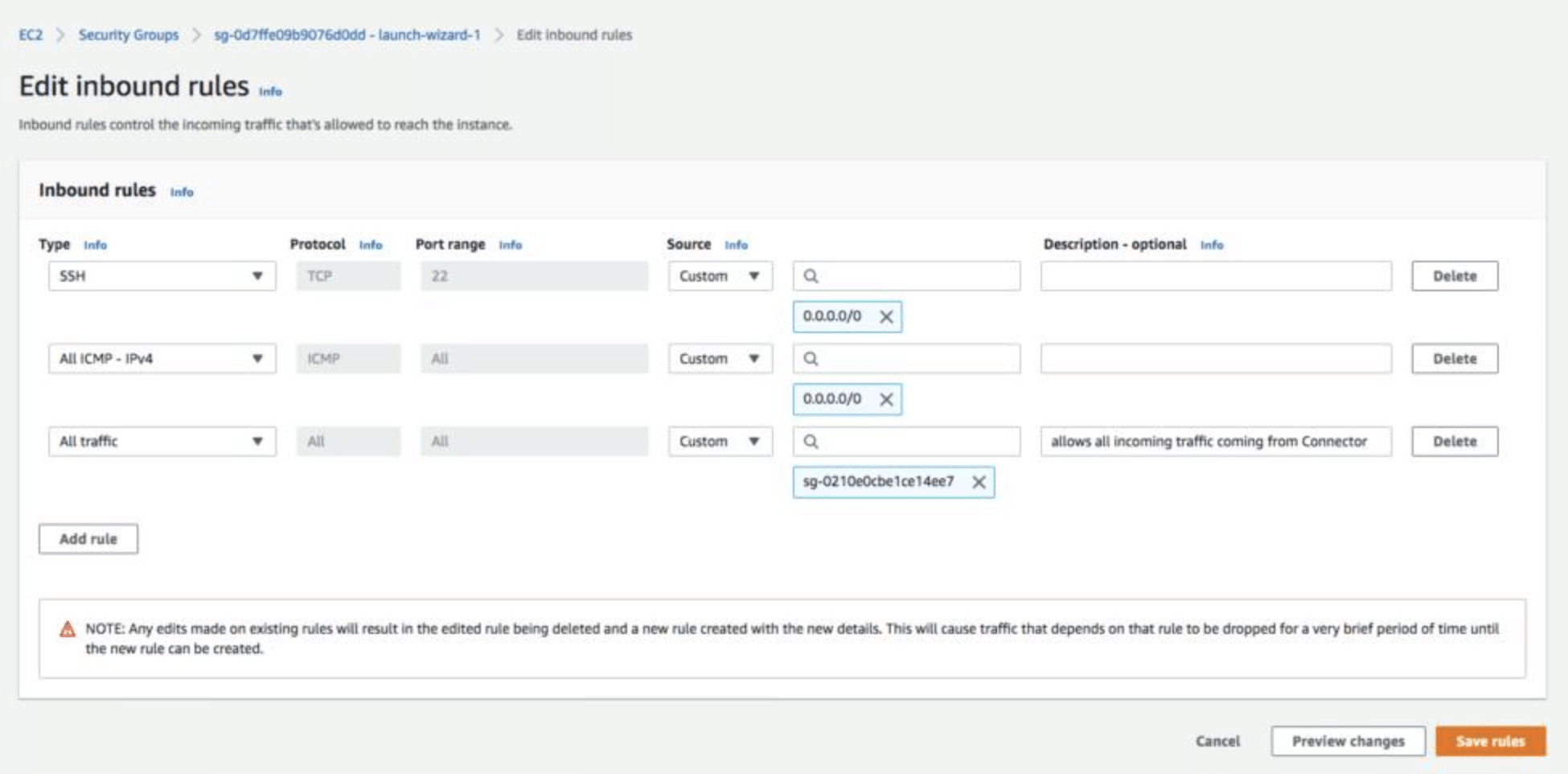
Step 2: Verify security group rules
For a Linux instance, ensure that the security group allows inbound SSH traffic on TCP port 22 from an authorized source IP address.
For a Windows instance, verify that inbound RDP traffic on TCP port 3389 is allowed from an authorized source.
Avoid allowing SSH or RDP from 0.0.0.0/0 unless there is a specific, temporary, and justified requirement.
Step 3: Verify network routing
Check that:
- The subnet route table contains the appropriate route.
- A public subnet has a route to an internet gateway when direct public internet access is required.
- The instance has a public IPv4 address or another valid connection path.
- Network ACLs allow the required inbound and outbound traffic, including return traffic.
- The instance operating system firewall permits the connection.
Private instances generally require an alternative access method, such as AWS Systems Manager Session Manager, a VPN, or a bastion host.
Step 4: Connect to a Linux instance
Use the appropriate private key and default username for the selected AMI.
chmod 400 my-key.pem

ssh -i my-key.pem ec2-user@<PUBLIC_IP>
Common default usernames include ec2-user for Amazon Linux and ubuntu for Ubuntu AMIs. The correct username depends on the operating system image.
Replace my-key.pem and <PUBLIC_IP> with the actual key filename and instance address.
2. Resolving EC2 Instance Status Check Failures
AWS performs status checks to identify problems that could prevent an EC2 instance from operating correctly.
Types of status checks
- System status check: Detects issues affecting the underlying AWS infrastructure.
- Instance status check: Detects problems involving the instance operating system or network configuration.
- Attached EBS status check: Monitors certain issues involving EBS volumes attached to the instance.
Troubleshooting steps
- Open the EC2 console.
- Select the affected instance.
- Review the Status and alarms section.
- Identify which status check has failed.
- Review AWS Health information and relevant system logs.
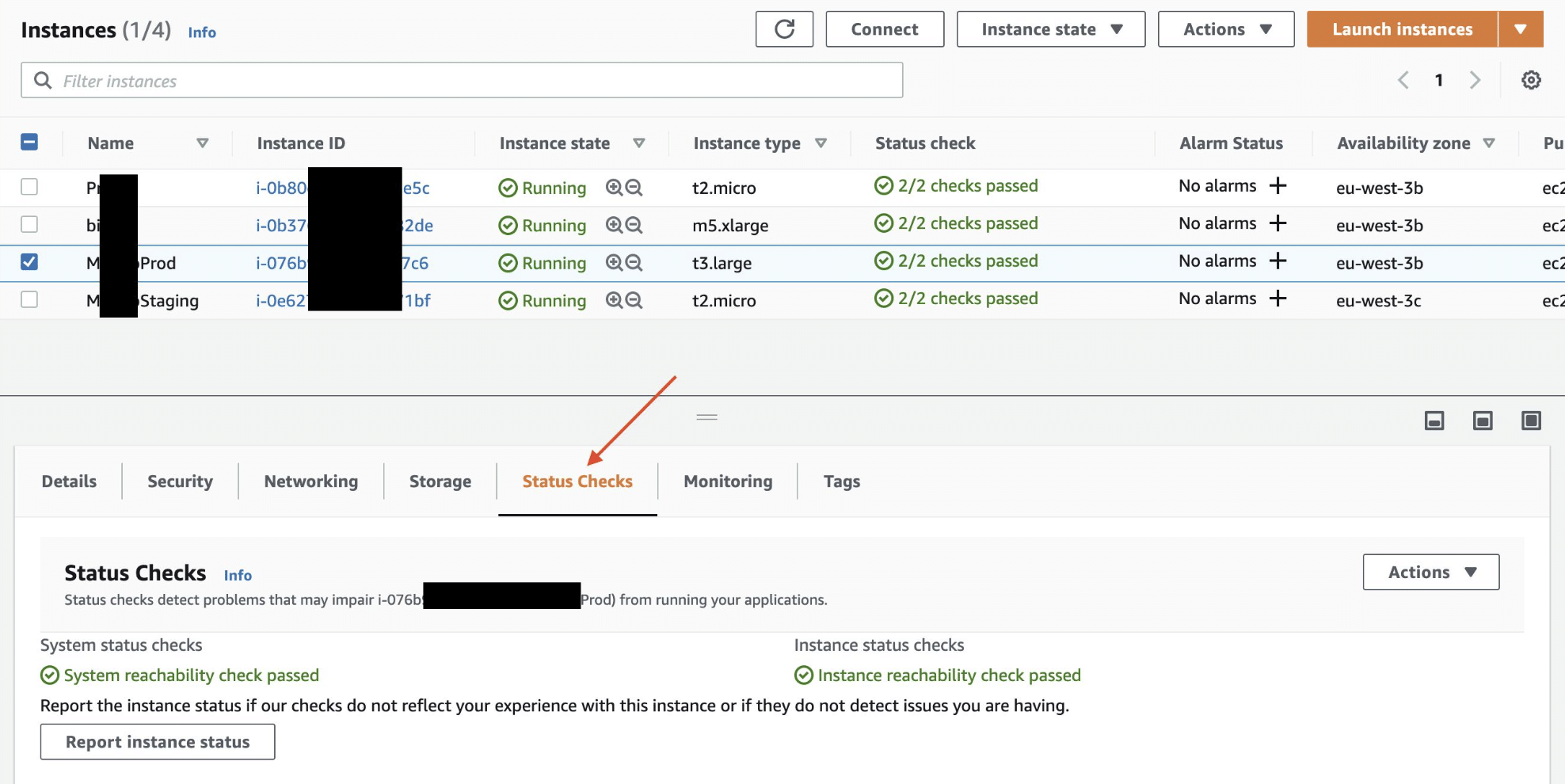
If a system status check fails, the problem may involve the underlying AWS infrastructure. Depending on the circumstances, waiting for recovery or stopping and starting the instance may help. A stop/start operation can change the public IPv4 address of an instance that does not use an Elastic IP address.
If an instance status check fails, investigate operating system boot problems, resource exhaustion, firewall configuration, and network interface settings.
For instances that remain inaccessible, consider EC2 Serial Console access where supported, AWS Systems Manager, or a recovery workflow using a separate instance.
3. Troubleshooting High CPU Utilization
High CPU utilization can cause slow application responses, timeouts, and degraded server performance.
Check CPU utilization
- Open the CloudWatch console.
- Navigate to Metrics → EC2.
- Select the relevant instance metrics.
- Review the
CPUUtilizationmetric over the affected time period.
You can also check CPU usage from a Linux instance:
top
For a more detailed process view, use:
ps aux --sort=-%cpu | head
Common causes
- A sudden increase in application traffic.
- Inefficient application code or background jobs.
- Database queries consuming excessive resources.
- A runaway process.
- Insufficient instance capacity for the workload.
Recommended solutions
- Identify and investigate the processes consuming the most CPU.
- Review application and system logs.
- Optimize expensive operations and database queries.
- Schedule resource-intensive jobs during suitable periods.
- Consider a larger instance type or an appropriate Auto Scaling configuration if demand consistently exceeds capacity.
Do not terminate a process solely because it consumes high CPU. Confirm its purpose and impact before taking action.
4. Resolving Low Disk Space Issues
Insufficient disk space can prevent applications from writing logs, creating temporary files, or starting correctly.
Check disk usage
Run the following commands on a Linux instance:
df -h
To identify large directories:
sudo du -xhd1 /var 2>/dev/null | sort -h
To identify large files, you can use:
sudo find /var -xdev -type f -size +500M -print
Adjust the search path and file-size threshold according to your environment.
Recommended solutions
- Remove obsolete temporary files after confirming they are safe to delete.
- Rotate or archive oversized application logs.
- Review application-generated files and backups.
- Extend the EBS volume if additional capacity is required.
- Expand the partition and filesystem after increasing the EBS volume size, using the appropriate procedure for the operating system and filesystem.
Before deleting files, verify that they are not required by the operating system or running applications.
Note: Increasing the size of an EBS volume does not automatically expand the filesystem in every configuration. Filesystem expansion may require additional steps.
5. Troubleshooting EC2 Networking Issues
Networking issues may prevent an instance from reaching the internet, communicating with other servers, or serving application traffic.
Common causes
- Incorrect security group rules.
- Incorrect route table entries.
- Network ACL restrictions.
- Missing internet gateway or NAT gateway.
- Incorrect DNS configuration.
- Operating system firewall restrictions.
- Application listening on the wrong interface or port.
Verify network connectivity
Check the instance’s IP addresses and routes:
ip addr
ip route
Check DNS resolution:
getent hosts example.com
Test connectivity to a required service:
curl -I --connect-timeout 5 https://example.com
Check whether an application is listening on the expected port:
sudo ss -lntp
These commands help identify whether the problem is related to local network configuration, DNS resolution, outbound connectivity, or application port binding.
Review AWS network configuration
Verify the following in the AWS console:
- Security group inbound and outbound rules.
- Subnet route table entries.
- Network ACL inbound and outbound rules.
- Internet gateway or NAT gateway configuration.
- VPC DNS settings.
- Network interface and private IP configuration.
Remember that a public IP address alone does not guarantee internet connectivity. The subnet routing, security rules, network ACLs, and instance configuration must also be correct.
6. Troubleshooting EC2 Application Downtime
An EC2 instance may be running while the hosted website or application is unavailable.
Check the application service
For a Linux server using systemd, check the relevant service:
sudo systemctl status nginx
Replace nginx with the actual service name, such as apache2 or your application service.
Review recent service logs:
sudo journalctl -u nginx -n 100 --no-pager
For Nginx, validate the configuration:
sudo nginx -t
If the configuration is valid and the service is stopped, restart it only after checking the cause:
sudo systemctl restart nginx
Test the application locally
For an HTTP service listening on port 80:
curl -I http://127.0.0.1
If the application uses another port, replace the URL and port accordingly.
If the application responds locally but not externally, investigate security groups, network ACLs, routing, DNS, load balancers, and TLS configuration.
If the application fails locally, investigate the application process, configuration files, dependencies, and logs.
7. Troubleshooting EBS Volume and Storage Problems
Amazon Elastic Block Store (EBS) provides persistent block storage for EC2 instances.
Storage-related issues may occur when a volume is unavailable, a filesystem is corrupted, or an instance runs out of I/O capacity.
Troubleshooting steps
- Open EC2 → Volumes.
- Locate the affected EBS volume.
- Verify its state and attachment to the intended instance.
- Review volume performance metrics in CloudWatch.
- Check the operating system logs for storage or filesystem errors.
Useful Linux commands include:
lsblk
df -h
dmesg | tail -n 100
Recommended solutions
- Confirm that the volume is attached to the correct instance and device.
- Check filesystem mount configuration.
- Review EBS throughput and IOPS limits.
- Consider an appropriate EBS volume type or performance adjustment if the workload requires it.
- Back up critical data before performing filesystem repairs.
Do not format an existing volume or run filesystem repair commands on a mounted filesystem without following the appropriate recovery procedure.
8. Using Amazon CloudWatch for EC2 Monitoring
Amazon CloudWatch helps monitor EC2 performance and diagnose recurring infrastructure issues.
Important metrics
| Metric | Purpose |
|---|---|
CPUUtilization | Measures CPU utilization. |
NetworkIn | Measures incoming network traffic. |
NetworkOut | Measures outgoing network traffic. |
StatusCheckFailed | Indicates a failed EC2 status check. |
StatusCheckFailed_Instance | Indicates an instance-level status check failure. |
StatusCheckFailed_System | Indicates a system-level status check failure. |
| EBS performance metrics | Help identify storage throughput, IOPS, or latency-related bottlenecks. |
The exact metrics available depend on the resource and configuration.
Configure monitoring and alerts
- Open the CloudWatch console.
- Navigate to Alarms and create an alarm.
- Select the metric to monitor.
- Configure the threshold and evaluation period.
- Select an appropriate notification action, such as an Amazon SNS topic.
- Test the alert and verify that notifications reach the intended recipients.
For memory utilization, filesystem usage, and other operating system-level metrics, additional configuration is generally required, such as installing and configuring the CloudWatch agent.
CloudWatch alarms can help teams detect problems early and reduce troubleshooting time.
9. Troubleshooting AWS CLI Access Issues
AWS CLI commands may fail because of missing credentials, insufficient permissions, an incorrect Region, or expired temporary credentials.
Check the AWS CLI configuration
aws --version
aws sts get-caller-identity
Verify the configured Region:
aws configure get region
To inspect EC2 instances in a specific Region:
aws ec2 describe-instances \
  --region <AWS_REGION> \
  --query 'Reservations[].Instances[].[InstanceId,State.Name,InstanceType]' \
  --output table
Replace <AWS_REGION> with the appropriate Region, such as ap-south-1.
Common errors and solutions
- Unable to locate credentials: Configure an appropriate credential provider or use an IAM role.
- AccessDenied: Review the IAM identity’s permissions and any applicable permission boundaries or organizational policies.
- Incorrect Region: Specify the Region where the instance is deployed.
- Expired credentials: Refresh the relevant temporary credentials or sign in again through the configured identity provider.
For workloads running on EC2, prefer an appropriately scoped IAM instance profile over storing long-lived AWS access keys on the server.
10. Troubleshooting EC2 Instances That Fail to Boot
An instance may fail to boot because of operating system errors, filesystem problems, incorrect configuration, or resource exhaustion.
Recommended troubleshooting steps
- Check the instance status checks.
- Review the EC2 system log and screenshot options where available.
- Inspect AWS Health for infrastructure-related events.
- Review recent changes to the operating system, boot configuration, or attached storage.
- Use EC2 Serial Console where supported and authorized.
- If necessary, follow an appropriate recovery procedure using a backup or a helper instance.
A common recovery method for certain Linux boot issues is to stop the affected instance, detach its root EBS volume, attach it to a temporary recovery instance, and inspect or repair the filesystem and configuration.
Before using this method, confirm that the instance can safely be stopped, take an appropriate snapshot, and follow the recovery procedure for the specific operating system.
For instances in an Auto Scaling group or managed by an orchestrator, follow the relevant recovery and replacement procedures rather than making isolated changes that may be overwritten.
Conclusion
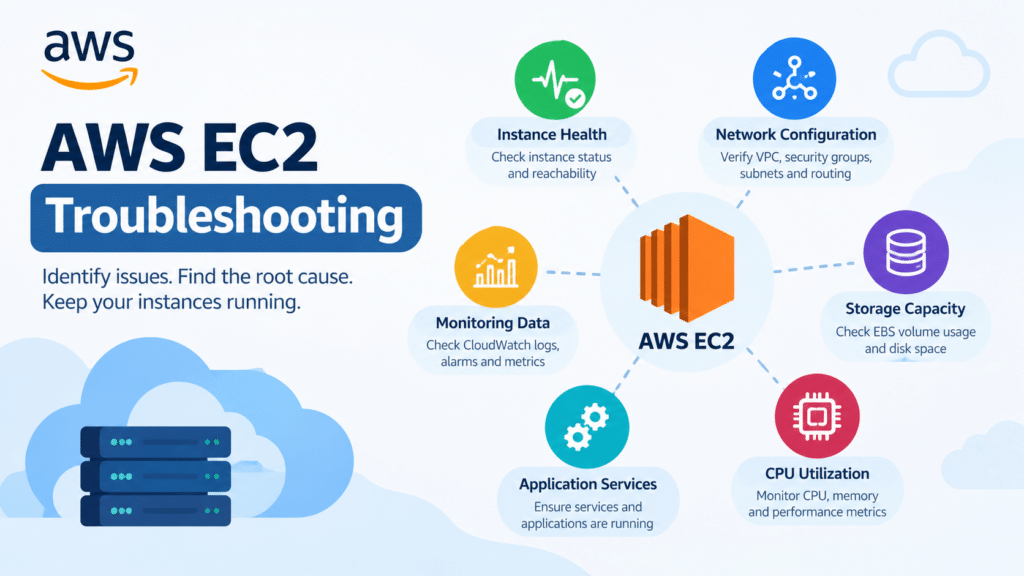
AWS EC2 troubleshooting involves checking instance health, network configuration, storage capacity, CPU utilization, application services, and monitoring data. A structured troubleshooting process helps identify the root cause and reduces unnecessary downtime.
Start with EC2 status checks and CloudWatch metrics, then investigate the operating system, networking, storage, and application layers as needed. Maintain regular backups, configure appropriate alerts, and document infrastructure changes to improve reliability and recovery.
For production environments, test recovery procedures in a non-production environment whenever possible and follow change-management practices before applying potentially disruptive fixes.
Frequently Asked Questions
1. Why is my AWS EC2 instance running but inaccessible?
An instance may be running but inaccessible because of incorrect security group rules, route table configuration, network ACL restrictions, operating system firewall settings, SSH/RDP configuration, or an unhealthy operating system. Check the status checks and network path first.
2. How do I troubleshoot an EC2 instance that fails its status checks?
Identify whether the system, instance, or attached EBS status check is failing. Review AWS Health information, system logs, resource utilization, and network configuration. Choose the recovery procedure based on the identified cause.
3. How can I check CPU and memory usage on EC2?
Use top or ps on Linux to inspect CPU usage. CloudWatch provides EC2 CPU metrics, while memory monitoring generally requires the CloudWatch agent or another monitoring solution.
4. Why is my EC2-hosted website not loading?
Possible causes include a stopped application service, incorrect port configuration, security group restrictions, DNS issues, load balancer health check failures, or TLS configuration problems. Test the application locally and then verify external connectivity.
5. How do I troubleshoot an EC2 instance with low disk space?
Run df -h to identify full filesystems and use tools such as du to locate large directories. Review logs and temporary files, clean up safely, or expand the EBS volume and filesystem when required.
6. Can I troubleshoot an EC2 instance without SSH access?
Yes. Depending on the instance configuration and permissions, you may use AWS Systems Manager Session Manager, EC2 Serial Console, EC2 system logs, CloudWatch, or a recovery workflow using a separate instance.
7. How can I prevent recurring EC2 issues?
Configure CloudWatch alarms, monitor application and system logs, maintain backups, review capacity requirements, apply security updates, and periodically test recovery procedures.
Related Articles
- How to Troubleshoot SSH Connection Issues in AWS EC2
- How to Enable Multi-Factor Authentication (MFA) for an AWS IAM User
- How to Set AWS Billing Budget Email Notification
Need Help with AWS EC2 Troubleshooting?
Pheonix Solutions provides cloud infrastructure support, server troubleshooting, monitoring configuration, and application deployment assistance. Our team can help investigate EC2 connectivity issues, performance bottlenecks, storage problems, and application downtime.
For assistance with your AWS infrastructure, contact our team through the Pheonix Solutions Contact Page.