
Introduction
Multi-Factor Authentication (MFA) provides an additional layer of security for your AWS account by requiring both a password and a time-based authentication code during login. Even if an attacker obtains your password, they cannot access your account without the MFA device.
Prerequisites
Before you begin, ensure you have:
- Access to the AWS Management Console
- IAM user credentials
- A smartphone with an authenticator application installed
- Google Authenticator
- Microsoft Authenticator
- Authy
- 1Password
- Any TOTP-compatible authenticator
Implementation
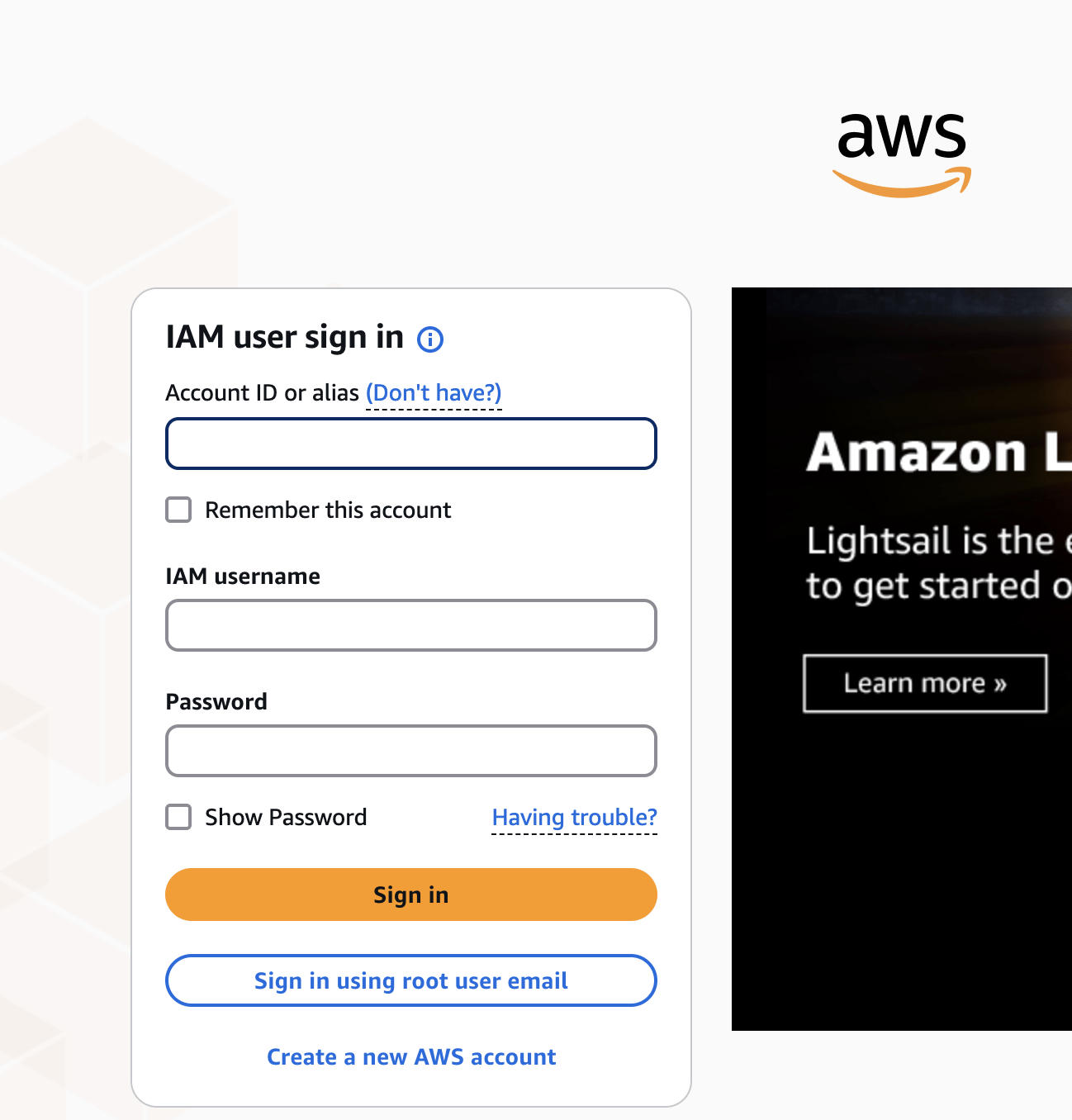
Step 1: Sign in to the AWS Console
Open the AWS Console and log in using your IAM user credentials.
https://console.aws.amazon.com/
Step 2: Open IAM
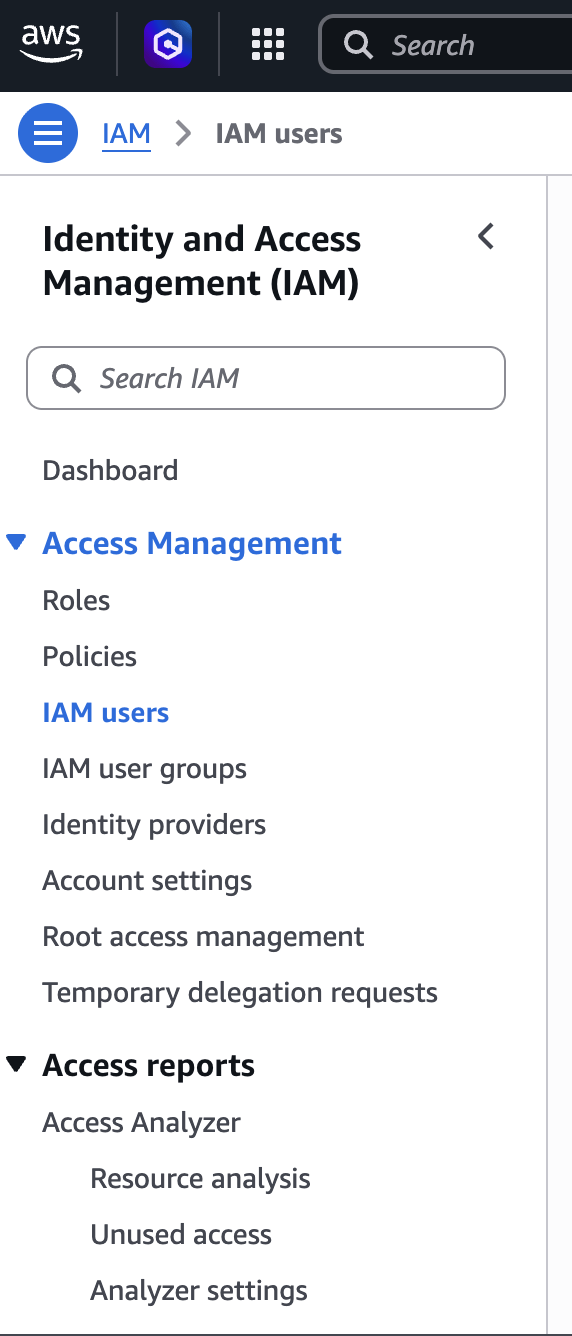
- Search for IAM in the AWS search bar.
- Open the Identity and Access Management (IAM) dashboard.
Step 3: Select the IAM User
- Click Users.
- Select the IAM user for whom you want to enable MFA.
Step 4: Navigate to the Security Credentials Tab
Inside the user details page:
Security credentials
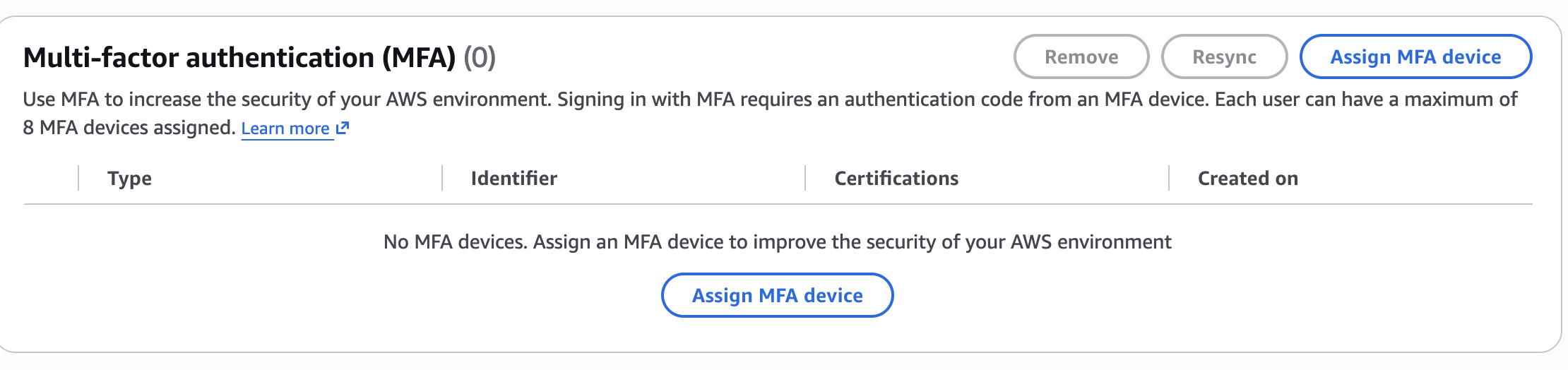
Locate the Multi-factor authentication (MFA) section.
Click
Assign MFA device
Step 5: Choose MFA Device Type
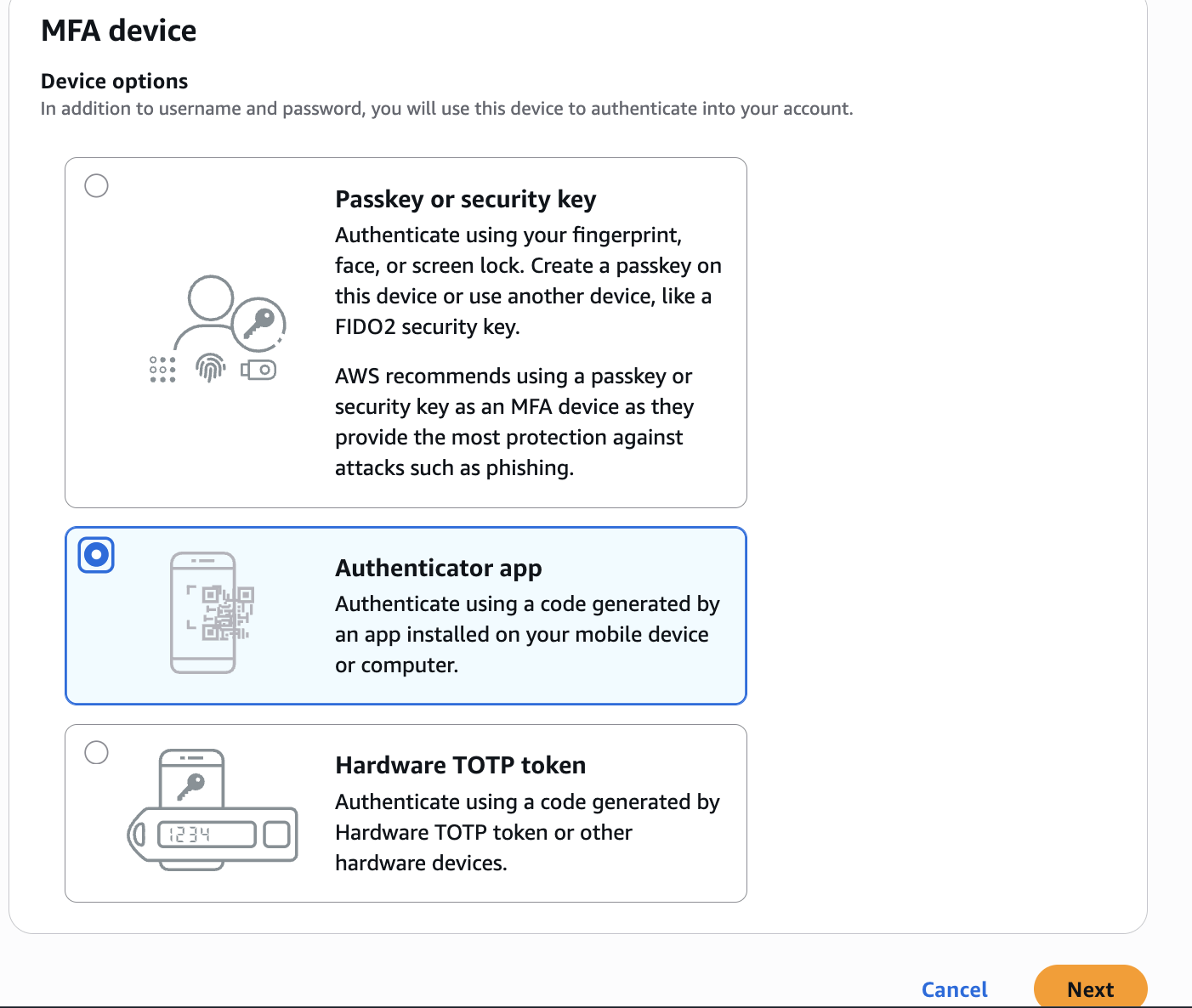
AWS provides three options:
- Authenticator app (Virtual MFA) ← Recommended
- Security Key (FIDO2)
- Hardware TOTP Token
Select
Authenticator app
Click
Next
Step 6: Scan the QR Code
AWS displays:
- QR Code
- Secret Key (manual entry)
Open your authenticator app.
Choose:
Add Account
Scan the QR code.
If scanning isn’t possible, manually enter the secret key.
The app will begin generating 6-digit verification codes.
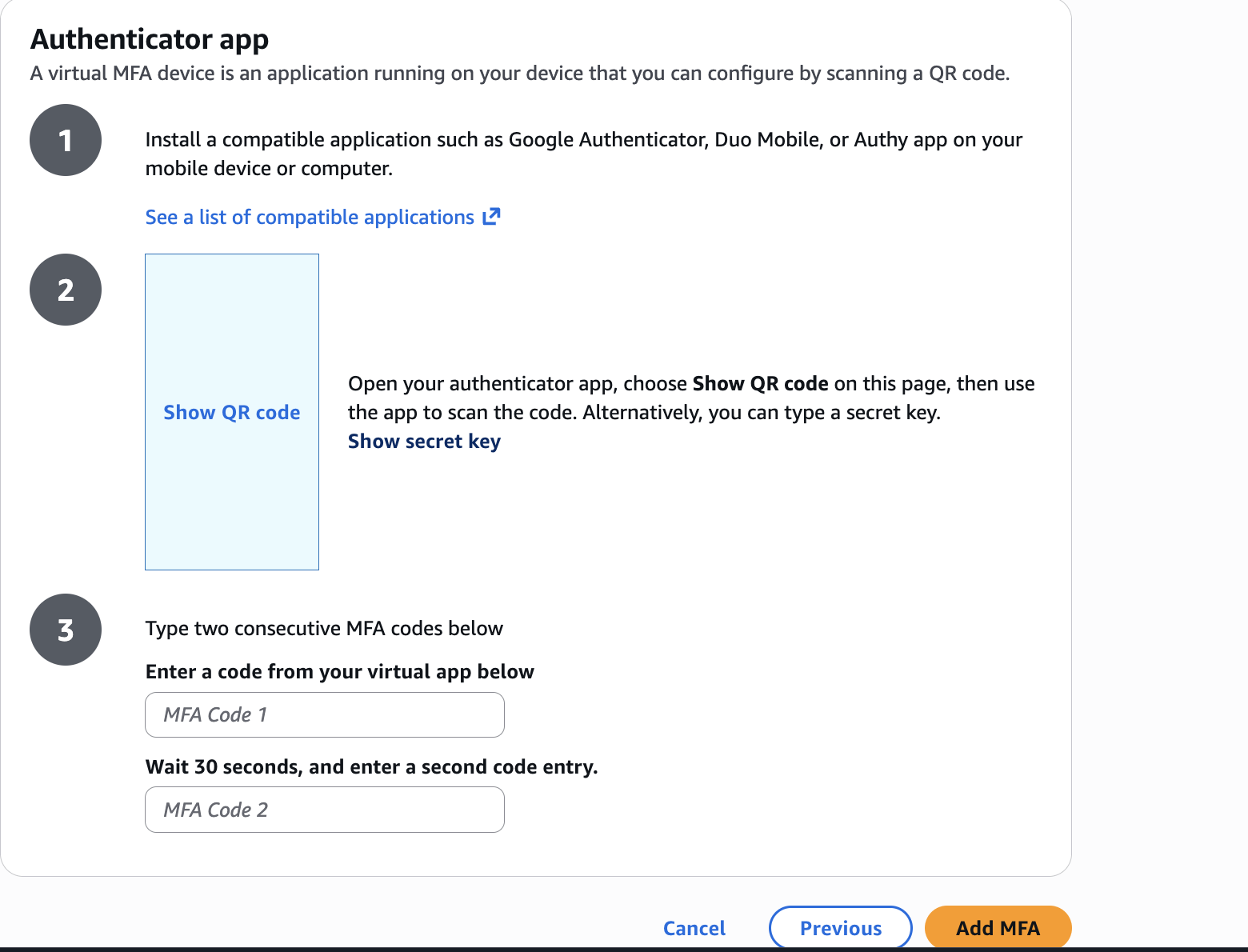
Step 7: Verify MFA
AWS asks for two consecutive authentication codes.
Example:
Authentication Code 1
123456

Authentication Code 2
567890
Enter both codes.
Click
Add MFA
AWS validates the codes and enables MFA.
Step 8: Verify MFA Status
You should now see
Assigned
under the MFA section.
Your IAM user is now protected with Multi-Factor Authentication.
Logging in After MFA Is Enabled
On future logins:
- Enter your username.
- Enter your password.
- Enter the 6-digit code from your authenticator app.
Only after successful verification will AWS grant access.
AWS CLI Login with MFA
If your IAM user uses the AWS CLI, obtain a temporary session token.
Example:
aws sts get-session-token \
    --serial-number arn:aws:iam::123456789012:mfa/username \
    --token-code 123456
Example output:
{
  "Credentials": {
    "AccessKeyId": "ASIA********",
    "SecretAccessKey": "****************",
    "SessionToken": "IQoJb3JpZ2luX2VjE...",
    "Expiration": "2026-07-01T18:00:00Z"
  }
}
Export the temporary credentials:
export AWS_ACCESS_KEY_ID=ASIAxxxxxxxx
export AWS_SECRET_ACCESS_KEY=xxxxxxxxxxxxxxxx
export AWS_SESSION_TOKEN=IQoJb3JpZ2luX2VjE...
Verify access:
aws sts get-caller-identity
AWS CLI Configuration
Configure your IAM user:
aws configure
Example:
AWS Access Key ID:
AWS Secret Access Key:
Default region:
Default output format:
Conclusion
Enabling Multi-Factor Authentication (MFA) is one of the simplest and most effective ways to secure your AWS environment. By requiring a second verification factor in addition to a password, MFA significantly reduces the risk of unauthorized access due to compromised credentials. Whether you access AWS through the Management Console or the AWS CLI, enabling MFA should be considered a mandatory security best practice for all users with access to your AWS resources.