
Post Date: May 13, 2025
Last Updated: November 02, 2026
Introduction
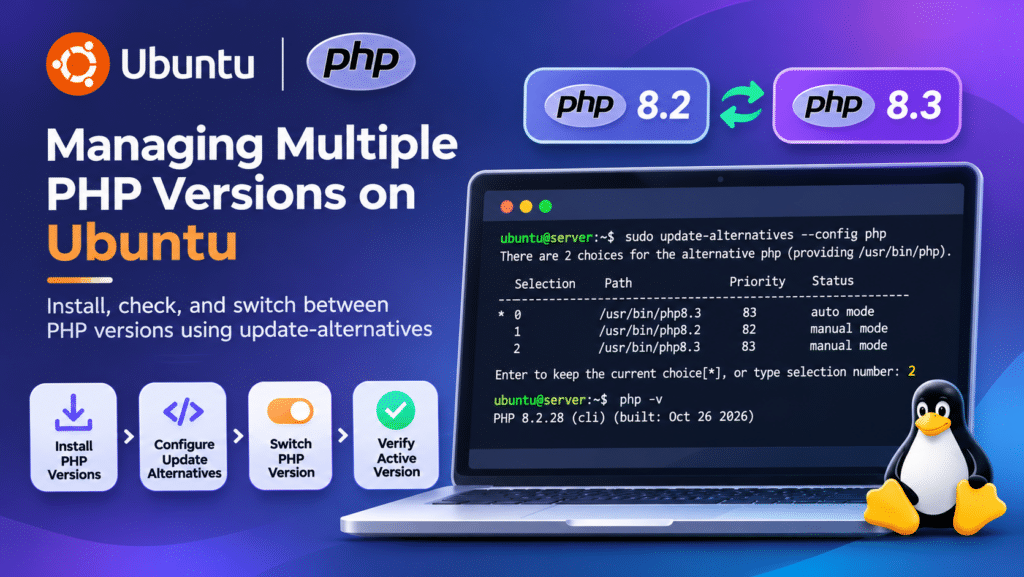
Managing multiple PHP versions on Ubuntu is essential for developers and system administrators who work with applications that require different PHP versions. Ubuntu allows you to install PHP packages through APT and switch the default command-line PHP version using the update-alternatives command.
In this guide, we will explain how to check available PHP packages, install multiple PHP versions, identify the active version, and switch between them. For additional information about PHP releases and supported versions, refer to the official PHP documentation.
Implementation
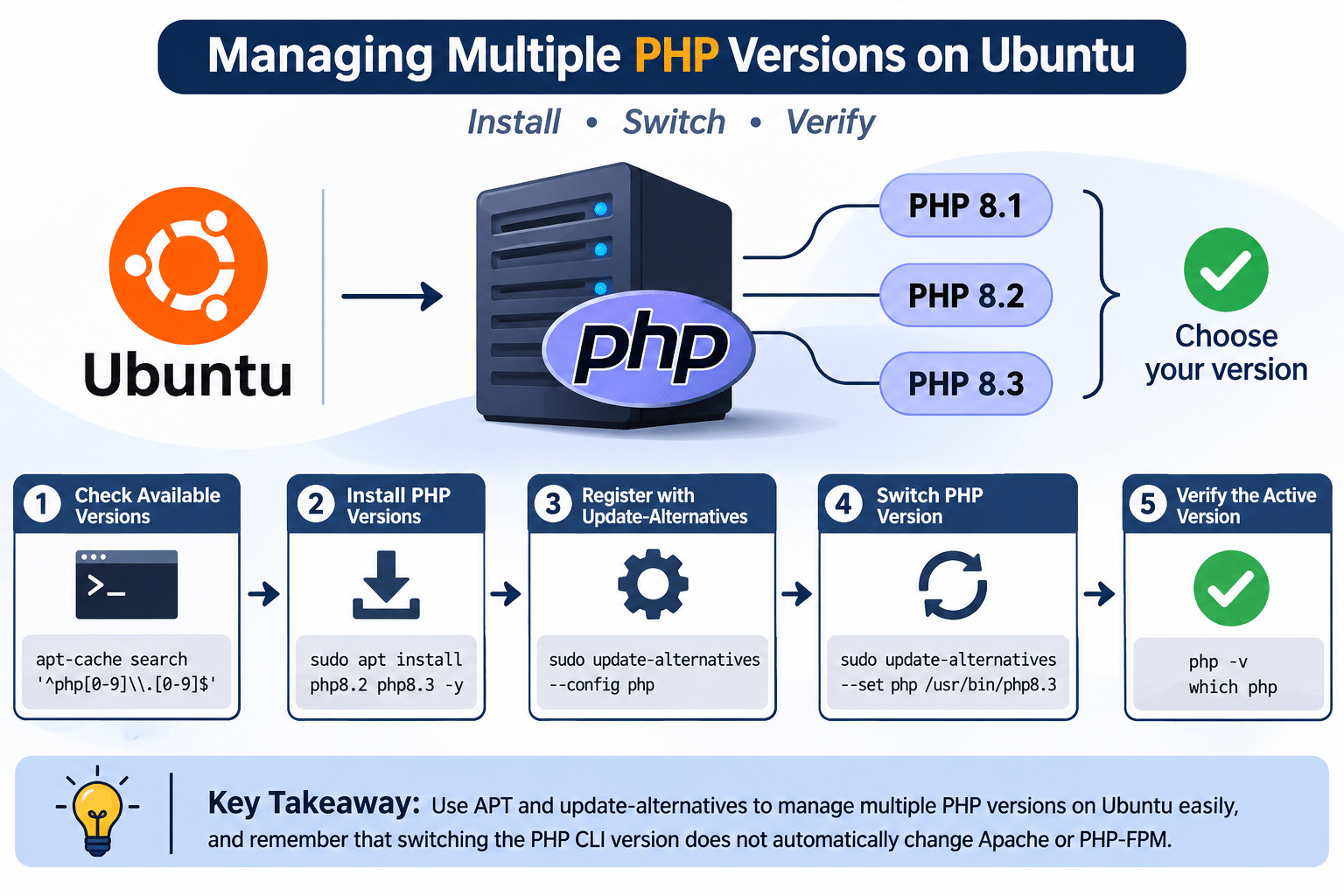
In this implementation, we will configure multiple PHP versions on Ubuntu using the APT package manager. We will install the required PHP versions, check the versions available on the system, and use update-alternatives to switch the default PHP CLI version. Finally, we will verify the active version using the php -v command.
Managing multiple PHP versions on Ubuntu allows developers to maintain applications with different PHP requirements on the same server. Instead of removing an existing PHP installation, you can install another supported version and select the required PHP CLI version for your development tasks. This approach is useful when testing application compatibility, maintaining legacy projects, or preparing applications for PHP upgrades.
1. Listing Available PHP Versions
To check the PHP versions available in your configured APT repositories, run:
sudo apt update
apt-cache search '^php[0-9]\.[0-9]$'
This command searches for PHP version-specific packages available through APT. The available versions depend on your Ubuntu release and configured repositories.
If the required version is available, you can install it using:
sudo apt install php8.3 php8.3-cli -y
Replace 8.3 with the PHP version you want to install. You can install multiple PHP versions by specifying their package names.
For example:
sudo apt install php8.2 php8.2-cli php8.3 php8.3-cli -y
2. Listing PHP Versions Configured with Update Alternatives
When multiple PHP versions are installed, you can check which versions are registered with the update-alternatives system by running:
sudo update-alternatives --list php
This command displays the PHP executable paths available for selection.
If a PHP version is installed but not registered with update-alternatives, you can configure it manually using:
sudo update-alternatives --install /usr/bin/php php /usr/bin/php8.3 83
Replace 8.3 with the installed PHP version. The priority value 83 is an example; you can assign an appropriate priority when registering the alternative.
After registering it, run the following command to select the required version:
sudo update-alternatives --config php
Managing multiple PHP versions on Ubuntu this way makes it easier to test applications with different PHP CLI environments.
3. Checking Installed PHP Versions
If multiple PHP versions are already installed, you can check the PHP alternatives configuration by running:
sudo update-alternatives --display php
This command displays the configured PHP alternatives, including the current selection and available executable paths.
Example Output
[Insert the existing example output image here]
4. Switching Between PHP Versions
To change the active PHP CLI version, use the following command:
sudo update-alternatives --config php
The command displays the available PHP versions registered with update-alternatives. Select the number corresponding to the version you want to use.
Alternatively, you can directly set a specific version using:
sudo update-alternatives --set php /usr/bin/php8.3
This command sets PHP 8.3 as the default PHP CLI version, provided that the executable is installed and registered with update-alternatives.
5. Verifying the Active PHP Version
After switching PHP versions, confirm the currently active PHP CLI version by running:
php -v
This command displays the PHP version currently selected for command-line operations.
You can also verify the executable path using:
which php
The output should point to the PHP executable managed through the alternatives configuration.
Important Note: PHP CLI and Web Server Versions
The update-alternatives command changes the default PHP CLI version. It does not automatically change the PHP version used by Apache or PHP-FPM.
If your application runs through Apache with PHP-FPM or Nginx with PHP-FPM, you must configure the appropriate PHP-FPM service and web server integration separately. Make sure the required PHP extensions are also installed for each version.
For example, PHP-FPM packages can be installed using:
sudo apt install php8.2-fpm php8.3-fpm -y
The correct web server configuration depends on whether you use Apache or Nginx and how PHP is integrated with it.
Frequently Asked Questions
1. Can I install multiple PHP versions on Ubuntu?
Yes. You can install multiple PHP versions on Ubuntu using APT. Each PHP version can have its own CLI, configuration files, extensions, and PHP-FPM service.
2. How do I check all installed PHP versions on Ubuntu?
You can list installed PHP packages using:
dpkg -l | grep -E 'php[0-9]\.[0-9]'
3. How do I switch between PHP versions in Ubuntu?
Use the update-alternatives command to change the default PHP CLI version:
sudo update-alternatives --config php
Select the PHP version you want to use from the displayed list.
4. Does switching PHP versions affect Apache and Nginx?
No. The update-alternatives command changes the default PHP CLI version. Apache and Nginx may use separate PHP modules or PHP-FPM services, which must be configured independently.
5. How do I verify the currently active PHP version?
Run the following command:
php -v
It displays the PHP version currently selected for command-line operations.
6. How do I install a specific PHP version on Ubuntu?
If the required package is available in your configured APT repositories, install it using:
sudo apt update
sudo apt install php8.3 php8.3-cli -y
Replace 8.3 with the PHP version you need and verify package availability for your Ubuntu release.
7. How do I check available PHP versions in APT?
Run the following command to search for available PHP packages:
apt-cache search '^php[0-9]\.[0-9]$'
The available versions depend on your Ubuntu release and configured package repositories.
Related Article
Install Nginx on cPanel Using Engintron (Step-by-Step Guide)
How to install and configure PHP with Nginx on centos7 – Pheonix Solutions
Talk to our experts
Running multiple PHP projects on one Ubuntu server and struggling with version conflicts? Our team can help you configure your servers, manage PHP environments, and keep your deployments stable with our DevOps and Cloud Services.