
Introduction
Choosing the right Magento 2 product types is the first decision you make when you build your catalog. A t-shirt that comes in five sizes, a gift hamper, an online course, and a laptop with custom parts all need different product types. If you pick the wrong one, you will struggle with stock, prices, and shipping later.
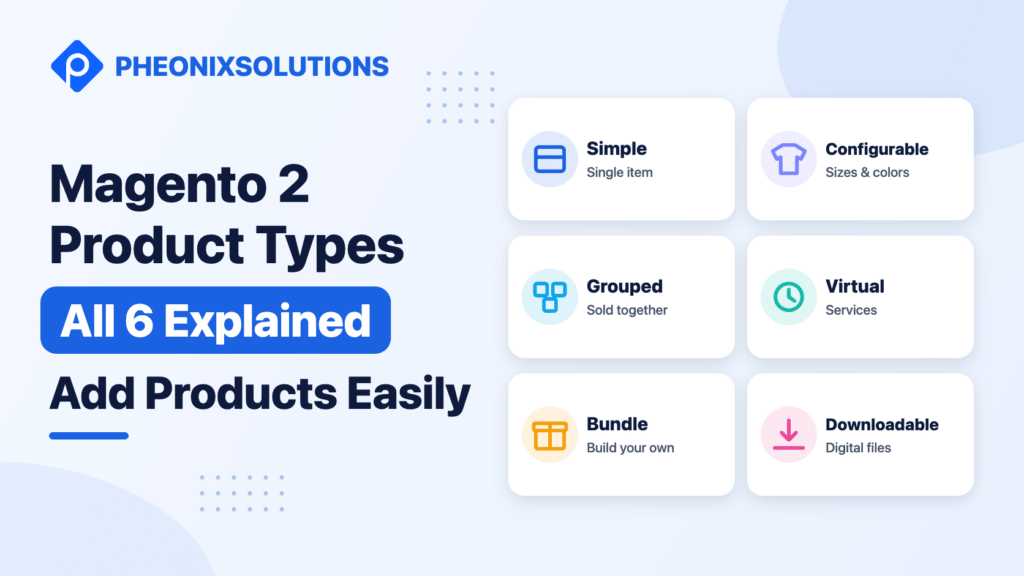
Magento Open Source gives you six product types: Simple, Configurable, Grouped, Virtual, Bundle, and Downloadable. In this guide, we explain what each type is for and show you how to add products in Magento 2, step by step, from the admin panel.
This is Day 5 of our Magento and eCommerce series. In Day 4, we completed the store configuration. Today, we start filling the catalog.
Key takeaways:
- Magento Open Source has 6 product types. Adobe Commerce adds a 7th, the gift card.
- Every variation of a configurable product is its own simple product with its own SKU and stock.
- Virtual and downloadable products have no weight and need no shipping.
- Add products from Catalog > Products > Add Product, and choose the type from the arrow next to the button.
On This Page
Why Choosing the Right Magento 2 Product Type Matters
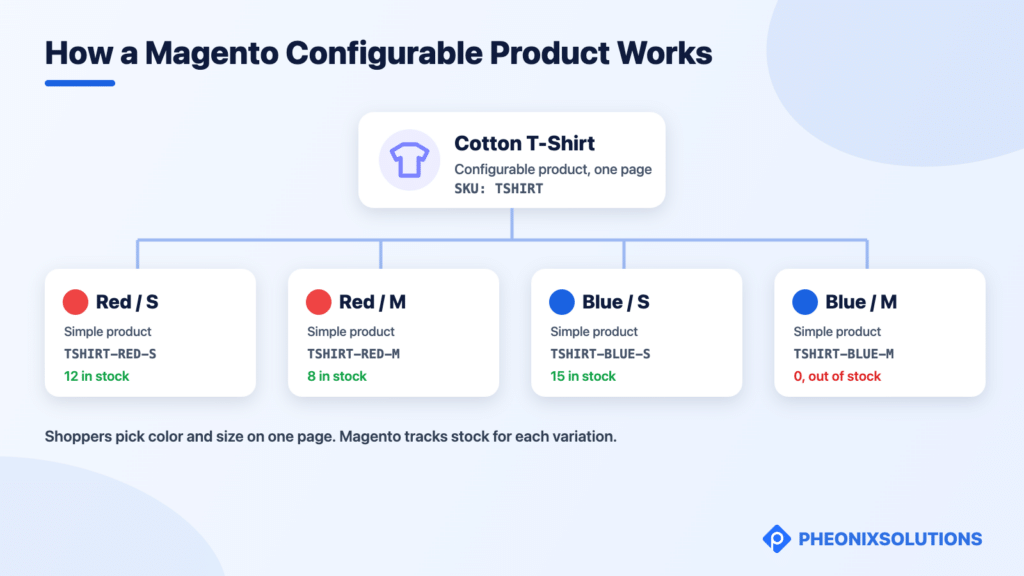
Each product type controls how a product is priced, stocked, shipped, and shown on the storefront. For example, a configurable product lets shoppers pick a size and color from one page, while Magento tracks stock for each size and color separately.
Changing the product type after you have orders is difficult. Planning your Magento 2 products correctly from the start keeps your catalog clean, your inventory accurate, and your checkout simple for customers.
Prerequisites to Add Products in Magento 2
Before you start, make sure you have:
- A configured Magento 2 store: See our Magento 2 store configuration guide.
- At least one category under your root category, so products appear in the menu.
- Admin access to the Catalog and Stores menus.
- Product details ready: Names, SKUs, prices, stock quantities, weights, descriptions, and images.
Magento 2 Product Types at a Glance
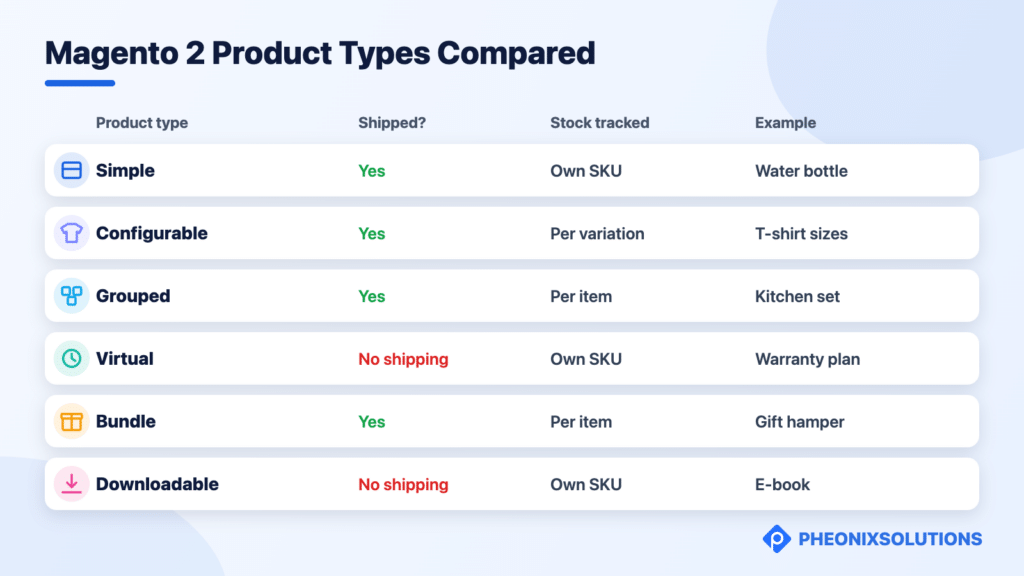
Here is a quick comparison of all Magento 2 product types.
| Product type | Physical item? | Own SKU and stock? | Best for |
|---|---|---|---|
| Simple | Yes | Yes | A single item, such as a water bottle |
| Configurable | Yes | Each variation is a simple product | T-shirts in sizes and colors |
| Grouped | Yes | Each item in the group | A set of related products sold together |
| Virtual | No | Yes | Services, warranties, memberships |
| Bundle | Yes | Each item in the bundle | Build-your-own kits and gift hampers |
| Downloadable | No | Yes | E-books, software, music, courses |
How to Add a Product in Magento 2
All Magento 2 product types are added from the same screen:
- Go to Catalog > Products.
- Click the arrow next to Add Product and choose the product type.
- Choose the Attribute Set (Default is fine for most products).
- Fill in the main fields: Enable Product, Product Name, SKU, Price, Tax Class, Quantity, Stock Status, Weight, Categories, and Visibility.
- Add a description in the Content section and images in Images And Videos.
- Check the URL Key, Meta Title, and Meta Description in the Search Engine Optimization section.
- Click Save.
Tip: Set Visibility to “Catalog, Search” for products you sell on their own. Use “Not Visible Individually” for child products that should only appear inside a configurable, grouped, or bundle product.
6 Magento 2 Product Types Explained with Steps
1. Simple Product
A simple product is a physical item with one SKU and no options. It is the most common product type and the building block for configurable, grouped, and bundle products.
How to add a simple product:
- Go to Catalog > Products > Add Product > Simple Product.
- Enter the Product Name, SKU, Price, and Quantity.
- Set Weight and choose This item has weight.
- Assign Categories and add Images.
- Click Save.
2. Configurable Product
A configurable product looks like one product with drop-down or swatch options, such as size and color. Behind the scenes, each option is a separate simple product with its own SKU, price, and stock.
First, make sure your option attributes are ready. Go to Stores > Attributes > Product and check that attributes such as color and size use:
- Catalog Input Type for Store Owner: Dropdown, Visual Swatch, or Text Swatch.
- Scope: Global.
- Values Required: Yes.
Then create the Magento configurable product:
- Go to Catalog > Products > Add Product > Configurable Product.
- Enter the Product Name, SKU, and a base Price.
- In the Configurations section, click Create Configurations.
- Select Attributes: Choose color and size.
- Attribute Values: Select the values you sell, for example, Red, Blue and S, M, L.
- Bulk Images, Price and Quantity: Apply a single price and quantity to all variations, or set them per variation.
- Summary: Review the list and click Generate Products.
- Click Save. Magento creates one simple product for each combination.
Note: Only attributes with Global scope and a Dropdown or Swatch input type appear in the configuration wizard.
3. Grouped Product
A grouped product shows several standalone products together on one page. Customers can buy one, some, or all of them. A grouped product has no price of its own. Each item keeps its own price.
How to add a grouped product:
- Create the individual simple or virtual products first.
- Go to Catalog > Products > Add Product > Grouped Product.
- Enter the Product Name and SKU.
- In the Grouped Products section, click Add Products to Group and select the items.
- Set a Default Quantity for each item and click Save.
4. Virtual Product
A virtual product is not a physical item, so it has no weight and needs no shipping. Use it for services, memberships, warranties, and subscriptions.
How to add a virtual product:
- Go to Catalog > Products > Add Product > Virtual Product.
- Enter the Product Name, SKU, Price, and Quantity.
- Leave the weight as This item has no weight.
- Assign categories and click Save.
Tip: If you set a simple product to “This item has no weight”, Magento treats it as a virtual product.
5. Bundle Product
A bundle product lets customers build their own product from a set of options. A gift hamper, a computer with a choice of RAM and storage, or a skincare kit are good examples.
How to add a bundle product:
- Go to Catalog > Products > Add Product > Bundle Product.
- Enter the Product Name. Choose Dynamic or Fixed for SKU, Price, and Weight. With a dynamic price, the bundle price is the total of the selected items.
- In the Bundle Items section, choose whether to Ship Bundle Items Together or Separately.
- Click Add Option, enter an option title such as “RAM”, and choose an Input Type: Drop-down, Radio Buttons, Checkbox, or Multiple Select.
- Click Add Products to Option and select the products for that option.
- Repeat for each option and click Save.
6. Downloadable Product
A downloadable product is a digital file that customers download after they buy, such as an e-book, software, or a video course. The file can be uploaded to your server or linked from another URL.
How to add a downloadable product:
- Go to Catalog > Products > Add Product > Downloadable Product.
- Enter the Product Name, SKU, and Price.
- In the Downloadable Information section, select Is this downloadable Product?
- Under Links, click Add Link, enter a title, and upload the file or enter a URL. Set Max. Downloads if you want to limit downloads.
- Optionally, add Samples that shoppers can preview before buying.
- Click Save.
If you link to files on another domain, you must add that domain to the allowed list first:
bin/magento downloadable:domains:add downloads.example.com
bin/magento downloadable:domains:show
Note: Run these commands from the Magento root folder as the file system owner. Replace downloads.example.com with your own file domain.
Bonus: Gift Card (Adobe Commerce Only)
Adobe Commerce adds a seventh type, the gift card. It can be virtual (sent by email), physical (shipped), or combined. Each gift card has a unique code that customers redeem at checkout. This type is not available in Magento Open Source.
Tips After You Add Products in Magento 2
After you add or import many Magento 2 products, run these commands so the storefront shows them correctly:
bin/magento indexer:reindex
bin/magento catalog:images:resize
bin/magento cache:clean
For large catalogs, use System > Data Transfer > Import to add products from a CSV file instead of adding them one by one. See our Magento 2 CLI commands guide for more about these commands.
Common Mistakes When You Add Products in Magento 2
- Using a simple product for items with sizes and colors: Use a configurable product so stock is tracked per variation.
- Wrong attribute scope: Configurable attributes must have Global scope, or they will not appear in the wizard.
- Child products visible in search: Set the visibility of variations to “Not Visible Individually”.
- Forgetting the category: Products without a category do not appear in the store menu.
- Missing SEO fields: Always check the URL key, meta title, and meta description.
Conclusion
Magento 2 product types give you the flexibility to sell almost anything, from a single physical item to digital downloads and custom bundles. Picking the right type for each product keeps your stock, pricing, and shipping accurate.
Quick recap:
- Simple for single items, Configurable for sizes and colors.
- Grouped for related items sold together, Bundle for build-your-own kits.
- Virtual for services, Downloadable for digital files.
- Add products from Catalog > Products > Add Product and fill in the SEO fields.
- Reindex and clean the cache after adding many products.
Bookmark this guide to Magento 2 product types for your catalog team. In the next article of this series, we will set up categories and attributes in Magento 2.
FAQs
1. How many product types are there in Magento 2?
Magento Open Source has six product types: simple, configurable, grouped, virtual, bundle, and downloadable. Adobe Commerce also has gift cards.
2. What is the difference between a configurable and a bundle product?
A configurable product is one item in different variations, such as sizes and colors. A bundle product lets customers combine several different items into one purchase.
3. Why is my attribute not showing in the configurable product wizard?
The attribute must have Global scope and a Dropdown, Visual Swatch, or Text Swatch input type. Check these settings in Stores > Attributes > Product.
4. Which product type should I use for a service?
Use a virtual product. It has no weight, so Magento skips the shipping step at checkout.
5. Can I import products in Magento 2 instead of adding them one by one?
Yes. Go to System > Data Transfer > Import, choose Products as the entity type, and upload a CSV file. Then reindex and clean the cache.
Related Articles
- Magento 2 Store Configuration: Websites, Stores and Store Views Explained
- 15 Magento 2 CLI Commands Every Developer Should Know
- Magento 2 Admin Panel Guide: 10 Key Sections Every Store Owner Should Know
- Magento 2 Setup Guide: Install Magento 2.4.9 on Ubuntu in 9 Steps
- How to Set Up and Install Stripe in Magento 2
Official Documentation
- Create a Product
- Simple Product
- Configurable Product
- Grouped Product
- Virtual Product
- Bundle Product
- Downloadable Product
Talk to Magento Experts
Building a large or complex catalog takes planning, especially with configurable products, bundles, and bulk imports. At Pheonix Solutions, our team sets up Magento catalogs, product imports, and custom product features for growing stores.
We can help you with:
- eCommerce development on Magento 2, including catalog setup and product data migration.
- Software development for custom product types, integrations, and ERP or inventory sync.
- Software maintenance and support for catalog updates, reindexing issues, and performance fixes.
Need help importing or organizing thousands of products? Talk to our Magento experts and get your catalog ready for sales.