
Post Date: June 13, 2017
Last Updated: September 30, 2026
Introduction
Nagstamon is a desktop monitoring application that can be used to monitor Nagios servers directly from a Windows desktop. It provides notifications for host and service alerts, allowing administrators to monitor multiple Nagios servers without continuously logging in to the Nagios web interface. This guide explains how to install and configure Nagstamon on a Windows machine and connect it to a Nagios server.
Prerequisites
Before installing and configuring Nagstamon, ensure that the following requirements are available:
- A Windows desktop or workstation.
- A working Nagios server.
- Network connectivity between the Windows machine and the Nagios server.
- Valid Nagios web interface credentials with the required permissions.
- Nagstamon installation package downloaded from the official source.
Implementation:
Download Nagstamon from the official site.
https://nagstamon.ifw-dresden.de/files/stable/Nagstamon-2.0.1-win64.zip
Unzip the file and go to the Nagstamon directory
Click on the file “nagstamon”
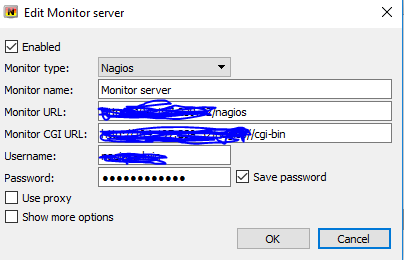
Click on New Server
Add the Nagios server details. We need to provide the following details.
Monitor Name: <Any Name>
Monitor URL: http://IPaddress/nagios
Monitor CGI URL: http://IPaddress/nagios/cgi-bin
Username: <nagios interface username>
Password : <Nagios password>
Click on Ok.
A new icon will be created on your local Windows machine.
Go to the Nagstamon Icon, right-click, and select Settings.
Under the Filters Menu, select the options below.
+ All Down Hosts
+ All Unreachable Hosts
+ All Critical Services
+ Service on Reachable Hosts
Click OK.
Now, we can see the alerts for critical, unreachable, and critical services on our desktop. We don’t need to log in to the Nagios interface to monitor the critical alerts.
Conclusion
Nagstamon provides a convenient way to monitor Nagios hosts and services directly from a Windows desktop. Once configured with the Nagios server details and required alert filters, administrators can receive notifications for down hosts, unreachable hosts, and critical services without having to continuously access the Nagios web interface. It can also be configured to monitor multiple Nagios servers from a single desktop.
FAQs
1. What is Nagstamon?
Nagstamon is a desktop monitoring application that allows users to monitor Nagios servers and view host and service alerts directly from a Windows desktop.
2. Can Nagstamon monitor multiple Nagios servers?
Yes. Nagstamon can be configured with multiple Nagios servers, allowing administrators to monitor them from a single Windows desktop.
3. What information is required to configure a Nagios server in Nagstamon?
You need the Nagios monitor URL, CGI URL, Nagios web interface username, and password.
Related Articles
How to set up the website monitoring on Nagios
HOW TO SET UP THE CPU SERVICE MONITOR ON NAGIOS WITH PERCENTAGES
Talk to our experts
Looking for the right technology solution for your business?. Our experts can help with web hosting, domain registration, DevOps and cloud, software development, web applications, mobile applications, and enterprise solutions. Get in touch with our team here.