
Post Date: April 4, 2019
Last Updated: October 14, 2026
Introduction
This guide explains how to fix the permission denied publickey error in Git. You’ll usually see it when you clone, pull, or push over SSH:
git@github.com: Permission denied (publickey).
fatal: Could not read from remote repository.
The permission denied publickey message means the remote server (GitHub in this guide) didn’t recognize any SSH key your machine offered. Either no key exists on your machine, the key isn’t added to your GitHub account, or Git is using a different key than you expect. All three are easy to fix.
The same fix applies to GitLab and Bitbucket. Just add your public key in their settings instead.
Prerequisites
Before you fix the permission denied publickey error, make sure you have:
- A GitHub account (or GitLab or Bitbucket)
- Terminal access on the machine where Git fails
- Git and OpenSSH installed
Architecture
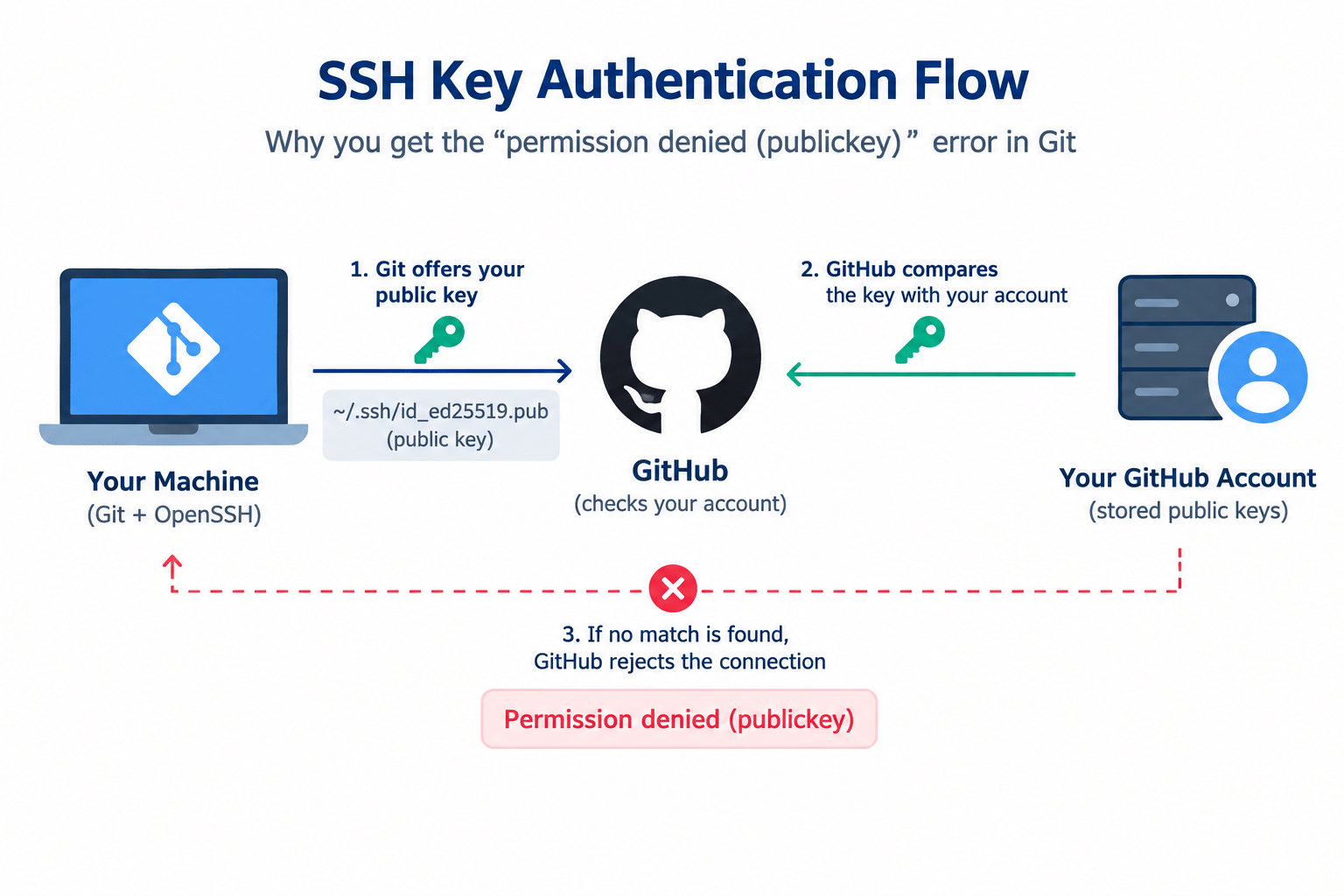
- When you use an SSH remote, Git connects to GitHub as the user
gitand offers a public key from your machine’s~/.sshfolder - GitHub compares that key against the public keys saved on your account
- If one matches, you’re authenticated. If none match, or no key is offered at all, GitHub refuses the connection
The diagram below shows where the permission denied publickey error comes from:
For the full background, see GitHub’s guide to connecting with SSH.
Steps to Fix the Permission Denied Publickey Error
1. Check the Connection
Test the SSH connection to GitHub:
ssh -T git@github.com
If your key isn’t recognized, you’ll see the permission denied publickey error:
git@github.com: Permission denied (publickey).
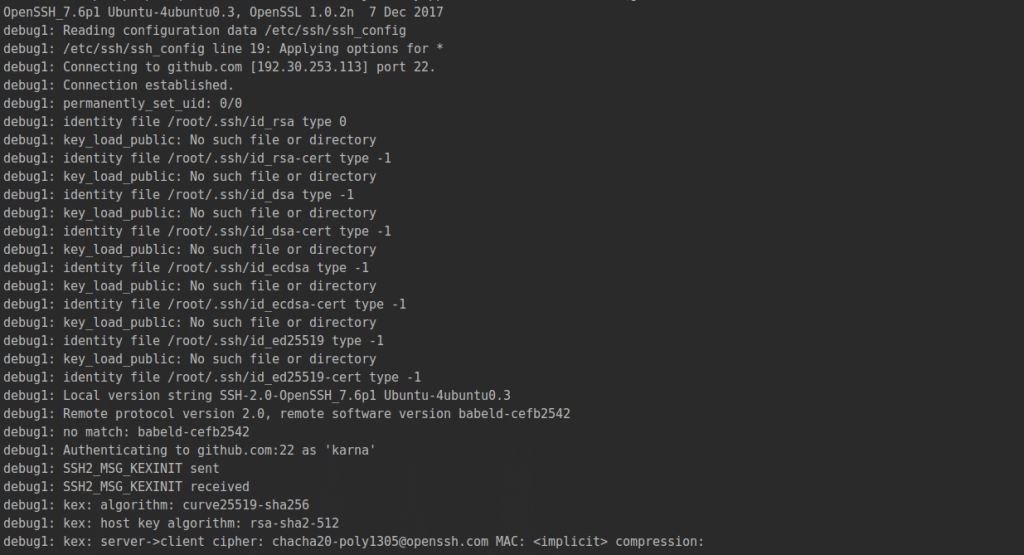
For more detail, add the -v option:
ssh -vT git@github.com
Look for lines such as no such identity: /home/user/.ssh/id_rsa. They tell you no key exists at the default location.
On your first connection, SSH asks you to confirm GitHub’s host fingerprint. Only accept it if it matches one of GitHub’s published fingerprints.
2. Check for Existing Keys
ls -al ~/.ssh
Look for a key pair such as id_ed25519 and id_ed25519.pub, or the older id_rsa and id_rsa.pub. If you already have a pair, skip to Step 4.

3. Generate a New SSH Key
ssh-keygen -t ed25519 -C "your_email@example.com"
Accept the default location and set a passphrase when asked.
Notes:
- The original guide used the older RSA key type. RSA still works, but ed25519 is the current recommendation. If your system is too old to support ed25519, use
ssh-keygen -t rsa -b 4096 -C "your_email@example.com"instead.- The original also advised using
sudowhen generating keys. Don’t. Keys created withsudoland in root’s~/.ssh, and a normalgitcommand won’t use them. In the same way,sudo git ...uses root’s keys, not yours. Runssh-keygenandgitas the same user, withoutsudo.
4. Add the Key to ssh-agent
eval "$(ssh-agent -s)"
ssh-add ~/.ssh/id_ed25519
5. Add the Public Key to GitHub
Print your public key and copy the whole line exactly as shown, with no extra spaces or characters:
cat ~/.ssh/id_ed25519.pub
Then, on GitHub:
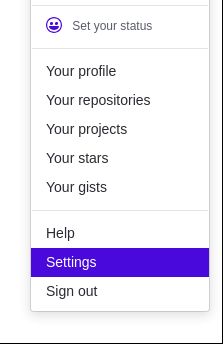
- Click your profile photo and open Settings
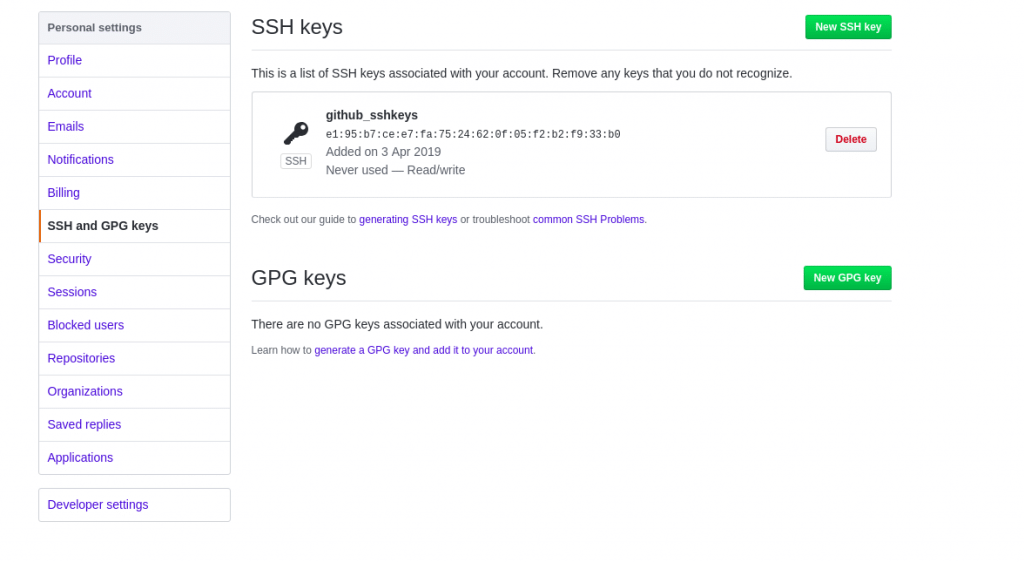
- Select SSH and GPG keys
- Click New SSH key
- Enter a title, paste the key, and click Add SSH key
Security note: Only ever paste the public key (the file ending in
.pub). Never share or paste your private key, which is the file with the same name and no extension.
6. Test the Connection
ssh -T git@github.com
A successful result means the permission denied publickey error is gone:
Hi username! You've successfully authenticated, but GitHub does not provide shell access.
Still Seeing Permission Denied Publickey?
If the permission denied publickey error continues after the steps above, check these common causes:
- Wrong URL format. SSH remotes must use
git@github.com, not your own username, for examplegit@github.com:user/repo.git. Check withgit remote -v, and fix it with:git remote set-url origin git@github.com:user/repo.git - Key not loaded. Run
ssh-add -lto see which keys the agent holds. If it’s empty, repeat Step 4. - Wrong file permissions. SSH ignores keys that are too open:
chmod 700 ~/.sshchmod 600 ~/.ssh/id_ed25519 - Key on the wrong account. Make sure the key was added to the GitHub account that owns the repository. If your organization uses SAML SSO, you may also need to authorize the key for that organization.
- Several keys on one machine. Tell SSH exactly which one to use in
~/.ssh/config:Host github.com HostName github.com User git IdentityFile ~/.ssh/id_ed25519 IdentitiesOnly yes
Conclusion
The permission denied publickey error comes down to GitHub not finding a matching key. Create a key pair if you don’t have one, load it into ssh-agent, add the public half to your GitHub account, and test with ssh -T git@github.com. If it still fails, check the remote URL, file permissions, and that you aren’t mixing keys between sudo and your normal user.
Frequently Asked Questions
Why do I get permission denied publickey even though I added my key? The most common reasons are that the key isn’t loaded in ssh-agent, Git is running as a different user (for example with sudo), or the key was added to a different GitHub account than the one that owns the repository.
Does the permission denied publickey error also happen with GitLab or Bitbucket? Yes. It’s an SSH message, not a GitHub-specific one. The same steps apply. Add the public key in your GitLab or Bitbucket account settings, and test against that host.
Can I use HTTPS instead of SSH? Yes. Note that GitHub no longer accepts your account password for Git over HTTPS, so you’d use a personal access token instead.
Should I set a passphrase on my SSH key? Yes. A passphrase protects the key if the file is ever copied. ssh-agent means you only type it once per session.
Related Articles
How to use SSH Key with passpharse for SSH forwarding
How to Disable SSH Strict Host Key Checking in Linux
Talk to Our Technology Experts
Struggling with Git access, SSH keys, or deployment pipelines? Our team can help with Git workflow setup, SSH key management, and ongoing DevOps support.