Disable CSF Email Alerts
If you would like to stop receiving email alert notifications from ConfigServer Security & Firewall (CSF), you can easily disable them either through the WHM interface or via the command line (SSH). Follow the steps below based on your preferred method.
Method 1: Using WHM
Step 1: Log in to WHM
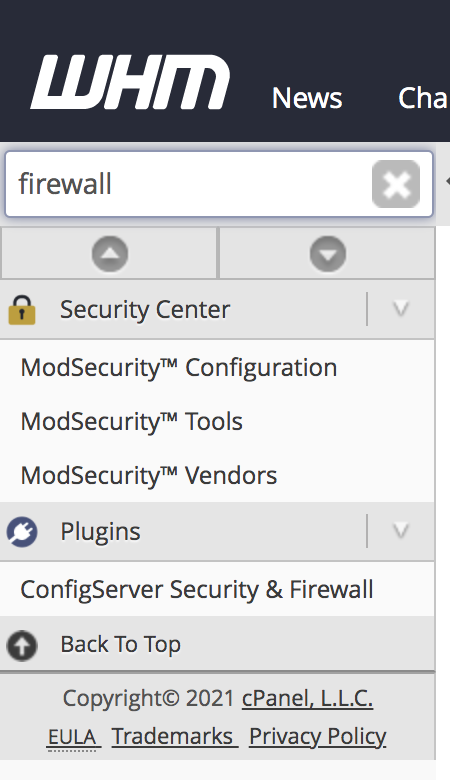
Step 2: Enter the name of the firewall in the search box and click on ConfigServer Security & Firewall under Plugins section.

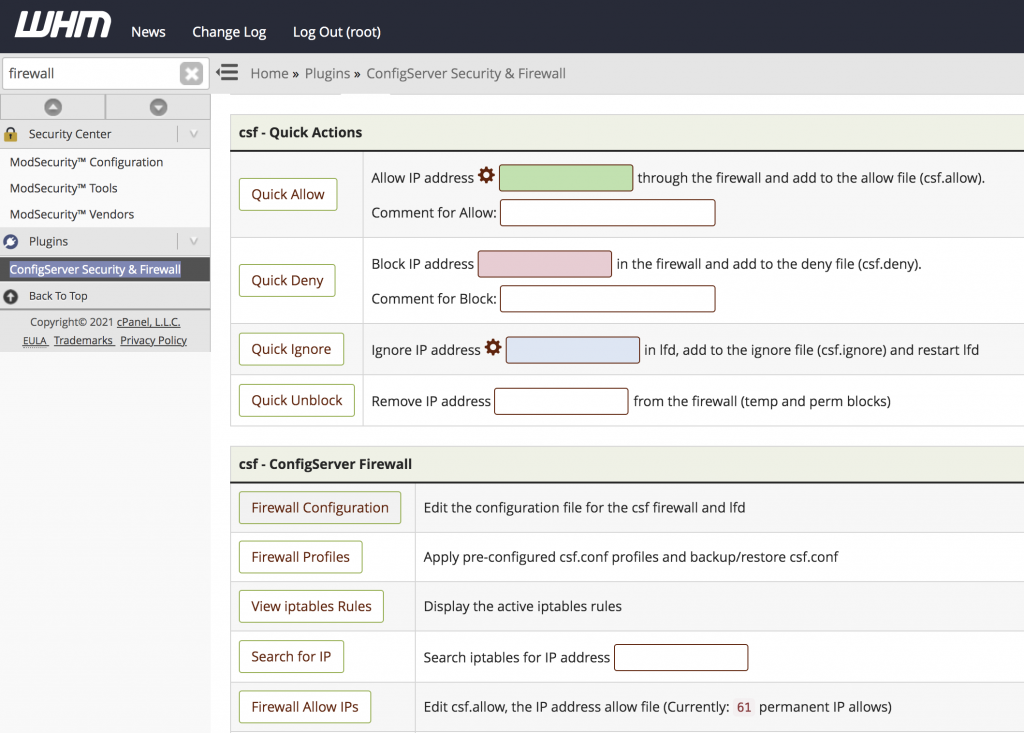
Step 3: Click on the Firewall Configuration button to edit the CSF configuration file.
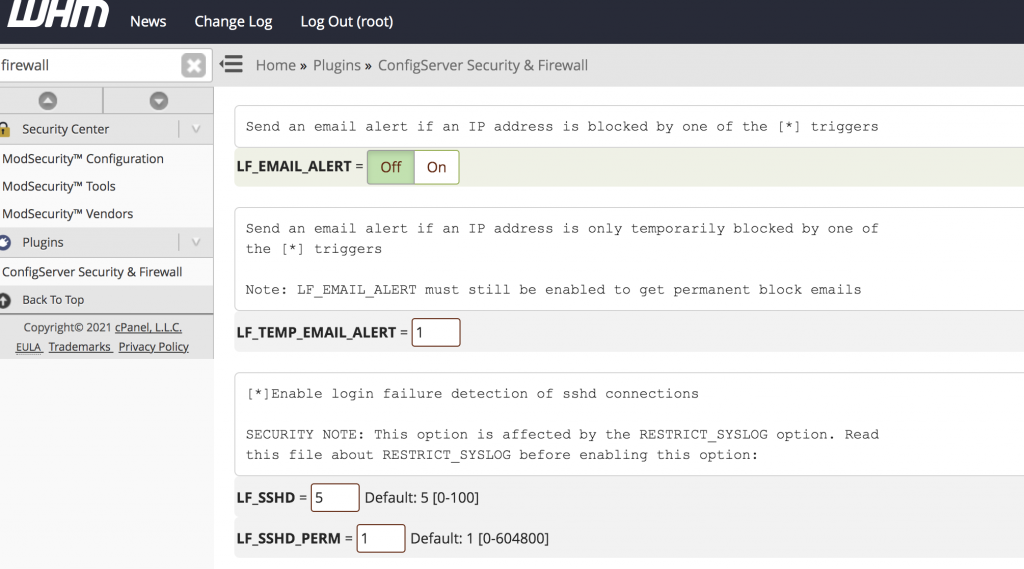
Step 4: Search LF_EMAIL_ALERT on the configuration file and change it from On to Off button. Scroll down to the bottom and click on Change button to save the changes.
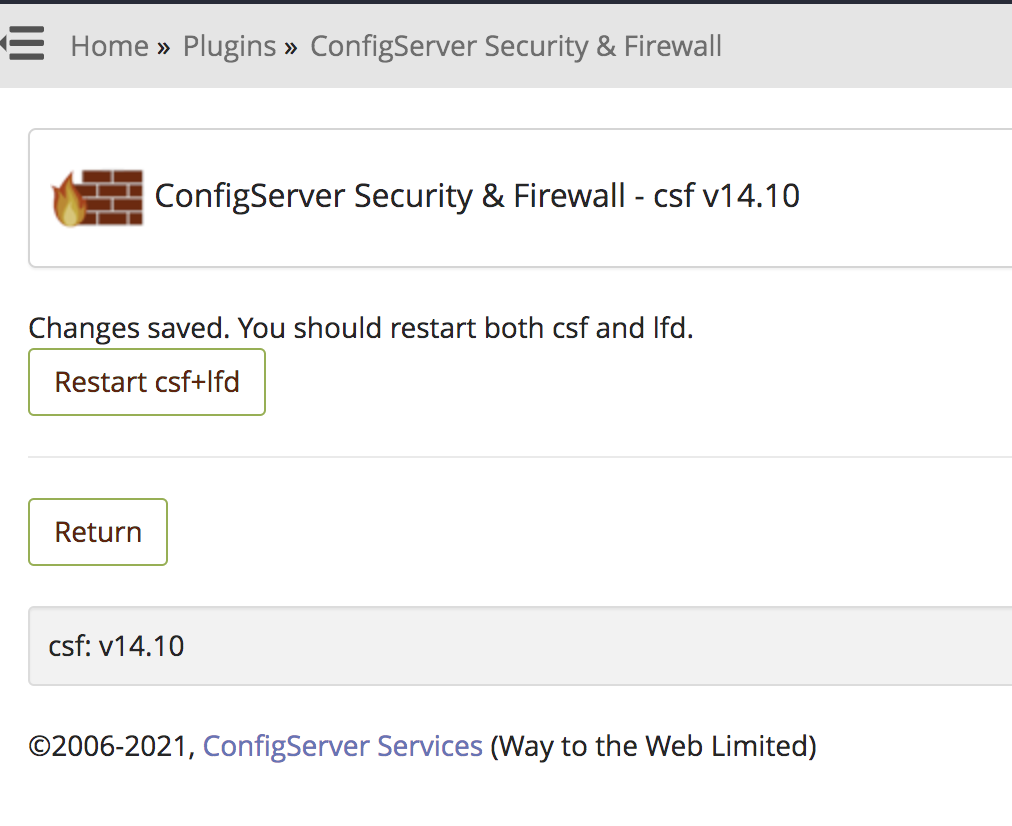
Step 5: You need to restart csf and lfd services to enable all changes. Click on Restart csf+lfd button to restart both the services.
1. Log in to your server via SSH.
2. Open the CSF configuration file:
vi /etc/csf/csf.conf3. Find the following parameter and change it:
LF_EMAIL_ALERT = "1"to:
LF_EMAIL_ALERT = "0"4. Save the file and restart the services:
service csf restart
service lfd restart
Alternatively, you can restart both services together using:
csf -rThis will disable email alert notifications from CSF/LFD.
Conclusion
After completing the above steps, email alert notifications from CSF/LFD will be disabled successfully. You can choose either the WHM method for a graphical interface or the SSH method for a quicker command-line approach, depending on your preference.