Introduction
ConfigServer Security & Firewall includes Login Failure Daemon (LFD) monitoring, which tracks user activities and sends alerts for suspicious processes or login attempts. Administrators can exclude specific users from LFD alerts when required.
Prerequisites
Before proceeding, ensure:
- Root SSH access to the server
- WHM access with administrative privileges
- ConfigServer Security & Firewall installed on the server
Implementation
Step 1: Log in to the server via SSH as root and enter the below command to get the id for the user name.
# id -u username
Note:- username – This User name which you wish to ignore alerts.
Step 2: Log in to the WHM.
Step 3: Type firewall in the search box and ConfigServer Security & Firewall under plugin section.
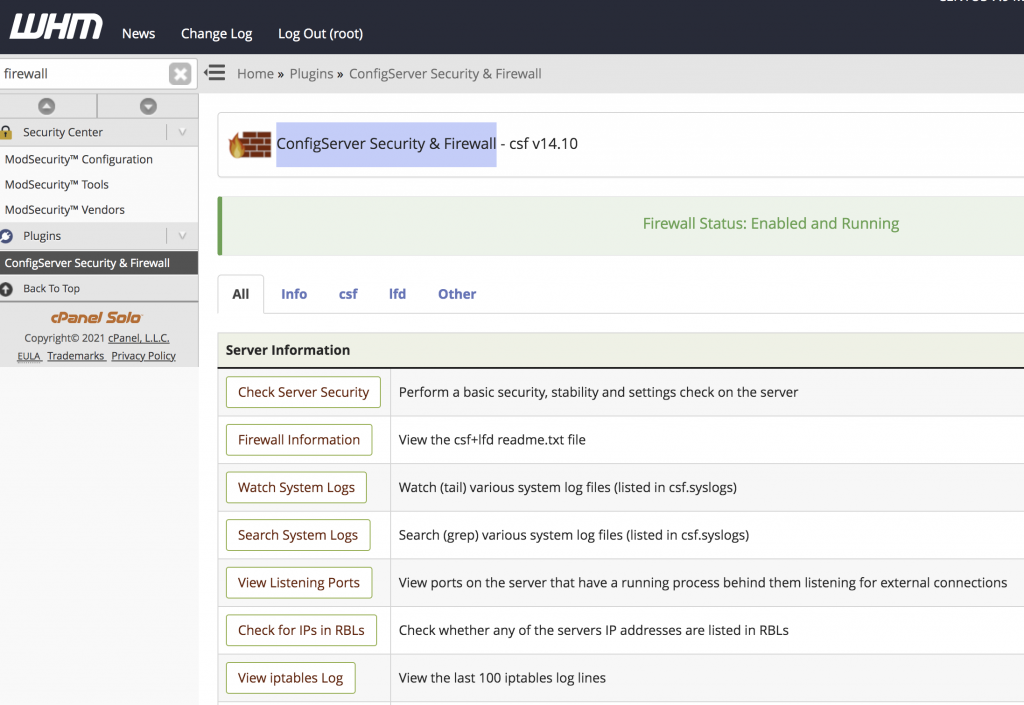
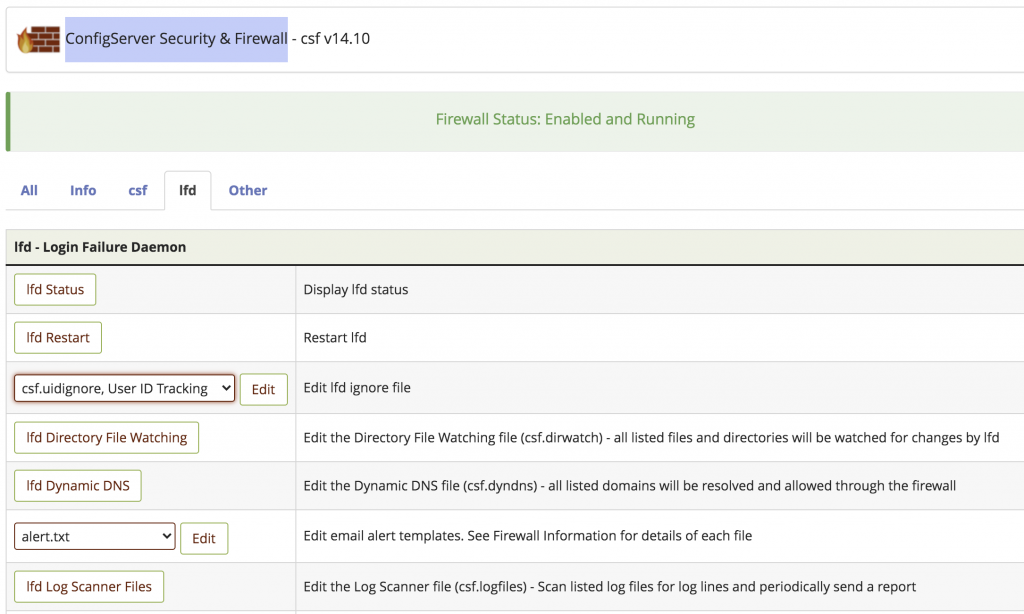
Step 4: Select lfd and you can see LFD ignore file edit option. Select the file csf.uidignore,User ID Tracking from that dropdown list, and click Edit.
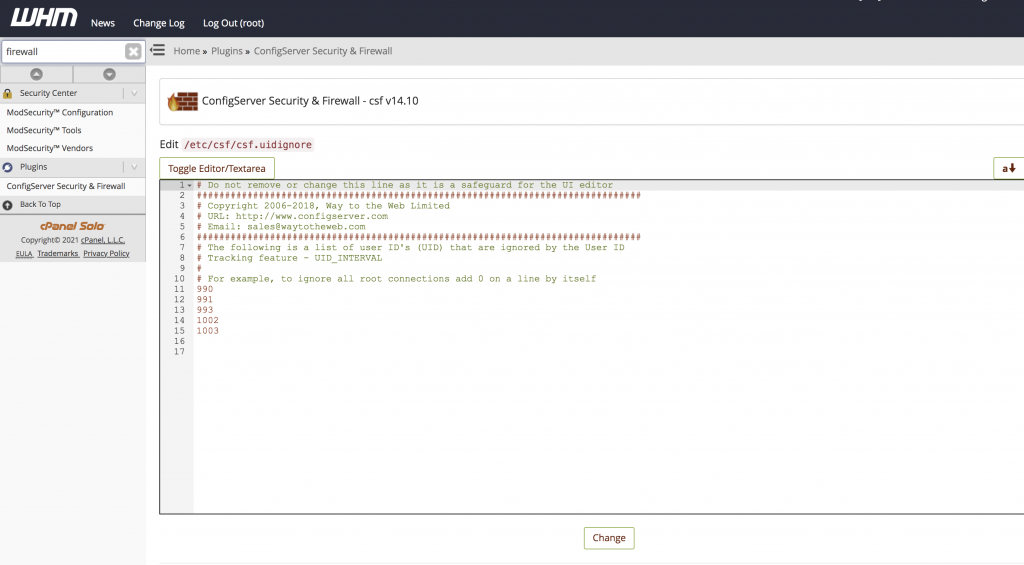
Step 5: Add the id of the user name which you wish to ignore the LFD alerts to that file and click Change. Restart lfd+csf firewall service.
Conclusion
By adding specific user IDs to the csf.uidignore file in ConfigServer Security & Firewall, administrators can prevent unnecessary LFD alerts for trusted users while maintaining server security monitoring.