INTRODUCTION
SSL (Secure Sockets Layer) certificates encrypt the communication between a website and its visitors, helping protect sensitive information and establish trust. In cPanel, you can easily verify whether an SSL certificate is installed correctly and check its validity period, including the issue date, expiration date, and certificate details. Regularly checking SSL validity helps ensure uninterrupted HTTPS access and prevents security warnings caused by expired certificates.
Prerequisites
Before checking the SSL validity through a cPanel account, ensure the following requirements are met:
- A valid cPanel account with login credentials.
- Access to the domain for which you want to verify the SSL certificate.
- An SSL certificate installed on the domain (commercial or free, such as Let’s Encrypt or AutoSSL).
- Permission to access the SSL/TLS Status or SSL/TLS section in cPanel.
- A supported web browser with an active internet connection.
IMPLEMENTATION
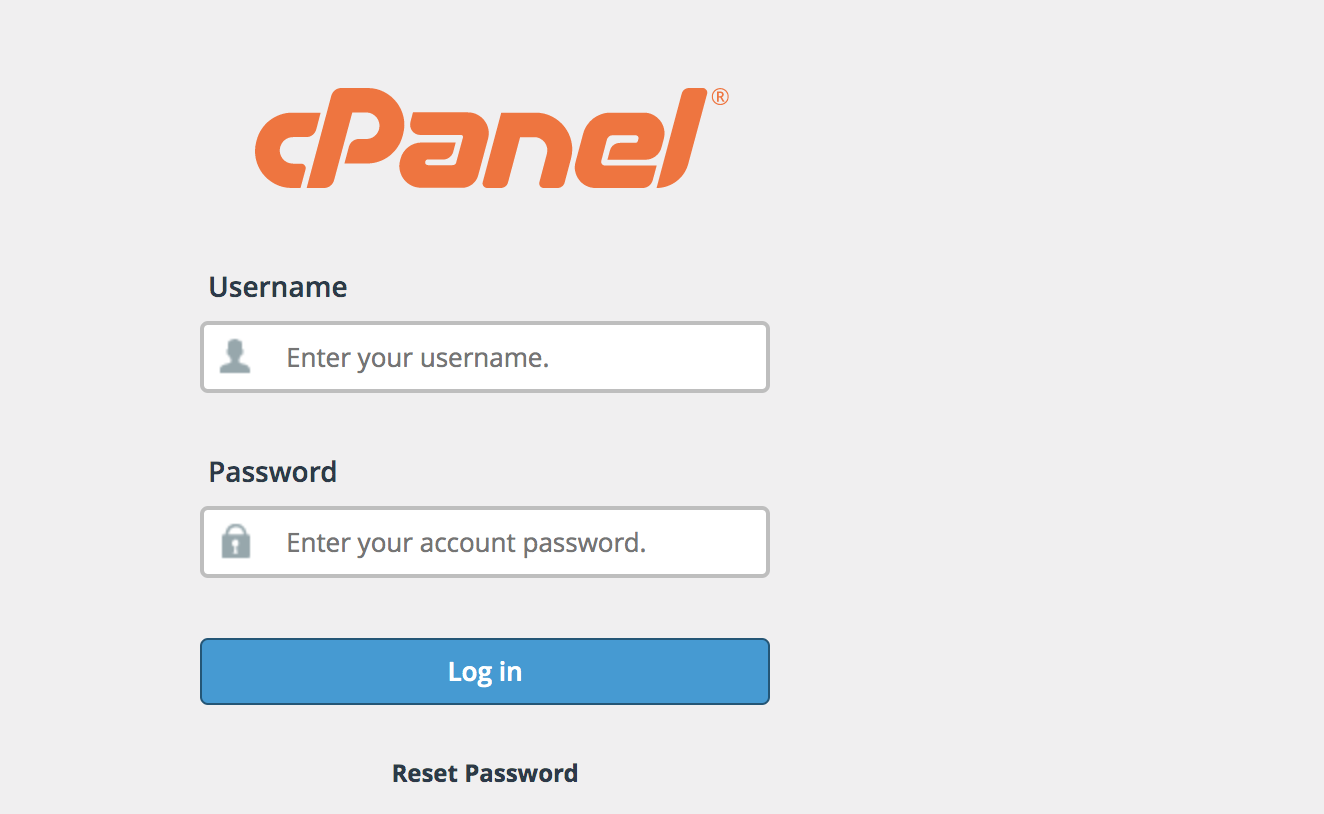
Step 1: Log into your cPanel account
https://example.com:2083
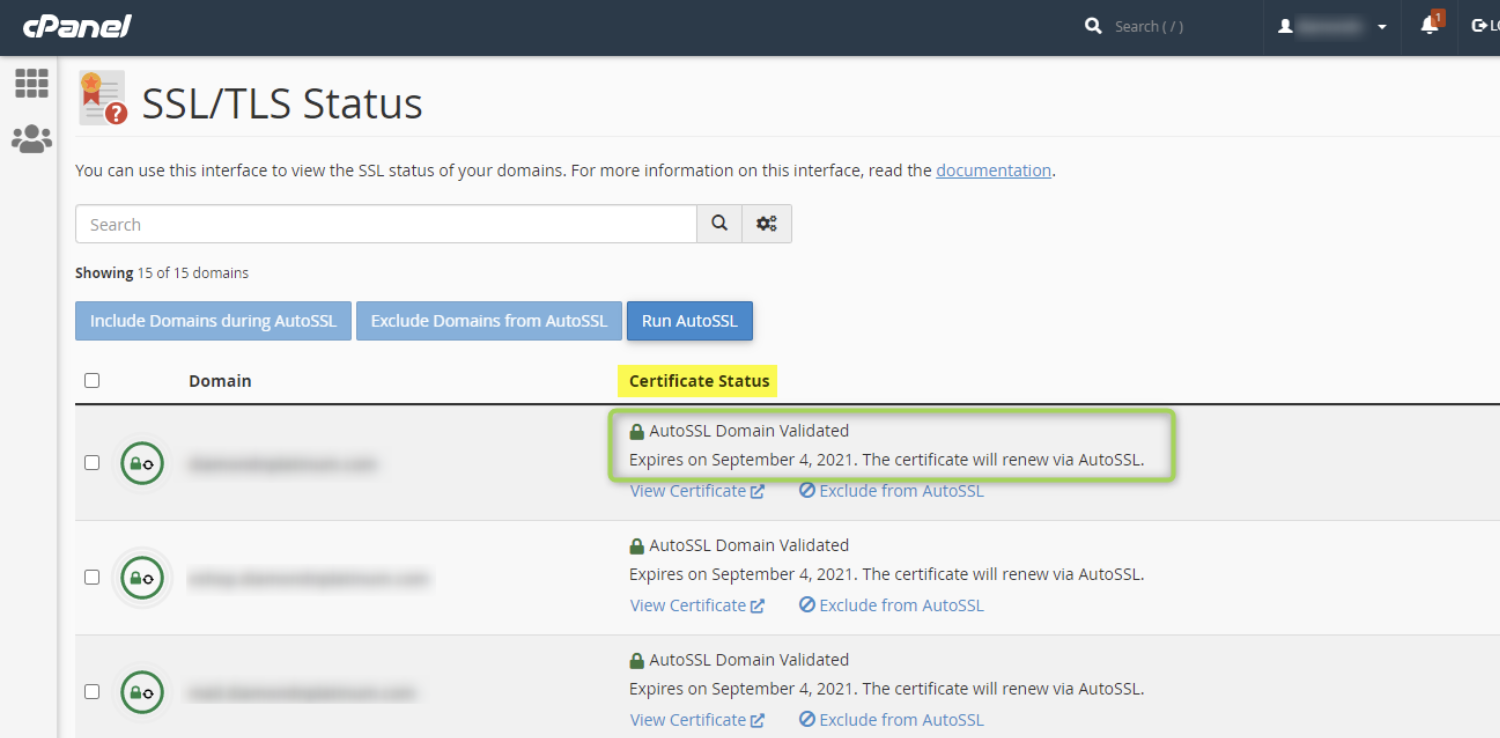
Step 2: Search SSL in the search bar and click on the “SSL/TLS Status” feature in the “Security” section of cPanel


Step 3: The list of installed SSL certificates will be displayed and we can check the required domain SSL validity
Conclusion
Checking the SSL validity through cPanel is a quick and reliable way to verify that your website’s SSL certificate is active and has not expired. Regularly monitoring the certificate’s status helps maintain secure HTTPS connections, avoid browser security warnings, and ensure uninterrupted access for visitors. If the certificate is nearing its expiration date, renew or replace it promptly to keep your website secure.