Introduction
Managing multiple domain names for a single website is a common requirement for businesses and website owners. Whether you want to protect your brand, support multiple domain extensions, or redirect visitors from alternative domain names, WHM’s Park a Domain feature makes the process simple.
A parked domain allows an additional domain name to point to the same website as your primary domain. This means visitors can access your website using either domain while viewing the same content.
In this guide, you’ll learn how to park a domain in WHM, the requirements, verification steps, and common troubleshooting tips.
What Is a Parked Domain?
A parked domain is an additional domain that points to an existing website hosted on your server.
For example:
- Primary Domain:
example.com - Parked Domain:
example.net
Both domains will display the same website content.
This is useful for:
- Protecting your brand with multiple domain extensions.
- Redirecting traffic from alternative domain names.
- Preventing competitors from using similar domain names.
- Making it easier for users to find your website.
Step 1: Log in to WHM
Access your WHM panel using your administrator or reseller credentials.
Typical URL:
https://your-server-ip:2087or
https://your-domain.com:2087After logging in, you’ll be redirected to the WHM dashboard.
Step 2: Open the “Park a Domain” Feature
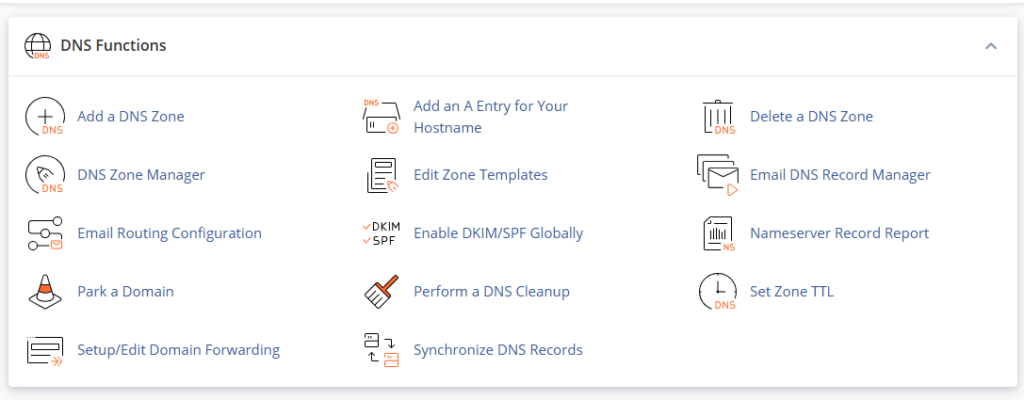
From the WHM dashboard:
- Navigate to DNS Functions.
- Click Park a Domain.
You can also use the WHM search bar and search for:
Park a Domain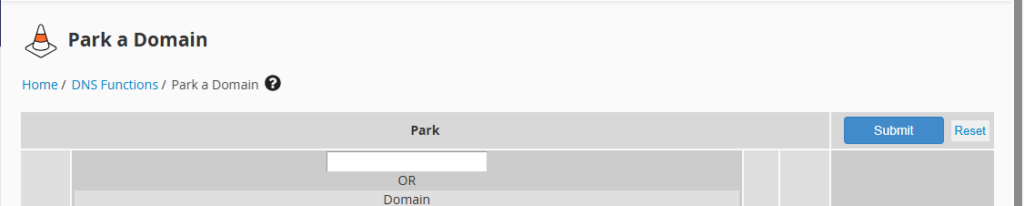
Then select the feature from the search results.
Step 3: Select the Primary Domain
Under Domain to park on top of, choose the existing domain that hosts your website.
Example:
example.comThis is the main website visitors will ultimately access.
Step 4: Enter the Domain to Park
In the Domain to park field, enter the additional domain name.
Example:
example.netYour configuration will look like:
Domain to park on top of: example.com
Domain to park: example.net
This means:
example.net → example.comStep 5: Submit the Configuration
Click Submit.
WHM will process the request and automatically configure the parked domain.
If the operation completes successfully, you’ll receive a confirmation message.
Example Configuration
Suppose your business website is:
example.comYou also own:
example.netTo make both domains display the same website:
| Setting | Value |
|---|---|
| Domain to park on top of | example.com |
| Domain to park | example.net |
After saving the configuration, visitors can access the same website using either domain.
Verify the Parked Domain
After configuration, perform the following checks:
1. Verify Domain Association
Confirm that WHM reports the parked domain as successfully added.
2. Check DNS Records
Ensure the parked domain points to your hosting server using:
- Correct Nameservers
- Correct A Record
3. Test Website Access
Open the parked domain in a web browser:
https://example.netVerify that it loads the same website as:
https://example.com4. Wait for DNS Propagation
If DNS records were recently updated, propagation may take anywhere from a few minutes to 48 hours.
Important Notes
Domain Registration
Parking a domain does not register it automatically.
The domain must already be purchased and active through a domain registrar.
DNS Configuration
The parked domain must point to the correct server before it can function properly.
DNS Propagation
Changes may not appear immediately due to DNS propagation delays.
Existing Configurations
The domain cannot already exist as:
- A separate cPanel account
- An addon domain
- Another parked domain
SSL Certificates
If HTTPS is required, install or issue an SSL certificate for the parked domain as well.
Without SSL, visitors may receive browser security warnings.
Troubleshooting
Parked Domain Is Not Loading
Possible Cause:
DNS is not pointing to the correct server.
Solution:
Verify nameservers and A records.
DNS Error Appears
Possible Cause:
DNS propagation is incomplete or records are incorrect.
Solution:
- Check DNS records.
- Verify nameservers.
- Wait for propagation to complete.
Wrong Website Is Displayed
Possible Cause:
The parked domain was associated with the wrong primary domain.
Solution:
Review the parked domain configuration in WHM and confirm the correct target domain.
SSL Certificate Warning
Possible Cause:
SSL is not installed for the parked domain.
Solution:
- Install an SSL certificate.
- Use AutoSSL if available.
- Verify certificate coverage for all domains.
Benefits of Using Parked Domains
- Improve brand protection.
- Capture traffic from alternative domain names.
- Simplify website management.
- Support multiple domain extensions.
- Enhance user accessibility and recognition.
Conclusion
The Park a Domain feature in WHM provides a quick and effective way to make multiple domain names point to the same website. By selecting the primary domain and adding the secondary domain, administrators can manage brand protection, improve accessibility, and streamline website management with minimal effort.
With proper DNS configuration and SSL setup, parked domains can provide a seamless experience for visitors while maintaining a single website installation.