Web server logs are an important component of website and server management. They record every request made to your website, including visitor IP addresses, requested URLs, HTTP status codes, timestamps, browser information, and other valuable data. These logs help administrators monitor website activity, troubleshoot application issues, analyze traffic patterns, and investigate security incidents.
By default, cPanel & WHM retain web server logs indefinitely, which may gradually consume server storage if not managed properly. To simplify log management, WHM provides the Web Log Retention feature under Account Functions, allowing administrators to configure log archiving and retention settings for individual cPanel accounts.
This knowledge base explains how to access and configure Web Log Retention in WHM and manage Raw Access Logs through cPanel.
Prerequisites
Before proceeding, ensure that the following requirements are met:
Root or reseller access to WHM.
A server running cPanel & WHM version 136 or later.
At least one active cPanel account hosted on the server.
Permission to manage account settings.
Basic understanding of web server logs and their purpose.
Implementation
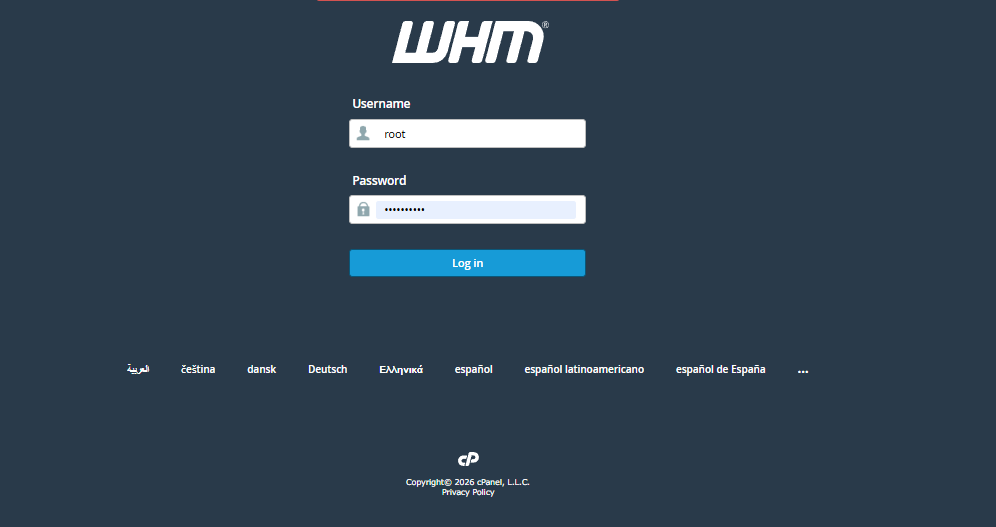
Step 1: Log in to WHM
Open your preferred web browser and access your WHM server using:
https://your-server-ip:2087
Log in using your administrator credentials.
Screenshot: WHM Login Page
Step 2: Navigate to Web Log Retention
After logging in:
In the left-side navigation panel, search for Web Log Retention.
Alternatively, navigate to:
Account Functions → Web Log Retention
The Web Log Retention page displays all cPanel accounts hosted on the server, along with their current log retention settings.
Screenshot: WHM → Account Functions → Web Log Retention
Step 3: Locate the Required Account
Use the Filter by User or Domain search box to quickly locate the desired cPanel account.
The table displays:
Username
Domain Name
Current Retention Setting
Manage Logs option
This allows administrators to manage log settings for individual hosting accounts.
Screenshot: Web Log Retention account list
Step 4: Open Log Management
Click the Manage Logs button next to the desired domain.
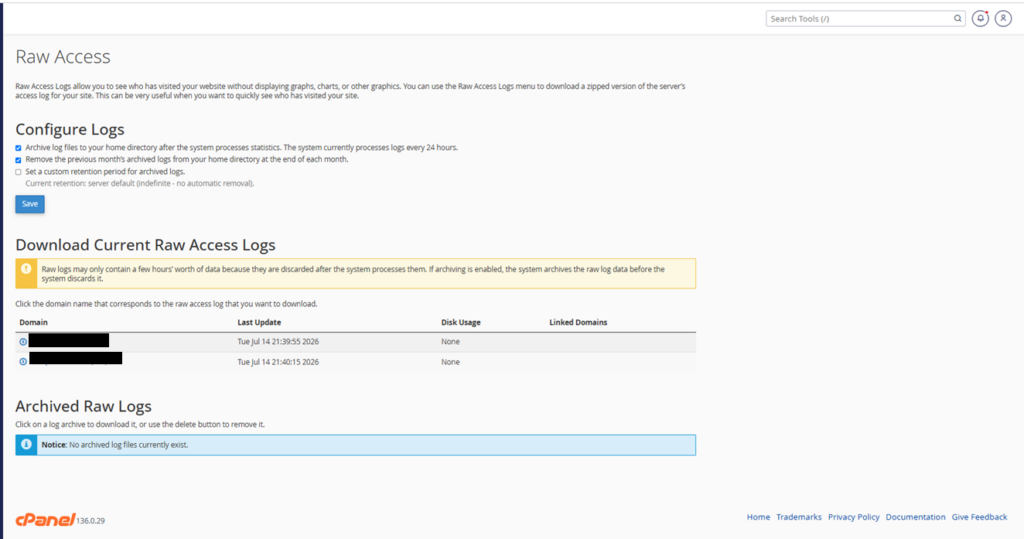
WHM redirects you to the selected account’s Raw Access page within cPanel.
This page allows you to configure how raw access logs are archived and retained.
Screenshot:
Step 5: Configure Raw Access Log Settings
On the Raw Access page, you can configure the following options:
Archive log files to your home directory after the system processes statistics
Enable this option to automatically archive raw access logs after the system generates website statistics. This helps preserve log files for future analysis.
Remove the previous month’s archived logs
Enable this option to automatically delete archived logs from the previous month, helping reduce unnecessary disk usage.
Set a custom retention period for archived logs
Enable this option if you want to define how long archived log files should be retained before automatic removal.
If left disabled, the server uses its default retention policy.
After selecting the required options, click Save to apply the configuration.
Screenshot: Configure Logs section
Step 6: Download Current Raw Access Logs (Optional)
Scroll down to the Download Current Raw Access Logs section.
Click the required domain name to download the latest raw access log.
These log files typically include information such as:
Visitor IP Address
Date and Time of Request
Requested URL
HTTP Status Code
Browser Information
Referrer URL
Downloading raw logs is useful for:
Troubleshooting website issues
Security investigations
Traffic analysis
Performance monitoring
Screenshot: Download Current Raw Access Logs
Step 7: View Archived Raw Logs
If log archiving is enabled, archived log files will appear in the Archived Raw Logs section.
From here you can:
Download archived log files
Review historical website activity
Delete archived logs if they are no longer required
If no archived logs are available, the page displays an informational message indicating that no archived files currently exist.
Screenshot: Archived Raw Logs section
Conclusion
The Web Log Retention feature in WHM provides administrators with an efficient way to manage web server logs for hosted cPanel accounts. By configuring log archiving, automatic cleanup, and retention settings, administrators can optimize storage usage while ensuring that valuable log data remains available for troubleshooting, auditing, and security analysis.
Using Web Log Retention as part of routine server maintenance helps maintain an organized hosting environment, improves operational efficiency, and supports better long-term server management.