Introduction
WordPress Toolkit is a powerful management tool available in WHM and cPanel that simplifies the administration of WordPress websites. It provides features such as installation, updates, security management, backups, staging, and website cloning. The cloning feature allows administrators to create an exact copy of an existing WordPress website, making it useful for testing, development, migrations, or creating staging environments without affecting the live site.
Prerequisites
Before cloning a WordPress website using WordPress Toolkit, ensure the following requirements are met:
- Access to WHM or cPanel with WordPress Toolkit enabled.
- An existing WordPress installation available in WordPress Toolkit.
- Sufficient disk space to accommodate the cloned website.
- A destination domain, subdomain, or directory where the cloned site will be created.
- Appropriate permissions to manage WordPress installations on the server.
- Backup of the original website (recommended before performing any cloning operation).
Procedure
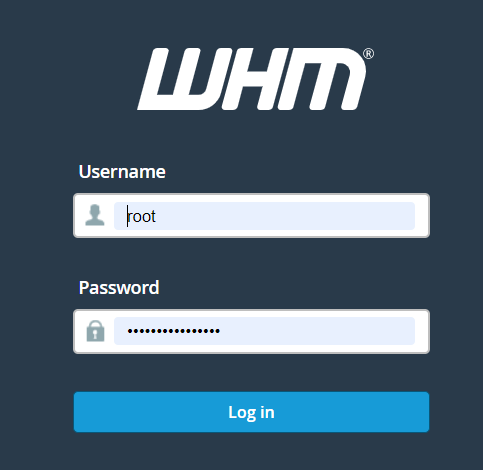
- Log in to WHM or cPanel.
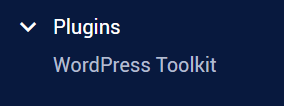
- Navigate to WordPress Toolkit.
- From the list of WordPress installations, locate the website you want to clone.
- Click the Expand button to view additional options.
- Click Clone.
- In the cloning dialog, select the desired destination and configure the available options.
- Click Start to begin the cloning process.
- Wait for the cloning operation to complete successfully.
- Verify that the cloned website is accessible and functioning as expected.
Conclusion
Cloning a WordPress website using WordPress Toolkit is a quick and efficient way to create a duplicate of an existing WordPress installation. This feature is particularly useful for development, testing, staging, and migration purposes. By following the above steps and ensuring all prerequisites are met, administrators can safely create and manage cloned WordPress environments with minimal effort.