Introduction
Setting up email client access in cPanel allows users to manage their domain-based email accounts through external applications like Microsoft Outlook, Mozilla Thunderbird, or mobile mail apps. Instead of accessing emails only via webmail, configuring an email client provides better convenience, offline access, and improved productivity.
Pre-requisites
Before setting up email client access in cPanel, ensure the following:
- You must have valid login credentials to access your cPanel dashboard.
- The email address (e.g., user@yourdomain.com) should already be created inside cPanel.
- You should have the required configuration details:
- Incoming Server (IMAP/POP3)
- Outgoing Server (SMTP)
- Port numbers
- SSL/TLS settings
The email client setup lets you easily setup email client access in cPanel. You can automatically configure and connect email accounts from cPanel directly to your desired email application, for example, Outlook or Mail for Mac. To do this, head to Email > Email Accounts within your cPanel.
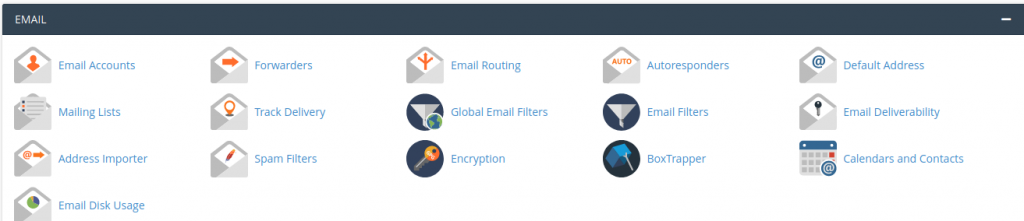
To setup the email client access you’ll need to first have an existing email account created.
- Make sure to select Email Accounts at the top and scroll down to the email account you wish to set up, click on Connect Devices.
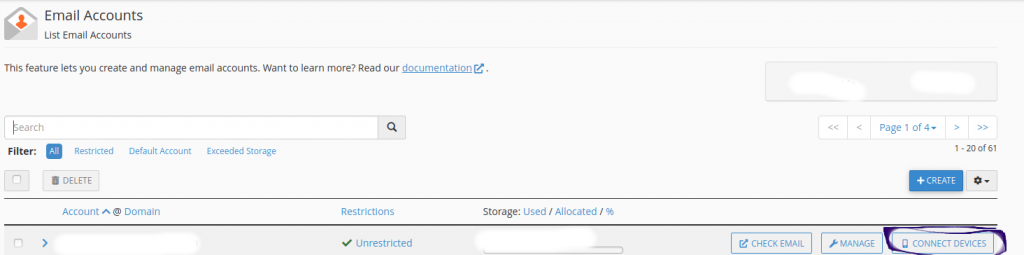
2. Click on the Set Up Mail Client link from the drop down.
3. Review the list of email Applications and choose the one you want by clicking on the Protocol link next to it.

4. Existing email client application must already be installed on your computer
If for some reason you have any issues with the auto configuration here are the Manual Settings for you to follow:
| Secure SSL/TLS Settings (Recommended) | Non-SSL Settings (NOT Recommended) |
| Username: email@domain.com Password: Use the email account’s password Incoming mail.domain.com IMAP Port: 993 POP3 Port: 995 Outgoing Server: mail.domain.com SMTP Port: 465 Authentication is required for IMAP, POP3, and SMTP | Username: email@domain.com Password: Use the email account’s password Incoming mail.domain.com IMAP Port: 143 POP3 Port: 110 Outgoing Server: mail.domain.com SMTP Port: 25 Authentication is required for IMAP, POP3, and SMTP |
Conclusion
Configuring email client access in cPanel is a straightforward process that enhances how users interact with their emails. By connecting your domain email to desktop or mobile applications, you gain faster access, better organization, and the flexibility to manage emails from anywhere.
With proper setup using IMAP or POP3 and secure SMTP settings, users can ensure reliable communication and seamless email management beyond the webmail interface.