
Post Date: January 9, 2021
Last Updated: November 22, 2026
Introduction
Copy Objects Between S3 Buckets is a common task for AWS administrators and cloud engineers who manage data stored in Amazon Simple Storage Service (Amazon S3). You may need to transfer objects from one S3 bucket to another for backup purposes, data migration, application updates, or better storage management.
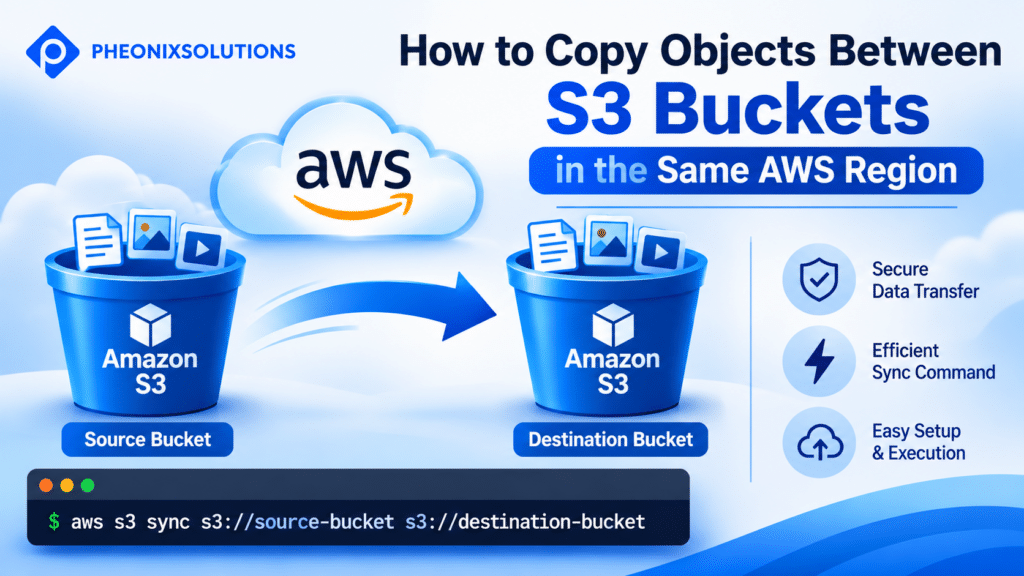
Amazon S3 provides multiple ways to copy objects between buckets. One of the easiest and most efficient methods is using the AWS Command Line Interface (AWS CLI). The aws s3 sync command allows you to copy multiple objects from a source bucket to a destination bucket without manually downloading and uploading files.
In this guide, we will explain how to copy objects between two S3 buckets in the same AWS region using AWS CLI. We will also cover the prerequisites, IAM permissions, CLI installation, configuration, and verification steps.
Prerequisites
Before proceeding with the S3 bucket copy operation, make sure you have the following requirements:
- AWS Account: An active AWS account with access to the Amazon S3 service.
- Source S3 Bucket: An existing S3 bucket containing the objects you want to copy.
- Destination S3 Bucket: A new or existing S3 bucket where you want to copy the objects.
- AWS CLI: AWS Command Line Interface installed on your Linux server.
- IAM User or Role: An IAM identity with the necessary permissions to access both source and destination buckets.
- Access Permissions: Appropriate permissions to list, read, and write objects in the respective buckets.
Note: Both buckets should be in the same AWS region for this procedure. Ensure that your IAM identity has the required S3 permissions before starting the operation.
Steps to Copy Objects Between S3 Buckets Using AWS CLI
Step 1: Log in to the AWS Management Console
- Log in to your AWS Management Console.
- Navigate to the Amazon S3 service.
- Identify the source S3 bucket containing the objects.
- Create a new destination bucket or select an existing bucket.
Make sure you select the correct AWS region for both buckets.
Step 2: Install AWS CLI on Your Linux Server
To copy objects between S3 buckets, you need to install AWS CLI on your Linux server.
Run the following commands to download and install AWS CLI version 2:
Download AWS CLI:
curl "https://awscli.amazonaws.com/awscli-exe-linux-x86_64.zip" -o "awscliv2.zip"Extract the downloaded package:
unzip awscliv2.zipInstall AWS CLI:
sudo ./aws/installVerify the installation by running:
aws --versionStep 3: Create an IAM User or Configure an IAM Role
You need an IAM identity with the necessary permissions to perform S3 bucket operations.
If you are using an IAM user, follow these steps:
- Open the AWS IAM Console.
- Navigate to Users from the navigation menu.
- Select the required IAM user.
- Navigate to the Security credentials section.
- Create an access key if required.
- Store the access key and secret access key securely.
Security recommendation: Avoid creating long-term access keys unnecessarily. If you are running AWS CLI from an EC2 instance, prefer attaching an IAM role to the instance. For other environments, consider AWS IAM Identity Center or temporary credentials.
The IAM identity should have the required permissions, including:
s3:ListBucketon the source and destination buckets.s3:GetObjecton the source bucket objects.s3:PutObjecton the destination bucket objects.
Additional permissions may be required depending on bucket encryption, object ownership, versioning, and existing object ACLs.
If you need any assistance with AWS IAM configuration, S3 bucket permissions, access management, or cloud security, please feel free to reach out to our team here.
Step 4: Configure AWS CLI
Once AWS CLI is installed and your IAM credentials are available, configure the CLI by executing
aws configureThe command will prompt you to enter the following details:
AWS Access Key ID: YOUR_ACCESS_KEY
AWS Secret Access Key: YOUR_SECRET_KEY
Default region name: ap-south-1
Default output format: json
Replace the example values with your actual AWS credentials and region.
You can also configure the AWS CLI to use an IAM role or another supported credential provider instead of manually entering access keys.
Step 5: Copy Objects Between S3 Buckets
Once AWS CLI is configured, you can use the aws s3 sync command to copy objects from the source bucket to the destination bucket.
Execute the following command:
aws s3 sync s3://DOC-EXAMPLE-BUCKET-SOURCE s3://DOC-EXAMPLE-BUCKET-TARGET
Replace the bucket names with your actual source and destination bucket names.
Example:
aws s3 sync s3://pheonix-source-bucket s3://pheonix-backup-bucketThis command synchronises the objects from the source bucket to the destination bucket.
The aws s3 sync command copies new and updated objects while skipping objects that are already up to date.
Important: By default, aws s3 sync does not delete objects from the destination bucket. However, if you add the --delete option, objects that exist only in the destination may be deleted. Avoid using this option unless you specifically require that behaviour.
Step 6: Verify the Copied Objects
After executing the sync command, verify whether the objects have been copied successfully.
Run the following command to list the objects in the destination bucket:
aws s3 ls s3://pheonix-backup-bucketTo check the total number of objects, execute:
aws s3 ls s3://pheonix-backup-bucket --recursive --summarizeYou can also log in to the AWS Management Console, navigate to Amazon S3, and open the destination bucket to verify the copied objects.
If the objects are available in the destination bucket, the copy operation has completed successfully
Conclusion
Copying objects between S3 buckets in the same AWS region is straightforward using AWS CLI. The aws s3 sync command provides an efficient way to transfer multiple objects from a source bucket to a destination bucket without manually downloading and uploading files.
By following the steps explained in this guide, AWS administrators can easily perform S3 bucket-to-bucket transfers for backup, migration, and data management purposes.
Always verify IAM permissions, encryption settings, and destination bucket contents before considering the transfer complete. Following these practices helps ensure a secure and reliable S3 object copy operation.
FAQs
1. How can I copy objects from one S3 bucket to another?
You can use the AWS CLI aws s3 sync command to copy objects between two S3 buckets.
2. Can I copy objects between S3 buckets in the same region?
Yes. Amazon S3 supports copying objects between buckets in the same AWS region using AWS CLI, the AWS Management Console, or S3 APIs.
3. What is the difference between AWS S3 CP and AWS S3 Sync?
The aws s3 cp command copies files or objects, while aws s3 sync compares the source and destination and copies only new or updated objects by default.
4. Does the AWS S3 Sync command delete existing objects in the destination bucket?
No. By default, the aws s3 sync command does not delete existing destination objects. However, using the --delete option removes destination objects that are not present in the source.
Official Documentation
- AWS CLI Installation Guide
- AWS S3 Sync Command Reference
- AWS S3 Permissions
- AWS S3 Copy Object Documentation
Related Articles
How to Create an AWS S3 Bucket Using Terraform
How to set up Gitlab Backups within Amazon S3 Bucket
Need Assistance?
Managing Amazon S3 buckets, configuring AWS CLI, and transferring data between cloud storage environments can sometimes require additional technical expertise. Our team can help you with AWS cloud configuration, data migration, backup solutions, server administration, cloud security, and infrastructure management.
Explore Pheonix Solutions to learn more about our cloud infrastructure, hosting, and DevOps services.
Explore our services to learn more: