
Post Date: November 22, 2026
Introduction
Argo CD is a GitOps-based continuous delivery tool that automates application deployment and management across Kubernetes clusters. When managing multiple applications across different namespaces, maintaining a reliable Argo CD backup strategy is essential to ensure application availability, configuration consistency, and disaster recovery.
Backing up Argo CD applications, configurations, and Kubernetes resources helps administrators recover from accidental deletions, cluster failures, infrastructure migrations, and unexpected configuration changes. A proper backup strategy ensures that critical application configurations can be restored whenever required.
In this blog, we will explain how to back up all Argo CD applications across selected namespaces, export application configurations, verify backup files, and restore Argo CD resources using command-line tools. We will also cover backup automation and best practices for maintaining a reliable Kubernetes backup strategy.
Why Back Up Argo CD?
Backing up Argo CD helps you recover your GitOps environment during:
- Kubernetes cluster failures
- Accidental deletion of Argo CD resources
- Server migration
- Disaster recovery
- Configuration changes or deployment failures
- Argo CD reinstallation
A proper backup strategy should include Argo CD configurations, application definitions, Kubernetes manifests, secrets, and persistent application data where applicable.
Prerequisites
Before starting the backup, ensure the following tools are installed:
- Kubernetes cluster access
kubectl- Argo CD CLI
- Access to the Argo CD namespace
- Sufficient storage for backup files
Check Kubernetes cluster connectivity:
kubectl get nodes
Check the Argo CD version:
argocd version
Check the Argo CD namespace:
kubectl get pods -n argocd
If Argo CD is installed in a different namespace, replace argocd with your installation namespace.
Step 1: List All Argo CD Applications
First, list all applications managed by Argo CD.
argocd app list
You can also check Application resources directly using Kubernetes:
kubectl get applications -A
To list applications from a specific namespace:
kubectl get applications -n argocd
For applications deployed across multiple namespaces, verify the application resources and their destination namespaces.
Step 2: Identify the Namespaces to Back Up
List all Kubernetes namespaces:
kubectl get namespacesExample:
NAME
argocd
default
test
test1-infra
monitoring
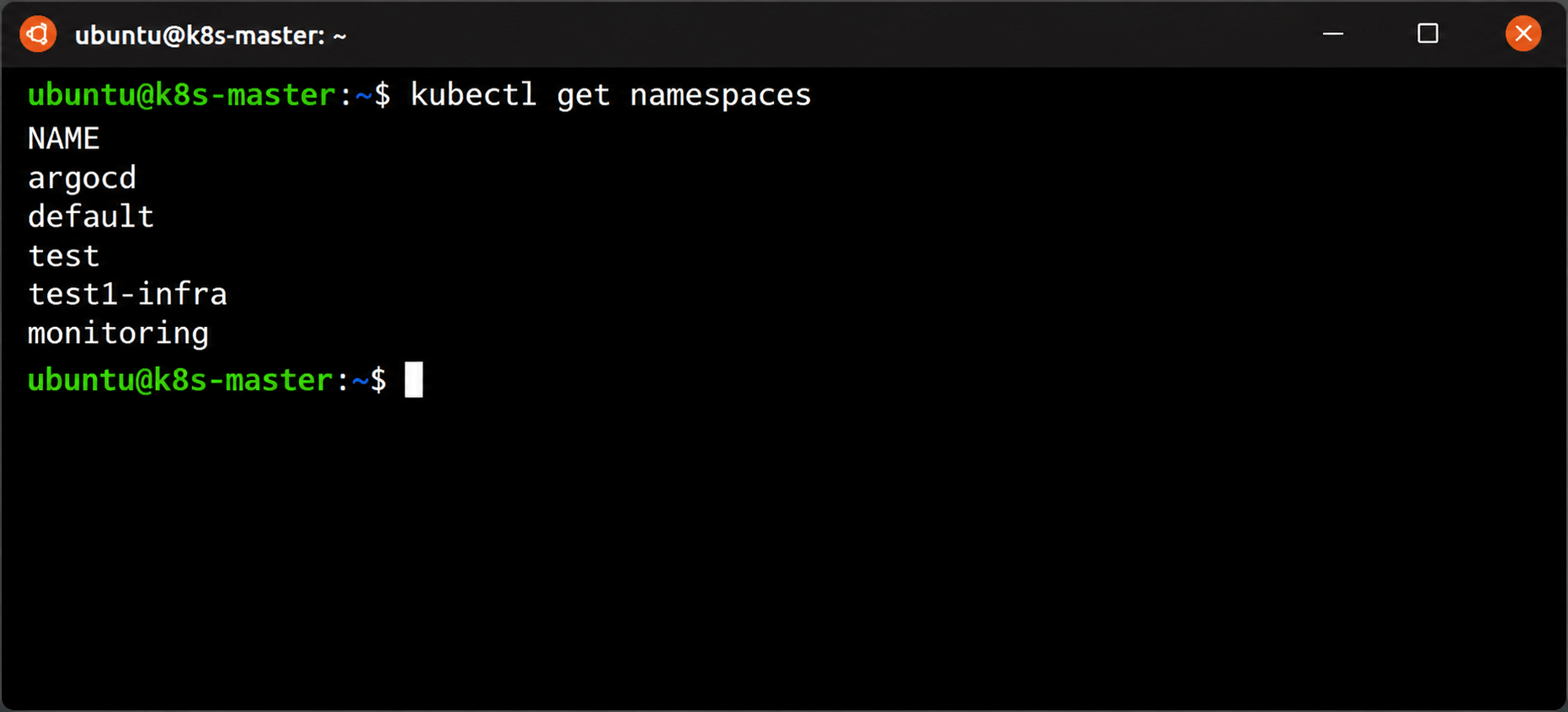
In this example, we want to back up Argo CD applications from the following namespaces:
- argocd
- test1-infra
- test
- monitoring
Step 3: Back Up Argo CD Applications Across Selected Namespaces
Argo CD provides the argocd admin export command to export Argo CD data.
Run the following command to export Argo CD data:
argocd admin export -n argocd > argocd-backup.yaml
To export applications from selected application namespaces along with the Argo CD control-plane namespace, use:
argocd admin export \
  -n argocd \
  --application-namespaces test1-infra,test,test2 \
  > argocd-backup.yaml
This command exports Argo CD data into a YAML backup file.
The --application-namespaces option allows you to specify additional namespaces from which Argo CD Application resources should be exported.
Step 4: Create a Backup Directory
Create a dedicated directory to store your backups.
mkdir -p /backup/argocd
Set the backup filename using the current date:
DATE=$(date +%F)
Export the backup:
argocd admin export \
  -n argocd \
  --application-namespaces test1-infra,test,test2 \
  > /backup/argocd/argocd-backup-$DATE.yaml
Verify the backup file:
ls -lh /backup/argocd/
Example output:
argocd-backup-2026-11-18.yaml
Step 5: Verify the Backup File
Check the backup file size:
du -sh /backup/argocd/argocd-backup-*.yaml
Check the beginning of the backup file:
head -n 20 /backup/argocd/argocd-backup-2026-11-18.yaml
Search for Argo CD Application resources:
grep -n "kind: Application" /backup/argocd/argocd-backup-2026-11-18.yaml
Search for ApplicationSets:
grep -n "kind: ApplicationSet" /backup/argocd/argocd-backup-2026-11-18.yaml
Search for AppProjects:
grep -n "kind: AppProject" /backup/argocd/argocd-backup-2026-11-18.yaml
Step 6: Back Up Kubernetes Application Resources
Argo CD backup alone should not be considered a complete backup of your application data.
You should separately back up Kubernetes resources and persistent application data.
For example, to export resources from a namespace:
kubectl get deployments,services,configmaps,secrets,ingresses,pvc -n test1-infra -o yaml \
  > /backup/argocd/dev-infra-resources.yaml
For multiple namespaces:
for NS in test1-infra,test,test2; do
    kubectl get deployments,services,configmaps,secrets,ingresses,pvc -n "$NS" -o yaml \
      > "/backup/argocd/${NS}-resources.yaml"
done
Note: This command exports the specified resource types only. For a comprehensive Kubernetes resource backup, use a backup solution such as Velero and ensure persistent volume data is included according to your storage configuration.
Managing Kubernetes applications across multiple namespaces? Our DevOps team helps with Kubernetes management, Argo CD configuration, and cloud infrastructure solutions.
Explore our DevOps & Cloud Services to learn more.
Step 7: Compress the Backup
To save disk space, compress the backup directory:
tar -czvf argocd-backup-$DATE.tar.gz /backup/argocd/
Verify the compressed file:
ls -lh argocd-backup-$DATE.tar.gz
Step 8: Store the Backup in Remote Storage
For production environments, do not keep backups only on the Kubernetes server.
Store copies in remote backup storage such as:
- Amazon S3
- MinIO
- Remote backup server
- NAS storage
- Secure cloud storage
Example using rsync:
rsync -avz /backup/argocd/ backup-server:/backup/argocd/
Example using AWS CLI:
aws s3 cp argocd-backup-$DATE.tar.gz s3://your-backup-bucket/argocd/
Step 9: Restore Kubernetes Application Resources
After completing the Kubernetes resource backup, you can restore the exported resources whenever required, such as during server migration, cluster failure, or disaster recovery.
9.1 Check Kubernetes Cluster Connectivity
First, verify that your kubectl context points to the correct destination cluster.
kubectl config current-context
Check the cluster nodes:
kubectl get nodes
9.2 Create Required Namespaces
Check the existing namespaces:
kubectl get namespaces
Create the required namespaces if they do not exist:
kubectl create namespace test1-infra
kubectl create namespace test
kubectl create namespace monitoring
9.3 Restore Kubernetes Resources
Use the previously created backup YAML files to restore Kubernetes resources.
Restore resources from the test1-infra namespace:
kubectl apply -f /backup/argocd/kubernetes-resources/test1-infra-resources.yaml
Restore resources from the test namespace:
kubectl apply -f /backup/argocd/kubernetes-resources/test-resources.yaml
Restore resources from the monitoring namespace:
kubectl apply -f /backup/argocd/kubernetes-resources/monitoring-resources.yaml
9.4 Verify Restored Kubernetes Resources
After completing the restoration, verify the deployments:
kubectl get deployments -A
Check services:
kubectl get services -A
Check running pods:
kubectl get pods -A
Check PersistentVolumeClaims:
kubectl get pvc -A
Ensure that all required Kubernetes resources have been restored successfully.
Note: This restoration method applies the exported Kubernetes resource definitions. Persistent volume data, databases, and other application data must be restored separately. Review Secrets, storage configurations, and cluster-specific settings before restoring resources into a production cluster.
Step 10: Restore Argo CD Backup
Before restoring, ensure Argo CD is installed and your Kubernetes context is pointing to the correct cluster.
Restore Argo CD data from the backup file:
argocd admin import -n argocd - < argocd-backup.yaml
If your backup contains applications and configurations for multiple namespaces, ensure the required namespaces and Argo CD configuration are available in the destination cluster.
After restoration, verify applications:
argocd app list
Check application status:
argocd app get <application-name>
Check Kubernetes resources:
kubectl get pods -A
Important Backup Considerations
- Verify the backup file after every backup operation.
- Store backups in remote storage.
- Back up repository credentials and sensitive configurations securely.
- Protect backup files because they may contain sensitive information.
- Back up persistent volumes and databases separately.
- Test the restoration process periodically.
- Keep backups from different dates to support recovery from accidental changes.
- Ensure the required namespaces and cluster resources exist before restoring applications.
Conclusion
Backing up Argo CD applications across multiple namespaces is an important part of Kubernetes disaster recovery. Using the Argo CD CLI, administrators can export Argo CD configuration and application resources into a backup file.
For a complete backup strategy, combine Argo CD exports with Kubernetes resource backups, persistent volume backups, database backups, and remote storage.
Regular backups and restoration testing help ensure your Kubernetes GitOps environment can recover quickly after unexpected failures.
Frequently Asked Questions (FAQ)
1. How do I back up all Argo CD applications across multiple namespaces?
You can use the argocd admin export command with the --application-namespaces option to export Argo CD configurations and applications from selected namespaces into a YAML backup file.
2. Does Argo CD backup include Kubernetes application data and persistent volumes?
No. Argo CD backup primarily covers Argo CD configuration and application resources. Databases, persistent volumes, and application data should be backed up separately using tools such as Velero or database backup utilities.
3. How can I restore Argo CD applications from a backup?
You can restore the exported backup using the argocd admin import command after ensuring Argo CD is installed and the target Kubernetes cluster is properly configured.
Related Articles
Kubernetes Production Readiness Checklist
Kubernetes Security Checklist: Best Practices to Secure Your Cluster
Talk to DevOps and Cloud Experts
Managing Kubernetes applications across multiple namespaces requires a reliable backup and recovery strategy. At Pheonix Solutions, our team helps businesses build, manage, and maintain reliable digital infrastructure and cloud environments.
We can help you with:
- Website development with Core Web Vitals built in from the first release.
- Performance audits that identify and fix slow LCP, poor INP, and layout shifts on existing websites.
- DevOps and cloud services for Kubernetes management, infrastructure automation, cloud deployment, and server tuning.
- Software maintenance and support to keep applications stable, secure, and reliable after every update.
Need help managing your Kubernetes infrastructure or implementing an Argo CD backup and recovery strategy? Talk to our DevOps and Cloud experts to discuss your requirements.