
Post Date: November 13, 2026
Introduction
Docker containers are used to run applications and services in isolated environments. However, containers may stop unexpectedly due to application errors, server restarts, or other issues.
Docker provides restart policies to control how containers behave when they stop or fail. These policies help maintain application availability without requiring administrators to manually start containers every time.
Docker Container Restart Policies allow you to configure containers to restart automatically based on specific conditions.
In this article, we will explore the different Docker restart policies and learn how to configure them using simple commands.
Prerequisites
Before configuring Docker container restart policies, make sure you have:
- A Linux server or local machine.
- Docker Engine installed and running.
- Basic knowledge of Docker commands.
- Sudo or root privileges, if required.
- Internet connectivity to download Docker images.
Recommended Reading:
If you are new to Docker networking, refer to our guide: How to Configure Docker Networking Between Containers.
Implementation Steps
Step 1: Check the Docker Version
First, verify that Docker is installed and running on your system.
Execute the following command:
docker --version
Expected Output:
Docker version 27.5.1, build 9f9e405
Note: The version displayed may differ depending on your Docker installation.
Step 2: Create a Docker Container
Before configuring restart policies, create a sample Nginx container.
Execute:
docker run -d --name restart-demo nginx:alpine
This command:
docker runcreates and starts a container.-druns the container in detached mode.--name restart-demoassigns a name to the container.nginx:alpinespecifies the Docker image.
Check the container status:
docker ps
The container should appear in the running containers list.
Step 3: Understand Docker Restart Policies
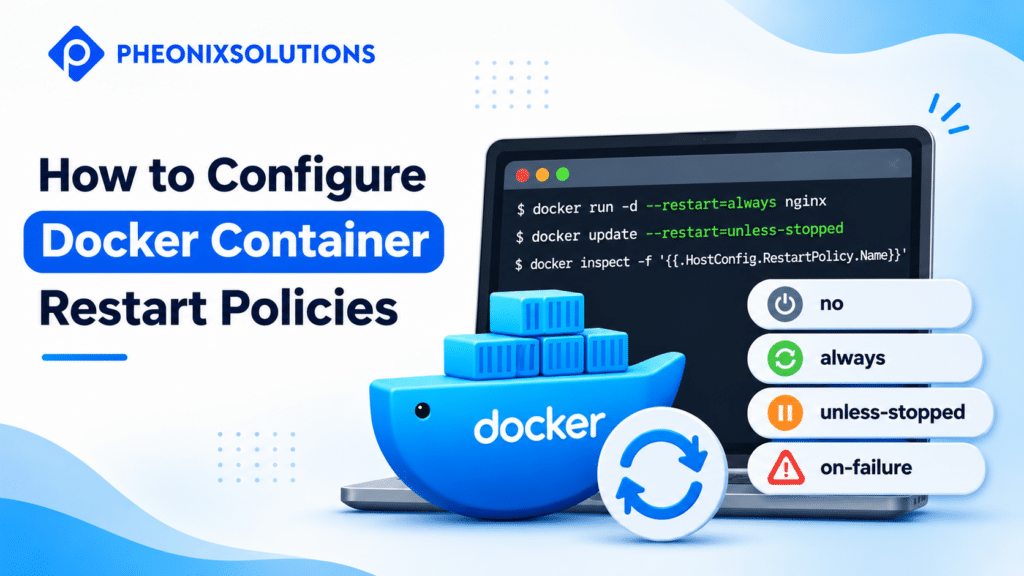
Docker provides four main restart policies.
1. no
This is the default restart policy. Docker does not automatically restart the container when it stops.
docker run -d --name no-restart-demo --restart=no nginx:alpine
2. always
Docker automatically restarts the container whenever it stops. It also attempts to restart the container when the Docker daemon restarts.
docker run -d --name always-demo --restart=always nginx:alpine
3. unless-stopped
Docker automatically restarts the container unless it has been manually stopped. A manually stopped container remains stopped even when the Docker daemon restarts.
docker run -d --name unless-stopped-demo --restart=unless-stopped nginx:alpine
4. on-failure
Docker restarts the container only when it exits with a non-zero exit code. You can also specify the maximum number of restart attempts.
docker run -d --name failure-demo --restart=on-failure:5 nginx:alpine
Here, 5 represents the maximum number of restart attempts.
Step 4: Configure a Restart Policy for an Existing Container
You can also change the restart policy of an existing container without recreating it.
For example, to configure the restart-demo container with the always policy, execute:
docker update --restart=always restart-demo
To verify the updated configuration, execute:
docker inspect -f '{{.HostConfig.RestartPolicy.Name}}' restart-demo
Expected Output:
always
This confirms that the container’s restart policy has been updated successfully.
Step 5: Test the Restart Policy
Now, test whether the configured restart policy works as expected.
First, stop the container:
docker stop restart-demo
Start the container again:
docker start restart-demo
Check its status:
docker ps
The container should appear in the running containers list.
For an additional test, you can restart the Docker service during a maintenance window and verify the behavior of containers configured with always or unless-stopped.
Note: Avoid restarting the Docker service on a production server just for testing, as it may affect other running containers.
Step 6: Check the Restart Policy of a Container
To view the restart policy configured for a particular container, use:
docker inspect restart-demo
To display only the restart policy name:
docker inspect -f '{{.HostConfig.RestartPolicy.Name}}' restart-demo
Expected Output:
always
You can also check the restart count using:
docker inspect -f '{{.RestartCount}}' restart-demo
This command displays the number of times Docker has restarted the container.
Conclusion
Docker container restart policies help administrators manage container availability and reduce manual intervention.
By using no, always, unless-stopped, and on-failure, you can control how Docker handles stopped or failed containers.
Understanding these policies helps DevOps engineers maintain reliable Docker environments and manage application containers more efficiently.
Frequently Asked Questions (FAQs)
1. What are Docker container restart policies?
Docker container restart policies define how Docker handles containers when they stop or fail. The available policies include no, always, unless-stopped, and on-failure.
2. Which Docker restart policy is recommended?
The unless-stopped policy is commonly useful for application services because it automatically restarts containers unless an administrator has manually stopped them.
3. How can I check the restart policy of a Docker container?
Use the following command to check the restart policy:
docker inspect -f '{{.HostConfig.RestartPolicy.Name}}' container_name
Replace container_name with your actual Docker container name.
Related Articles
Official Documentation
- Docker – Start containers automatically
- Docker – Run a container
- Docker – Update a container
- Docker – Inspect a container
How Pheonix Solutions Can Help
Managing Docker containers efficiently is essential for maintaining application availability and reliable infrastructure.
Pheonix Solutions provides DevOps, cloud infrastructure, containerization, and automation services to help businesses build and maintain scalable environments.
Our experts can help you configure Docker environments, automate container management, implement monitoring solutions, and improve application reliability.
Contact our experts to discuss your DevOps requirements.