
Post Date: April 26, 2019
Last Updated: October 17, 2026
Introduction
Git commands in Android Studio help developers manage source code, track changes, and collaborate with team members efficiently. Git operations such as push, pull, and commit are essential for maintaining version history and synchronising code with a remote repository such as GitLab.
In this tutorial, we will explain how to use Git in Android Studio through its graphical interface and command line. You will learn how to commit local changes, push code to GitLab, and pull the latest updates from a remote repository.
Prerequisites
Before using push, pull, and commit in Android Studio, ensure you have the following:
- Android Studio: Installed and configured on your computer.
- Git: Installed and configured for version control.
- Git repository: An existing local Git repository for your Android Studio project.
- Remote repository: A remote GitLab repository configured and linked to your local project.
- GitLab account: An active account with the necessary permissions to access the remote repository.
- Authentication: Valid GitLab credentials or a configured personal access token or SSH key, depending on your repository setup.
- Internet connection: Required to communicate with the remote repository.
Implementation
Step 1:How to Push Code from Android Studio to GitLab
Every Git project should have a remote or central repository where other developers can collaborate on the project from anywhere in the world. In Android Studio, it’s also possible to push our commits or changes to a remote repository. To do that, navigate to VCS > Git > Push…

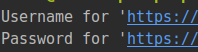
You can do it from command line like below.It will ask for authentication in both methods.
Run this command > git push -u -f origin master
Verify with your git lab account.
Step 2: How to Commit Changes in Android Studio
Commit means you make updating the changes to your local repository.
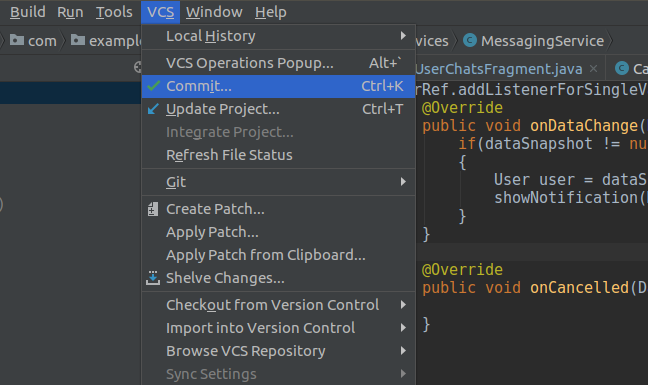
Select Commit in the Commit drop-down to finally commit your changes. Note that you can use the shortcut Control-K to commit changes anytime from Android Studio.
If you now revisit the Local Changes tab in the Version Control window, you won’t see any of your files listed there anymore—because we successfully committed them to our local repo.
Note that you can also navigate to VCS > Git > Commit File… to make a commit and VCS > Git > Add to add a file for staging. In addition, you can click the commit changes icon in the main top toolbar in Android Studio to make a quickly make a commit (or commit and push).
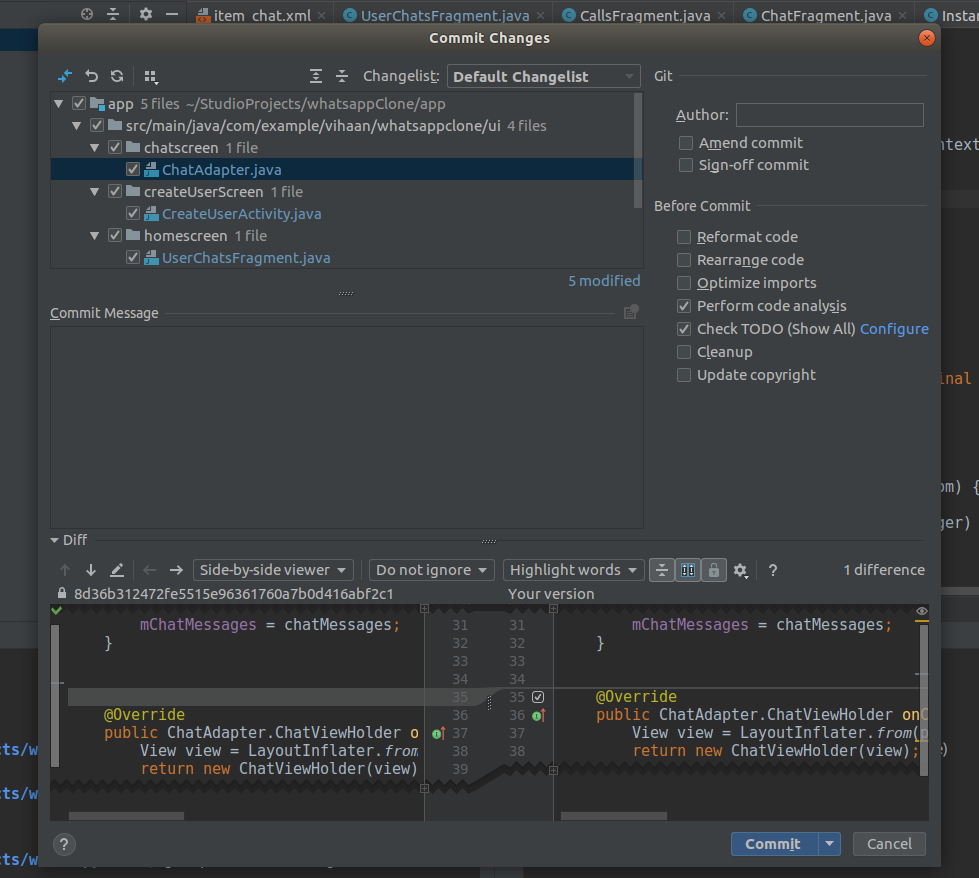
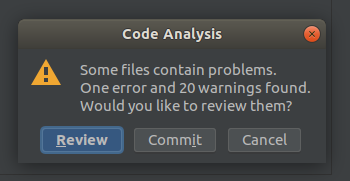
Click on Commit to make it successful commit.
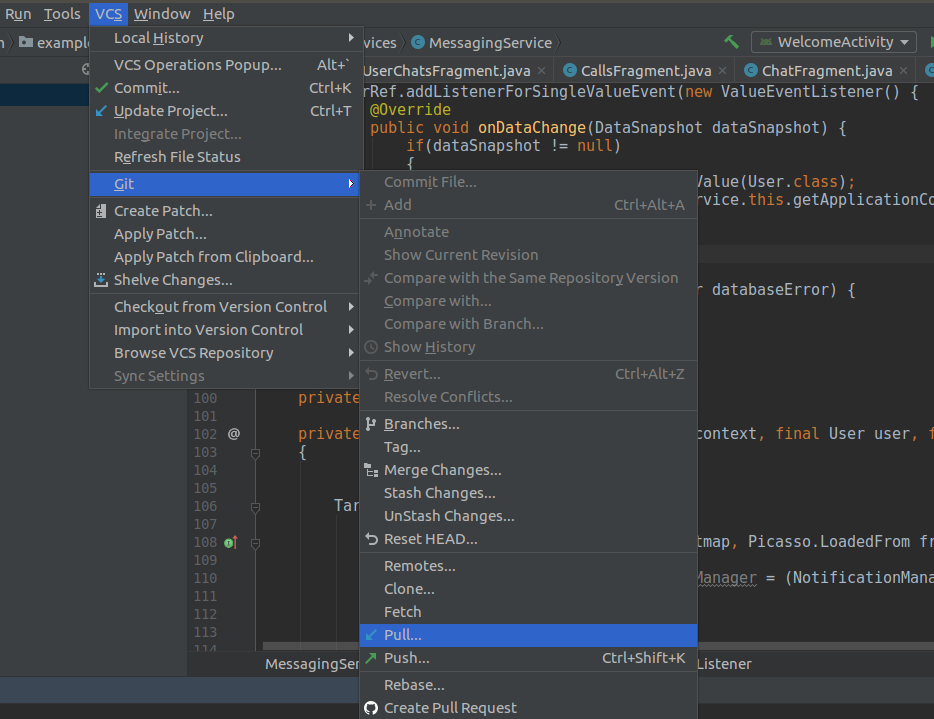
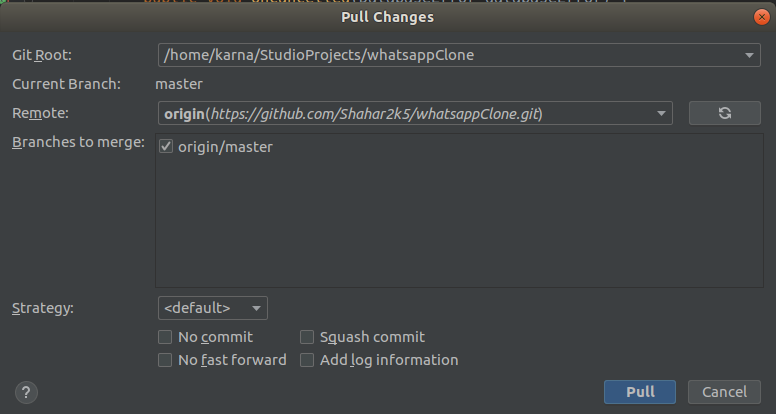
Step 3: How to Pull Changes in Android Studio
git pull is one of many commands that claim the responsibility of ‘syncing’ remote content.
Pull will get remote repository codes from there to your android studio application.
It’s used to update changes in remote repo to your local repo since last pull.
Git is a popular version control system that helps developers track and manage source code changes. For more information, refer to the official Link.
Conclusion
Git integration in Android Studio makes source code management easier and more efficient. The commit command saves changes to your local repository, push uploads committed changes to the remote repository, and pull retrieves and integrates updates from the remote repository into your local project.
By understanding these three essential Git operations, developers can maintain version history, collaborate effectively with team members, and keep their Android projects synchronized with GitLab. Following these steps helps streamline your development workflow and reduces the risk of losing track of code changes.
For more technical tutorials and development solutions, visit pheonixsolutions
FAQs
1. What is the use of Git in Android Studio?
Git is a version control system integrated with Android Studio that helps developers track code changes, maintain version history, and collaborate with team members.
2. What is the difference between Git commit, push, and pull?
- Commit: Saves changes to the local Git repository.
- Push: Uploads committed changes from the local repository to a remote repository.
- Pull: Fetches and integrates changes from the remote repository into the local repository.
3. How do I commit changes in Android Studio?
Open your project in Android Studio, select the files you want to commit, enter a commit message, and click Commit. You can also use the Ctrl + K shortcut on Windows or Linux.
Related Articles
How to create a Android Project using Android studio
How to generate APK in Android Studio
Need Help with Android Studio and Git?
Need help with Android Studio configuration, Git integration, or troubleshooting push, pull, and commit operations? Our experts can assist with Android development, version control, DevOps, cloud solutions, and other technical requirements. Get in touch with our team here.