
How to create an SFTP account in the Plesk Panel.
Date: 28-05-2020
Step -1:
Log in to the Plesk Control Panel for your domain.
Step – 2:
From the Home page, click on Domains. Then click on the desired domain name.

Step – 3:
Next, click on FTP Access.
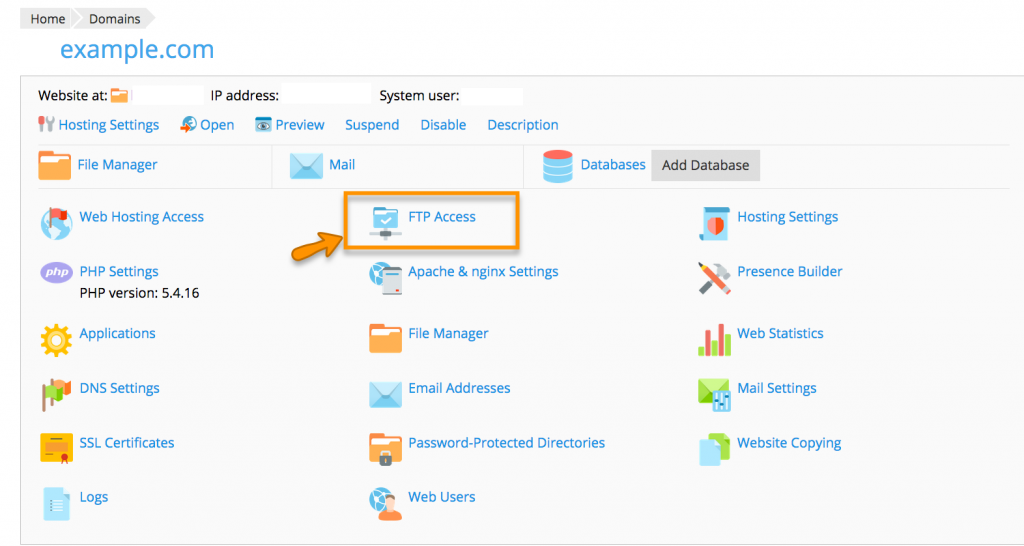
Step – 4:
Click on Add an FTP Account.

Step -5:
Enter a username, custom home directory, and password. Then click OK.

- FTP account name: This is the FTP username.
- Home directory: Click on the folder to navigate to the desired directory, or leave it with just / to grant access to all domains in that subscription.
- Password: This will be your FTP password and then click OK.
You’re done setting up your new SFTP user.
Step – 6:
To enable SFTP, you’ll have to enable SSH access for the primary FTP user for this subscription. SFTP is available only for the primary user.
- Follow steps 1-3 above to get to your list of FTP users. Click the user’s name to edit.
- Next, select /bin/bash (chrooted) from the dropdown menu (unless you want a different kind of SSH access).

3. Finally, Click Ok .
Thank you!