
Post Date: January 31, 2021
Last Updated: November 25, 2026
Introduction
Learn how to make file undeletable in Linux using the chattr command. Linux provides a special file attribute called Immutable (+i), which helps protect important files and directories from accidental modification, deletion, or renaming, even by the root user while the attribute is enabled.
In Linux system administration, protecting critical configuration files and system data is important for maintaining system security and data integrity. The chattr command allows administrators to apply special attributes to files and directories to prevent unwanted changes.
By enabling the immutable file attribute, you can prevent users from modifying, renaming, or deleting protected files. This is particularly useful when securing important Linux configuration files, application files, and other critical system data.
In this tutorial, we will explain how to use the Linux chattr command to make a file undeletable, check file attributes using lsattr, and remove the immutable attribute when modifications are required.
Let’s look at the commands and steps to protect files from deletion in Linux.
How to Make a File Undeletable in Linux
Linux provides the chattr command to set special attributes on files and directories. Follow the steps below to protect a file from modification or deletion.
Step 1: Set the Immutable Attribute
To make a file undeletable, use the following command:
Command:
chattr +i directory/file
Example:
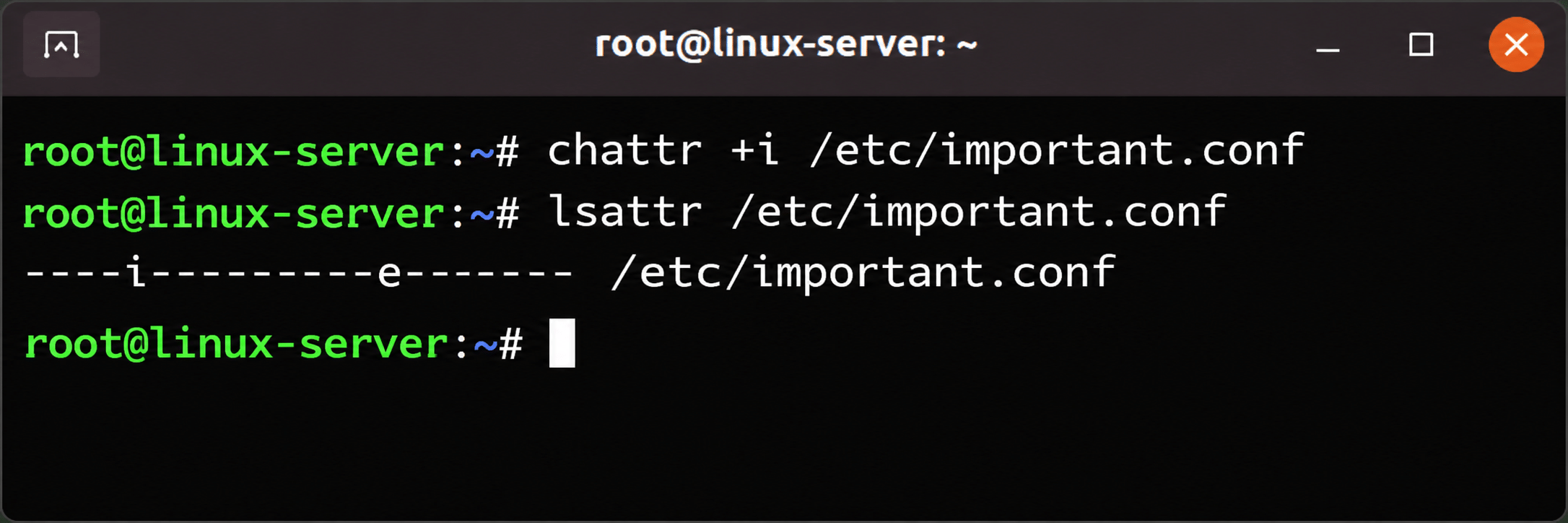
chattr +i /etc/important.conf
The +i option enables the immutable attribute on the specified file.
Once enabled, the file cannot be:
- Modified or edited.
- Deleted.
- Renamed.
- Linked to using a hard link.
Even the root user cannot directly modify or delete the file while this attribute is enabled.
Our DevOps experts can help you secure Linux servers, protect critical configuration files, implement server hardening, and manage reliable cloud infrastructure.
Explore our DevOps & Cloud Services.
Step 2: Check the File Attributes
After setting the immutable attribute, you can verify it using the lsattr command.
Command:
lsattr directory/file
Example:
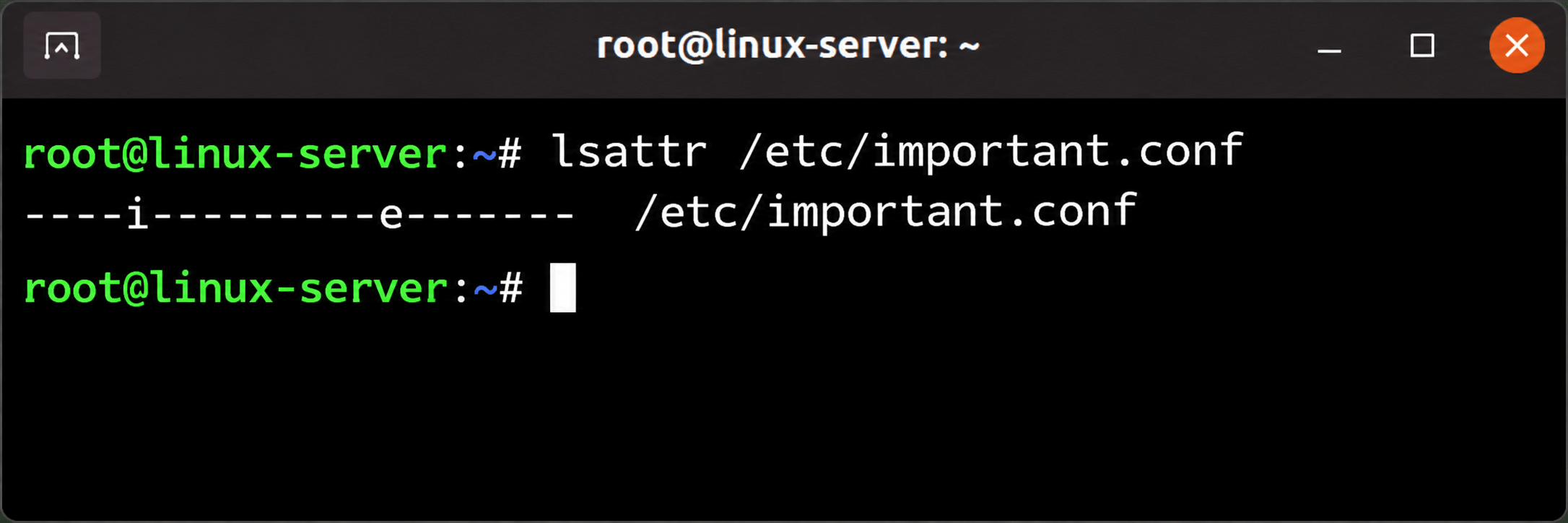
lsattr /etc/important.conf
Sample Output:
----i---------e------- /etc/important.conf
The i character in the output indicates that the immutable attribute is enabled.
Step 3: Remove the Immutable Attribute
If you need to edit, rename, or delete the protected file, you must first remove the immutable attribute.
Use the following command:
Command:
chattr -i directory/file
Example:
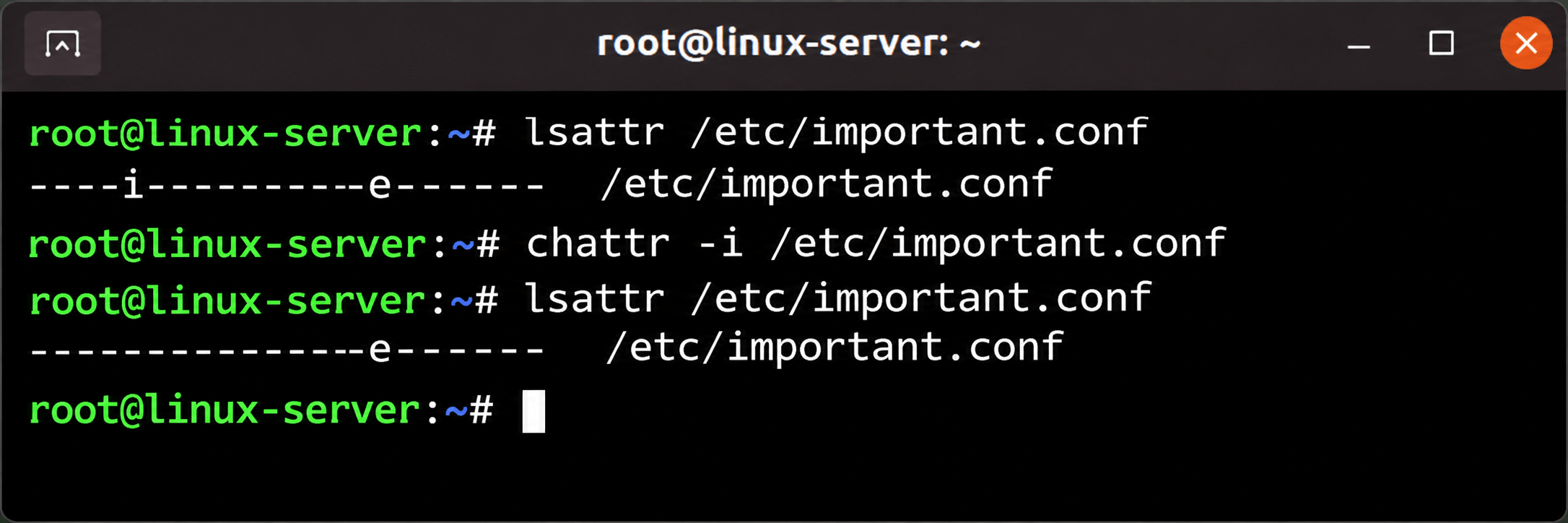
chattr -i /etc/important.conf
After removing the immutable attribute, you can modify or delete the file according to the available file permissions.
Step 4: Verify the Attribute Removal
To confirm that the immutable attribute has been removed, execute:
lsattr /etc/important.conf
The i character should no longer appear in the output.
You can now edit or delete the file normally.
Important Notes
- The
chattrcommand generally requires root privileges or the appropriate capabilities to change file attributes. - The immutable attribute protects files and directories against normal modification and deletion operations.
- To protect an entire directory and its contents, you can apply the immutable attribute to the directory itself.
- Support for file attributes depends on the filesystem.
- The root user can remove the immutable attribute using
chattr -i, so this is not a replacement for access control or system security measures.
Conclusion
The chattr command is a useful Linux utility for protecting important files and directories from accidental modification or deletion. By enabling the immutable (+i) attribute, you can prevent even the root user from directly modifying, renaming, or deleting a protected file while the attribute remains enabled.
This method is particularly useful for protecting critical configuration files, system files, and other important data. Always verify the file attributes using lsattr and remove the immutable attribute with chattr -i whenever modifications are required.
Frequently Asked Questions (FAQs)
1. How can I make a file undeletable in Linux?
You can use the chattr +i command to make a file immutable. This prevents the file from being modified or deleted while the attribute is enabled.
chattr +i filename
2. Can the root user delete an immutable file in Linux?
No. The root user cannot directly delete or modify an immutable file. The immutable attribute must first be removed using the chattr -i command.
3. How do I check whether a file is immutable in Linux?
Use the lsattr command to check the file attributes.
lsattr filename
If the output contains the i character, the immutable attribute is enabled.
4. How do I remove the immutable attribute in Linux?
Execute the following command to remove the immutable attribute:
chattr -i filename
After removing it, the file can be modified or deleted according to its permissions.
5. Can I make an entire directory undeletable in Linux?
Yes. You can apply the immutable attribute to a directory using:
chattr +i directory_name
This prevents the directory from being modified, renamed, or deleted while the attribute is enabled.
Related Articles
- How the Linux Kernel Handles Network Connections Using DNS and Routing
- Modifying File Timestamps in Linux Using touch
Linux Servers with Expert DevOps Support
Protecting critical Linux files and maintaining secure server environments are essential for business security and data integrity. At Pheonix Solutions, our team helps businesses manage Linux servers, implement server security, configure cloud infrastructure, and maintain reliable application environments.
We can help you with:
- DevOps and Cloud Services for Linux server management, AWS infrastructure, cloud automation, and server configuration.
- Website Development to build secure, responsive, and high-performing websites.
- Software Maintenance and Support to troubleshoot application issues, maintain server environments, and ensure smooth website operations.
Need help securing Linux servers, protecting critical configuration files, implementing server hardening, or managing your cloud infrastructure? Talk to our DevOps and Cloud experts to discuss your requirements.