
Post Date: May 09, 2019
Last Updated: October 20, 2026
Introduction
Schedule downtime in Nagios to prevent unnecessary alerts during planned server maintenance, software updates, reboots, and troubleshooting activities. Nagios is a powerful open-source monitoring tool that helps administrators monitor hosts, services, and IT infrastructure.
During scheduled server maintenance, Nagios may continue to generate host and service alerts, resulting in unnecessary notifications. To avoid these alerts, administrators can schedule downtime for the affected host in the Nagios web interface. During the scheduled period, Nagios suppresses notifications for the host and its services, depending on the downtime configuration. Once the scheduled downtime ends, normal monitoring and notifications resume.
In this tutorial, we will explain how to schedule downtime for a host in Nagios step by step.
Prerequisites
Before scheduling host downtime in Nagios, ensure that you have the following:
- A working Nagios monitoring server with hosts configured for monitoring.
- Access to the Nagios web interface.
- Valid login credentials with sufficient permissions to schedule downtime.
- The hostname or IP address of the server scheduled for maintenance.
- The planned maintenance start time and duration.
- A suitable maintenance comment describing the reason for scheduling downtime
Implementation
To schedule downtime in Nagios, log in to the Nagios web interface and navigate to Current Status → Hosts. Select the host that requires maintenance, click the scheduled downtime option, enter the maintenance comment and time duration, and commit the changes. Finally, verify that the scheduled downtime has been applied to the selected host.
Steps 1: To schedule downtime for the host on Nagios
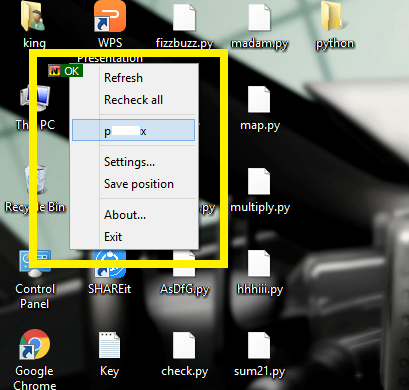
1) On nagios notify Right click, Then click the configure server it will redirect to the live nagios page.
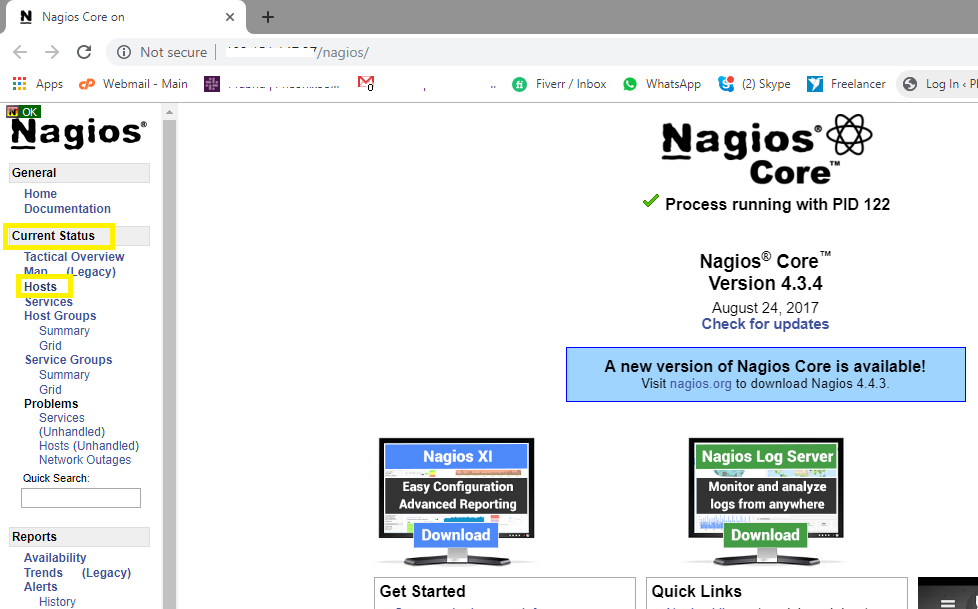
Step 2: Navigate to Current Status → Hosts
Then the live Nagios page will open in the browser; on the left side of the page, select Hosts under current status.
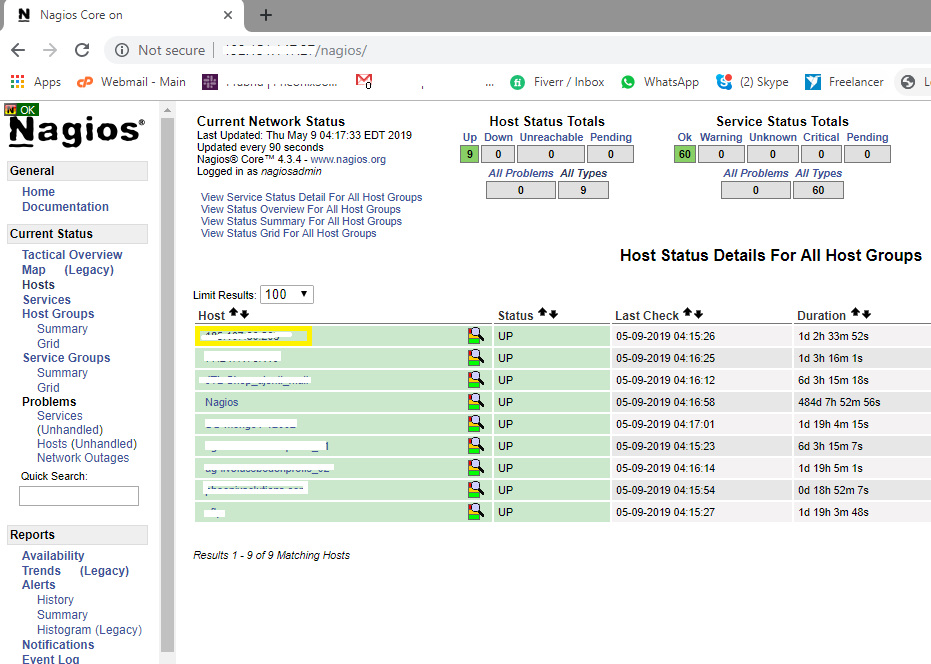
Step 3: Select the Host for Scheduled Downtime
Then it will list server which are under our control, in it select the host that need to be down for maintenance.
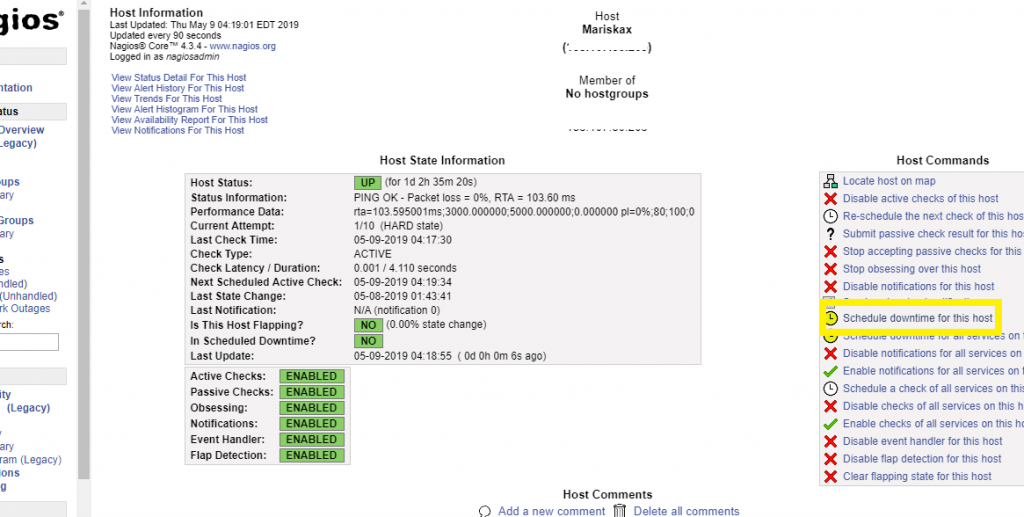
Step 4: Select Schedule Downtime for This Host
Then a new page will open, it displays details of the selected host, on Right side of the page, click the “schedule downtime for the host”.
Step 5: Configure the Nagios Scheduled Downtime
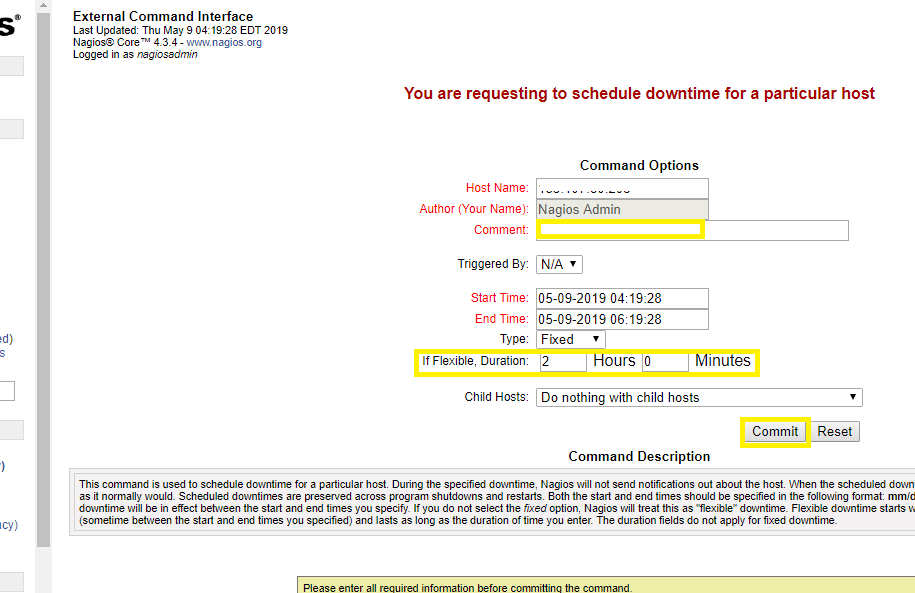
After that, a new page will open. Enter the comment and time duration as required, then click the commit button.
Step 6: Verify Scheduled Downtime in Nagios
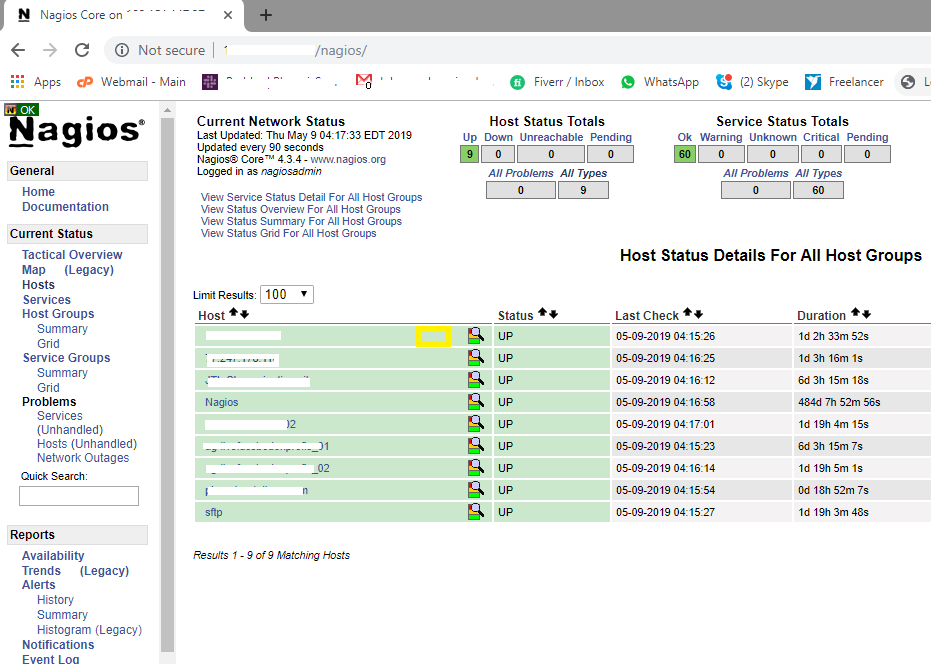
Then go back to hosts and check whether the “schedule downtime for the host” icon is present or not on the selected host server.
Conclusion
Scheduling downtime for a host in Nagios helps administrators avoid unnecessary alerts during planned server maintenance, updates, and troubleshooting activities. By following the steps outlined in this tutorial, you can schedule downtime for the required host through the Nagios web interface and verify that the downtime has been applied successfully.
Always ensure that the maintenance window is configured correctly and that normal monitoring and notifications resume after the scheduled period ends. This helps maintain effective infrastructure monitoring while reducing unnecessary alert notifications during planned maintenance.
Refer to the official documentation for more information about host monitoring, notifications, and scheduled downtime. visit here Link.
For assistance with Nagios monitoring, scheduled downtime configuration, server monitoring, or alert management, contact Pheonix Solutions.
FAQs
1. What is scheduled downtime in Nagios?
Scheduled downtime in Nagios is a feature that allows administrators to define a specific period during which a host or service is expected to be unavailable, usually for planned maintenance. It helps prevent unnecessary notifications during the scheduled period.
2. Why should we schedule downtime for a host in Nagios?
Scheduling host downtime helps reduce unnecessary alerts during planned server maintenance, software updates, reboots, and troubleshooting activities. It also helps administrators distinguish planned outages from unexpected failures.
3. How do I schedule downtime for a host in Nagios?
Log in to the Nagios web interface, navigate to Current Status → Hosts, select the required host, click Schedule downtime for this host, enter the comment and maintenance duration, and click Commit to apply the scheduled downtime.
Related Articles
How to set up the website monitoring on Nagios?
How to set up the PM2 service monitor on Nagios
Need Help with Nagios Monitoring and Configuration?
Need help with Nagios configuration, host monitoring, scheduled downtime, or alert management? Our experts can assist with Nagios setup, server monitoring, troubleshooting, DevOps, infrastructure management, and other technical requirements. Get in touch with our team here.