

Post Date: February 20, 2021
Last Updated: November 27, 2026
Introduction
Remove .ico Virus from WordPress websites to protect your website files, prevent unauthorized access, and maintain website security. WordPress websites can sometimes become infected with malicious files that use the .ico extension to hide suspicious code. These files may appear to be ordinary favicon images, but attackers can disguise malicious scripts or other harmful content using unexpected file extensions.
An infected WordPress website may experience unusual redirects, suspicious file modifications, unauthorized admin accounts, unexpected advertisements, or other security issues. If these malicious files are not identified and removed, attackers may continue exploiting your website.
You can detect suspicious .ico files using security tools such as Linux Malware Detect (Maldet) or WordPress security plugins. In this guide, we will explain how to identify and clean malicious .ico files using the MalCare WordPress Security Plugin.
Prerequisites
Before starting the malware removal process, make sure you have the following:
- WordPress Administrator Access: You need administrator privileges to install and configure the MalCare plugin.
- Website Backup: Take a complete backup of your WordPress website files and database before cleaning infected files.
- MalCare Plugin: Download and install the MalCare security plugin from the official WordPress plugin directory.
- Hosting or cPanel Access: Keep hosting control panel or SSH access available for additional file inspection.
- Updated WordPress Installation: Make sure WordPress core, themes, and plugins are updated to their latest secure versions.
- Website Access: Verify that you can access your WordPress dashboard and website.
How to Remove .ico Virus from WordPress Using MalCare
MalCare is a WordPress security plugin that provides malware scanning and website cleaning features. Follow the steps below to scan your website and remove malicious files.
Step 1: Install and Activate the MalCare Plugin
Log in to your WordPress administration dashboard.
- Navigate to Plugins → Add New Plugin.
- Search for MalCare Security.
- Click Install Now.
- Once the installation is complete, click Activate.
- Follow the plugin’s setup instructions and connect your website to MalCare.
Step 2: Open the MalCare Malware Scanner
After activating the plugin, open the MalCare dashboard from your WordPress administration panel.
Navigate to the Malware Scan section and initiate a scan of your website.
The scanner will examine your WordPress installation to identify suspicious files, malicious code, and potential security issues.
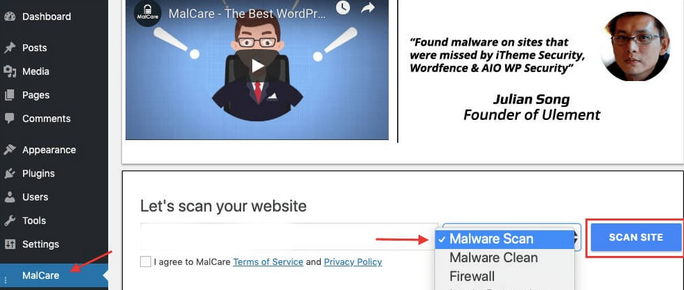
Step 3: Scan Your WordPress Website
Start the malware scan and allow MalCare to examine your website files and folders.
The scanning process may take some time depending on the size of your WordPress installation and the number of files.
Once the scan is complete, MalCare will display the detected security issues and the number of suspicious or infected files.
Review the scan results carefully before proceeding with the cleanup process.
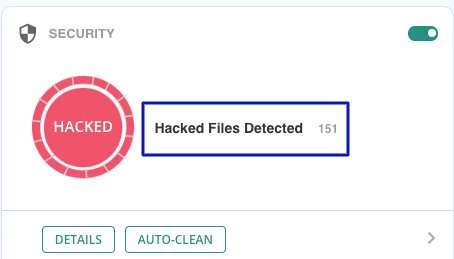
Step 4: Review the Detected Malicious .ico Files
Check the infected file list and identify suspicious .ico files.
Pay particular attention to files located in unexpected directories, recently modified files, and files containing executable PHP code despite having an image extension.
Remember that not every .ico file is malicious. WordPress themes and plugins may legitimately use ICO files as favicon images. Verify the scanner findings before deleting or modifying any files.
If you are unsure whether a file is infected, consult your hosting administrator or security team.
Step 5: Clean the Infected Files Using MalCare
Once you have reviewed the malware detection results, proceed with the cleanup.
- Open the MalCare malware detection results.
- Review the available cleaning options.
- Select Auto-Clean if the option is available under your MalCare plan.
- Allow MalCare to process the detected malware.
- Wait until the cleanup process is completed.
MalCare will attempt to remove the detected malicious code and clean the affected files.
The availability of automatic cleanup may depend on your MalCare subscription.
Step 6: Verify That Your WordPress Website Is Clean
After completing the cleanup process, visit your website and verify that it is working normally.
Check the following:
- Confirm that the website loads without unexpected redirects.
- Verify that the WordPress administrator dashboard is accessible.
- Check whether the suspicious
.icofiles have been cleaned or removed. - Verify that your website pages, images, and other functionality are working correctly.
- Run another malware scan to check for remaining infections.
If the scanner detects additional malicious files, investigate and clean them before considering the incident resolved.
Need help removing .ico malware from your WordPress website? Contact our security experts for professional malware removal and website protection.
Conclusion
Removing the .ico virus from a WordPress website is important for protecting your website against malware infections and unauthorized activities. Using the MalCare security plugin, you can scan your WordPress installation, identify suspicious files, and clean detected infections using its available malware removal features.
However, cleaning infected files alone may not completely secure a compromised website. You should also update WordPress, remove vulnerable plugins, reset compromised credentials, and investigate the original cause of the infection.
Regular malware scanning, website backups, and proper security configurations can help prevent similar infections in the future.
FAQs
1. What is an .ico virus in WordPress?
An .ico virus refers to a malicious file disguised with the .ico extension or an infected ICO file containing suspicious code. Attackers may use these files to hide malware within a WordPress installation.
2. How can I identify malicious .ico files in WordPress?
You can use WordPress security plugins such as MalCare or server-side malware scanners such as Linux Malware Detect (Maldet). These tools can help identify suspicious files and malicious code.
3. Can I remove the .ico virus without a WordPress plugin?
Yes. You can inspect your WordPress files through SSH, cPanel File Manager, or a server-side malware scanner such as Maldet. However, you should verify suspicious files before deleting them to avoid removing legitimate website assets.
4. Is every .ico file in WordPress malicious?
No. ICO files are commonly used for website favicons. Only files containing malicious code or exhibiting suspicious behavior should be treated as infected. Always verify the file before removing it.
5. Why do .ico malware files appear on WordPress websites?
Malicious files may be uploaded through vulnerable plugins, outdated themes, compromised administrator accounts, insecure hosting configurations, or previously infected website files.
Official Link
- MalCare: Official WordPress Security Plugin
- WordPress: Hardening WordPress Security Guide
- Linux Malware Detect: Official Maldet Project
Related Articles
WordPress Website Protection: 7 Essential Steps
Talk to our WordPress Security Experts
Malicious .ico files can hide harmful code within your WordPress website, potentially leading to malware infections, unauthorized access, suspicious redirects, and website security issues. At Pheonix Solutions, our team helps businesses detect and remove WordPress malware, clean infected files, secure website environments, and maintain reliable website operations.
We can help you with:
- WordPress development for WordPress website maintenance, plugin updates, theme troubleshooting, and website recovery.
- Security services to identify malicious
.icofiles, detect malware infections, remove suspicious code, and strengthen WordPress security. - DevOps and cloud services to perform server-side malware scans, monitor suspicious file activity, configure hosting security, and maintain secure infrastructure.
- Software maintenance and support to investigate website errors, resolve malware-related issues, and maintain website availability.
- Backup and recovery solutions to protect WordPress files and databases, restore clean backups, and recover compromised websites.
Need help removing the .ico virus, cleaning infected WordPress files, or protecting your website against future malware attacks? Talk to our WordPress security experts to discuss your requirements.