

Post Date: February 27, 2021
Last Updated: November 28, 2026
Introduction
This guide explains how to fix the server version mismatch error that stops pg_dump. The tool refuses to run when its own version is older than the PostgreSQL server it connects to, and it prints this message:
pg_dump: server version: 11.6 (Debian 11.6-1.pgdg90+1); pg_dump version: 10.10 (Ubuntu 10.10-0ubuntu0.18.04.1)
pg_dump: aborting because of server version mismatch
The fix is to install a PostgreSQL client that is the same version as the server or newer. The original guide did this, but its commands no longer work as written. The quote marks and --quiet were pasted as curly quotes and a dash, and apt-key is deprecated. This version uses the current repository setup, tells you how to pick the right version, and adds checks and troubleshooting.
Warning: Before you fix the server version mismatch, don’t edit the PostgreSQL server or upgrade it just to make
pg_dumpwork. Only the client needs to change. Back up any file you edit, and test the new dump by restoring it to a test database before you rely on it.
Prerequisites
Before you fix the server version mismatch, make sure you have:
- A Debian or Ubuntu machine where you run
pg_dump, with sudo access - The host, port, user and database name of the PostgreSQL server
- Permission to connect to the server, and its network port (usually 5432) open from this machine
- Internet access to the PostgreSQL apt repository
- Enough disk space for the dump file
Architecture
- The PostgreSQL server runs a major version, for example 16
- The client tools (
pg_dump,psql,pg_restore) come from thepostgresql-client-NNpackage on your machine pg_dumpcompares its own version with the server’s. If it is older than the server, it stops with the server version mismatch error- A newer
pg_dumpcan read an older server, so the client may be the same version as the server or any newer one - Your distribution’s own repository ships only one client version per release. The PGDG repository (the official PostgreSQL project repository) offers many versions side by side
The workflow is to find both versions, add the PGDG repository, install a client of the right version, check that the right pg_dump runs, and then take the dump. The image below shows the flow. For the official references, see the PostgreSQL pages on pg_dump and the apt repository.
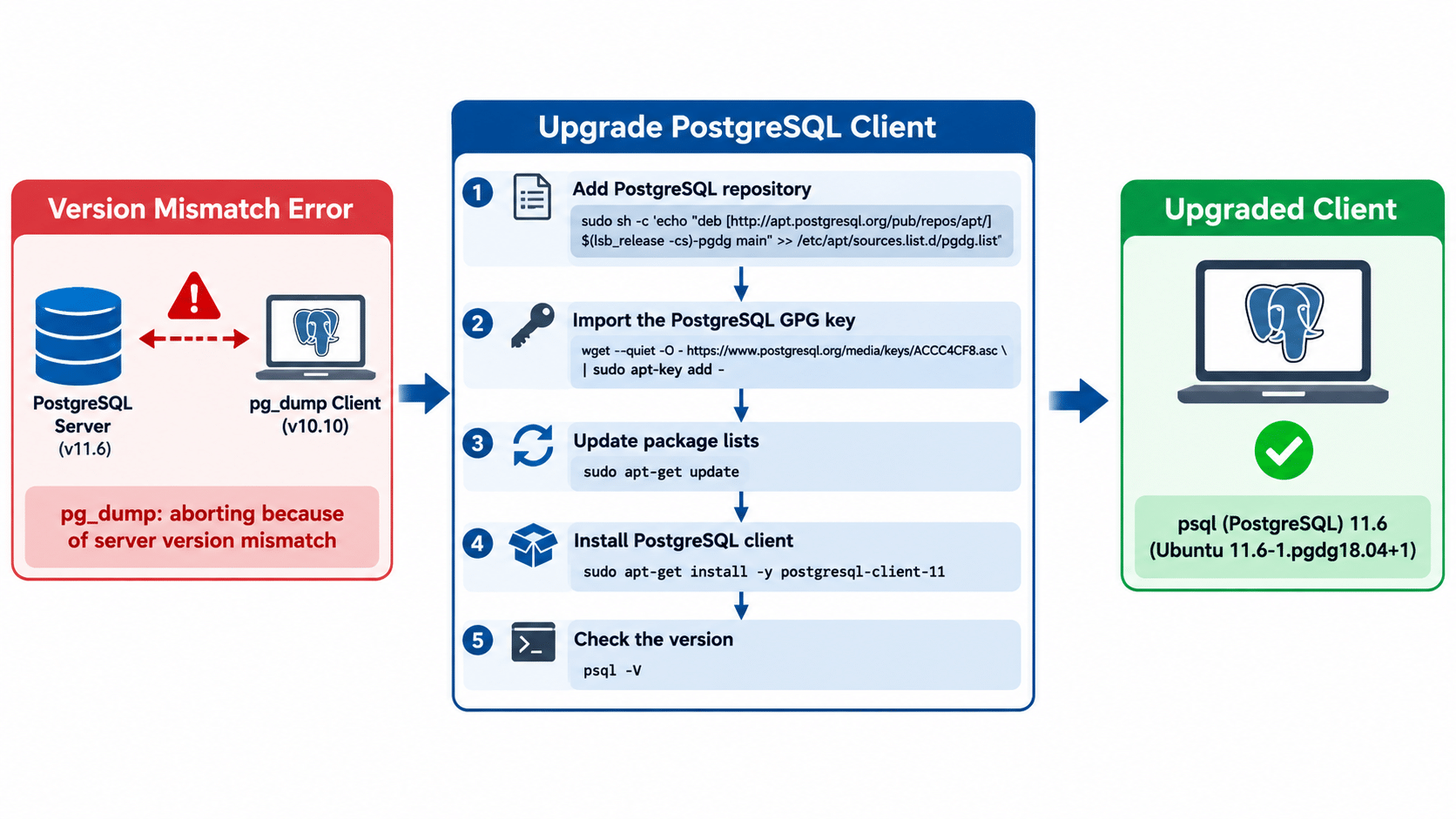
Steps to Fix the Server Version Mismatch in pg_dump
1. Confirm the Server Version Mismatch
Find the version of the client on your machine and the version of the server. Replace the connection details with your own:
pg_dump --version
psql -h db.example.com -U myuser -d mydb -c "SHOW server_version;"
The error shows the same numbers. In the example, the server is 11.6 and the client is 10.10. Only the major version matters here, because 11 is newer than 10. Minor versions such as 11.6 and 11.9 do not cause this error.
2. Choose the Client Version
Pick a client that is the same major version as the server, or newer. For a server on version 16, install client 16 or newer. The original guide installed client 11 because the server ran 11. Match your own server instead, and don’t copy that number. If you manage several servers, install the highest version you need, because one newer client can dump all the older ones.
3. Add the PGDG Apt Repository
The simplest way to fix the server version mismatch is the helper script that comes with the PostgreSQL packages:
sudo apt-get install -y postgresql-common
sudo /usr/share/postgresql-common/pgdg/apt.postgresql.org.sh
It adds the repository and its signing key for your release. If you prefer to do it by hand, use a keyring file instead of the deprecated apt-key:
sudo install -d /usr/share/postgresql-common/pgdg
sudo curl -o /usr/share/postgresql-common/pgdg/apt.postgresql.org.asc --fail https://www.postgresql.org/media/keys/ACCC4CF8.asc
sudo sh -c 'echo "deb [signed-by=/usr/share/postgresql-common/pgdg/apt.postgresql.org.asc] https://apt.postgresql.org/pub/repos/apt $(lsb_release -cs)-pgdg main" > /etc/apt/sources.list.d/pgdg.list'
Note: The original guide appended to
pgdg.listwith>>, which adds a duplicate line each time you run it. It also usedhttp://andapt-key add. Use>once,https://andsigned-byas shown above.
4. Install the Matching Client
sudo apt-get update
sudo apt-get install -y postgresql-client-16
Replace 16 with the version you chose in Step 2. The package installs pg_dump, psql and pg_restore for that version. Nothing else is installed, so no PostgreSQL server starts on your machine.
5. Check That the Right pg_dump Runs
pg_dump --version
which pg_dump
ls /usr/lib/postgresql/
You should see the new version, for example pg_dump (PostgreSQL) 16.x. On Debian and Ubuntu, pg_dump is a small wrapper that usually runs the newest installed client. If it still shows the old version, call the new one by its full path:
/usr/lib/postgresql/16/bin/pg_dump --version
The original guide checked the version with psql -V, which also works, because psql comes from the same package.
6. Run the Dump Again
Now that the server version mismatch is fixed, repeat the dump:
pg_dump -h db.example.com -U myuser -d mydb -F c -f mydb.dump
Check the result:
ls -lh mydb.dump
pg_restore -l mydb.dump | head
pg_restore -l lists the contents of the dump. If it prints table and data entries, the dump worked. Test the restore into a scratch database before you depend on it.
Note: If you cannot or don’t want to install packages, you can run the matching client in Docker:
docker run --rm postgres:16 pg_dump -h db.example.com -U myuser -d mydb > mydb.sql. Run the dump directly on the database server is another way, because it already has the right version.
Troubleshooting
If the server version mismatch error continues, match the message you see:
- “pg_dump: error: aborting because of server version mismatch”: The same error appears after a
pg_dumpfrom PostgreSQL 12 or newer, with the worderror:added. The fix is the same. Check Step 5, because an old client may still be the one that runs - “E: Unable to locate package postgresql-client-16”: The repository was not added, or
apt-get updatewas not run. Check/etc/apt/sources.list.d/pgdg.list, runsudo apt-get update, and check that your release is supported - “NO_PUBKEY 7FCC7D46ACCC4CF8” or “The following signatures couldn’t be verified”: The signing key is missing. Repeat the keyring step in Step 3
- “W: apt-key is deprecated”: You are using the old
apt-key addmethod. Switch tosigned-byin Step 3 - The old version still runs after installing the new client: Another
pg_dumpearlier in yourPATH, such as/usr/local/bin/pg_dump, wins. Runwhich pg_dump, or use the full path from Step 5 - “pg_dump: error: connection to server at “db.example.com” failed: FATAL: password authentication failed”: The version is now fine and the login is wrong. Check the user, password and
pg_hba.conf - “pg_dump: error: connection to server … failed: Connection timed out”: The network or firewall blocks port 5432. Check the security group and the server’s
listen_addresses - Your Ubuntu or Debian release is end of life: The main PGDG repository may no longer carry packages for it. Use
apt-archive.postgresql.org, run the dump in Docker, or upgrade the operating system - RHEL, AlmaLinux or Rocky Linux: The apt steps do not apply. Install the matching client from the PGDG yum repository with
dnf install postgresql16, and check the official repository page for the setup
Conclusion
To fix the server version mismatch, find the server’s major version, add the official PGDG repository, install a postgresql-client package of that version or newer, and confirm with pg_dump --version. Then run the dump again and check it with pg_restore -l. Never change the server to fit an old client. A newer client is safe, and it is the simplest way to keep your backups working after a server upgrade.
Frequently Asked Questions (FAQs)
What causes a server version mismatch in pg_dump?pg_dump is older than the PostgreSQL server it connects to. It stops, because an older tool cannot be sure it understands everything in a newer server.
Can I use a newer pg_dump than the server?
Yes. A client of the same version or newer than the server works. This is why you can use one new client for several older servers.
Does a different minor version cause this error?
No. Only the major version matters. Client 16.2 can dump a 16.8 server.
Do I need to upgrade the PostgreSQL server to fix it?
No. Upgrade only the client tools. You don’t need to change the server for this error.
How do I know which version my managed database runs?
Connect with psql and run SHOW server_version;, or check the version in your provider’s console (for example the Amazon RDS dashboard).
Related Articles
How to Delete Databases in Amazon RDS
How to Troubleshoot When Your Site Is Down on a Linux Server
Talk to Our Technology Experts
Database version mismatches can break backups, migrations, and deployments when you least expect it. At Pheonix Solutions, our team helps businesses manage PostgreSQL servers, automate database backups, plan safe upgrades, and maintain reliable application environments.
We can help you with:
- DevOps and cloud services for PostgreSQL setup, server configuration, backup automation, and cloud database management.
- Software maintenance and support to troubleshoot database errors, keep client and server versions aligned, and ensure smooth operations.
- Software development services to build and maintain applications that work reliably with your database stack.
Need help fixing pg_dump errors, upgrading PostgreSQL clients, or automating database backups? Talk to our DevOps and Cloud experts to discuss your requirements.