Introduction:
Remote MySQL allows external servers or applications to connect to your database hosted on cPanel. This is useful when your application is hosted on a different server than your database or when you need external access for development, reporting, or integration purposes.
This guide explains how to securely configure remote MySQL access using cPanel.
Prerequisites:
Before you begin, make sure you have:
- Access to your cPanel account
- Database already created in cPanel
- The remote server’s IP address or hostname
- Basic understanding of MySQL connections
- Firewall rules allowing MySQL port (3306) if required
Implementation:
Follow the steps below to enable remote MySQL access:
Step 1:
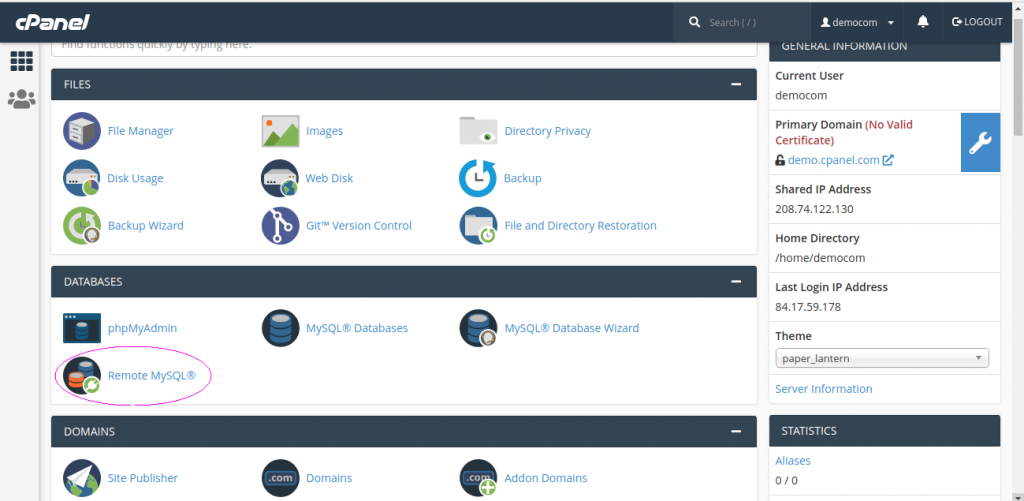
To access this remote MYSQL in cpanel, click on Remote MySQL link in your Database Section of your cPanel.
Step 2:
Add the access host:
To Add Access Host, which can access your databases when needed. You will have to enter Host Name in the input. You can enter hostnames in three ways.
- You can use Domain Name.
- You can use IP address.
- You can use wildcard %.
Click on Add Host to add an access host.
Step 3:
Remove Access Host
To delete access to a web application having access to the databases, click the Delete link from the list of Access host.
Conclusion:
Configuring Remote MySQL in cPanel is a simple and effective way to allow external applications to connect to your database. By properly managing access hosts and following security best practices, you can ensure safe and reliable remote database connectivity.