Introduction
Tracking email delivery is essential for diagnosing issues such as delayed, failed, or undelivered emails. cPanel provides a built-in Track Delivery feature that allows you to monitor the status of outgoing emails in real time.
This guide explains how to use the Track Delivery tool in cPanel to analyze email delivery status and troubleshoot issues effectively.
Prerequisites:
Before proceeding, ensure you have:
- Access to your cPanel account
- A configured email account in cPanel
- Basic understanding of email delivery statuses (Delivered, Deferred, Failed)
- Necessary permissions to access email logs
Implementation:
Follow the steps below to track email delivery:
STEP 1:
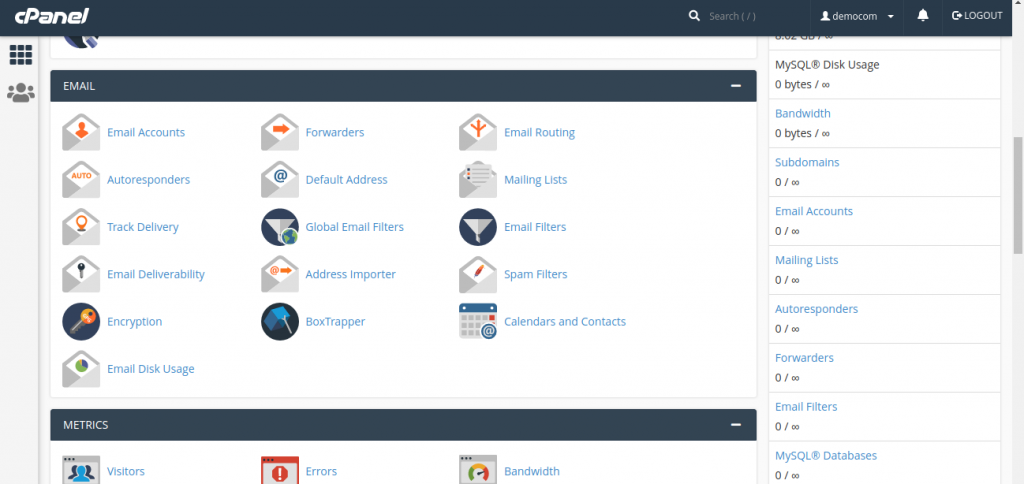
To track an email delivery, open cPanel Track Delivery by clicking on Track Delivery link found in the Email Section of cPanel.
STEP 2:
In track Delivery interface, you will see a table of email sending events.
If you wish to filter the table for a single recipient email, you may do so by entering a recipient’s email in Recipient Email, and then click Show All button to show the email related to a specific recipient. To view all emails again, remove the email from Recipient Email and Click Show All, it will again show all the records.
Types of filters are listed below,
Show Success – This will show all the emails that are successfully delivered to the destination.
Show In–Progress − This will show you all the emails, which are currently transmitting.
Show Deferred − This will show you all emails with a warning, which are the system deferred emails.
Show Failures − It will show you the emails, which are not delivered to the destination. It will also show any other errors during transmission of emails.
Emails & Description are listed below,
Event – This column shows icon of success, failure or deferred emails.
Sender – It shows the email address of email sender.
Sent time -It shows the date and time on which email was sent.
Spam score -It shows Apache Spamassassin spam score.
Recipient – It shows the email of recipient.
Results – it shows the error encountered by the system, while sending the email. It describes the delivery results.
Actions – An information Icon, which on clicking shows the details of the report.
STEP 3:
To view more information of an email delivery report, click information icon shown at the action column next to the corresponding report.
Conclusion:
The Track Delivery feature in cPanel is a powerful tool for monitoring and troubleshooting email delivery. It provides real-time insights into email status, helping you quickly identify and resolve issues.
By using this feature, you can:
- Diagnose email delivery problems efficiently
- Monitor outgoing mail activity
- Improve overall email reliability