Introduction
Forgetting your hosting account password is a common issue. Fortunately, cPanel provides a simple and secure way to reset your password using your registered email address. This guide walks you through the step-by-step process to regain access to your account.
Prerequisites
Before resetting your password, ensure the following:
- You know your cPanel username
- You have access to the registered contact email address
- Your domain is active and accessible
- Port 2083 is open and reachable
Steps to Reset cPanel Password
- Open cPanel Login Page
In your browser, navigate to:https://your-domain-name:2083/
(Replace “your-domain-name” with your actual domain name)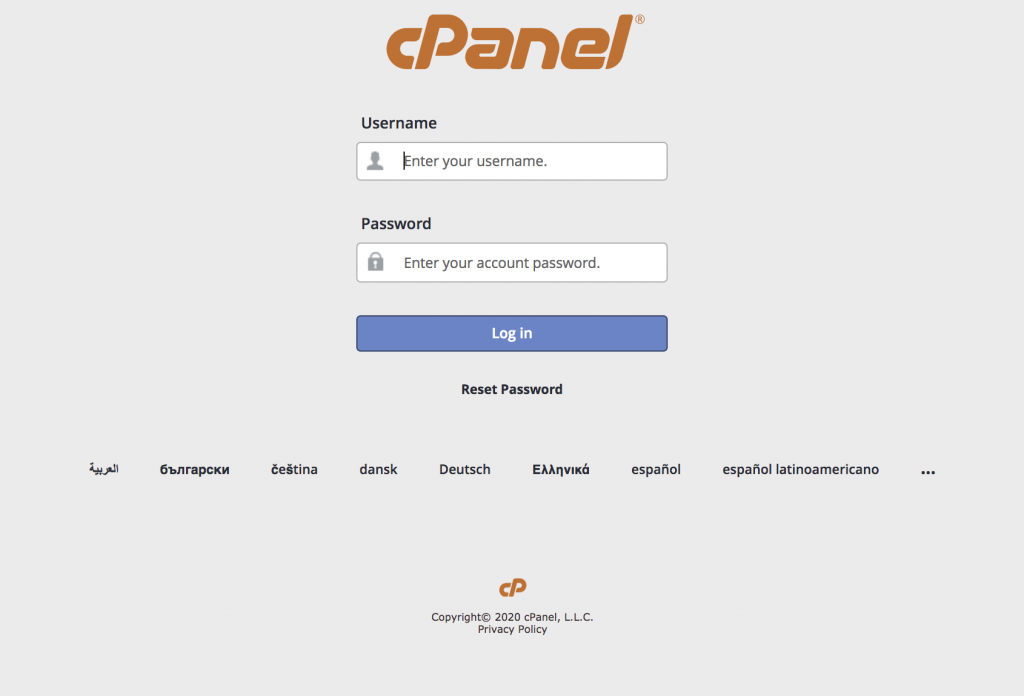
- Click on Reset Password
On the login page, select the Reset Password option. - Enter Username
Provide your cPanel username and click Reset Password.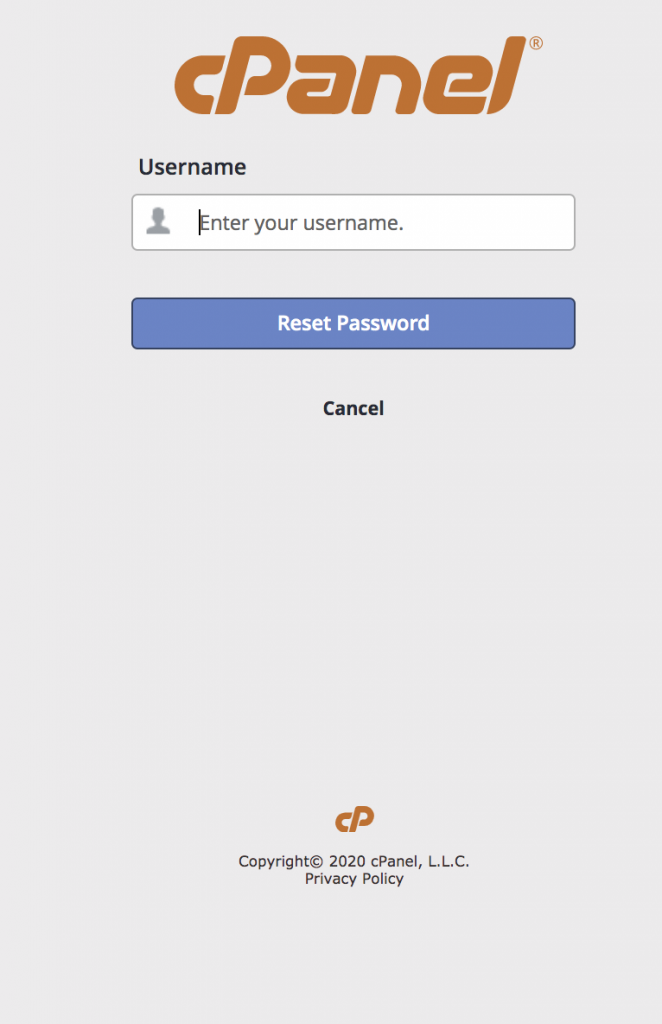
- Verify Email Address
Enter your contact email address and click Send Security Code.
You will receive a verification code via email.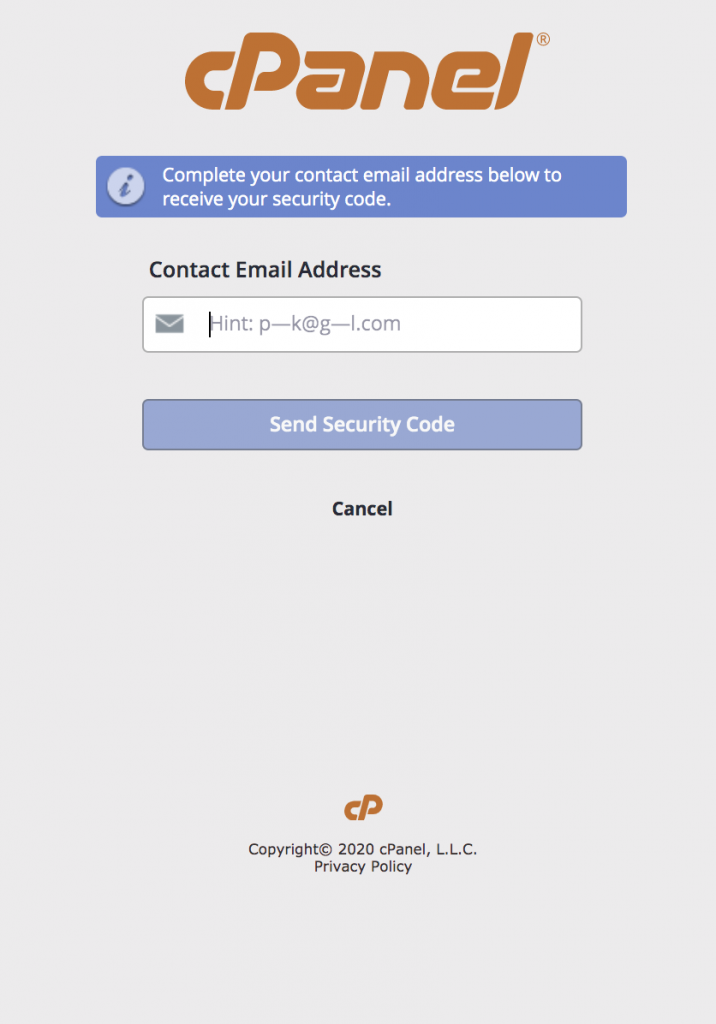
- Enter Security Code
Input the received code in the Security Code field and click Submit. - Set New Password
Enter your new password, confirm it, and click Set Password. - Login to cPanel
After resetting, click Log In and access your account using the new password.
Conclusion
Resetting your cPanel password is a quick and secure process when you have access to your registered email. Keeping your contact email updated and using a strong password ensures better account security and uninterrupted access.