Introduction
If you forget the administrator password for your WordPress website, you can reset it directly from the database using phpMyAdmin in cPanel.
Prerequisites
- Access to cPanel
- WordPress database details
- Administrative access to phpMyAdmin
Implementation
How to Change WordPress Admin Password in Database from cPanel
Step 1
- Log in to your cPanel account.
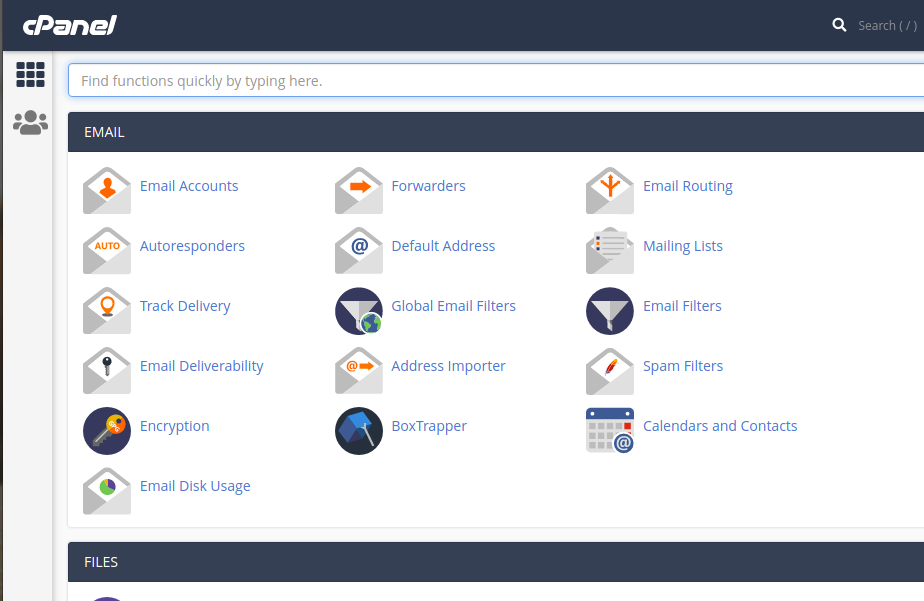
Step 2
- Search for phpMyAdmin in the search bar.
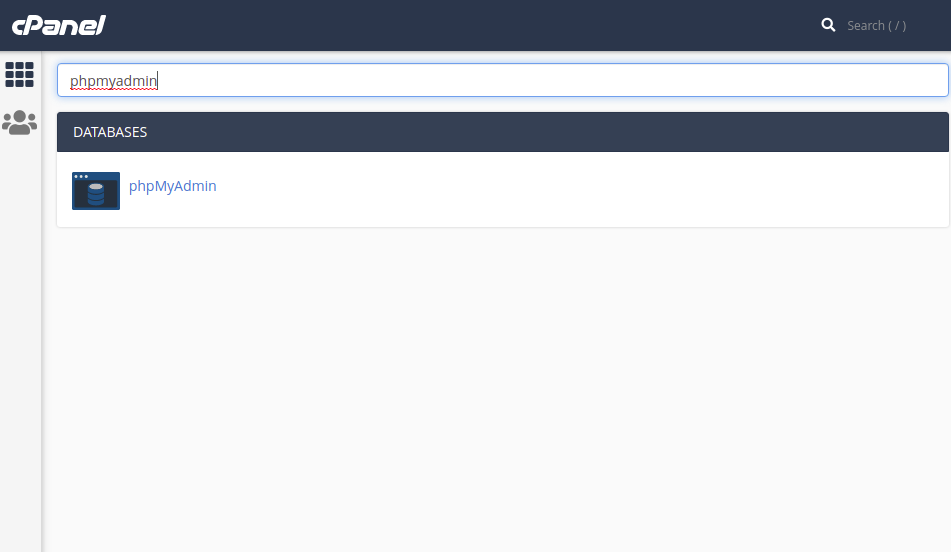
Step 3
- Click on phpMyAdmin.
- It will open a new webpage where all the databases are listed.
Step 4
- Select the WordPress database.
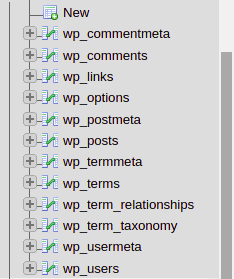
- You will now see all the database tables.
Step 5
Open the table:
- wp_users
- You will find all the users for that WordPress installation.
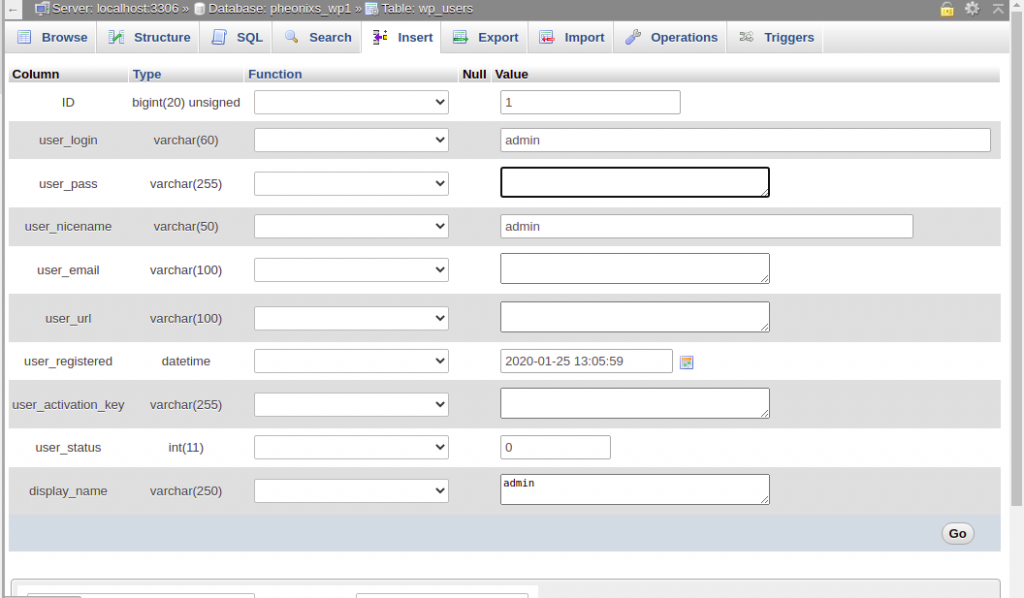
- Edit the required admin user account.
Step 6
In the user_pass row:
- Enter the new password
- Select MD5 from the function dropdown
Step 7
- Click Go or OK to save the changes.
- The WordPress admin password has now been updated successfully.
Conclusion
Using phpMyAdmin in cPanel, you can quickly reset the administrator password for your WordPress website directly from the database.