Introduction
The cPanel Transfer Tool allows administrators to migrate accounts and server configurations from one cPanel server to another with minimal manual intervention. In addition to transferring cPanel accounts, the tool can also copy selected server settings, making it easier to replicate configurations and reduce post-migration setup tasks. This guide explains the prerequisites and considerations for transferring server configurations between cPanel servers using the Transfer Tool.
Prerequisites
Before proceeding with the transfer, ensure the following requirements are met:
- Root access is available on both the source and destination cPanel servers.
- Both servers are running supported versions of cPanel & WHM.
- SSH access is enabled on the source server.
- The destination server can establish an SSH connection to the source server.
- The source server’s root password or SSH key authentication details are available.
- Adequate disk space is available on the destination server to accommodate transferred data and configurations
IMPLEMENTATION
Step1:
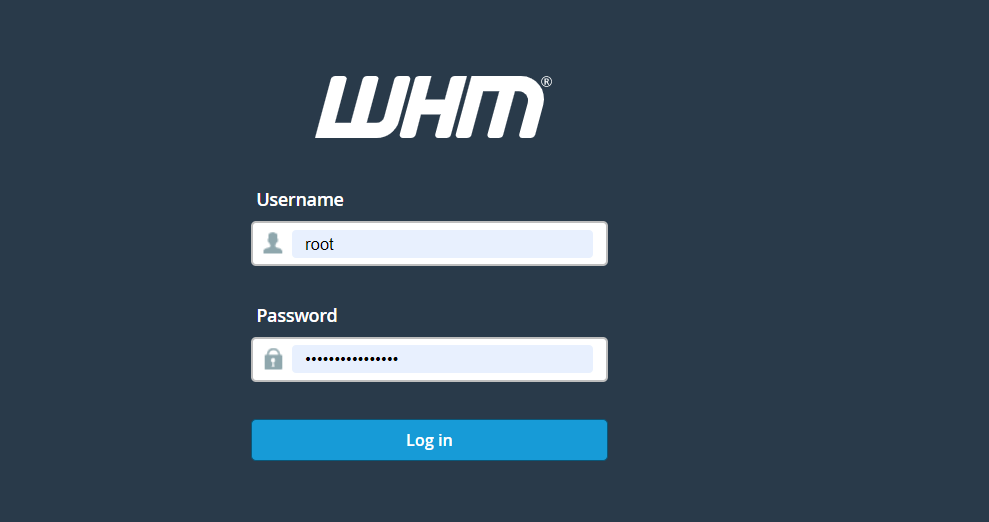
Log in to the Destination cPanel server via WHM as the root user.
Step2:
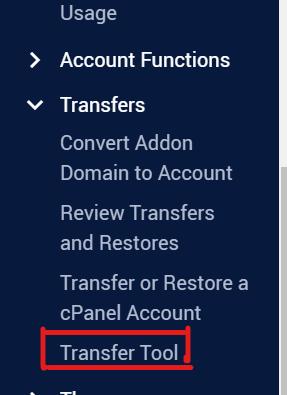
Navigate to: Home »Transfers »Transfer Tool
Step3:
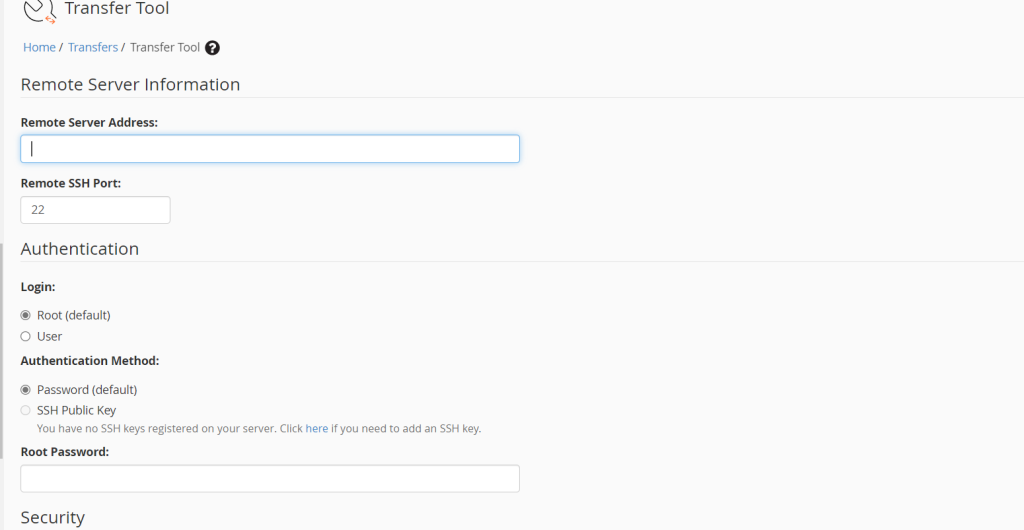
Enter the IP, ssh port, and login credentials for the root user of the Source server.
Step4:
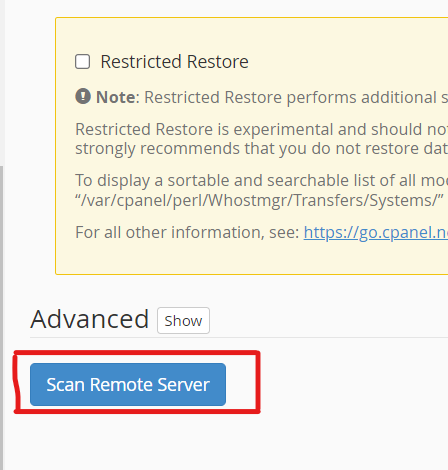
Click the blue “Scan remote server” button at the bottom of the page.
Step5:
At the top of the Accounts list, look for the “Service Configurations” tab and click on it
Step6:
Put a check next to the configurations that you would like to transfer from the source server to the destination server
Step7:
Click the blue Copy button.
Conclusion
Using the cPanel Transfer Tool simplifies the process of migrating server configurations and accounts between cPanel servers. By ensuring all prerequisites are met and verifying the transferred settings after the migration, administrators can minimize downtime and maintain a consistent server environment. Always perform post-transfer validation to confirm that services and configurations are functioning as expected on the destination server.