Introduction
Sometimes it becomes necessary to stop processes running under a specific user account, either for troubleshooting purposes or due to excessive resource usage. This guide explains how to identify, filter, and stop multiple processes belonging to a user from the command line.
Prerequisites
- SSH access to the server
- Appropriate privileges to view and terminate processes
- Basic familiarity with Linux command-line utilities such as ps, grep, awk, and kill
Implementation
Step 1: Find the Processes
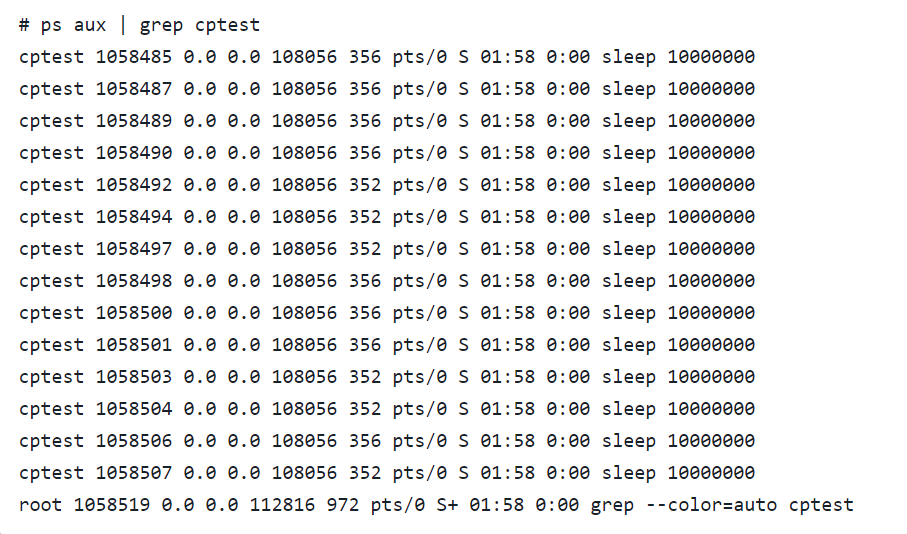
First, identify the processes you want to stop. The ps utility can list running processes, and grep can be used to filter the output. In this guide, the user cptest and the process sleep are used as examples.
Step 2: Remove the Search Query from the Results
You may notice an additional process in the output that does not belong to the user. This is the search query itself. If left in the results, it may generate a warning later when attempting to stop the process.

To avoid this, format the first search by surrounding the query in single quotes and placing the first letter inside square brackets.

Step 3: Apply Additional Filters
You can further narrow down the results to target a specific process running under the user account.
As you can see, the special formatting is not needed for subsequent filters.
The kill utility uses the Process Identifier, or PID, to identify what processes it is going to stop. You can use awk to filter for it from the second column:

Step 4: Identify the Process IDs (PID)
The kill utility uses the Process Identifier (PID) to determine which processes should be terminated.
You can use awk to extract the PID values from the second column of the command output.

You can use the following syntax to place the output of a command in-line with the arguments for another command:

Step 5: Pass the PID List to the Kill Utility
Command substitution can be used to pass the output of one command directly as an argument to another command.
Using this method, the PID list can be passed directly to the kill utility to terminate the matching processes.

Step 6: Verify the Processes Have Stopped
After executing the kill command, check the process list again to verify that the processes are no longer running.
If no matching processes are displayed, the processes have been successfully terminated.

Conclusion
By combining the ps, grep, awk, and kill utilities, you can efficiently identify and stop multiple processes running under a specific user account. This method is useful for troubleshooting issues and managing excessive resource consumption on a server.