Introduction
SMTP2GO is a reliable and scalable SMTP email delivery service used for sending transactional emails, marketing emails, website contact form emails, and application-based emails. In a WHM/cPanel hosting server, SMTP2GO can be configured as an external SMTP relay through Exim.
By configuring SMTP2GO in WHM, outgoing emails from the hosting server will be routed through SMTP2GO instead of the local mail server. This helps improve email deliverability, reduce mail rejection issues, avoid spam-related problems, and provide better email tracking through the SMTP2GO dashboard.
This guide explains how to configure SMTP2GO with a WHM/cPanel hosting server using the Exim Configuration Manager.
Prerequisites
Before starting the SMTP2GO configuration in WHM, make sure you have the following details:
- WHM root login access.
- Active SMTP2GO account.
- SMTP2GO SMTP username and password.
- Access to Exim Configuration Manager in WHM.
- A verified sender domain or sender email address in SMTP2GO.
- Basic knowledge of WHM/cPanel email settings.
- Backup of the current Exim configuration before making any changes.
Implementation Steps
Step 1: Log in to WHM
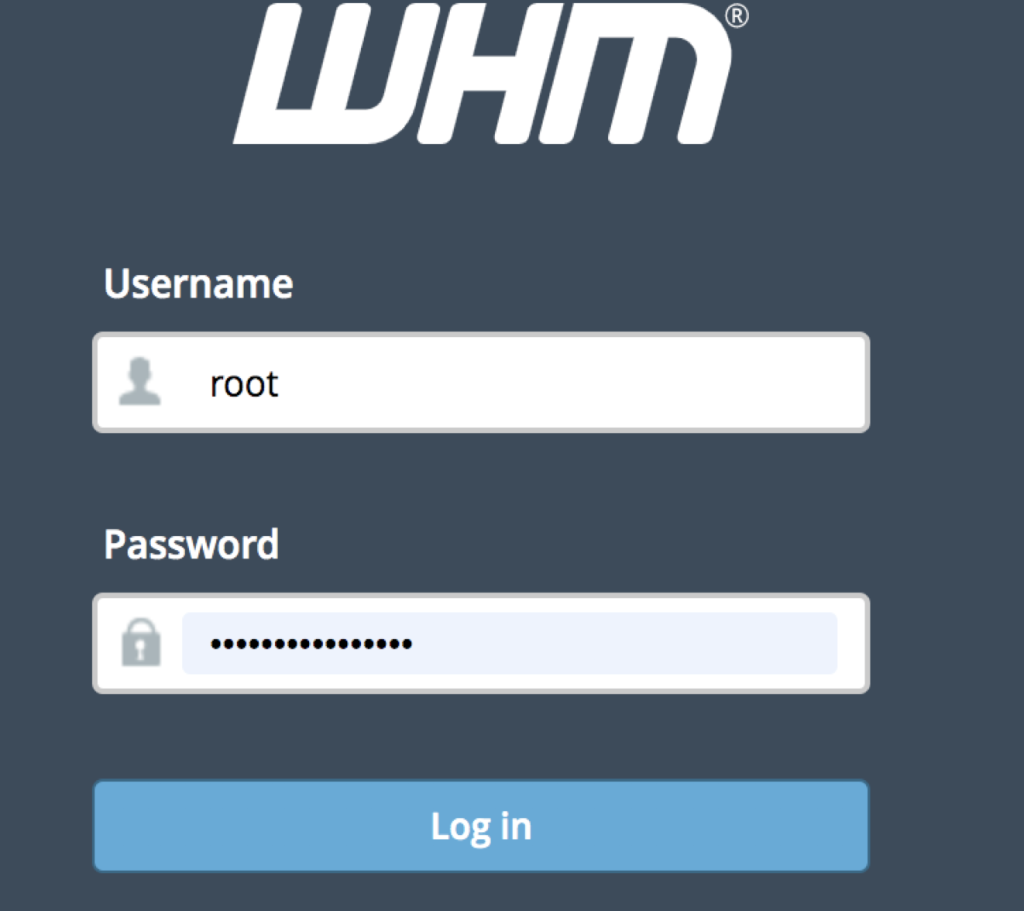
Log in to your WHM panel using the root login credentials.
Step 2: Open Exim Configuration Manager
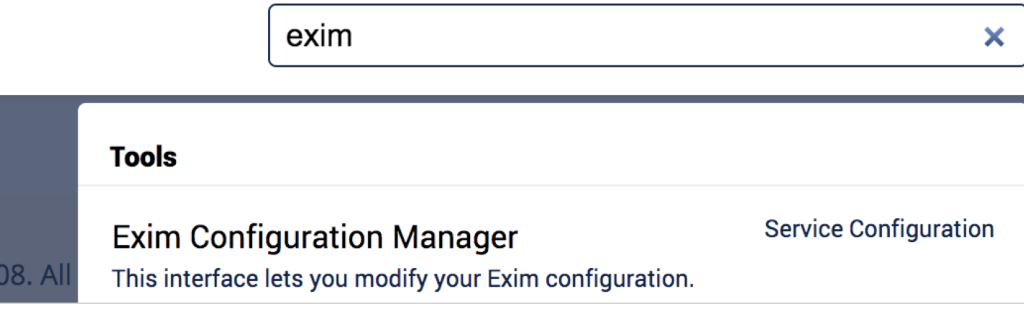
In the WHM search bar, search for Exim Configuration Manager and open it.
Step 3: Go to Advanced Editor
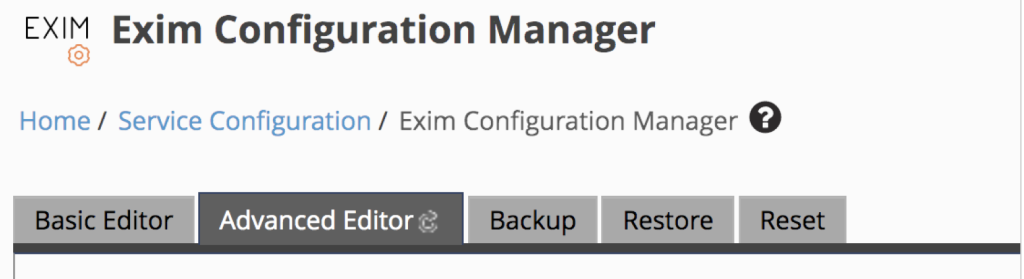
Click on the Advanced Editor tab.
Step 4: Add SMTP2GO Authentication Details
Go to the AUTH section and add the following code:
smtp2go_login:
driver = plaintext
public_name = LOGIN
client_send = : USERNAME : PASSWORD
Replace USERNAME and PASSWORD with your SMTP2GO SMTP username and password.
Step 5: Add SMTP2GO Router Configuration
Go to the ROUTERSTART section and add the following code:
send_via_smtp2go:
driver = manualroute
domains = ! +local_domains
transport = smtp2go_smtp
route_list = * mail.smtp2go.com
host_find_failed = defer
no_more
This configuration routes outgoing emails for non-local domains through SMTP2GO.
Step 6: Add SMTP2GO Transport Configuration
Go to the TRANSPORTSTART section and add the following code:
smtp2go_smtp:
driver = smtp
port = 25
hosts = mail.smtp2go.com
hosts_require_auth = <; $host_address
message_linelength_limit = 99999999
This defines the SMTP2GO SMTP transport method for Exim.
Step 7: Save the Configuration
Click the Save button. WHM will automatically rebuild the Exim configuration and restart Exim.
Step 8: Restart Exim Manually if Required
If Exim does not restart automatically, restart it manually using the below command:
/etc/init.d/exim restart
Or use:
systemctl restart exim
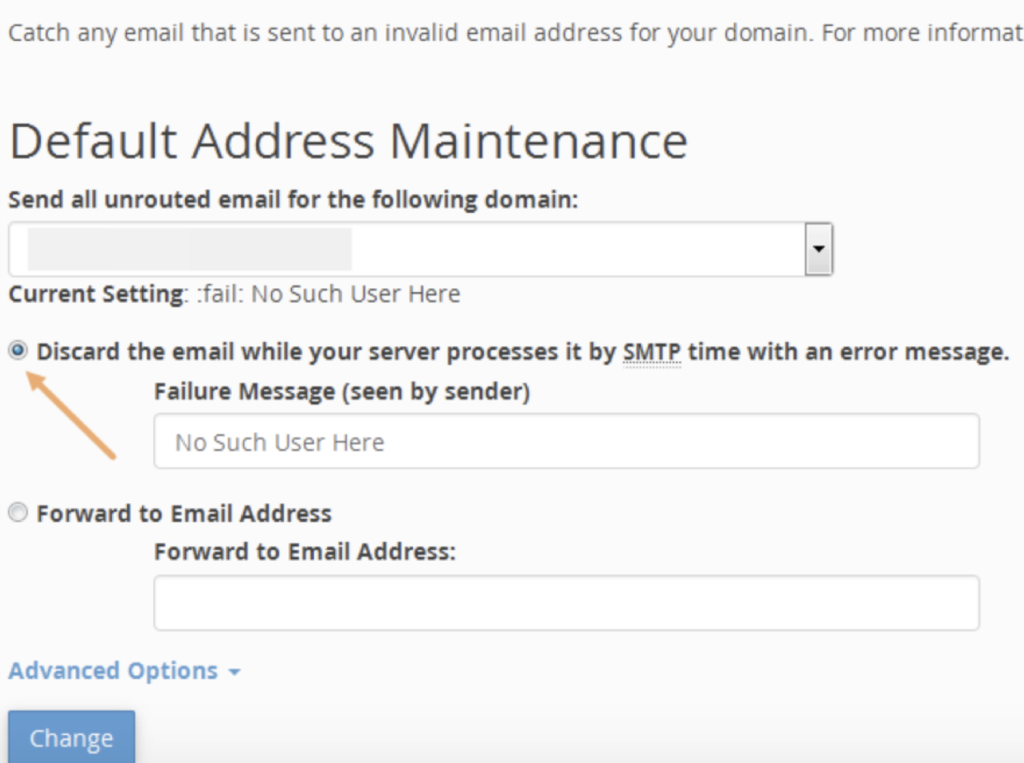
Step 9: Configure Default Address in cPanel
The default cPanel/WHM Exim setup may accept emails sent to non-existing email addresses and later generate bounce messages. This can cause backscatter spam.
To prevent this, go to:
cPanel → Email → Default Address
Step 10: Enable the Discard Option
Select the option:
Discard the email while your server processes it by SMTP time with an error message
Then click Change.
This helps prevent unwanted bounce emails and backscatter spam from your hosting server.
Step 11: Send a Test Email
After completing the SMTP2GO configuration, send a test email from any hosted domain or website contact form.
You can verify the email delivery status from the SMTP2GO dashboard.
Step 12: Verify Exim Mail Logs
You can also check the Exim mail logs to confirm that emails are routed through SMTP2GO:
tail -f /var/log/exim_mainlog
Check whether the outgoing email is connecting to mail.smtp2go.com.
Conclusion
SMTP2GO has now been successfully configured as the outgoing SMTP relay for the WHM/cPanel hosting server. Once the Exim configuration is saved and restarted, all outgoing emails from the server will be routed through SMTP2GO.
Using SMTP2GO with WHM helps improve email deliverability, reduce email rejection issues, track outgoing emails, and avoid common SMTP problems on shared hosting and cPanel servers.
After completing the setup, always send a test email and verify the delivery status from the SMTP2GO dashboard. Also, ensure that the Default Address option is configured properly in cPanel to prevent backscatter spam and unwanted bounce emails.