Introduction
The IP Blocker feature in cPanel is used to block access from a specific IP address or domain name. Once an IP address is blocked, users from that IP will not be able to access the website or application hosted under the cPanel account.
This option is useful when you want to restrict suspicious traffic, unwanted visitors, repeated failed login attempts, or abusive requests from a particular IP address.
Prerequisites
Before proceeding, make sure you have:
- Valid cPanel login credentials.
- The IP address or domain name that needs to be blocked.
- Access permission to manage the hosting account.
- Confirmation that the IP address should be blocked, as legitimate users from that IP may also lose access.
Steps to Deny Access from a Specific IP Address
Step 1: Login to cPanel
Login to your cPanel account using the valid username and password.
Example:
https://yourdomain.com/cpanel
or
https://server-ip:2083

Step 2: Open IP Blocker
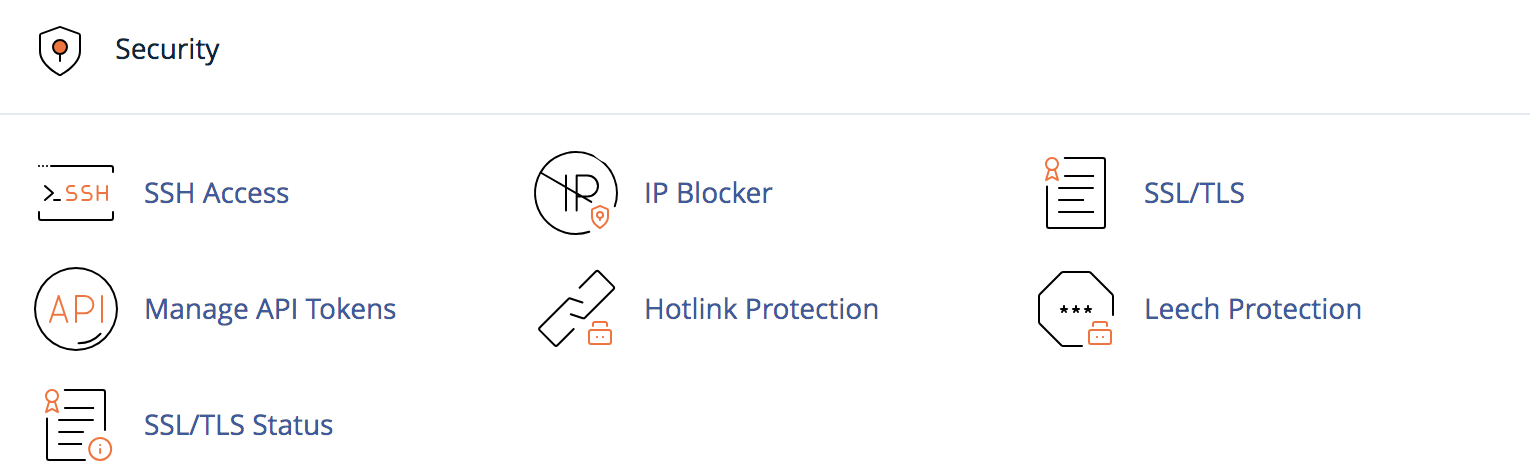
After logging in to cPanel, go to the Security section.
Click on IP Blocker.
Step 3: Enter the IP Address or Domain Name
In the IP Blocker page, enter the IP address or domain name that you want to block.
Example:
192.168.1.100
You can also enter a domain name, and cPanel will resolve it to the corresponding IP address.

Step 4: Add the IP Address to the Block List
Click on the Add button.
cPanel will add the IP address to the blocked list. After this, requests from the blocked IP address will be denied access to the website.
Step 5: Verify the Blocked IP
After adding the IP address, scroll down to the blocked IP list and confirm that the IP address has been added successfully.
If required, you can remove the IP address later from the same page.
Conclusion
Blocking a specific IP address in cPanel helps prevent unwanted or suspicious access to your website or application. This can be done easily using the IP Blocker option under the Security section.
However, before blocking an IP address, make sure it is not being used by legitimate users, as blocking it will deny access to all requests coming from that IP address.