Introduction
cPanel login notifications are sent to the email address associated with a cPanel account when someone logs in to that account. The system only sends one notification every 24 hours for a specific username, IP address, and service combination
Prerequisite
- cPanel access
Implementation
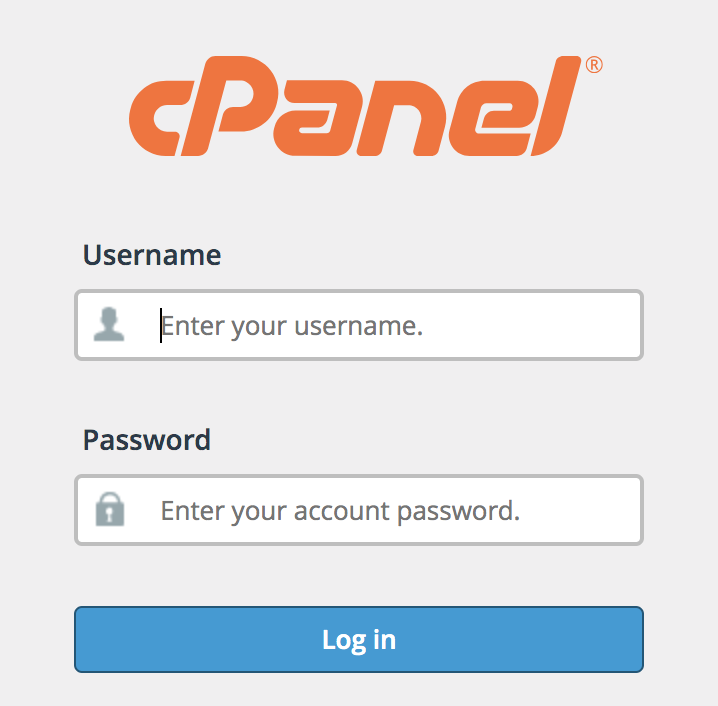
Step 1: Log into the cPanel for which login notifications need to enable
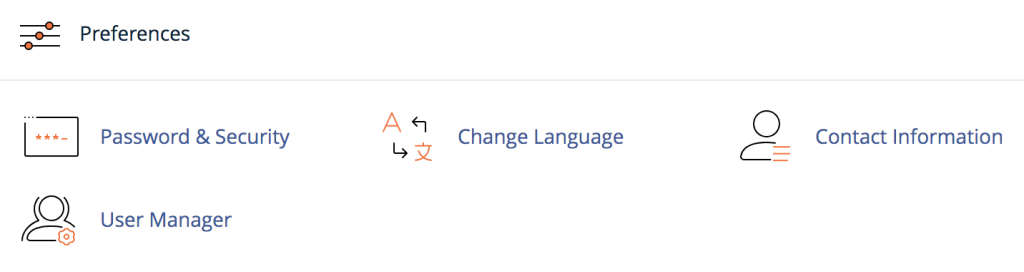
Step 2: Navigate to Preferences >> Contact Information
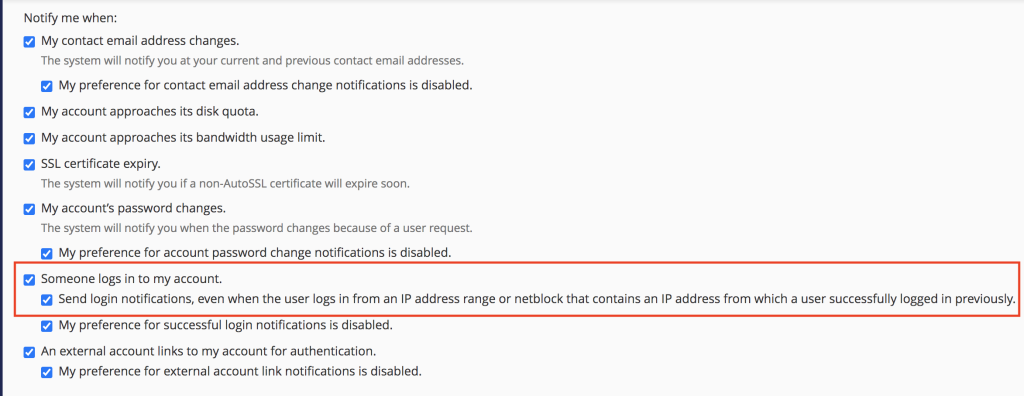
Step 3: Under Contact Preferences, enable the option “Someone logs in to my account” and to notify all login attempts, enable the suboption also “Send login notifications, even when the user logs in from an IP address range or netblock that contains an IP address from which a user successfully logged in previously.”
Step 4: Click on Save to apply the changes
Note:
1. To receive notifications for account logins, the cPHulk Brute Force Protection service needs to be enabled on the serve
2. If you are not receiving the expected notification, ensure the IP address accessing the cPanel interface is not whitelisted in cPHulk’s whitelist or included under a cPHulk country whitelist.
Conclusion
Enabling cPanel login notifications helps improve account security by alerting users whenever someone logs in to their cPanel account. These notifications allow users to monitor account access and quickly identify any unauthorized login attempts. To ensure notifications are received as expected, verify that cPHulk Brute Force Protection is enabled and that the accessing IP address is not whitelisted in cPHulk.