Introduction:
Changing the login theme for WHM (Web Host Manager) can help create a more personalized and branded experience for users accessing your server management interface. Customizing the login page not only enhances the visual appeal but can also improve usability and security by incorporating your brand’s look and feel.
Prerequisites
- Root access to WHM
- A valid WHM login theme package to upload
- Administrative privileges to manage WHM themes
- Sufficient permissions to modify the Default Login Theme setting in WHM
Introduction:
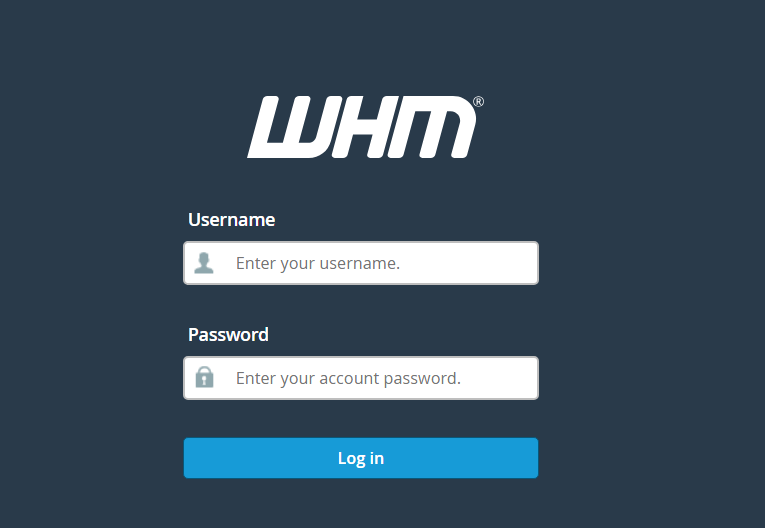
Step 1: Log in to WHM.
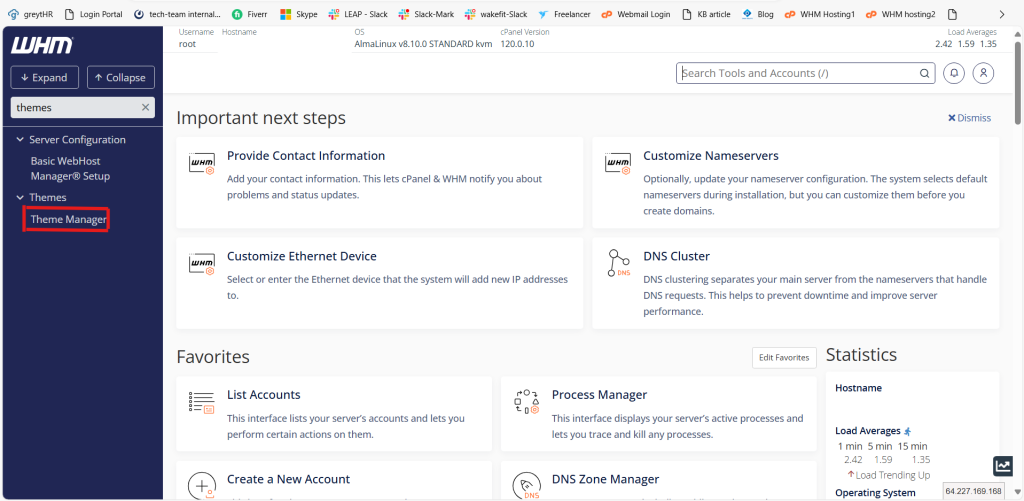
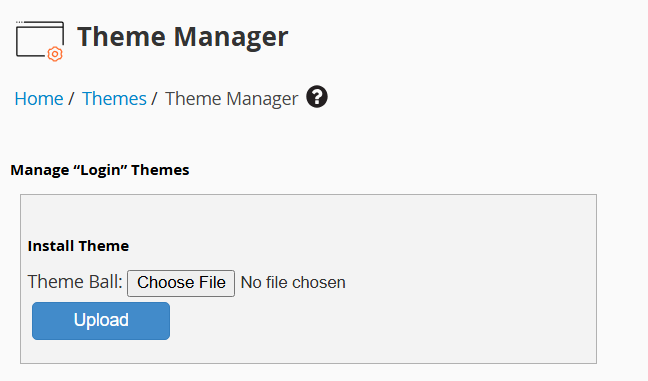
Step 2: Navigate to “WHM > Themes > Theme Manager.“
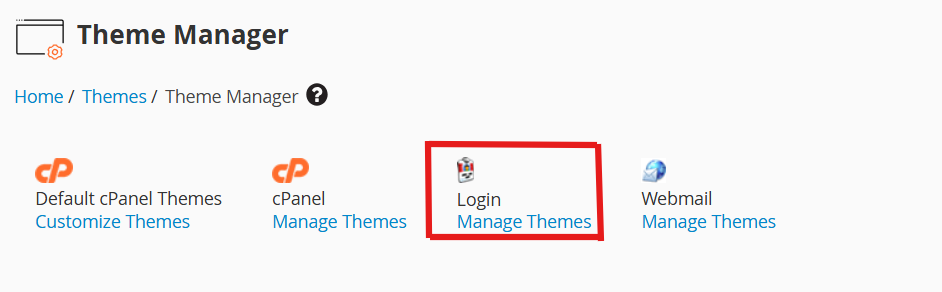
Step 3: Click “Login.”
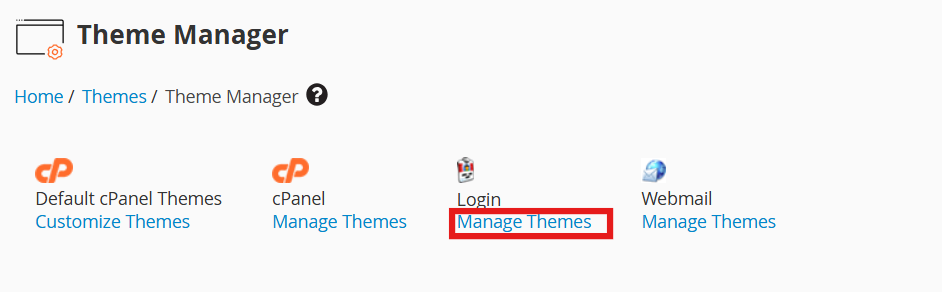
Step 4: Click “Manage Themes.“
Step 5: Under the “Install Theme” heading, click “Choose File.“
Step 6: Select the new theme’s file.
Step 7: Click “Upload.“
Step 8: Navigate to “WHM > Server Configuration > Tweak Settings.“
Step 9: Find the option for “Default login theme.“
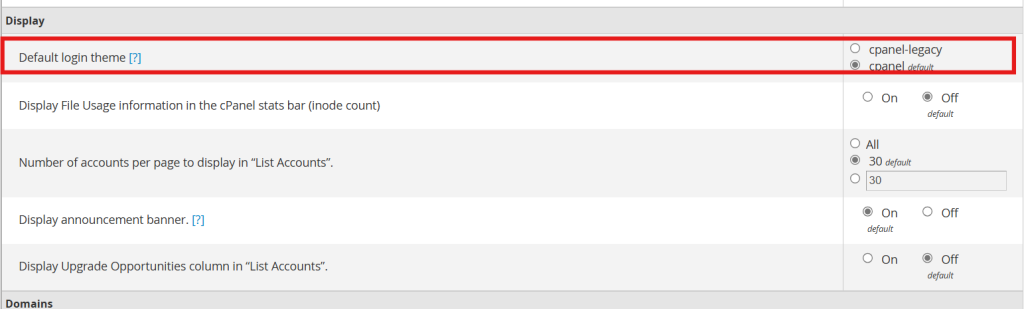
Step 10: Adjust it to reflect the newly uploaded theme.
Step 11: Save your changes.
Step 12: Log out and view the updated theme
Conclusion:
Customizing the WHM login theme is a straightforward process that can significantly enhance the user experience by incorporating your brand’s identity into the server management interface.