Introduction:
WHM (Web Host Manager) is a powerful tool that allows administrators to manage their web hosting server efficiently. Among its many features is the ability to reboot a VPS (Virtual Private Server) or a dedicated server remotely. Rebooting a server can be necessary for various reasons, such as applying system updates, resolving performance issues, or troubleshooting system errors.
Prerequisites:
- Root or administrator access to WHM
- A running VPS or dedicated server
- Permission to perform server reboot operations
- Ensure that all critical tasks and services are completed or safely stopped before initiating the reboot to prevent data loss
Implementation:
Step 1:
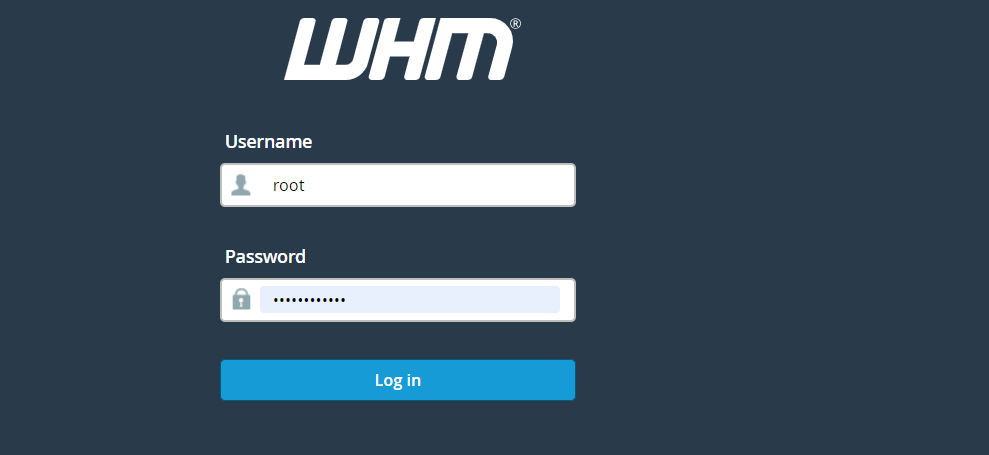
Log in to your WHM account using your administrator credentials.
Step 2:
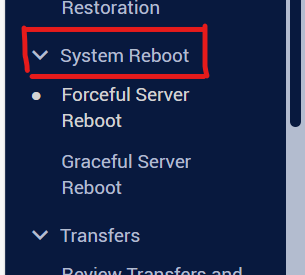
Once logged in, navigate to the “Home” section or use the search bar to find the “System Reboot” option.
Step 3:
Under the “Restart Services” menu, you’ll find an option to “Graceful Server Reboot” or “Forceful Server Reboot.” Select the appropriate option based on your requirements.
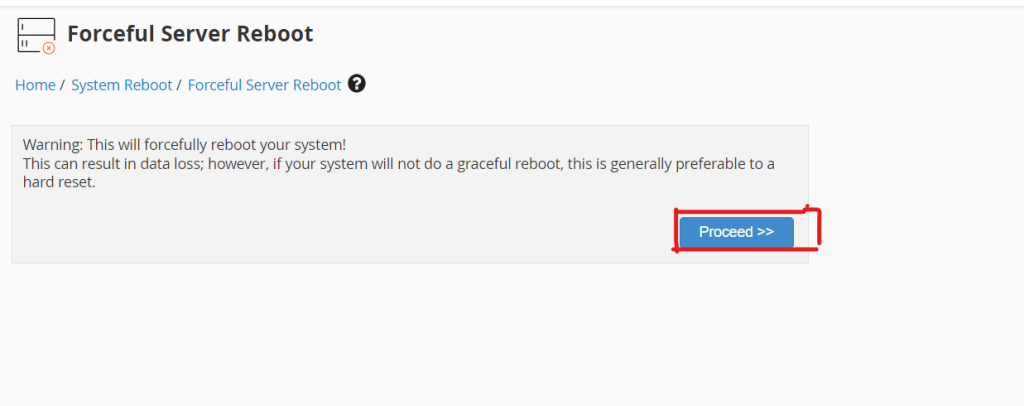
Forceful Server Reboot – this option will forcefully reboot your system and can cause data loss. Graceful Server Reboot – this option will reboot the system without data loss, as the reboot will be queued. All the services will be stopped, normally allowing current operations to finish.
Step 4:
Once you select the preferred option, click the Proceed button:
Conclusion:
Rebooting a VPS or dedicated server through WHM is a straightforward process that can be performed remotely, providing administrators with a convenient way to manage their server infrastructure. Whether it’s for routine maintenance, troubleshooting, or applying updates, WHM offers the necessary tools to ensure a smooth reboot experience.