Introduction
cPanel provides a simple and effective way to monitor disk space usage for your hosting account. The Disk Usage feature helps you understand how your storage is being utilised across directories, emails, and databases.
Prerequisites
Before proceeding, ensure the following:
- You have valid cPanel login credentials
- Access to your hosting account
- Basic understanding of cPanel interface
Implementation
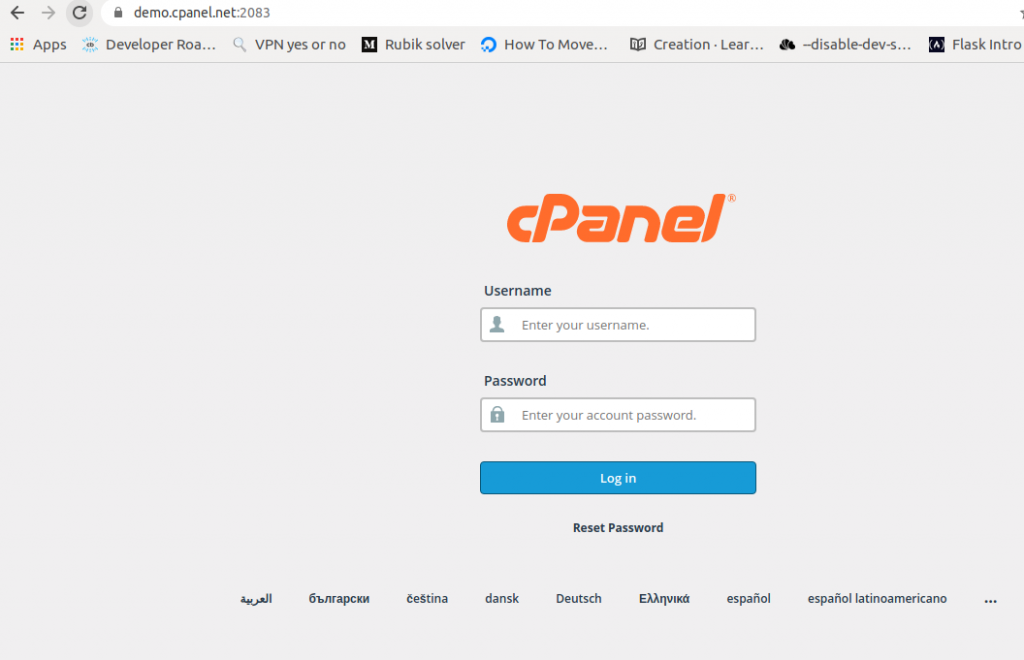
Step 1: Login to cPanel
Access your cPanel account using your credentials.
Step 2: Open Disk Usage
- Navigate to the Files section
- Click on Disk Usage
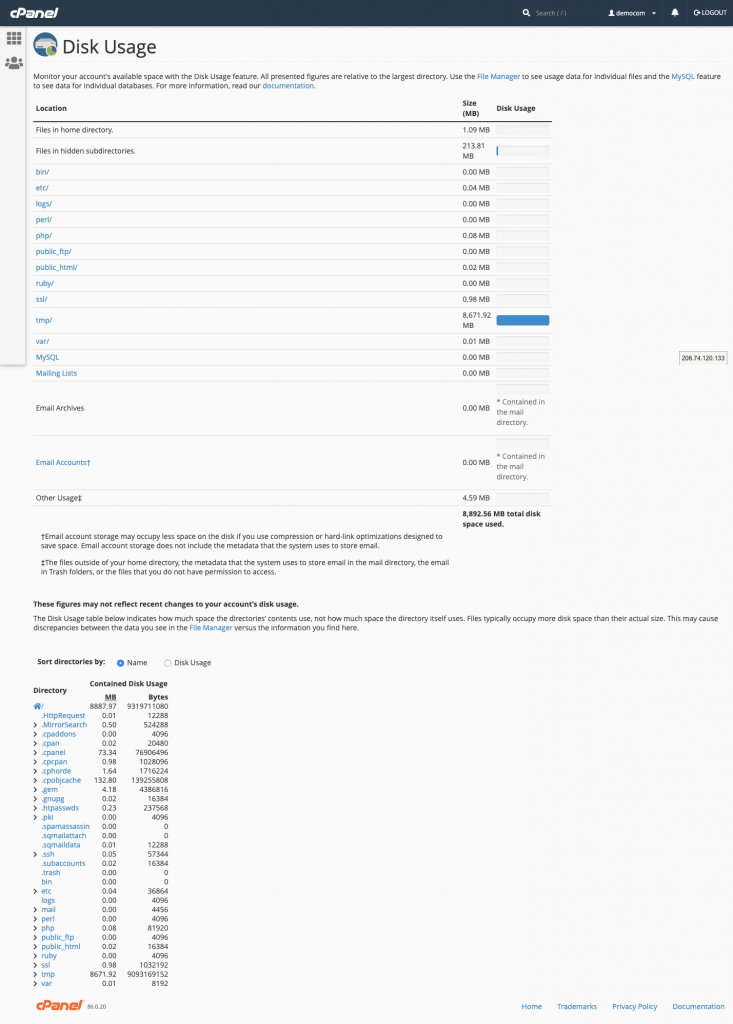
Step 3: Understand Disk Usage Overview
The Disk Usage interface provides detailed insights into how your storage is distributed.
Table 1: Summary of Disk Usage
Displays disk space used by:
- Main directories (home directory and subdirectories)
- MySQL databases
- Email accounts
- Mailing lists and other features
Table 2: Directory Structure
- Shows a hierarchical view of all directories (including hidden folders)
- Click the arrow icon to expand a directory and view its subdirectories
- Clicking on a directory name will open it in the File Manager
Notes
- Disk Usage shows directory-level usage, not individual file sizes
- Hidden files and folders are also included in the calculation
- Useful for identifying large folders consuming space
Conclusion
The Disk Usage feature in cPanel is a valuable tool for monitoring and managing your hosting storage. By regularly checking this section, you can identify space-consuming directories and maintain optimal disk usage for your account.